
Follow the steps below to process transactions in the Adyen NYC1 device:
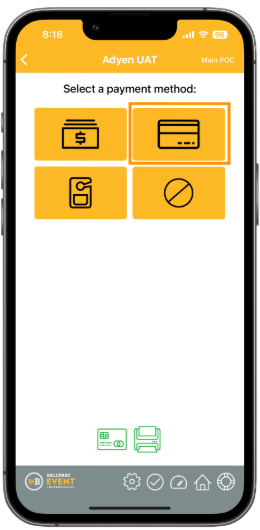
- On the payment type selection screen, tap the button with the credit card icon to start the payment.
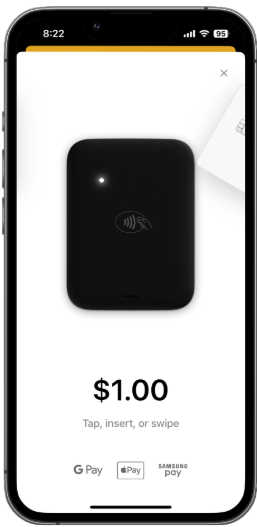
- Present the card to the reader.
- If the card has a contactless symbol or a physical chip, start by either tapping the card to the contactless symbol on the reader or inserting the card into the reader.
- A customer can also tap their phone with Apple Pay, Google Pay, or Samsung Pay.
- Swipe the card only if none of these options are available or if the app instructs you to swipe the card.
- To go back to the payment type selection screen (for example, to process a cash transaction or barcode), tap the close button at the top right of the screen.
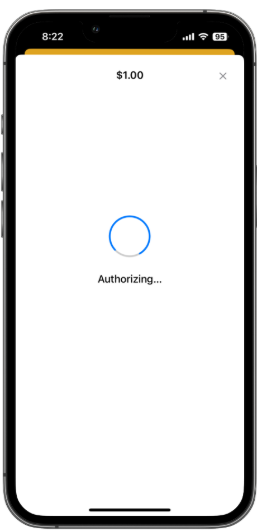
- When you hear a beep, remove the card from the reader. The system will display an Authorizing… message while the card is being processed.
- Once Adyen completes authorization, the app will display the payment status—approved or declined. No action is required; the app will automatically complete the transaction. > The app will show the final transaction status.
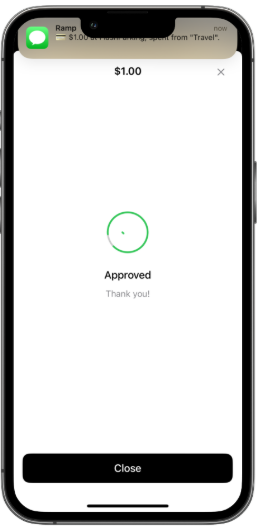

- If the transaction was successful, a green alert is displayed. If the location is configured to print receipts and a printer is connected, the transaction receipt will automatically print.
- If the transaction was unsuccessful, a red alert is displayed. If available, the reason for the transaction decline will be displayed.
Tap Continue to return to the payment type selection and begin a new transaction.