
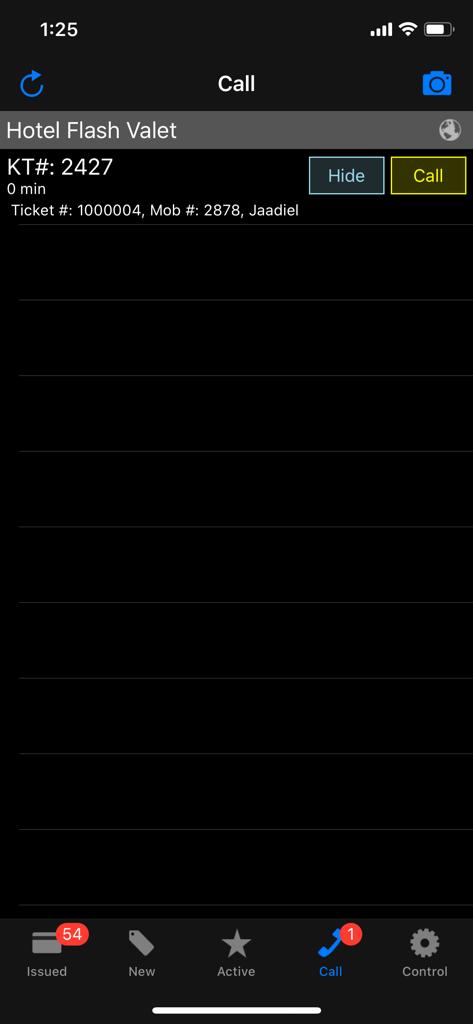
The IVR (Interactive Voice Response) feature, allows Flash Valet app users can initiate a call from the Flash Valet app to notify customers that their vehicle is ready to be picked up. When the customer answers the call, a recording will play requesting they pick up their requested vehicle. This feature is typically used as the last chance for the customer to pick up their vehicle (that they requested) before it is reparked.
Requirements #
- Dedicated Phone Number
- Use IVR flag checked
- Flash Valet app access
Portal Configuration #
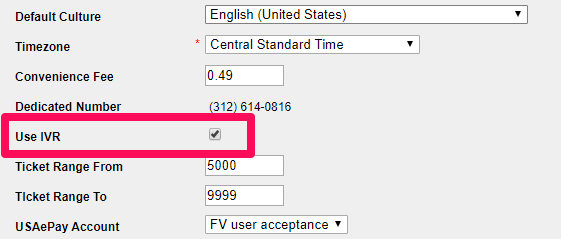
For this feature to work, you need to enable the Use IVR flag in the Flash Admin portal found on the Location Details page.
The location also must have a Dedicated Number assigned in order to use the SMS Vehicle Request feature in general.
IVR Message Editing #
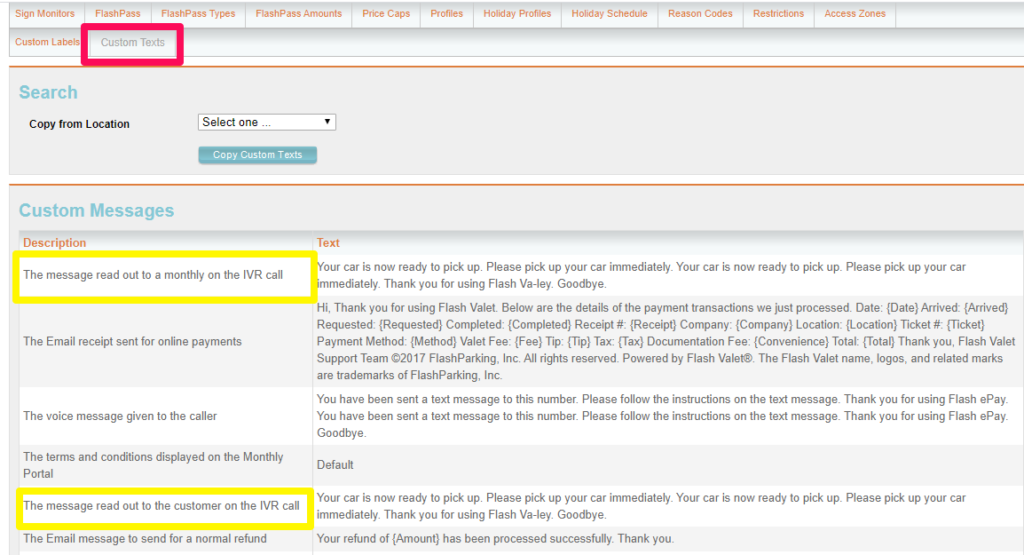
The message that the IVR reads to the customers can be edited to adjust it to the location’s operation. Maybe they don’t have a valet stand, or they rather have customers pick up their vehicles at a specific spot.
Select the Custom Texts tab in the portal to edit the message the IVR reads to the customers.
Access to edit the IVR messaging is only available to Flash Monitor accounts.
How Does it Work? #
- Customers initiate an SMS vehicle request to have the IVR Call option. If the app users manually pull the ticket, the system understands the customer has walked up to the valet stand and skips the prompt to contact the customer.
- Once the SMS vehicle request is accepted, the ticket moves to the Active tab.
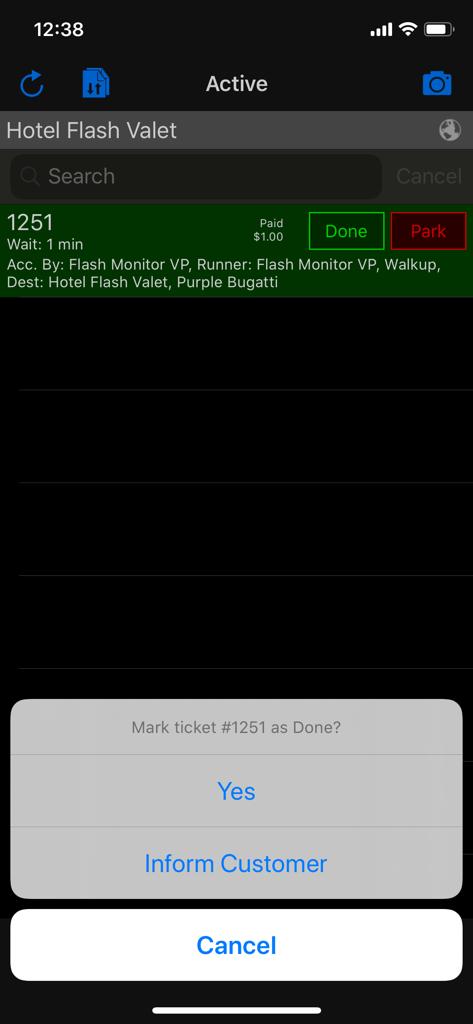
- While on the Active tab, tap Done and select the “Inform customer” option from the menu prompt. This will move the ticket to the Call tab. This will automatically send a SMS message to the customer, informing them their vehicle is ready and to pick up within 5 minutes.
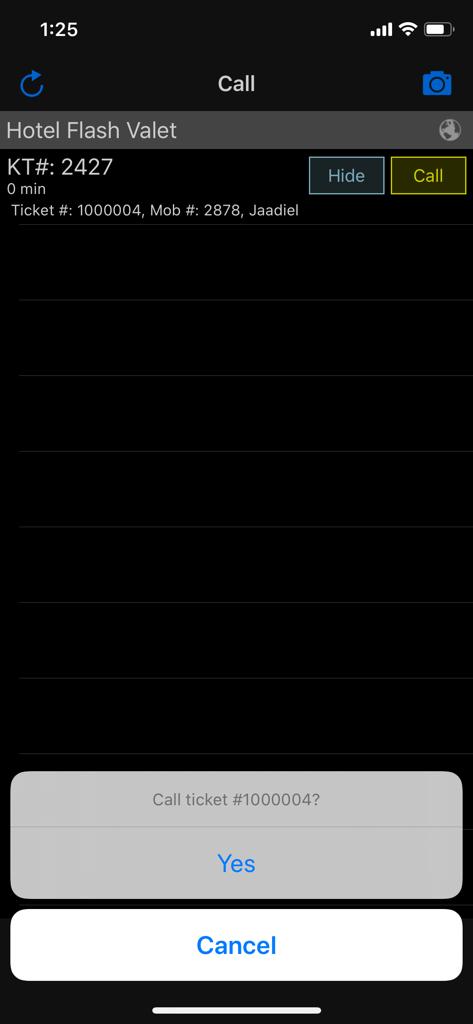
- If the customer does not show up, the Call option can be pressed to notify them again their vehicle is ready. This time the customer’s phone will ring, and the recording will play the IVR message.
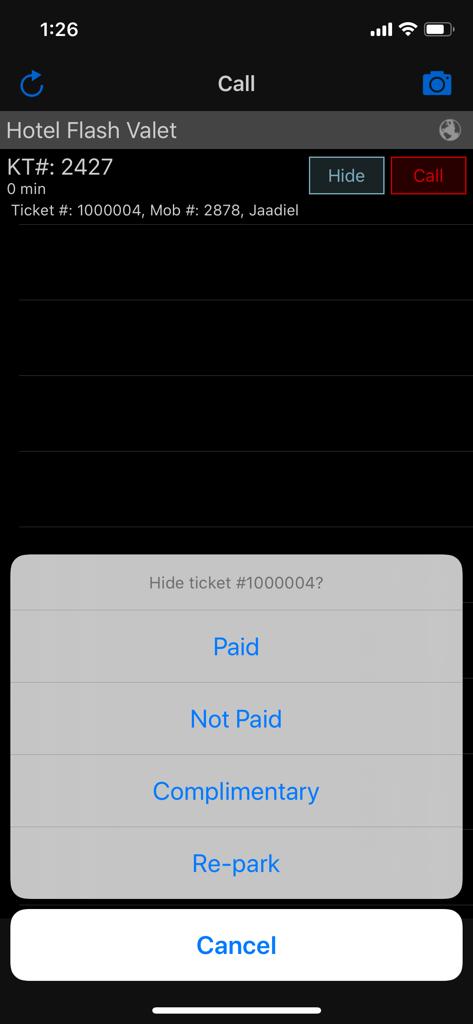
- After the customer picks up their vehicle, tap the Hide button to clear the ticket from the tab. If they have not made their payments, this is when the system will ask the user to process the payment.
- If they are a no-show, the RePark option can be selected and the ticket will be moved back to the Issued screen.
If a Mobile payment was completed, a Repark will issue a refund to the customer and the parking duration will continue to calculate.
IVR Process Recap #
- Accept vehicle text request
- On the active tab, mark the ticket as Done
- Select Inform Customer
- Press the Call button
- Press Hide to clear the ticket