Go to Parkonect: Hotel Parking Pass Module to learn more about this module.
Implementation #
- In the Parkonect portal, go to the Parkonect dropdown menu and select Modules.
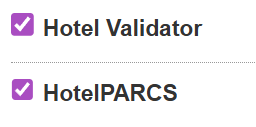
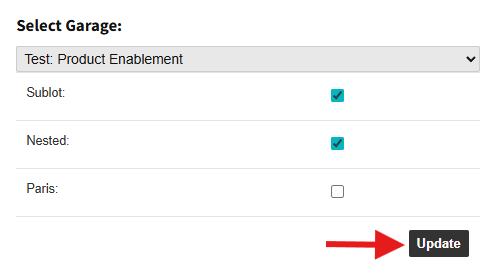
- Select your garage from the dropdown.
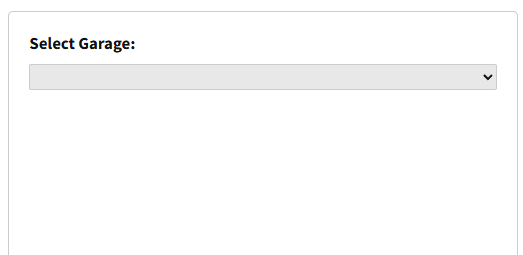
- Check:
- Hotel Validator
- HotelPARCS
- Click the Update button under the Garage selection section.
Hotel Settings #
1. Navigate to Garage Settings. On the left-hand side menu, click on Hotels.
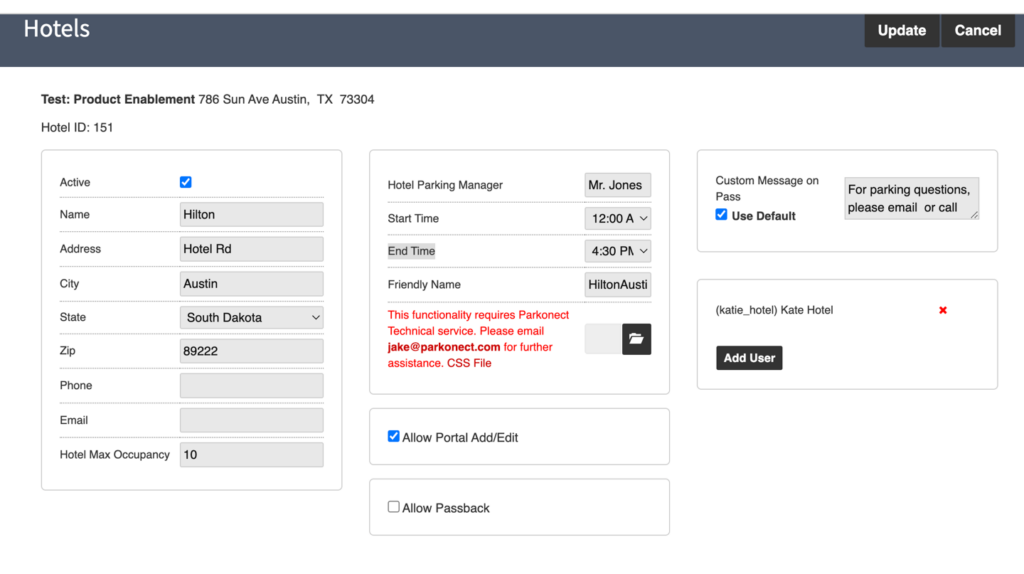
2. Add or Select a Hotel.
3. Enable the Active flag.
4. Add:
- Name
- Address
- City
- State
- Zip code
- Phone
- Hotel Max Occupancy: Sets the maximum occupancy number. Reaching this limit does not prevent entry; it is reflected in the Hotel Occupancy Report.
- Name of the Parking Manager.
- Start/End Time: This will be the check-in and check-out time.
- The End Time specifies when the Hotel Overage Fee calculation begins.
- Friendly Name
5. Enable the Allow Portal Add/Edit flag.
6. (Optional) Allow Passback.
7. (Optional) Enter a Custom Message on Pass.
8. Add the Users that will have access to the Hotel Portal.
9. Click Update.
Overage Fees #
Should a guest attempt to exit after their Hotel Pass has expired, the overage fee will be calculated based on the standard rate sheet starting at the End Time of the guest’s checkout day.
Hotel User Account Creation #
- Go to Garage Settings.
- Select Hotel from the left-hand side menu
- Select the desired Hotel.
- Click Add User.
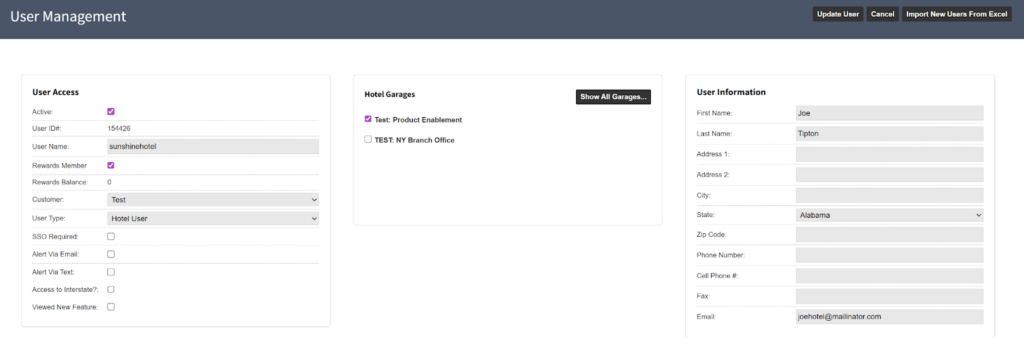
- Select User from the dropdown menu
- User needs to be previously configured in the Users tab under the Team dropdown menu.
- Select user type: Hotel User.
- Select hotel garages to which this user will be assigned; multiple can be selected.
- User needs to be previously configured in the Users tab under the Team dropdown menu.