
Vendor Authentication Tokens #
The Point-of-Sale system uses a “Vendor Authentication Token” to control access to the APIs backing the system. Point-of-Sale devices will not connect to the cloud without a valid Vendor Authentication Token.
Because the Vendor Authentication Token is used for security and to control access, it should not be shared across the entire Parkonect system. Rather, new Vendor Authentication Tokens should be generated for each Point-of-Sale system so that in the event a token must be revoked it has limited impact on our customers.
Creating a New Vendor #
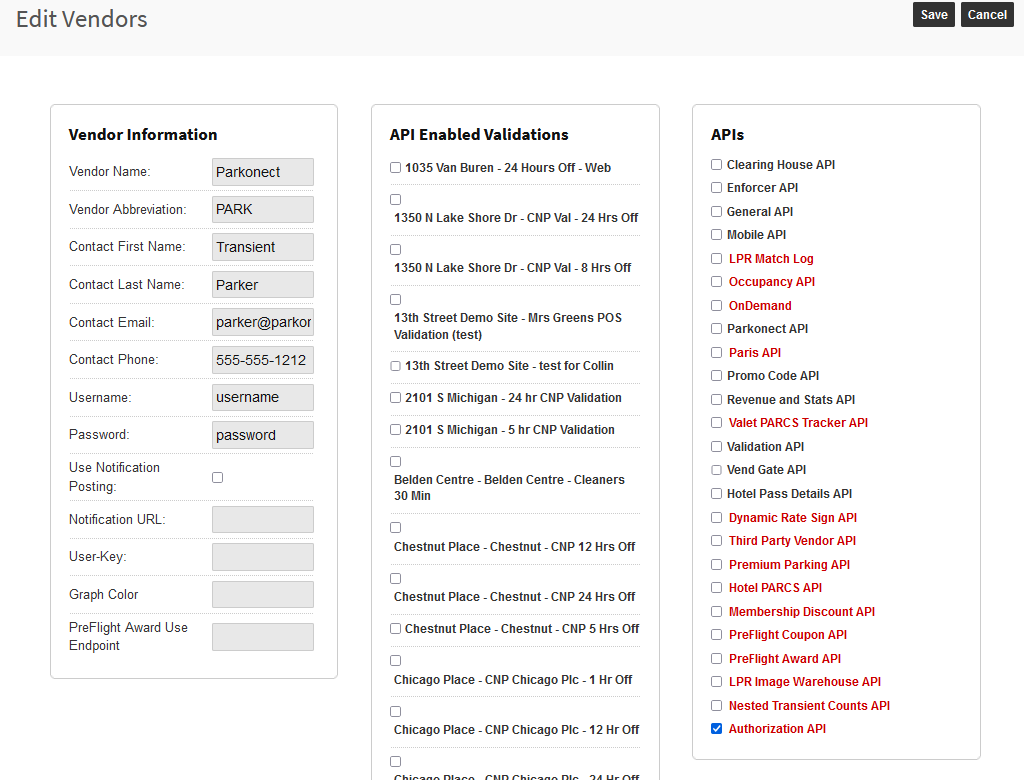
Navigate to Parkonect → Vendors.
- Click “Add Vendor.”
- Fill in the Vendor Information.
- Ensure “Authorization API” is checked.
- Click Save.
Creating a new Vendor Authentication Token for an Existing Vendor #
To create a new Vendor Authentication Token, locate the vendor in the Edit Vendors list, and click Select.
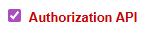
- On the vendor page, click on the Authorization API link:
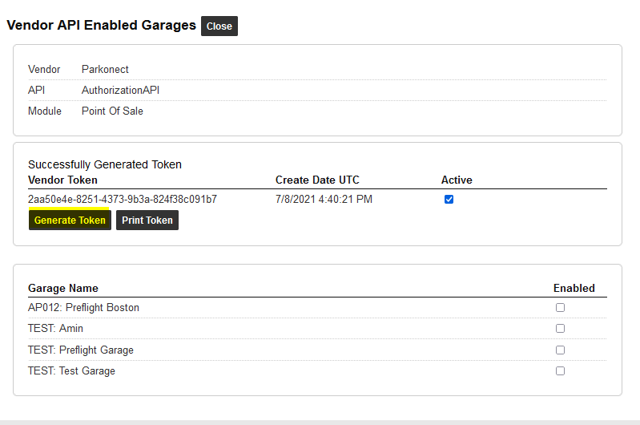
- In the popup, click Generate Token. This creates a new Vendor Authentication Token.
Enabling a Vendor Authentication Token for a Garage #
In the same Vendor API Enabled Garages popup from the previous step:
- Locate the Garage Name that you want the Vendor Authentication Token to allow access to.
- Click the “Enabled” checkbox next to the Garage Name.
The Vendor Authentication Token now provides access to the specified Garage.
Assigning and Changing the Vendor Authentication Token for a Point-of-Sale #
Vendor Authentication Tokens are assigned to a Point of Sale system using a barcode generated and optionally printed from the Parkonect website.
- To access this barcode for a Vendor Authentication Token, navigate to Parkonect → Vendors.
- Locate the Vendor in the list and click Select.
- Click on the Authorization API link to open the Vendor API Enabled Garages popup.
- Click on the Print Token button and the Parkonect website will generate a QR code and optionally print it.

To assign the Vendor Authentication Token to a Point-of-Sale, power the Point-of-Sale on and wait for it to proceed to either the Systems failure screen or the Login screen.
- Scan the Vendor Authentication Token barcode which you generated above.
- Power-cycle the Point-of-Sale terminal.
- The terminal will now use the correct Vendor Authentication Token.
Garage Administration #
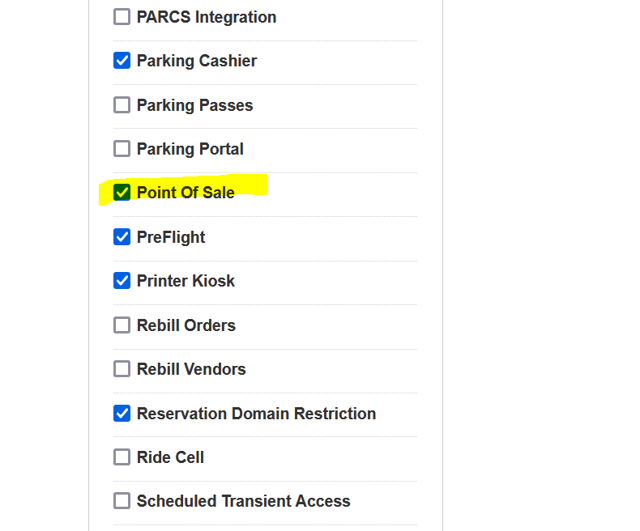
Enable the Point of Sale Module #
For each garage that will use the Point-of-Sale module, navigate to Parkonect → Modules, select the garage in the dropdown, and ensure Point Of Sale is checked:
Lane Configuration #
The Point of Sale module adds some new options to the Lane Configuration.
Creating a Point of Sale Lane #
Point of Sale systems are linked to a garage by their presence in the Parking Heads / Edit Lanes listing.
To add a new Point of Sale lane to a garage:
- Navigate to the Parking Heads list for the garage, and select “Add Lane.”
- Fill in the Lane Options / Lane Setup as follows:
- All unmentioned fields should be unchecked, or if they are text fields should be filled in as-usual.
- Lane Type = Exit Lane
- Touch Screen = checked
- Point Of Sale = checked
- POS Type = (either In-Lane or Office)
- When you are done configuring the lane, click Save.
The Point-of-Sale is now associated with a garage.
User Administration #
The following User Administration tasks are supported in the Point of Sale system.
Adding a New User to Parkonect #
- Navigate to Team → Users.
- On the User Management page, click Add New User.
- Fill in the following information for User Access:
- Active = checked
- User Name – the username the user uses to log into the POS.
- Password – the password the user uses to log into the POS.
- Customer – the customer the user works for. This is used to control which garages the user can log in at.
- User Type – Garage Administrator
- Managed Garages – select the garages the user is allowed to log into. The user is not allowed to use Point of Sale systems at garages which aren’t checked here.
Manufacturing Configuration Checklist #
- Add a new Vendor Authentication Token. This should be done once per garage or once per customer.
- Note: Do not use the same Vendor Authentication Token across the entire product line. This will markedly reduce the security and usability of this part of the system.
- Enable the Point-of-Sale module in the Garage.
- Create the new Point-of-Sale Lane.
- Assign the Vendor Authentication Token to the Point-of-Sale system.
- Add new users. This needs to be done for each user who is expected to use the Point-of-Sale system. Garage Administrators are the only users who can log in at the POS.
- Assign each user the set of garages they will work at.