Main doc: Payroc Merchant Gateway
Note: Super User role is required
Install the required firmware version #
Follow the steps on Parkonect: Update Scheduler to install firmware ver 4.18+ or later. Payroc requires at least v4.18 to support offline mode (Edge) in lanes with ID Tech Magstripe readers and standard payment processing in lanes with VP5300 readers. Use Update Scheduler V2 to install the firmware updates ver 4.10.00 or later.
Gateway Management #
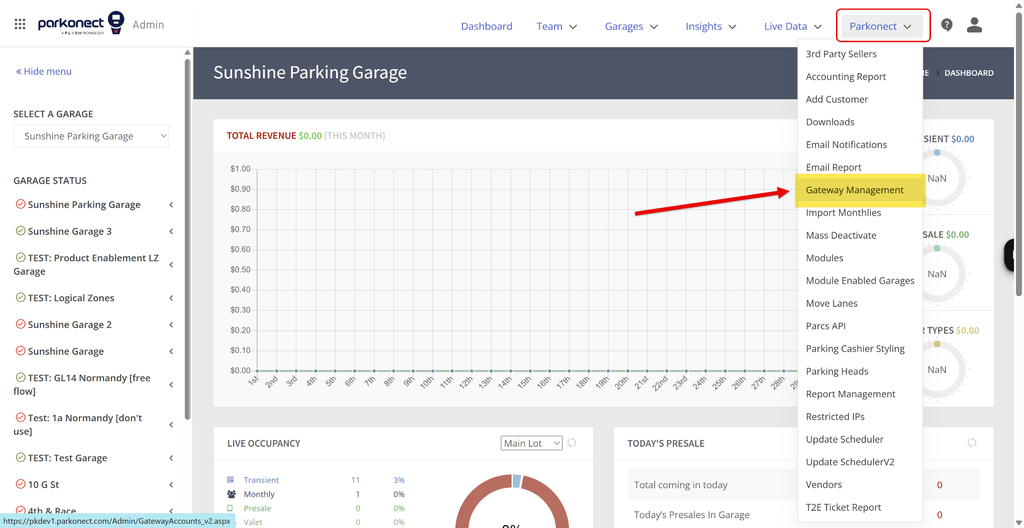
Create the Payroc Merchant Gateway configuration by following these steps:
- In Parkonect Admin go to Parkonect > Gateway Management.
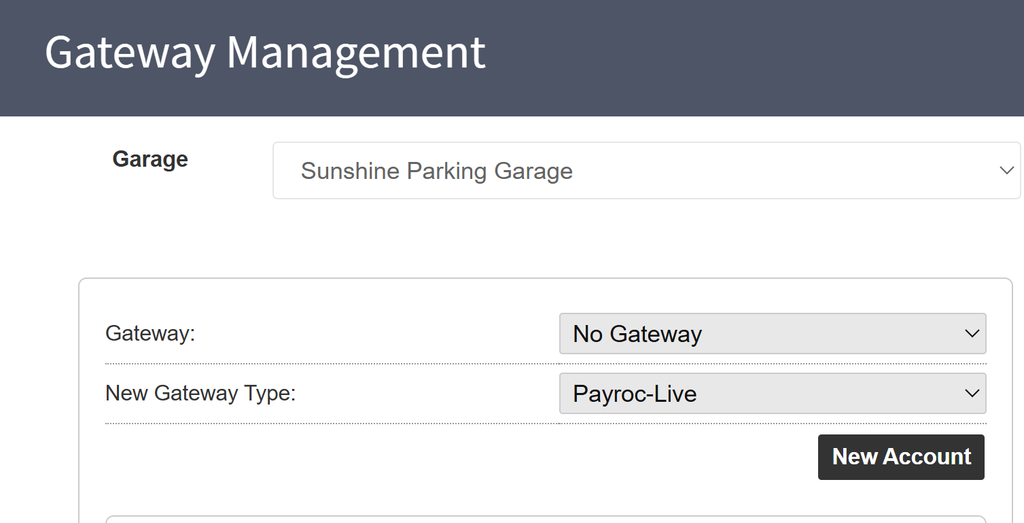
- In the Garage dropdown at the top, select the Garage you are working with
- Under New Gateway Type, select Payroc-Live, then press the New Account button
- The Gateway dropdown will already be populated with the current active Gateway. If the garage is new, then this should read No Gateway.
- Fill out the Payroc Gateway fields:
- Gateway Name: Enter Payroc + Garage Name
- Credentials:
- API Base URL and Identity URL are prefilled and read-only fields.
- Terminal Secret: Only required for garages with a Hosted Payment Page (such as parcdaypass.com). Enter a combination of characters to use as a key, then add this key to the Merchant Account in the Payroc portal. See steps in the Hosted Payment Page section below.
- HPP Terminal ID: Only required for garages with a Hosted Payment Page (such as parcdaypass.com). The eCommerce Terminal ID found in the Payroc Portal. This Terminal ID (TID) is added by Payroc. See steps on how to find it in the Hosted Payment Page section below.
- Default Terminal ID: The default Terminal ID for the Garage. See the Finding Terminal IDs in Payroc Admin section below.
- Garages with IDTech SpectrumAir readers only: All readers will share this Terminal ID. You do not need to enter the Terminal ID at the lane level.
- Garages with VP5300s only: Enter the Terminal ID at the lane level. Each VP5300 has its own Terminal ID. See the Adding a Terminal ID to each lane section below for steps.
- Garages with both types of readers: Enter the Default Terminal ID (this is for IDTech SpectrumAir readers) and also add the unique Terminal ID for each device on each lane that has a VP5300 reader. See the Adding a Terminal ID to each lane section below for steps.
- Active: Only check the Active box if the operation wants to process payments with Payroc right away. DO NOT check this box if the intention is to schedule the gateway settings for a later date.
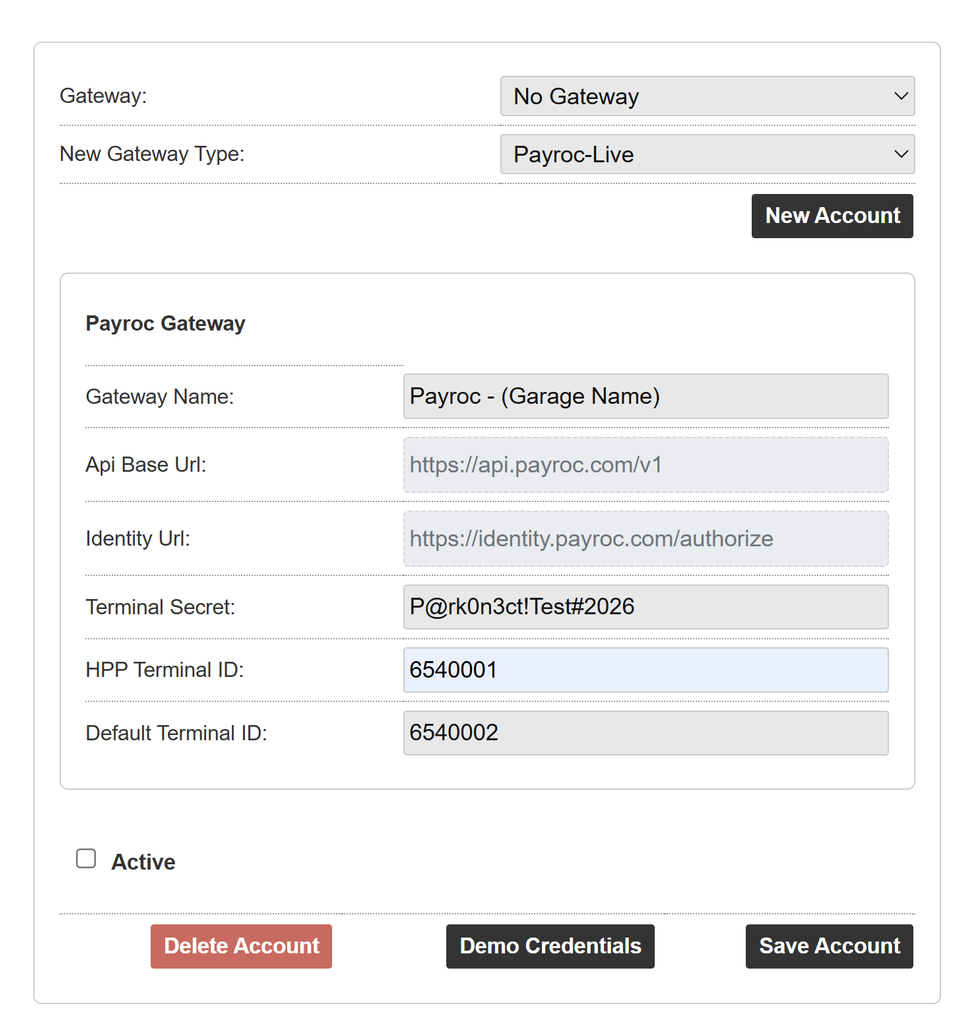
- Press SAVE ACCOUNT.
Gateway Scheduler #
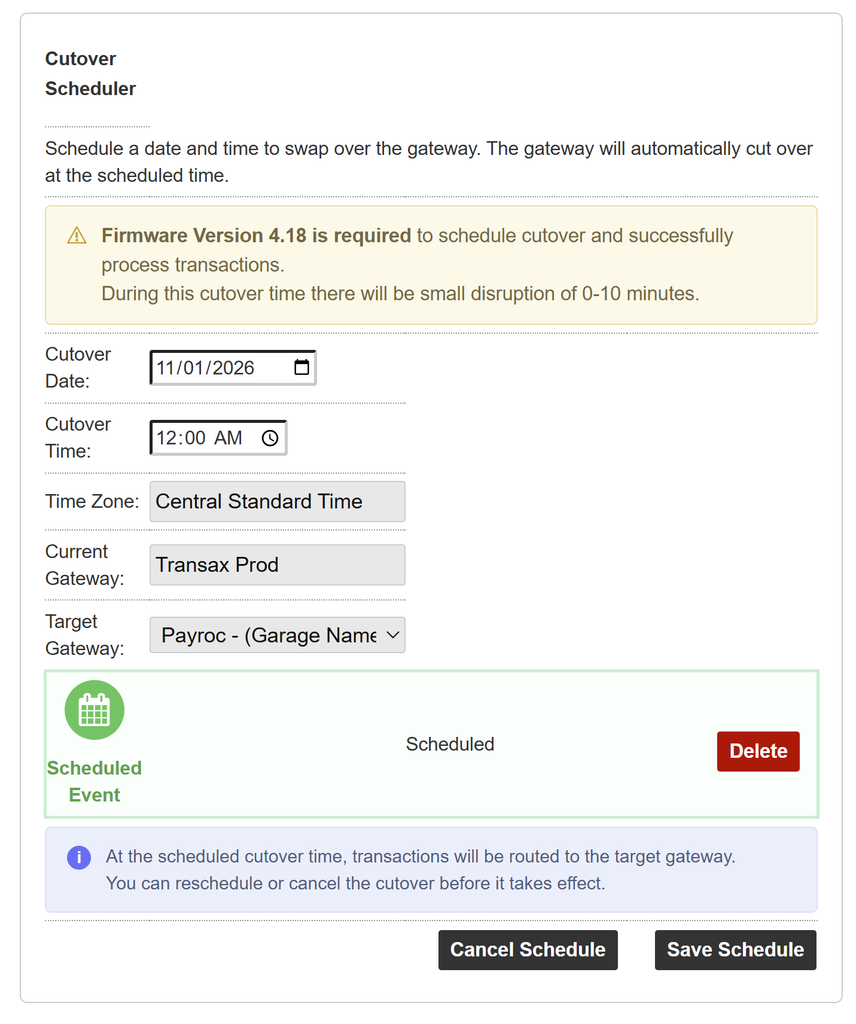
Schedule the Payroc Merchant Gateway configuration by following these steps:
- In Parkonect Admin go to Parkonect > Gateway Management.
- In the Garage dropdown at the top, select the Garage you are working with
- Under Cutover Scheduler:
- Enter a Date
- Enter a Time
- Time Zone is prepopulated with the Garage’s current time zone settings
- Current Gateway is prepopulated with the Garage’s current active gateway
- Target Gateway: Select the Payroc Gateway configuration created for this garage
- Press the Save Schedule button.
- The gateway cutover schedule now shows on the screen as an scheduled event
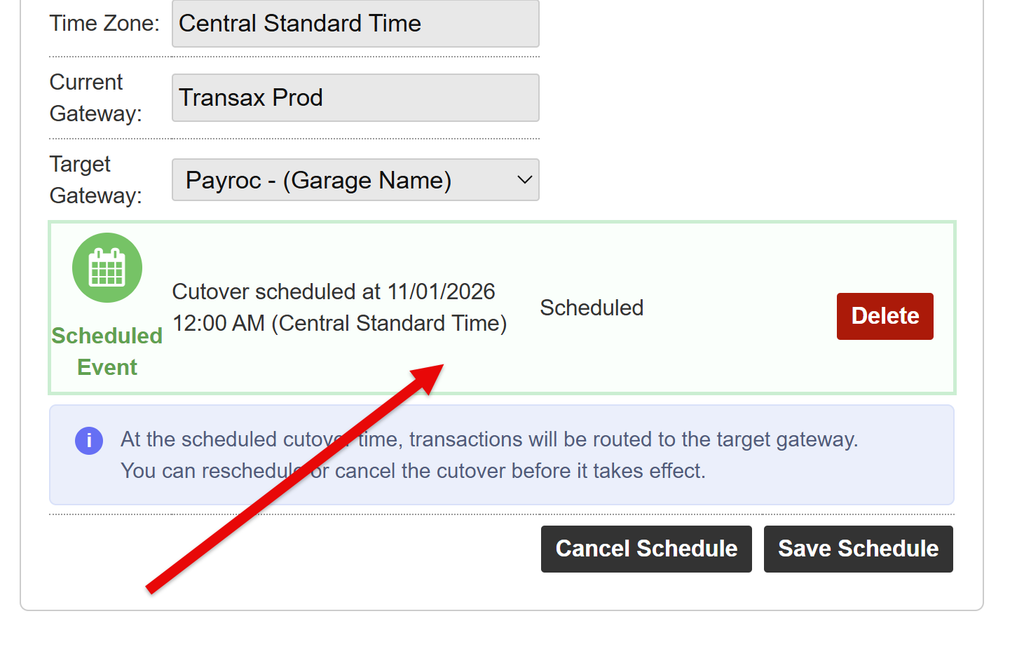
Note: To reschedule the event you may press the DELETE button to remove a scheduled event and start over.
Finding Terminal IDs in Payroc Admin #
Finding the Default ID for SpectrumAir readers #
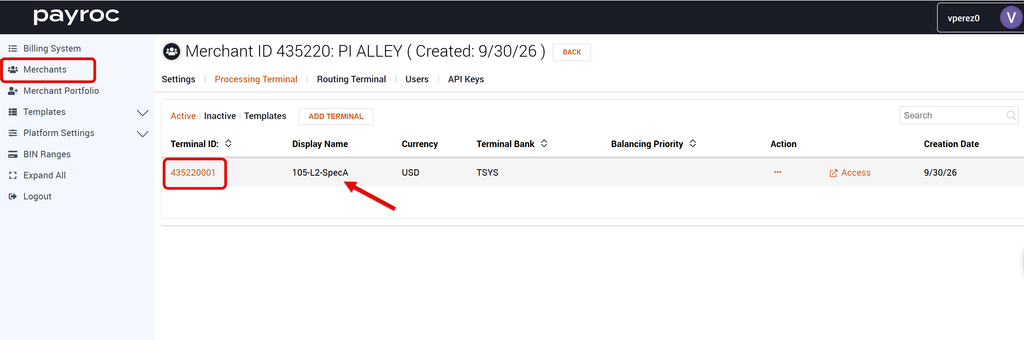
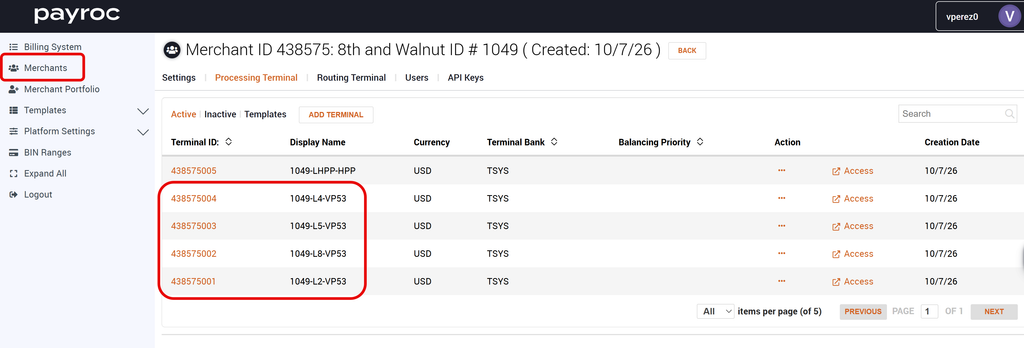
The Default ID can be found in the ID field for the Terminal labed as ‘SpecA’ under Merchants > Processing Terminals tab. This ID is the Terminal ID that is shared between the IDTech SpectrumAir readers
Finding the Terminal ID for VP5300 readers #
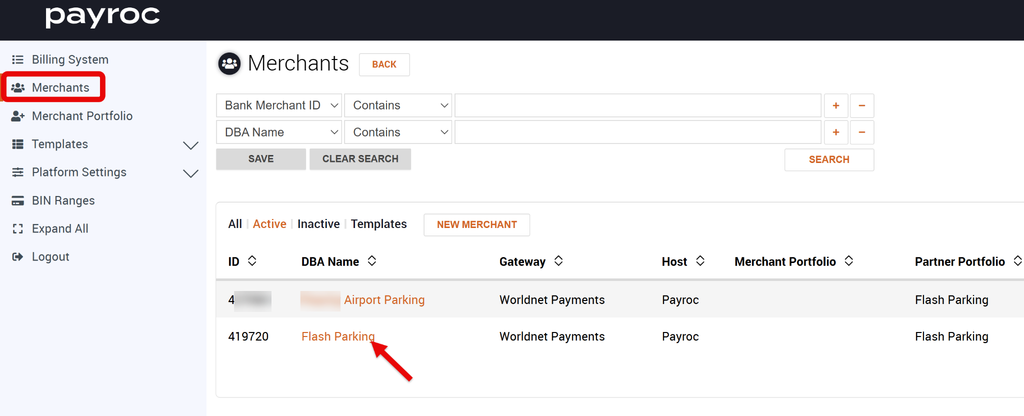
- In the Payroc Portal, go to the Merchants tab and select the Merchant Account you are working with.
- Go to the Processing Terminal tab. The Terminal ID for each device is listed under the ID column
- Each device is labeled as GarageID-Lane#-VP53
Adding Terminal ID to each lane #
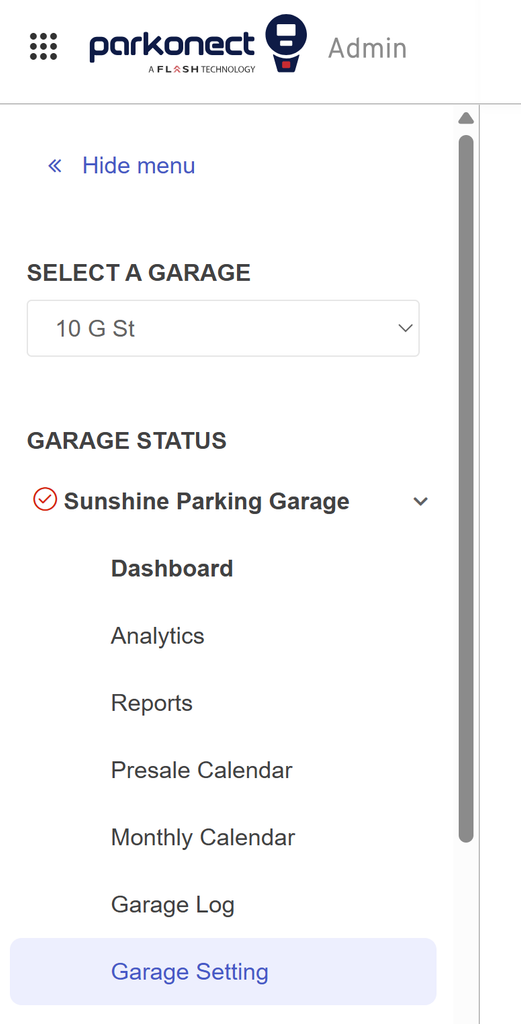
- In Parkonect Admin go to Garage > Garage Settings
- In the Garage menu, select Lanes
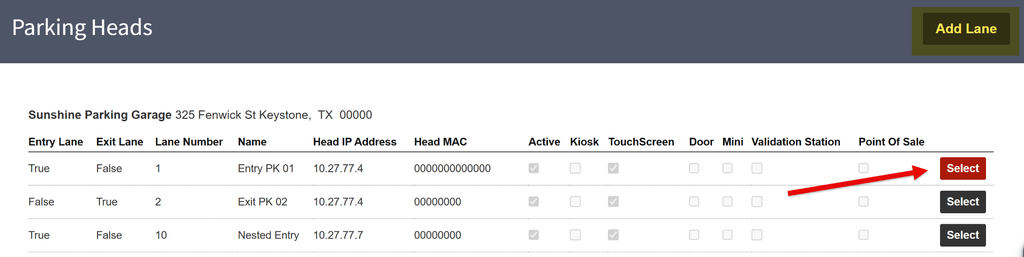
- Select an existing lane, or Add a Lane if needed.
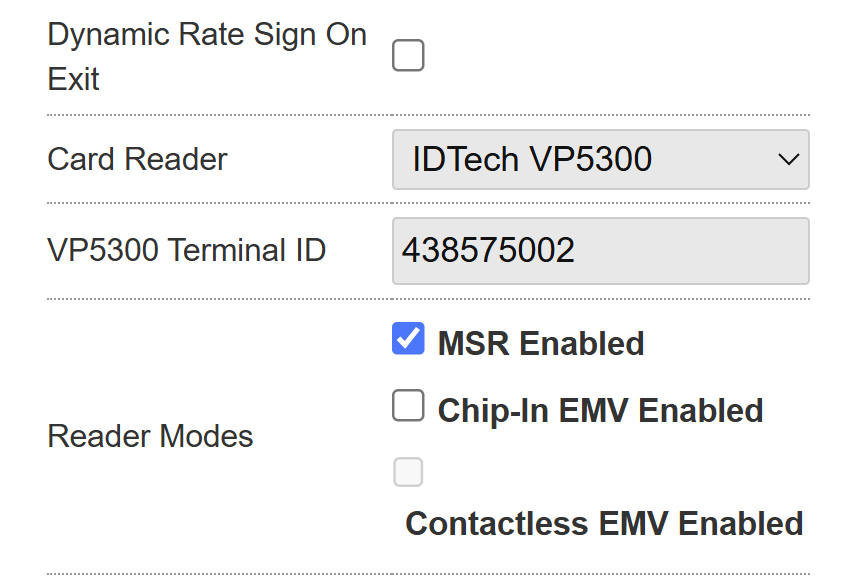
- Under Lane Options, scroll down to the Gateway Terminal ID section and enter the Gateway Terminal ID provided by Payroc for that specific credit card reader on that lane. The Terminal ID is unique per lane.
- Scroll up and press the Update button.
- Repeat the steps for each Lane at the garage.
Hosted Payment Pages #
Find the eCommerce Terminal ID on the Payroc Admin portal #
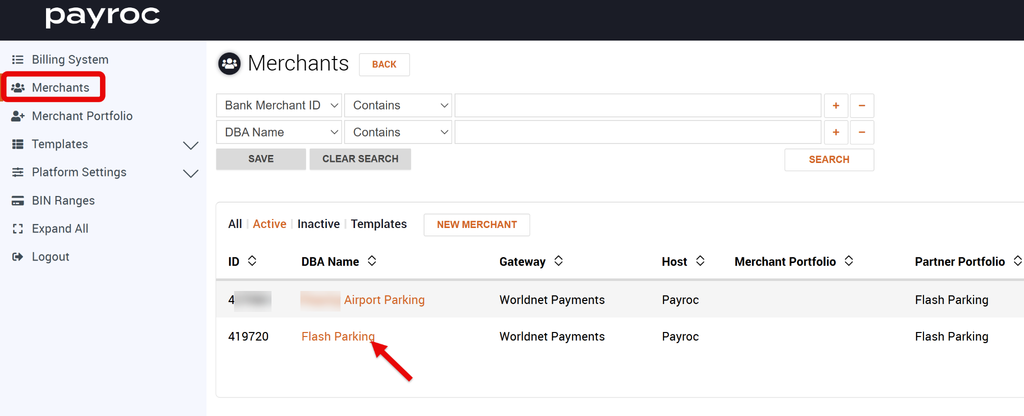
- In the Payroc Portal, go to the Merchants tab and select the Merchant Account you are working with.
- Go to the Processing Terminal tab. The Terminal ID for the Hosted Payment Page is listed under the Terminal ID field for the terminal labeled as HPP.
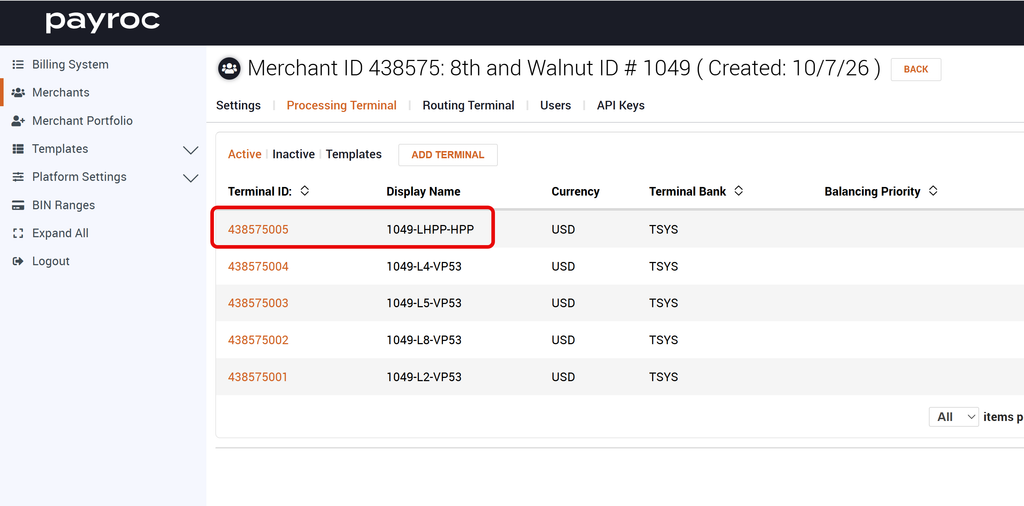
Entering the Secret Key in Payroc Admin #
1- In the Payroc Portal under Merchant > Processing Terminals > press Access under the Terminal ID dedicated for eCommerce.
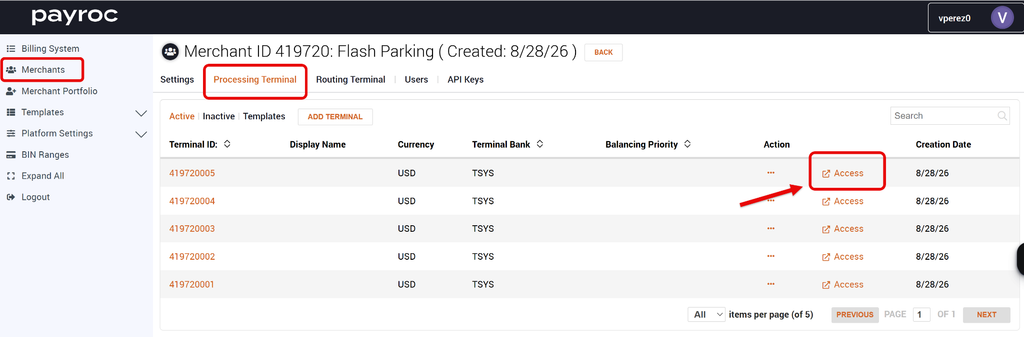
2- Then go to Settings > Terminal
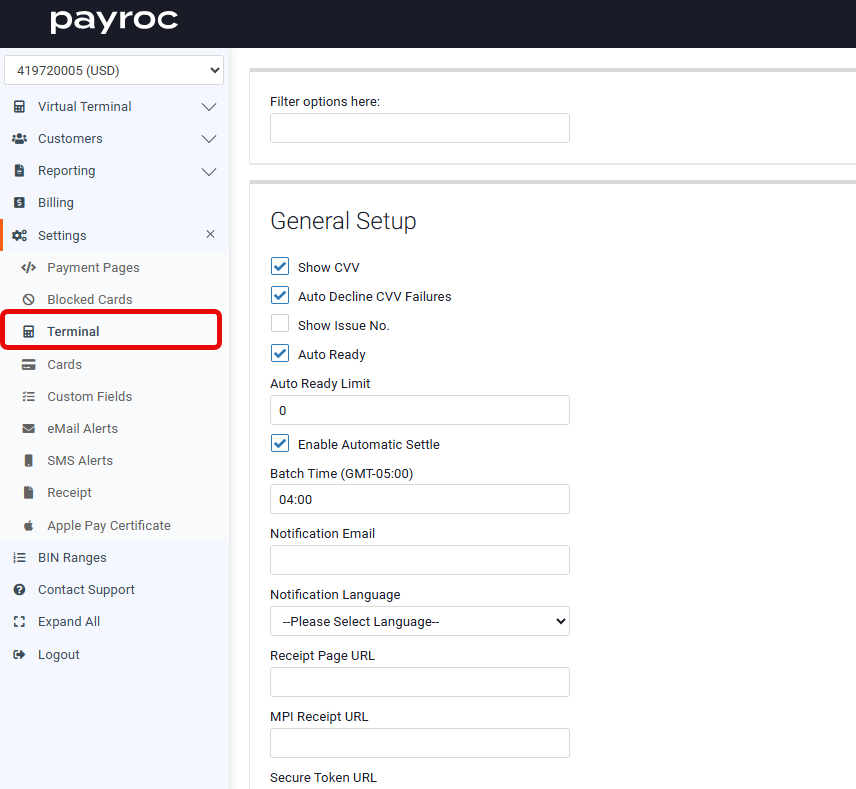
3- Scroll down to the Secret and Confirm Secret fields and enter the same values you added on the Secret Key field in the Gateway Settings in Parkonect Admin.
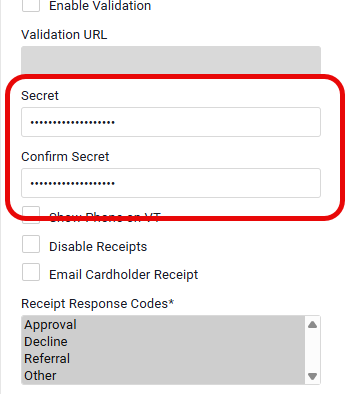
4- Press the Update Settings button found at the bottom of the page to save the changes.