
Click here to learn more about Dynamic Validations.
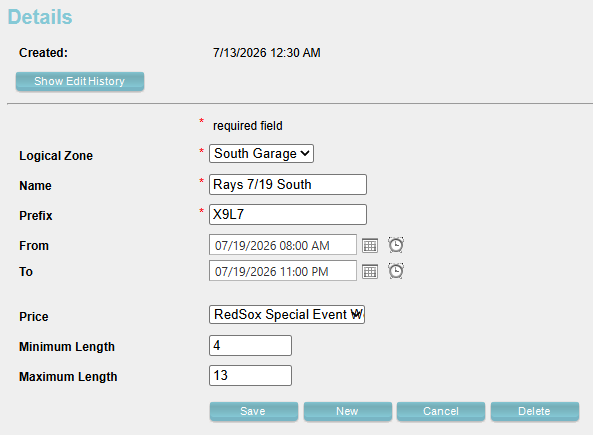
- In the Admin Portal, navigate to Company > Location > Dynamic Validation tab.

- Click on Add New.
- Select:
- Logical Zone: Select the logical zone where the validation will apply.
- If multiple Logical Zones use the same validation create a separate validation for each Logical Zone.
- Name: Enter a descriptive name for the validation (typically the event name).
- Prefix: Enter the barcode prefix used for validation. Active duplicate prefixes are not allowed.
- Error Message: The prefix [XXXX] is already assigned to a game on [MM/DD/YYYY]. Please use a unique prefix or edit the existing record.
- From: Select the date and time when the validation becomes active.
- To: Select the date and time when the validation expires.
- Price: Select a previously configured parking price to apply when the validation criteria are met.
- Minimum length: Enter the minimum number of characters expected in the barcode.
- Maximum length: Enter the maximum number of characters expected in the barcode.
- Logical Zone: Select the logical zone where the validation will apply.
Note
The minimum and maximum length must include the hyphen (-) in the barcode. For example, for the barcode ABCD-12345678, set Minimum Length to 4 and Maximum Length to 13.
- Save.
Changing Event Date #
Event dates can be updated at any time.
- In the Admin Portal, navigate to Company > Location > Dynamic Validation tab.

- Click on Add New.
- Select the existing Dynamic Validation you want to update.
- Update the following fields as needed:
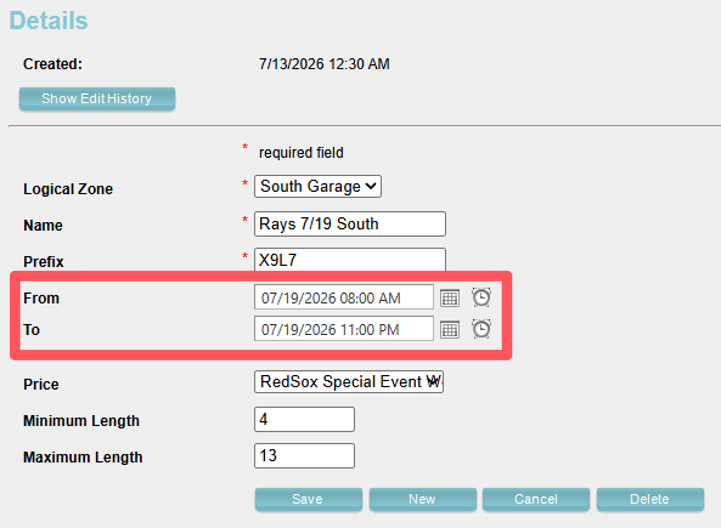
- From: Select the new date and time when the validation becomes active.
- To: Select the new date and time when the validation expires.
- Save.
Note
Restart the kiosk(s) after changing the date and time for the updated schedule to take effect.
Testing Notes #
When testing Dynamic Validation, create a barcode using the following format:
LocationPrefix=DynamicValidationPrefix-TicketNumber
- Go to https://barcode.tec-it.com/en/
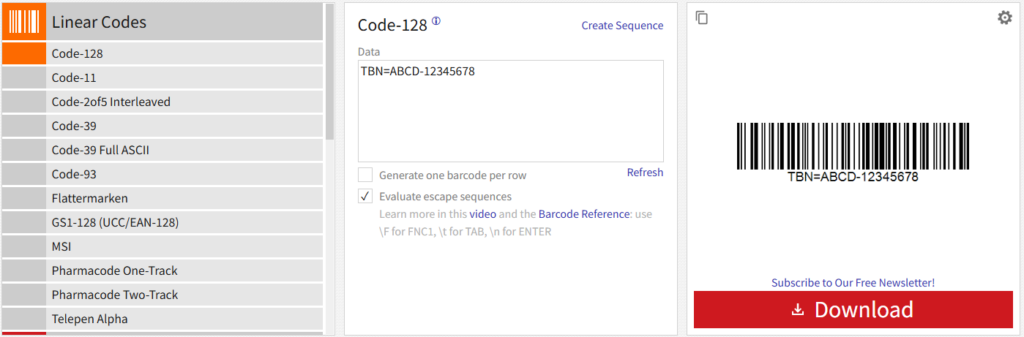
- Select Linear Codes > Code128.
- Enter the full barcode value using the format above.
Example:
For a Boston Red Sox event, the barcode would be:
TBN=ABCD-12345678
Note
The TBN prefix is specific to Boston Red Sox events. The image below is provided for demonstration purposes only.
When configuring the Minimum Length and Maximum Length fields in the Admin Portal:
- Do not account for the LocationPrefix= (for example, TBN=).
- Include the hyphen (-), as it counts as a character.
For the barcode:
TBN=ABCD-12345678
Configure:
- Minimum Length: 4
- Maximum Length: 13