
| CPQ Info | |
| Dev Task | n/a |
| Configuration Access | Super User |
| Firmware Version Requirement | 4.17.00 |
| Known Limitations | LPR 1.0 and Gen1 kiosks are not compatible |
| Also known as | Campus Mode |
| Sales and Marketing Assets | n/a |
| L&D lesson | |
Parkonect Logical Zones divide a facility into separate parking areas that can be managed and monitored independently. A Logical Zone may represent a floor, connected garage, parking lot, premium area, or employee-only area.
As drivers move through transfer stations, Parkonect tracks the Logical Zones they enter and the amount of time spent in each zone. This information can be used to apply zone-based rates for transients, manage monthly parker restrictions, calculate overages, monitor occupancy, and provide zone-level reporting while keeping all parking areas under one garage configuration.
Requirements #
- Logical Zones module enabled
- PK Firmware ver 4.17.00 or later
How It Works #
Each parking area is configured as a Logical Zone within the facility. A Logical Zone’s Entry and exit lanes are assigned to their corresponding zones, while lanes connecting two zones are configured as transfer stations.
When a driver enters the garage, Parkonect creates a stay and assigns the entry Logical Zone. Each time the driver passes through a transfer station, Parkonect updates the stay to record the new zone and the time spent in each zone.
Parkonect uses this activity to:
- Determine the applicable rate for transients and presales (reservations).
- Evaluate monthly parker permissions, restrictions, and overages.
- Track occupancy by Logical Zone.
- Currently Parkonect does not prevent additional drivers from entering the zone if it reaches full capacity.
- Display zone activity in the Garage Log and supported reports.
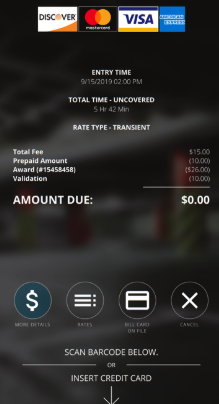
Transfer stations use LPR or a scanned credential to match the driver to an active stay. If LPR captures the plate incorrectly, the driver must scan their credential or use the help button so the transfer activity can be associated with the correct stay.
Use Cases #
Logical Zones can be used to:
- Apply different rates to individual floors or parking areas.
- Manage multiple connected parking garages under one facility.
- Track driver movement between parking areas through transfer stations.
- Restrict monthly parkers to specific zones or permitted parking times.
- Allow monthly parkers to pass through a zone without parking there.
- Calculate presales (reservation) or transient charges based on the zone.
- Monitor occupancy and garage activity by Logical Zone.
Example:
A garage contains three Logical Zones: Main Parking, VIP Parking, and Employee Parking.
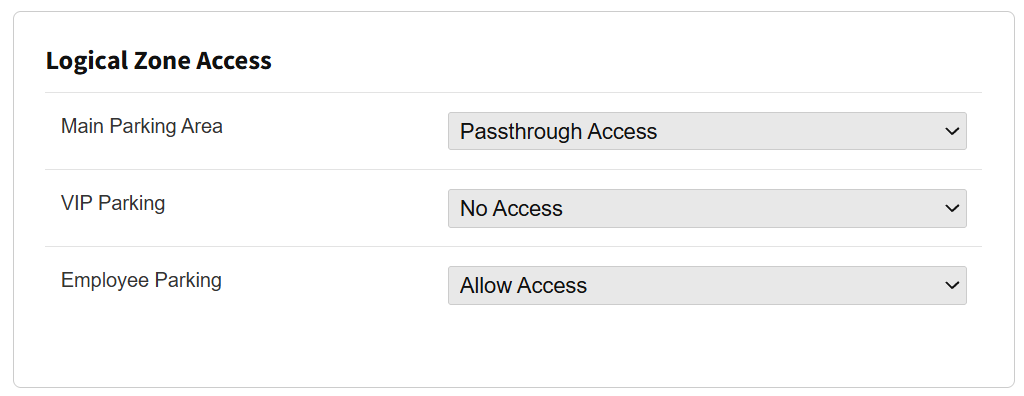
Transient parkers are charged based on the zone where they park. For example, employees are permitted to park in Employee Parking and may pass through Main Parking to reach it. They are not authorized to park in VIP Parking. If an employee remains in a passthrough zone beyond the configured grace period or parks in an unauthorized zone, Parkonect records a Logical Zone violation and applies the configured overage fee.
User Flows #
Transients #
- The driver enters the garage using the configured transient entry method.
- Parkonect creates the stay and assigns the driver to the entry Logical Zone.
- When the driver passes through a transfer station, Parkonect updates the Logical Zone associated with the stay.
- The applicable rate is determined by the driver’s zone activity:
- By default, the rate is based on the zone where the driver spent the most time.
- If a zone assignment threshold is configured, the first zone in which the driver reaches that threshold is used.
- At a pay-on-foot device or exit lane, Parkonect calculates the amount due using the applicable rate, taxes, fees, and stamped rate adjustments.
- The transaction and associated Logical Zone are displayed in the Garage Log and supported reports.
Presales (Reservations) #
- The driver enters using the barcode or license plate associated with the reservation.
- Parkonect creates the stay and tracks movement between Logical Zones.
- Before the reservation start time, the reservation may be updated or canceled if the driver has not entered the garage.
- After the start time, permitted edits or extensions may be applied to the reservation.
- If the driver exceeds the reservation duration or uses a zone not included with the reservation, the configured zone-based overage rate is applied.
- The rate and overage cost breakdown is displayed in the Garage Log.
- Once any applicable charges are handled, the driver exits using the reservation barcode or license plate.
Interpark Express Drivers (MINT) #
- The driver is identified at entry using the configured Interpark Express credential.
- When multiple driver types could match, Parkonect evaluates them in the following order:
- 3rd Party Reservations
- Monthly
- Express
- When multiple driver types could match, Parkonect evaluates them in the following order:
- Parkonect records the driver’s Logical Zones and the duration spent in each zone.
- Zone and duration information may be provided to the vendor for rebilling.
- At exit, Parkonect automatically opens the gate and records the transaction as collected by the vendor.
- The Garage Log displays a $0 amount due for the transaction.
Monthly Parkers #
- The monthly parker enters using their credential or license plate.
- Parkonect evaluates the parker’s Logical Zone permissions and restrictions.
- When the parker passes through a transfer station, Parkonect updates their current Logical Zone.
- The parker’s activity is evaluated against the configured access type, time range, maximum daily duration, and passthrough grace period.
- Activity that does not comply with the configured restrictions is recorded as a Logical Zone violation.
- Depending on the garage configuration:
- The overage is charged when the parker scans at the exit.
- The parker exits without paying, and the parking operator configured to receive email notifications is notified to complete payment.
- The violation is included in the Monthly Zone Violation Report.
Transfer Stations #
- The driver approaches a transfer station between Logical Zones.
- The LPR camera reads the license plate and attempts to associate it with an active stay.
- If the plate is recognized, the gate opens and Parkonect updates the driver’s Logical Zone.
- If the camera is unavailable or the plate is misread, the driver must scan their credential to associate the transfer activity with the correct stay.
- The driver continues into the destination Logical Zone.
License plate corrections cannot be made to activity generated at a transfer station. Corrections can only be made to LPR reads captured at the entry where the driver started their parking stay or at an exit lane.
Implementation #
Click here to learn more about Parkonect Logical Zones Configuration.
Monthly Enforcement #
Monthly Enforcement allows parking operators to apply Logical Zone restrictions to monthly accounts. These restrictions control which zones monthly drivers can access and how they can use them.
Logical Zone violations are automatically logged for reporting. Overstaying may result in an overage charge at exit or a post-exit payment notification, depending on the garage settings.
No Time-Based Restriction #
When No Time-Based Restriction is selected as the restriction type, admins can assign Allow Access, Passthrough, or No Access permissions to each Logical Zone on the monthly account.

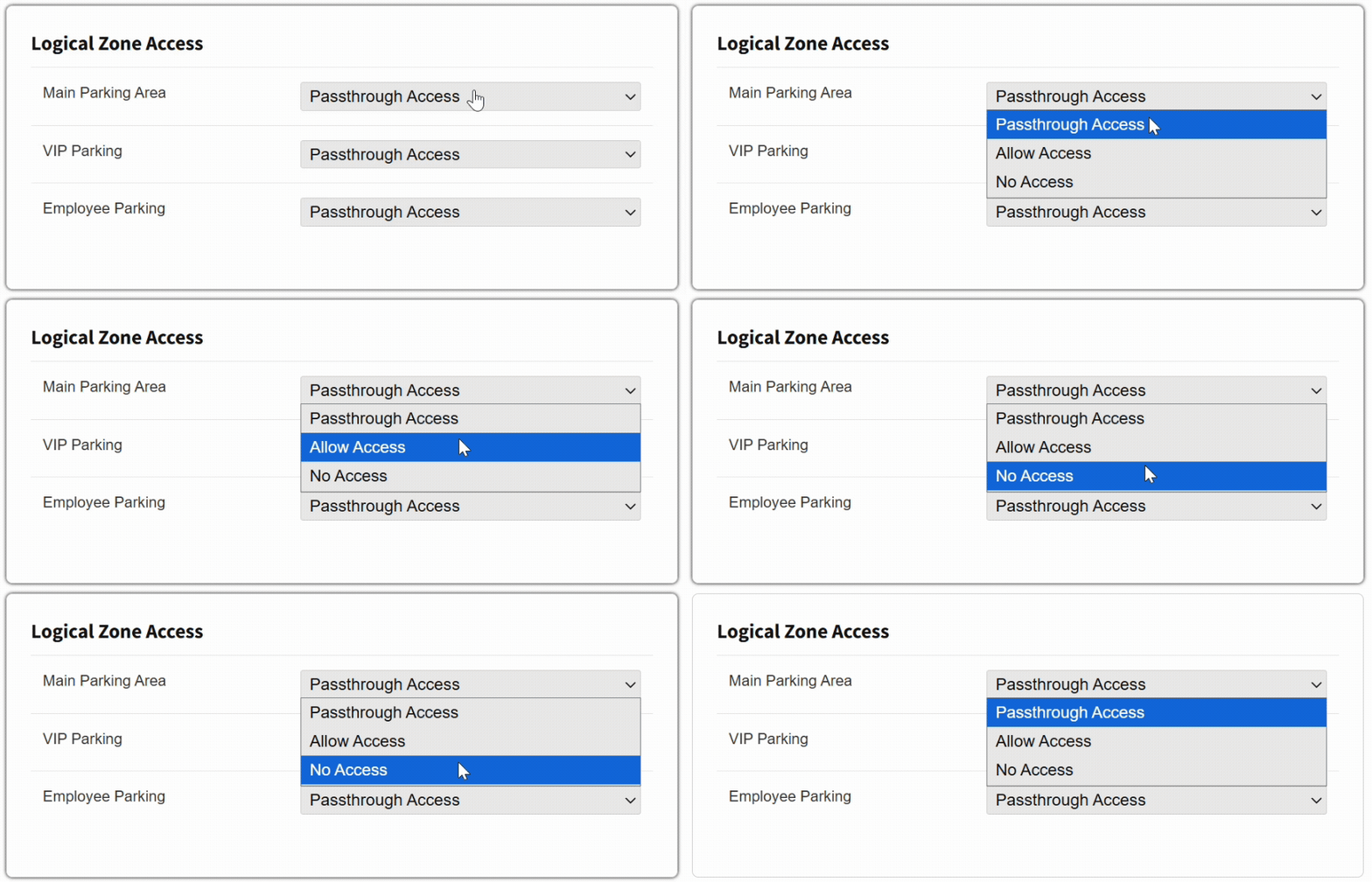
- Passthrough: Parkers can enter/access a zone and then move to other zones, but they cannot park/stay longer than the “Monthly Logical Zone Grace Period” set in minutes threshold (Garage Settings) or another zone(s) they have access to without it being a zone violation.
- Allow Access: Can access this logical zone.
- No Access: No access to this logical zone.
Time-Range Restriction #
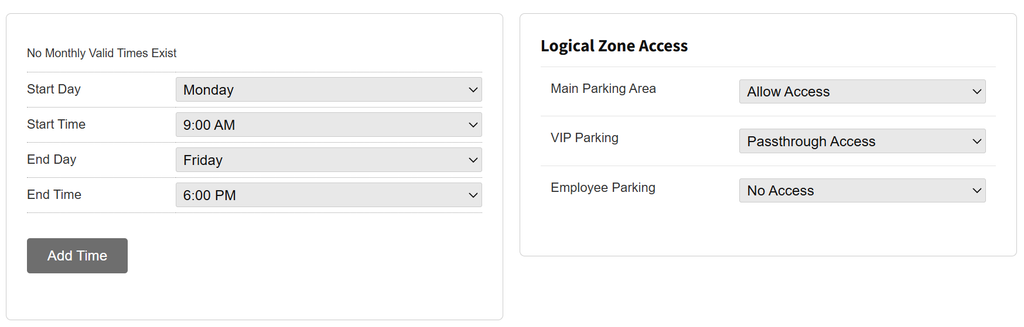
Time-range restrictions control access to selected Logical Zones during specific times. Outside the permitted time range, access to those zones is considered a violation.
- Passthrough: Parkers can enter/access a zone and then move to other zones, but they cannot park/stay longer than the “Monthly Logical Zone Grace Period” set in minutes threshold (Garage Settings) or another zone(s) they have access to without it being a zone violation.
- Allow Access: Can access this logical zone.
- No Access: No access to this logical zone.
For instance, in the example above, the monthly parker is allowed to park on the Main Parking Area starting Monday 9:00 AM until Friday 6:00 PM. They are allowed to pass through the VIP parking area and transition to the Main Area, but cannot stay in the VIP Parking Area. They are not allowed to enter the Employee Parking zone.
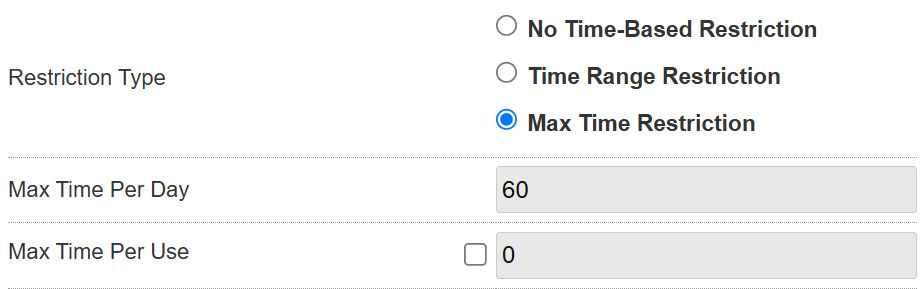
Max Time Per Day (Minutes) #
This restriction sets the maximum number of minutes a monthly parker can remain in selected Logical Zones each day. Exceeding this limit results in a violation.
- Passthrough: Parkers can enter/access a zone and then move to other zones, but they cannot park/stay longer than the “Monthly Logical Zone Grace Period” set in minutes threshold (Garage Settings) or another zone(s) they have access to without it being a zone violation.
- Allow Access: Can access this logical zone.
- No Access: No access to this logical zone.
Monthly Logical Zone Grace Period (Minutes) #
The Monthly Logical Zone Grace Period determines how long a monthly parker can remain in a passthrough zone before an overage is applied. It only applies to monthly accounts with Logical Zone restrictions enabled.
If multiple violations occur during the same stay, the charge is based on the first zone violated. Depending on the garage settings, payment may be collected at exit.
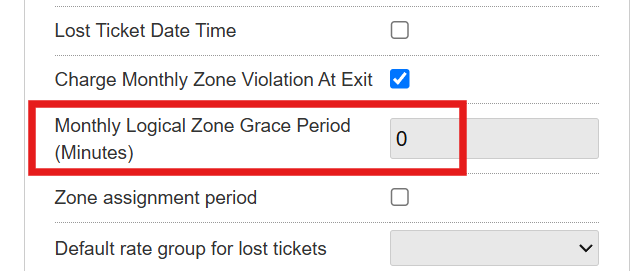
Charge Monthly Overage At Exit #

When enabled, monthly parkers with a Logical Zone violation are charged when they scan at the exit. When disabled, they can exit without paying and receive an email or text message to collect payment for the violation.
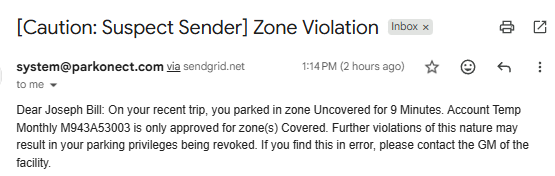
Monthly Overage Email Notifications #
Automated email notifications are sent to garage operators when a monthly parker has a Logical Zone overage that is not charged at exit.
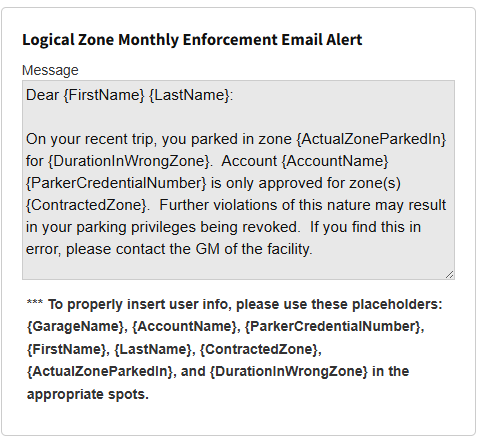
- First Name: Monthly parker’s first name.
- Last Name: Monthly parker’s last name.
- Zone Parked In: Logical Zone where the violation occurred.
- Account Name: Monthly account associated with the parker.
- Parker Credential Number: Credential number used by the monthly parker.
- Contracted Zone: Logical Zone assigned to the monthly parker.
- Duration in Wrong Zone: Total time the parker remained in an unauthorized Logical Zone.
- Violation Fee: Amount charged for the Logical Zone violation.
Note: The email verbiage can be customized by the Parking Operator.
3rd Party Pre-Sales Early Entry Cap (Minutes) #
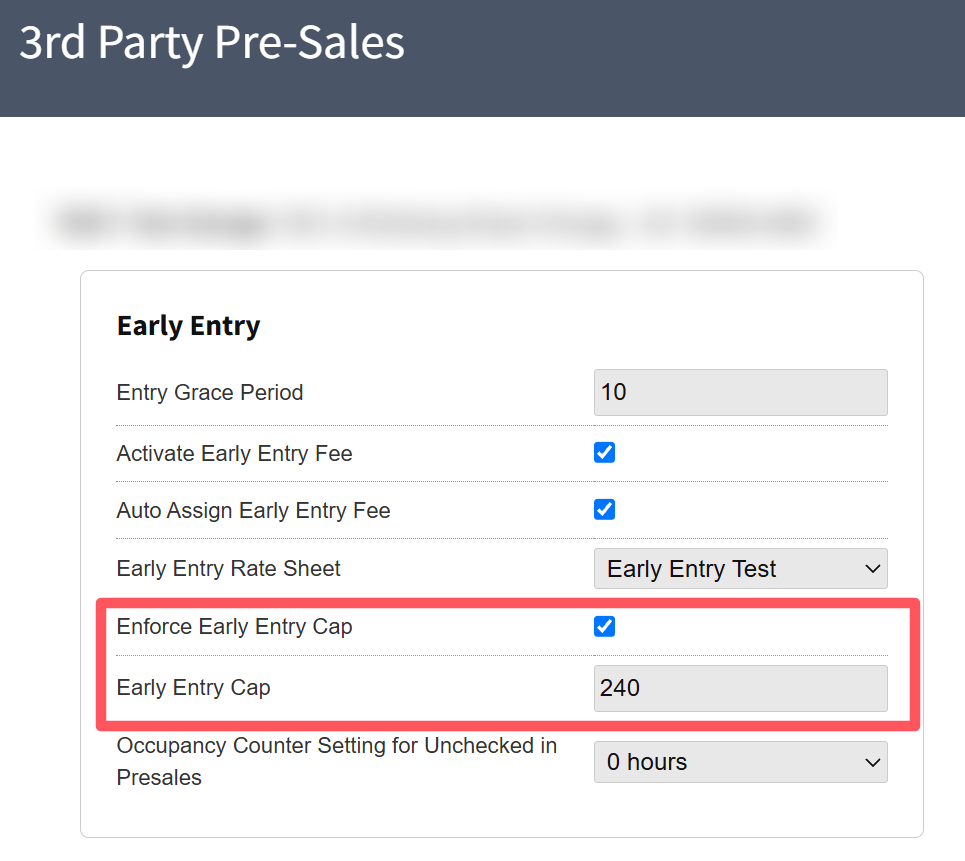
The Early Entry Cap allows third-party presale customers using a barcode or LPR to enter a specified number of minutes before their scheduled reservation start time, regardless of whether Logical Zones are enabled.
Click here to follow the configuration steps.
Note: The Entry Grace Period controls early entry for reservations. Other reservation grace periods do not apply.
Transfer Stations #
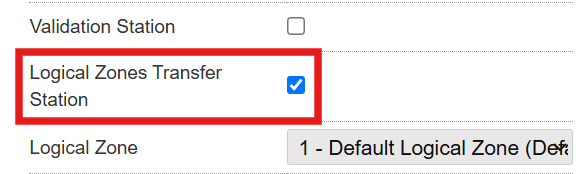
Transfer stations allow drivers to move between Logical Zones. When a lane is designated as a Transfer Station, the Logical Zone selected for that lane is the zone the driver enters after passing through it.
Transfer stations support LPR 2.0. If the camera is unavailable or misreads the license plate, the driver must scan their pass to enter the Logical Zone.
License Plate Corrections #
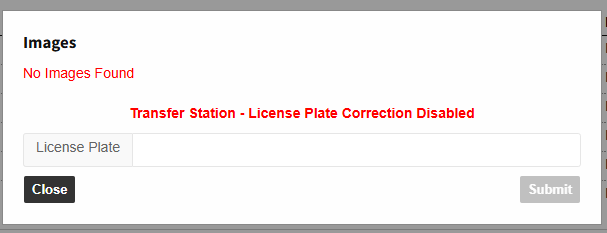
In the LPR Event Log, license plate corrections cannot be made to activity generated at a transfer station. Corrections can only be made to LPR reads captured at the entry where the driver started their parking session or exit lane.
Example:
- Entry: Plate ABC123 is read.
- Transfer Station 1: Plate is misread as DEF123, so the driver must scan their pass.
- Transfer Station 2: Plate ABC123 is read correctly, allowing the driver through.
- Exit: Plate ABC123 is read correctly, allowing the driver to exit.
Logical Zones Compatibility #
Compatible:
- LPR
- AVI
- RFID
Not Compatible:
Software:
- Credit Card In Out
- Event PrePay Mode
- Coupons
- License Plate Correction at Transfer Stations
- Express Pay (to be compatible in Phase 2)
- Ten-Key Phone Verification (to be compatible in Phase 2)
Hardware:
- LPR 1.0
- Gen 1 kiosks
- Switching to Gen 2 kiosks and LPR 2.0 is mandatory. Minis can be used at transfer stations but offer limited functionality.
Reporting #
Monthly Zone Violation Report #
The Monthly Zone Violation Report is available under Reports > Monthly for garages with the Logical Zones module enabled. This report tracks monthly parkers and details their cardholder information, assigned versus occupied zones, exit times, enforcement violation dates, and the duration of each violation.
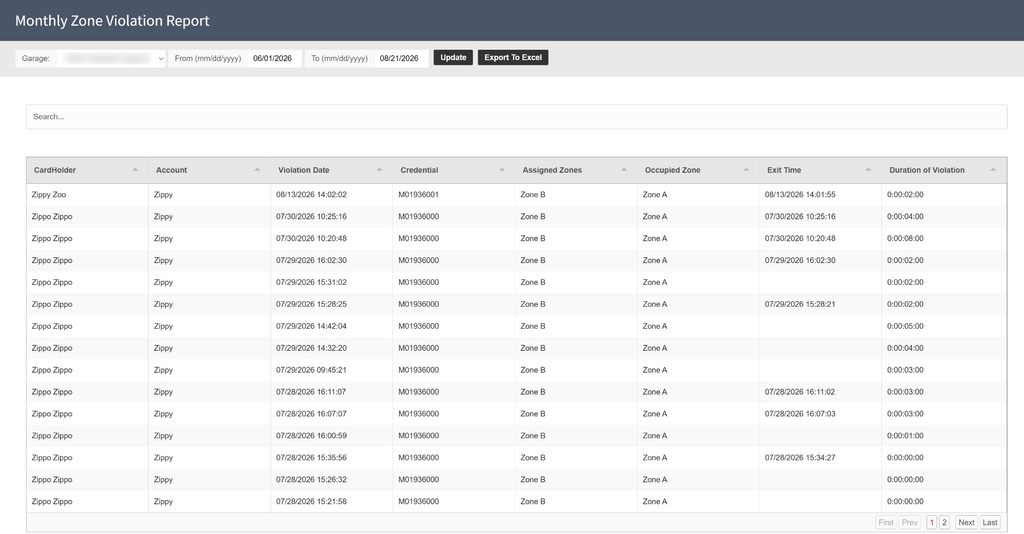
- Cardholder: Name of the monthly parker associated with the violation.
- Account: Account associated with the cardholder.
- Violation Date: Date and time the zone violation occurred.
- Credential: Credential used by the cardholder to access the garage.
- Assigned Zones: Logical zone(s) assigned to the cardholder.
- Occupied Zone: Logical zone the cardholder occupied during the violation.
- Exit Time: Date and time the cardholder exited the occupied zone.
- Duration of Violation: Total time the cardholder remained in an unauthorized logical zone.
Live Occupancy by Logical Zone #
The Live Occupancy widget includes a By Logical Zone dropdown that displays the real-time occupancy for each configured logical zone.
- From the left navigation menu, select the garage.
- Click Dashboard.
- In the Live Occupancy widget, select By Logical Zone from the dropdown menu.
- The widget displays the current occupancy for each configured logical zone in the garage.
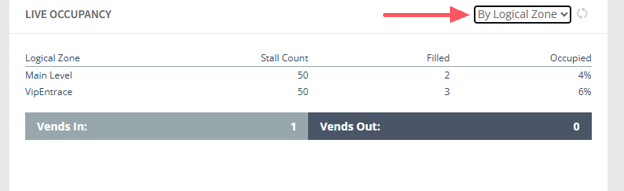
- Logical Zone: Name of the configured logical zone.
- Stall Count: Total number of parking stalls assigned to the logical zone.
- Filled: Number of stalls currently occupied in the logical zone.
- Occupied: Percentage of the logical zone’s total stalls that are currently filled.
Garage Summary Report #
Provides a reconciliation of all garage activity within the selected date range. The report includes nine sections:
- Tickets Dispensed
- Sales Summary
- Collected At
- Sales by Type
- Validations
- Tickets Converted to Hotel
- Gate Vends
- Revenue by Lane
- Unpaid Exits
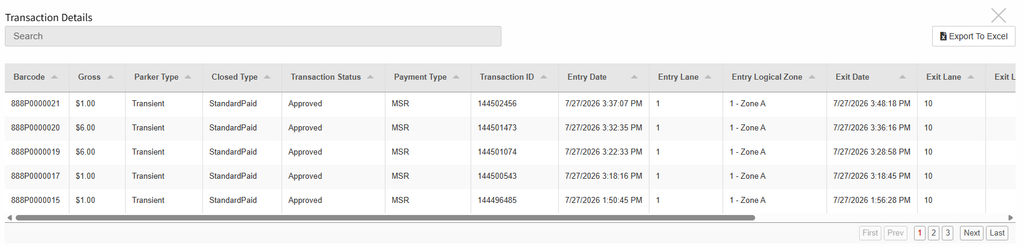
The report details display the Logical Zone in the column to the right of the Lane column.
Total Revenue Report #
Provides a summary of all revenue collected within the selected date range, organized by transaction type. The report includes three sections:
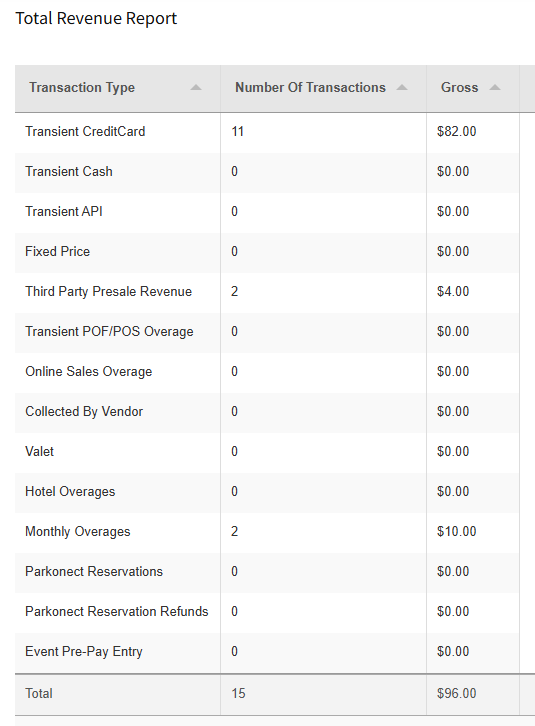
- Total Revenue: Transaction amounts organized by type.
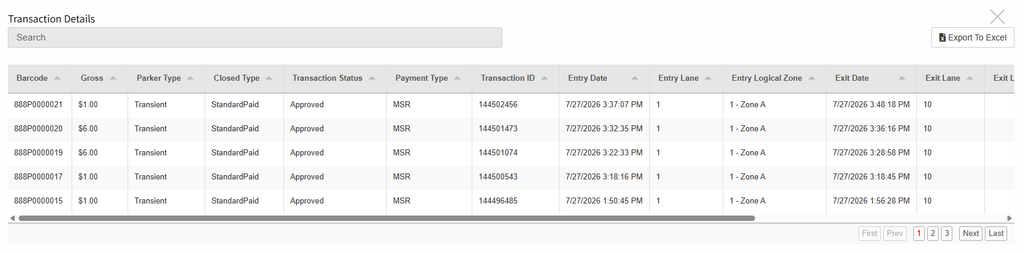
- Transaction Log: Transaction details, including Parker Type, Lane and Logical Zone.
- Unpaid Exits: The number of unpaid exit transactions.
When a transaction type is selected, the report details display the Logical Zone in the column to the right of the Lane column.
Revenue by Rate Report #
Provides a summary of revenue collected at the garage level by rate band, with separate totals for standard rates and special rates, such as Early Bird Specials.
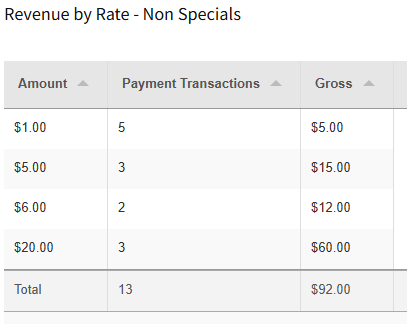
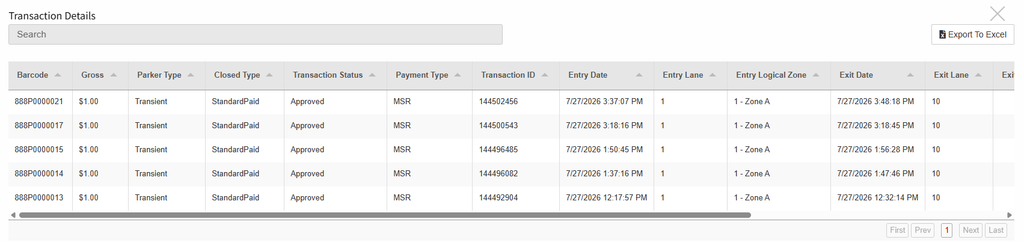
The report details display the Logical Zone to the right of the Lane column.
Revenue By Lane #
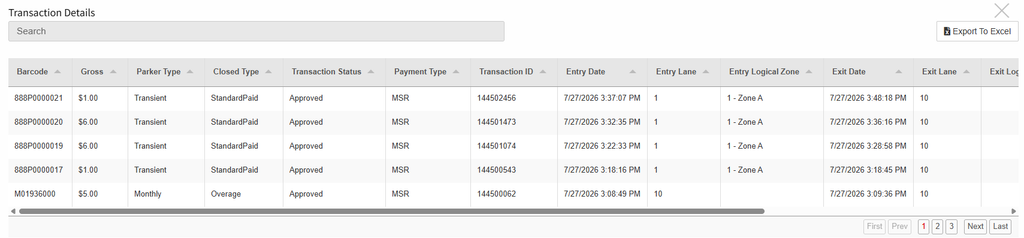
Provides a summary of transactions for each payment lane or POF within the selected date range, including the number of transactions and gross credit revenue.

The report details display the Logical Zone in the column to the right of the Lane column.
Transaction Log #
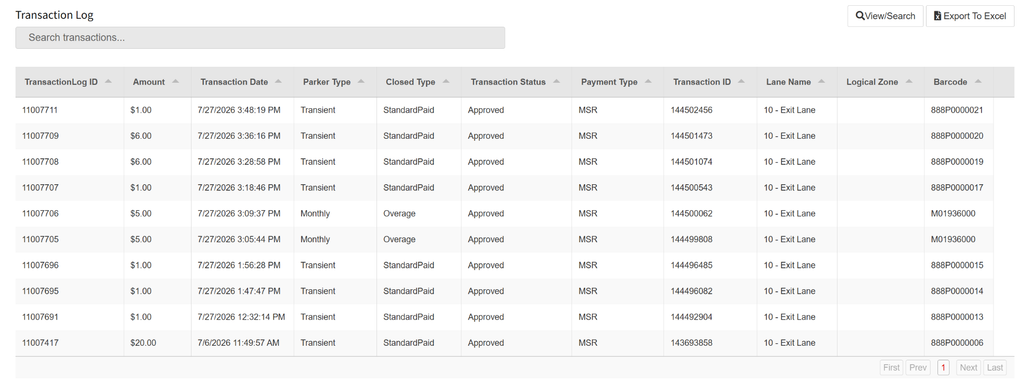
Provides a detailed list of all transactions processed through Parkonect hardware, including the amount, date, parker type, payment type, lane, Logical Zone, and barcode.
The Logical Zone is displayed in the column to the right of the Lane Name column.
Notes #
- Express Pay will be compatible with Logical Zones in phase 2.
- Ten Key will be compatible with Logical Zones in phase 2.