Flash employees with Monitor account access can delete Logical Zones in the Admin Portal. This functionality is not available to non-monitor user accounts.
Requirements #
- Monitor Account
- Flash Admin release 4.0.9.0
Use Cases #
Logical Zones may be deleted to:
- Prevent unused or incorrect zones from being selected or used in error
- Remove obsolete configurations from a location
- Allow authorized Flash employees to manage and clean up unused zone configurations
Implementation #
A Logical Zone can only be deleted when it has no linked dependencies, including:
- Flash PARCS kiosks
- Profiles
- USAePay accounts
- Reporting zones
Remove or reassign any linked items before deleting the Logical Zone.
- Log in to the Flash Admin Portal.
- Select Company and Location.
- Click the Logical Zones tab from the top menu.

- Select the Logical Zone to delete.

- Scroll to the bottom of the page and click Delete.

- Click OK in the confirmation pop-up.
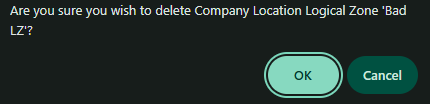
- If the Logical Zone is deleted successfully, a green confirmation banner appears.

8. If deletion is unsuccessful, a red error banner appears indicating the Logical Zone has active dependencies, such as linked Profiles or PARCS kiosks.
- Remove or reassign linked items.
- Retry the deletion once dependencies have been cleared.

Restoring a Logical Zone #
Deleted Logical Zones can be restored if needed.
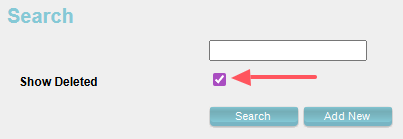
- Check the Show Deleted box.
- Click Search.
- Select the deleted Logical Zone.
- Scroll down and click Restore.

- Click OK in the confirmation pop-up.
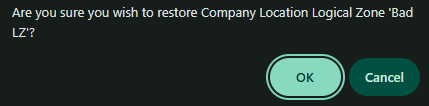
- If restored successfully, a green confirmation banner appears.

Notes #
- Re-link any previously associated PARCS kiosks or Profiles as needed after restoring the Logical Zone.
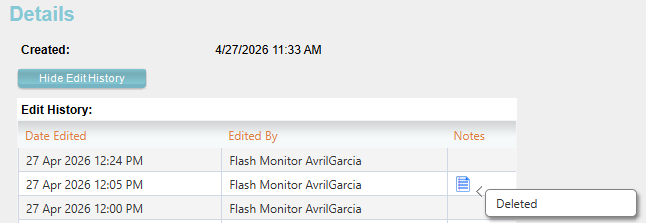
- The Logical Zone’s Edit History displays the user who deleted the Logical Zone, along with the date and time of the action. The Notes field indicates the action performed.