
App version 4.1.0.12+ required.
Single Sign-On (SSO) streamlines your login process by allowing you to sign in to FLASH Valet using your existing corporate credentials or social account. Follow this guide to authenticate and access your company account.
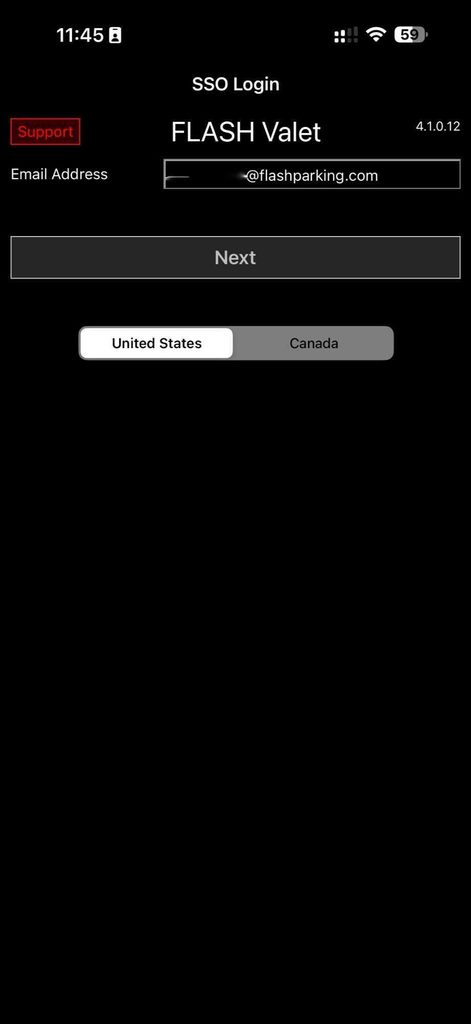
1. Enter Your Corporate Email Address:
Open the FLASH Valet mobile application. On the main SSO Login screen:
- Enter your corporate email address into the Email Address field.
- Select your region (e.g., United States or Canada).
- Tap Next.
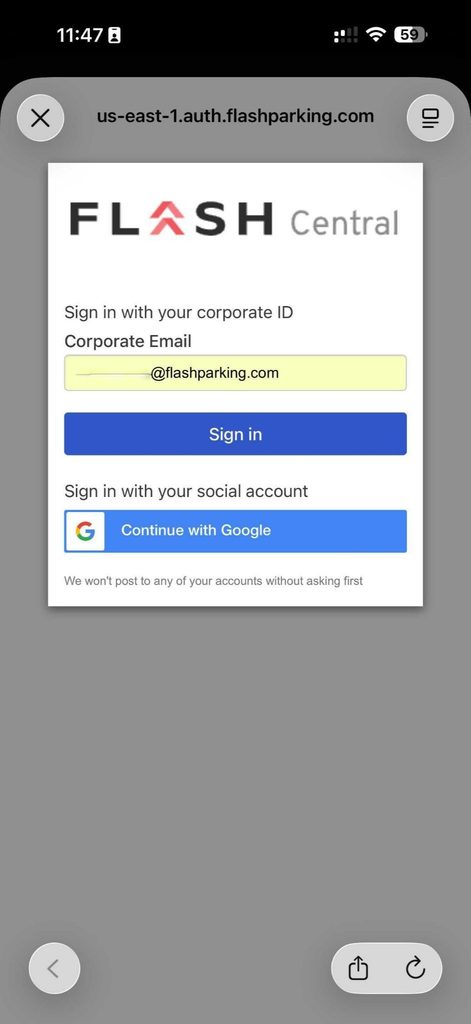
2. Select Your Sign-In Method:
You will be redirected to the FLASH Central authentication portal.
- Corporate ID: Verify your email in the Corporate Email field and tap Sign in.
- Social / Workspace Account: Alternatively, tap Continue with Google to sign in using your Google Workspace corporate account.
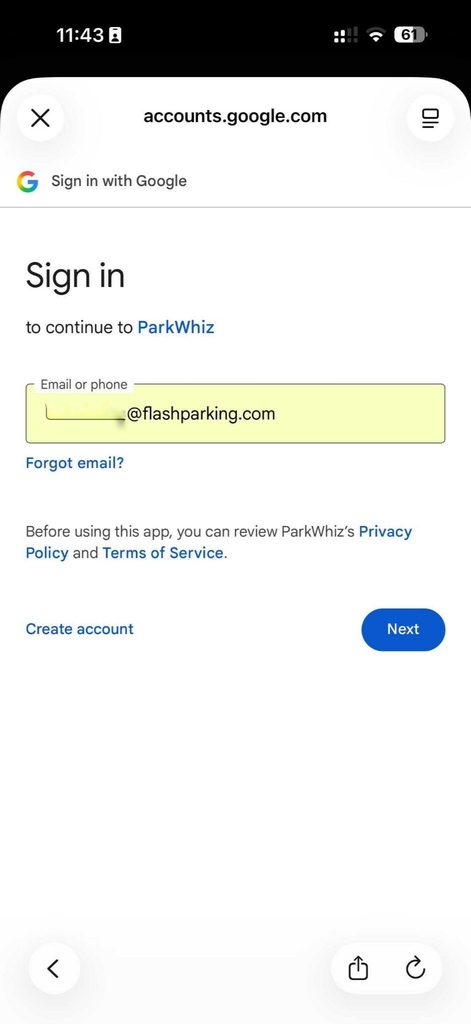
3. Authenticate via Google Identity:
If you selected Continue with Google:
- Enter your full corporate email address (e.g., user@flashparking.com) on the Google Sign-In page.
- Tap Next.
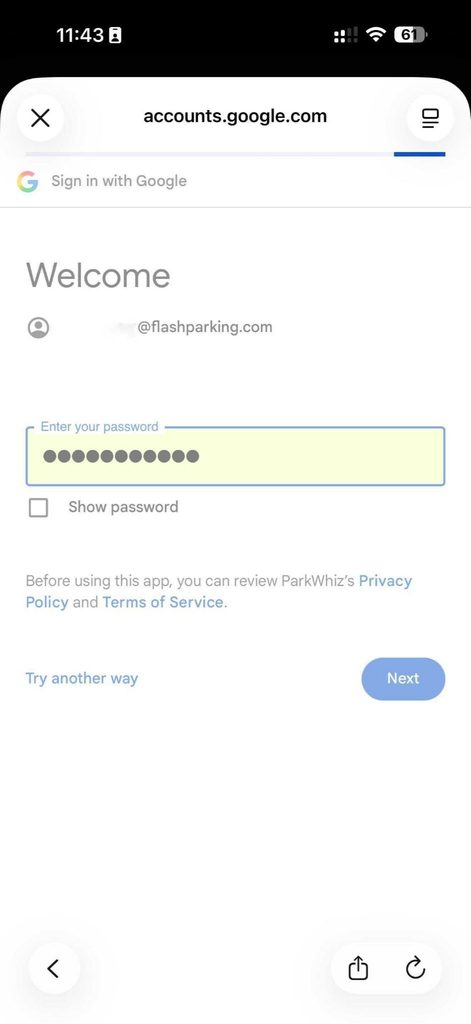
4. Enter Your Password:
- Type your account password into the Enter your password field.
- Tap Next to complete the identity verification.
5. Complete Authentication:
The application will process your credentials and display an authentication indicator while verifying your permissions across systems.
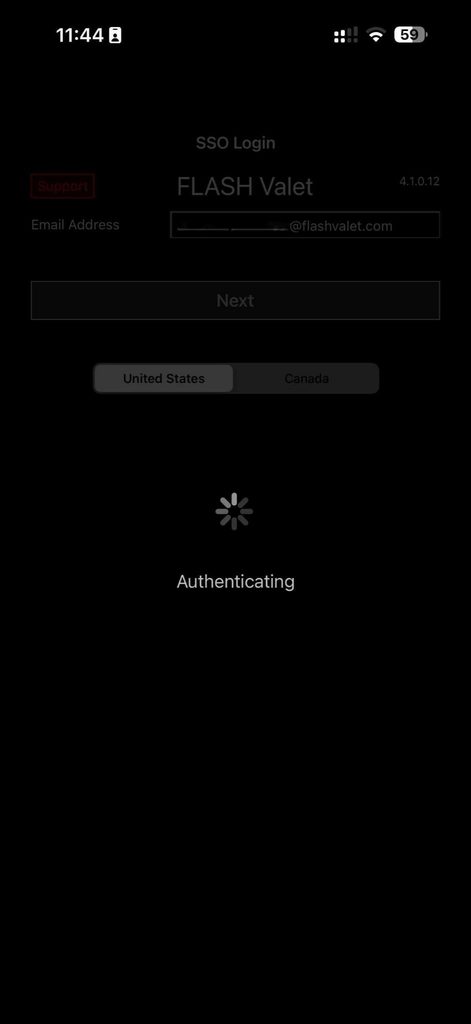
6. Select Your Company Profile:
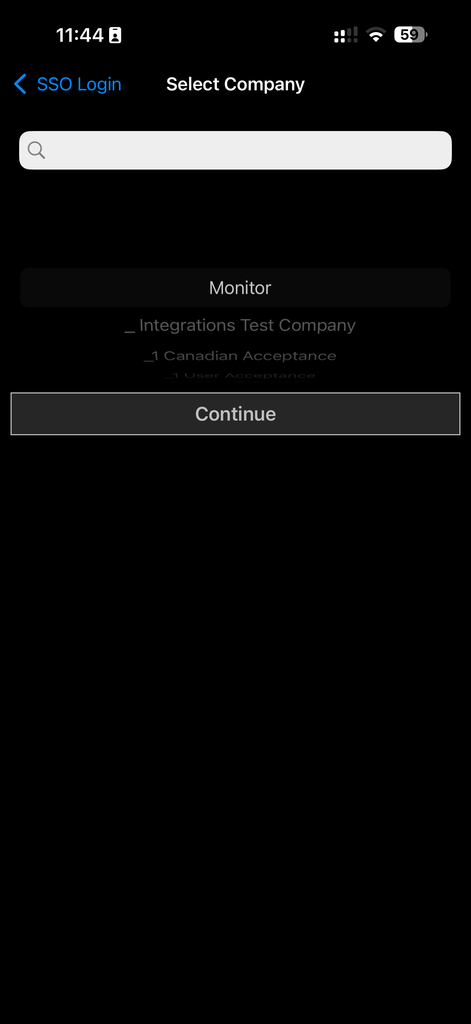
Once authenticated, you will be taken to the Select Company screen:
- Choose your assigned organization/company from the list or search for it using the search bar.
- Tap Continue to access the FLASH Valet dashboard.
Note: The Flash Valet app uses the same AWS Cognito authentication platform as the Enterprise solution across all other Flash Portals.
Users still need permissions to log in to the Flash Valet app to use SSO. See the steps on how to add a user HERE.