User Roles #
ZipPark user roles grant users certain permissions and capabilities based on their functions. Some roles are limited to a specific function, while others encompass multiple management capabilities.
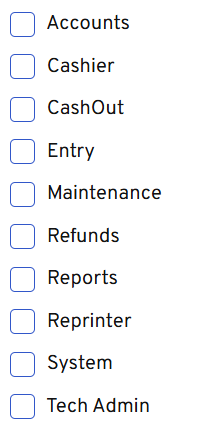
| User | Description | Access |
| Cashier | The ability to process transactions in the Android app. | Android app only |
| Cashout | Allows users to cash out (and print a cashier’s report). Some sites want a manager to perform the cash out as a cash control procedure. In that case, this privilege would not be given to cashiers, only to managers. | Android app only |
| Entry | The ability to process transactions in the Android app. Note: This user type is to be deprecated. | Android app only |
| Maintenance | Grants access to all functions on the Maintenance menu in the portal, except Users. This user role is a support-type user, able to access all features except modifying other existing users or adding new ones. | * Portal only – Dashboard – Calendar – Multi-use passes – Notifications – Sales items – Transactions (all functionality but Refunds) – Validations – Settings |
| Accounts | Grants the user access to the Account pages in the portal. This user type is better suited for facility attendants or event managers since it involves exclusive control of multi-use passes. | * Portal only – Multi-use passes |
| Refunds | Grants the user the ability to issue refunds in the Android app. Note: To do refunds in the portal, the user must also have the Management role. | Android app only |
| Reports | Grants access to reports menu options and all reports in portal. | * Portal only – Reports |
| Reprinter | Allows users to reprint receipts in the Android app. | Android app only |
| System | Grants access to all functions in SysAdmin, including Users. This role is recommended for Flash administrators only. | * Portal only – Dashboard – Calendar – Multi-use passes – Notifications – Sales items – Transactions (all functionality but Refunds) – Users – Validations – Settings, and all pages under it. |
| Tech Admin | Grants access to technical functionality in the Android app, useful for troubleshooting and configuring the system. This role is recommended for Flash administrators only | Android app only |
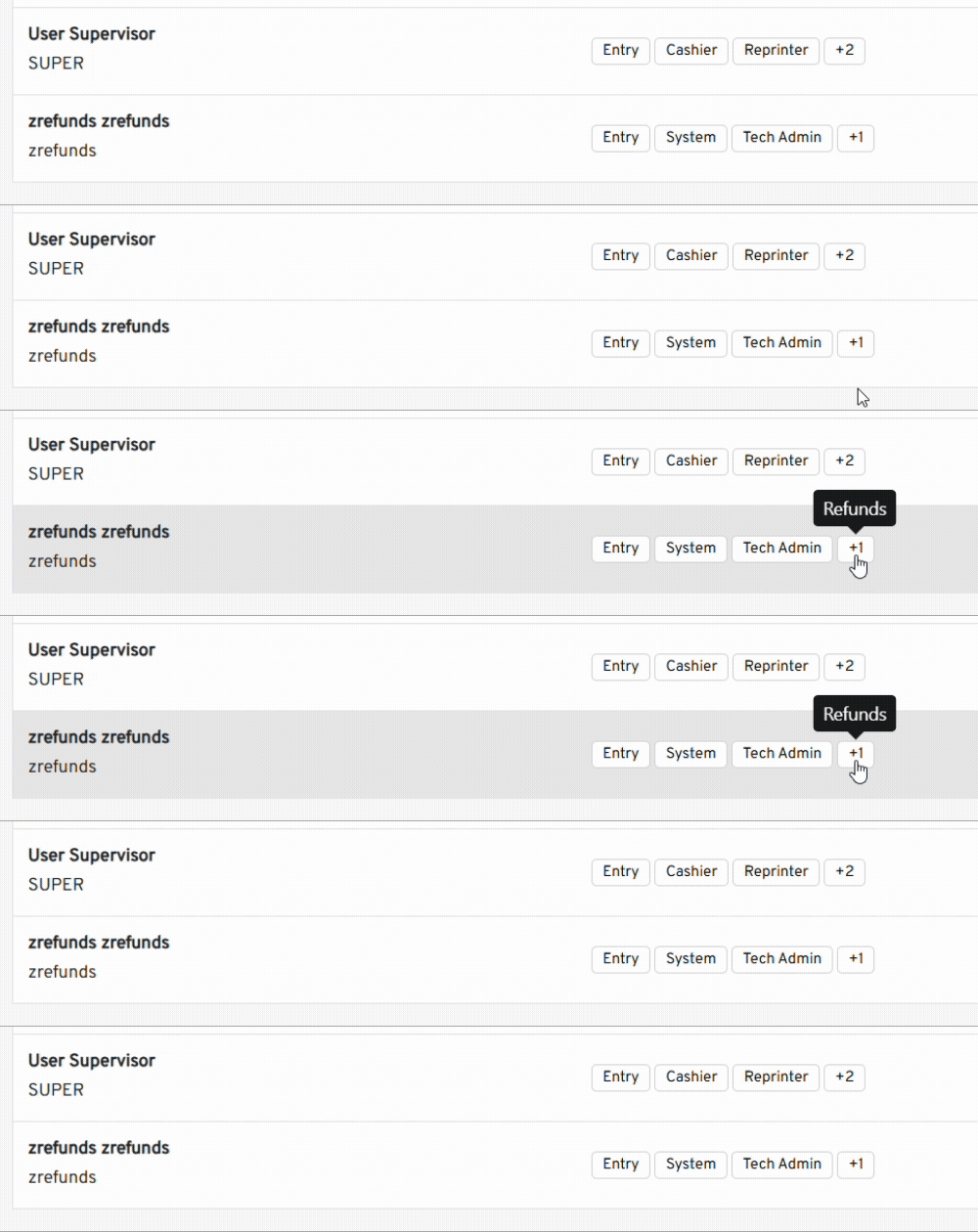
User roles permissions can be seen under the Roles column for all users, a maximum of three roles are shown in this column with an extra number showing the rest of roles assigned to the user (if available) which can be seen by hovering above the number.
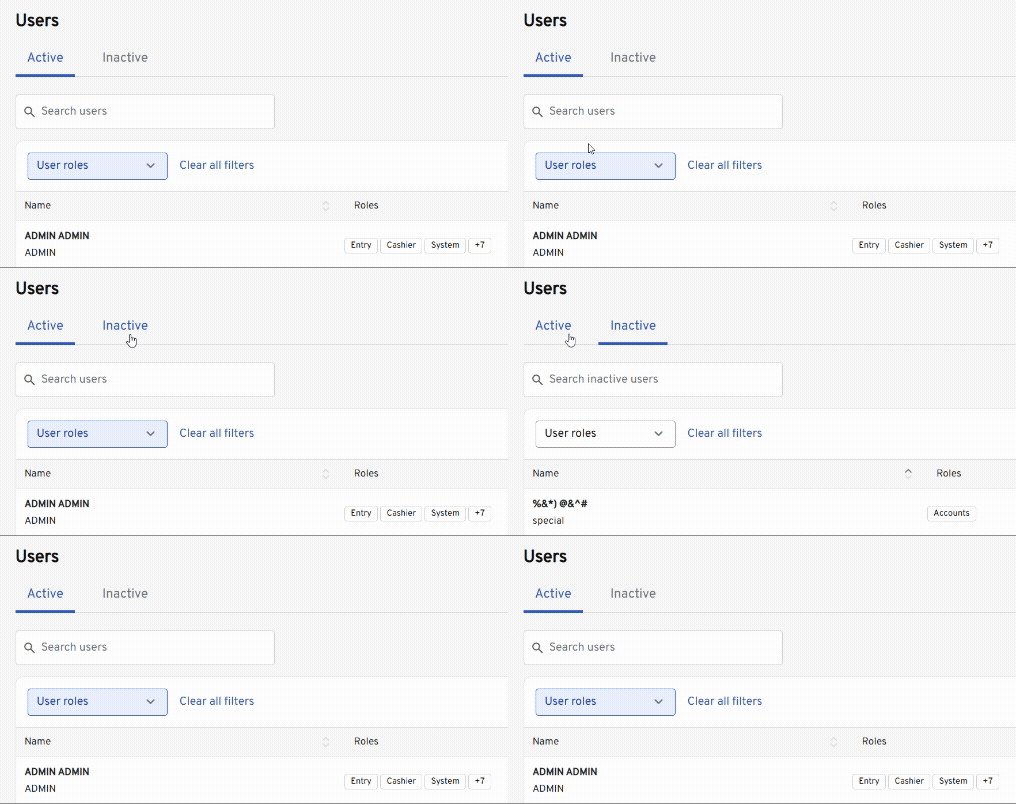
Active users are displayed in the Active tab, while an Inactive tab is available showing disabled users along with their previous user roles. Note that these users can still be edited, changes such as account access, roles, and lots, and also permanently deleted by clicking the Delete User button, or marked as active and taken to the Active tab by checking the Active box.