
| CPQ Info | |
| Configuration Access | Super User |
| Firmware Version Requirement | V4.18 or later |
| Known Limitations | 1. Store & Forward is not supported for EMV transactions (only legacy MSR is supported offline). 2. Deployed VP5300 devices running Build 104+ cannot be downgraded below 104 without an internal factory reset and re-key process physically performed by ID Tech. 3. Remote firmware updates are dependent on lane enrollment in Graylog without firewall blocks. |
| Also known as | Transax Replacement, Payroc |
| Sales and Marketing Assets | |
| L&D Course | Parkonect | Payroc Merchant Gateway (100) |
Payroc is the payment processing gateway selected to replace the legacy Transax/Pineapple/Fiserv gateway.
- Product sector: Parkonect
- User type: Monthly, transient, online reservations (parcdaypass.com, Tenant Vouchers)
- What problem does it solve?: It replaces the retiring Transax gateway to protect revenue collection, prevent payment processing outages, and maintain business continuity across approximately 1,000 active customer locations.
Requirements #
- Required Release Version:
- Firmware: 4.18 or later
- Hardware: Compatible hardware includes the
- IDTech VP5300 (EMV)
- Spectrum Air (MSR)
- Augusta (Sioux City POS 1) readers.
- Configuration role: Super User.
How it Works #
End user experience #
The end-user experience remains 100% unchanged. Existing transient parking workflows, exit experiences, and hosted payment page interfaces (such as parcdaypass.com, and Tenant Portal) continue to function exactly as they did with the legacy gateway. Drivers continue to perform contact, contactless, and magnetic stripe transactions at kiosks or use digital wallets (Apple Pay and Google Pay) via Express Pay without any operational interruption.
Operator Management #
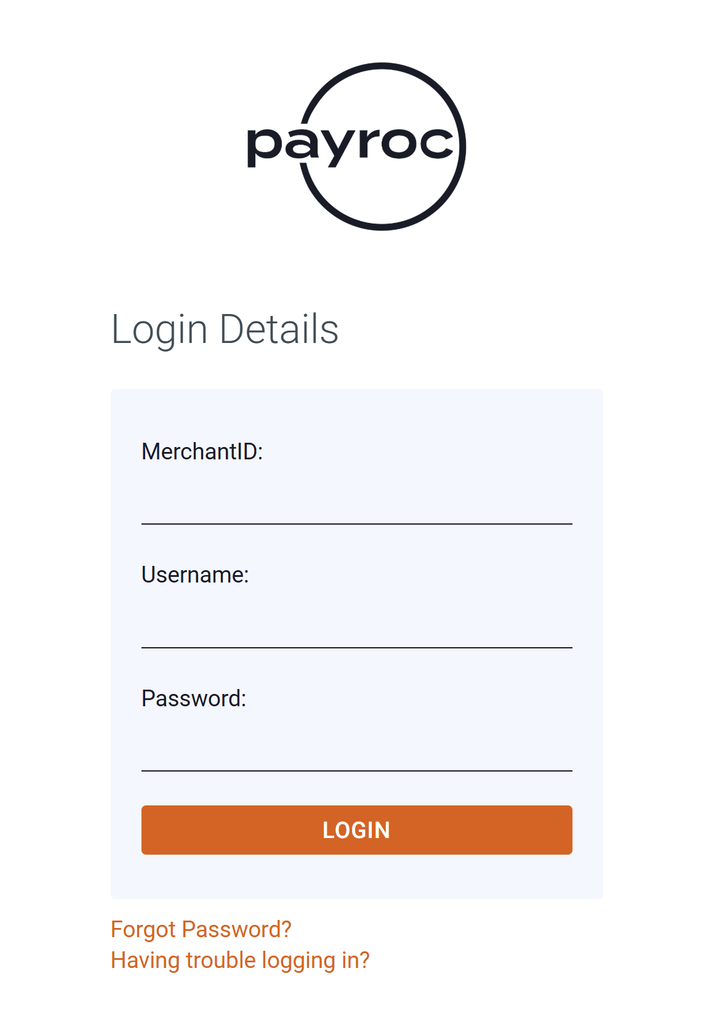
Parking Operators manage the revenue reconciliation methods (refunds, chargebacks, reporting, etc.) through the Payroc portal and can process refunds, and run reporting for open and closed credit card batches. Visit https://payments.payroc.com/merchant/selfcare to log in the Payroc Portal.
Processing a refund #
1- In the Payroc Portal, go to the Virtual Terminal tab and select Refund:
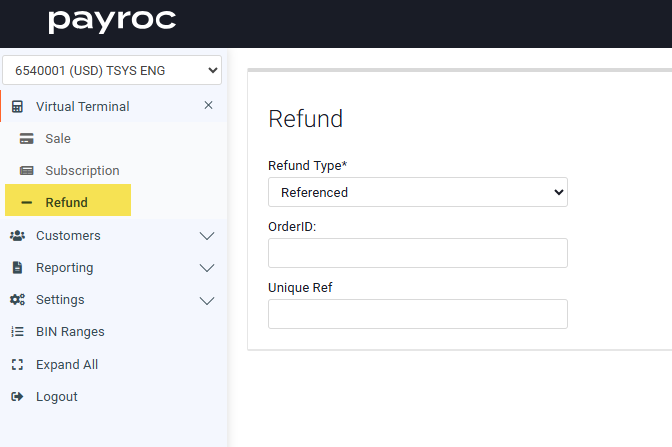
2- Enter the OrderID or the Unique Ref for the transaction. If you don’t already have it, go to the Reporting tab to find the transaction and retrieve any of those values. When you enter an OrderID or Unique Ref, a list of matching transactions will show. Select a transaction to proceed.
3- The portal shows the transaction details. Once you confirm it’s the correct transaction, enter the Amount to be refunded (this autopopulates to the full amount and can be edited to a partial amount if needed), the Reason (Duplicate charge, Incorrect charge, etc), then press the Refund button.
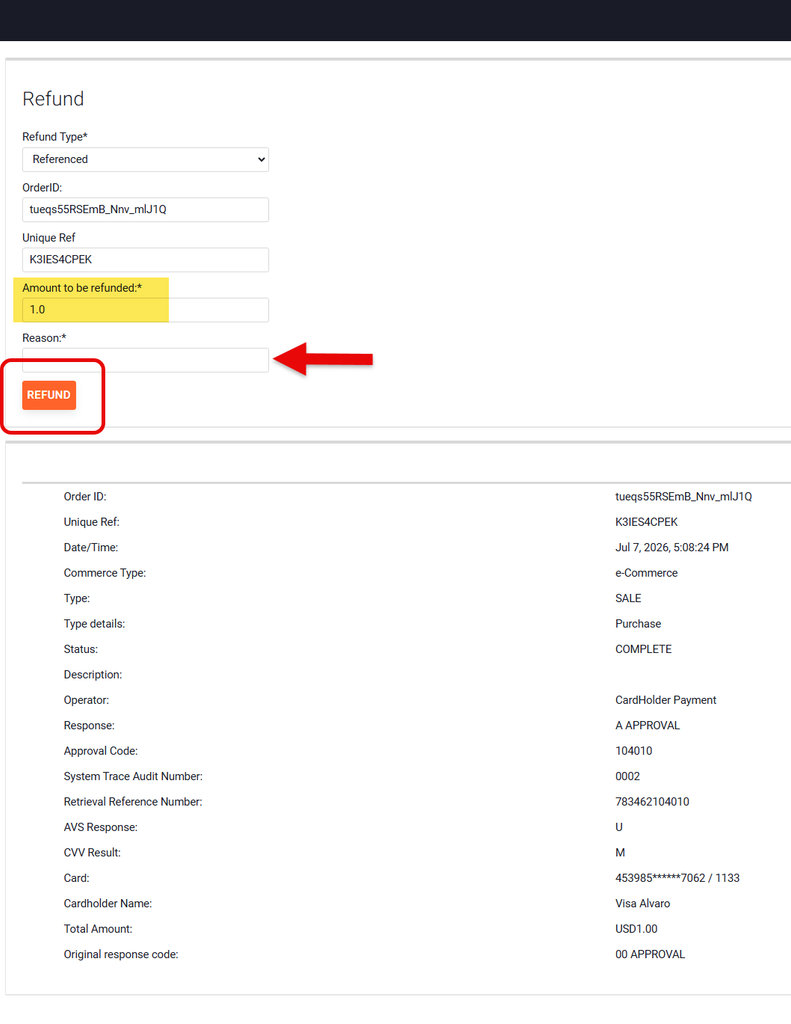
4- A pop-up message asking you to confirm the refund will show. Press OK.
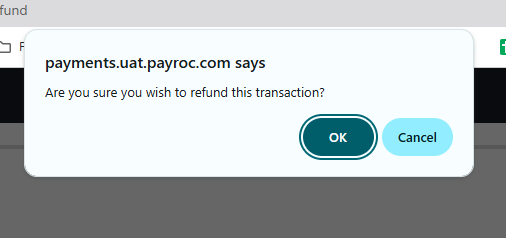
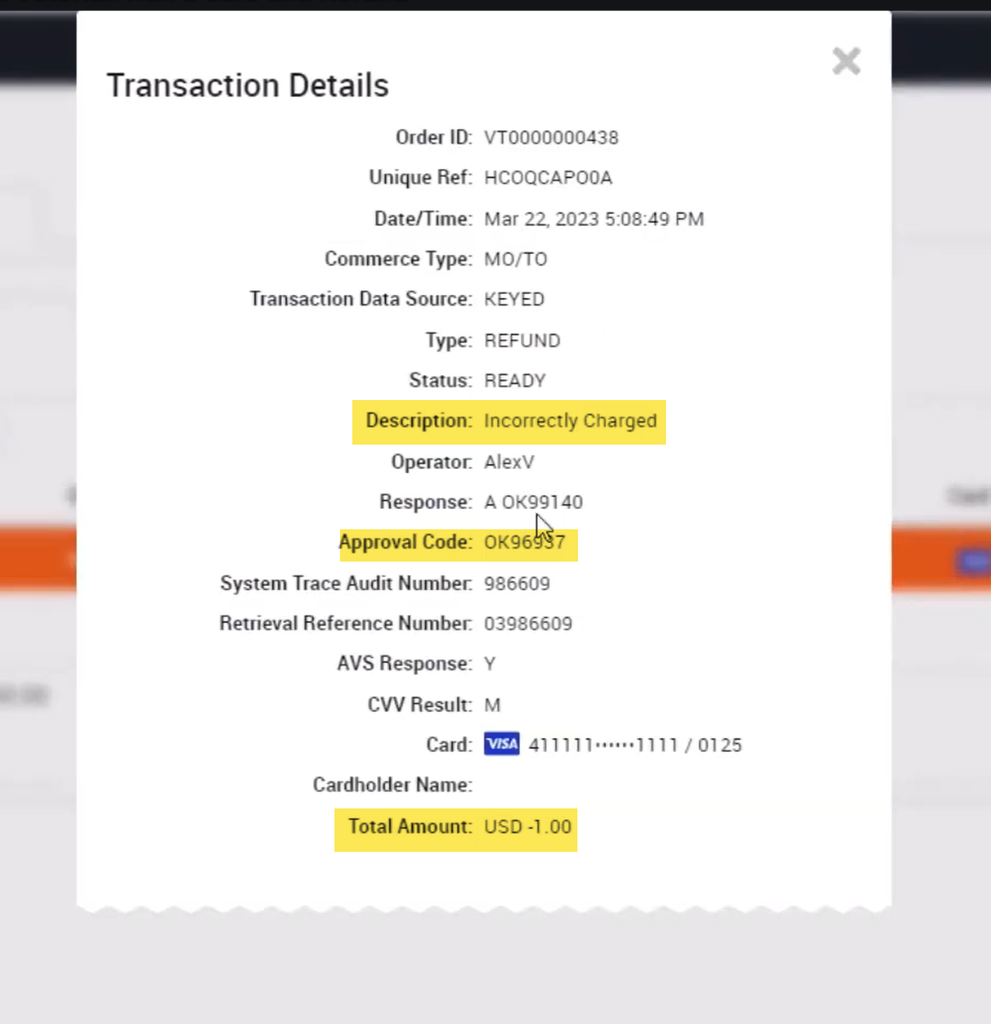
5- The Portal will automatically open the Open Batches in the Reporting section, where you can navigate to All Transactions and find the refund. The refund receipt has matching notes, amount, and an approval code.
#
Transaction troubleshooting #
When you run a credit card transaction, Payroc returns a response indicating whether the payment was approved or declined. They may also include Address Verification Service (AVS) or Card Verification Value (CVV) results.
For transactions you run using the Virtual Terminal, the response is on the receipt page.
When you run a card transaction, you receive the following types of response:
Approved or Authorized — The issuing bank authorizes the transaction. The amount is within the cardholder’s credit limit. Payroc places a hold on the cardholder’s funds and ensures that those funds transfer to your account. The number of days for the funds to clear depends on the issuing bank.
Declined or Not Authorized — The bank declines the transaction. Declines have many possible causes, and Payroc doesn’t receive the reason for the decline due to privacy regulations. Only the cardholder can find out why their card was declined.
Pick-up, or Referral A — The card has been reported lost or stolen.
Important: If you receive a pick-up or referral A transaction response during a cardholder present transaction, retain the card and contact your acquiring bank.
Referral B — The bank requires additional information before authorizing. For ecommerce transactions, this response is treated as a decline.
AVS responses
AVS codes indicate whether the billing address provided matches the card issuer’s records.

| Code | Meaning |
| A | First five street address digits match. ZIP code doesn’t match. |
| E | Transaction is ineligible for AVS. |
| G | Address unavailable. Applies to international Visa cards only. |
| N | Neither the address nor the ZIP code matches. |
| R | System unavailable or timed out. |
| S | Card type not supported by AVS. |
| U | Address information unavailable. |
| W | Nine-digit ZIP code matches. Street address doesn’t match. |
| X | Exact match on both address and nine-digit ZIP code. |
Note: The AVS response doesn’t always cause a transaction to be declined.
CVV responses

CVV codes indicate whether the card’s security code matches. These codes are informational and don’t usually prevent the transaction from being approved.
| Code | Meaning |
| M | CVV matches. |
| N | CVV doesn’t match. |
| P | Not processed. |
| S | Card has a CVV but the merchant didn’t include it. |
| U | Issuer not registered for CVV. |
Implementation #
#
Config guide: Payroc Merchant Gateway Configuration Guide
Technical support resources are documented in:
- Payroc Support Hub: https://support.payroc.com/en_US/self-care-portal
- YouTube Playlist Support: https://www.youtube.com/watch?v=YL7FPChhCpU&list=PLUCDcTHnKW6-crk6Gok_YEnOXuCu24-cl&index=3
Use Cases #
- Several scenarios the product is useful for:
- Processing credit card payments (contact, contactless, and magnetic stripe) at Parkonect facilities under online and offline modes.
- Facilitating customer purchases on hosted payment pages (such as the Tenant Portal, and Parking Cashier).
- Managing transaction refunds and retrieving historical logs.
- What problems does it solve: It prevents direct risks to revenue collection and customer entry/exit operations due to legacy gateway sunsetting. It also eliminates manual VAR sheet collection by automating customer onboarding paperwork through Payroc’s portal.
Keys to Success #
Before a transition project can close and be handed over to Support, the Software Implementation (SI) team must ensure that:
- All contracted configurations, portal updates, and hardware reassignments are completed.
- Standard operating procedures, including a list of terminal reporting codes and support triage pathing are delivered.
- The facility successfully completes a minimum 10-business-day stabilization period post-Go-Live.
Compatibility list #
| Feature | Compatible? | Notes |
| IDTech VP5300 (EMV) reader | YES | |
| Spectrum Air (MSR) reader | YES | |
| Augusta POS readers | YES | |
| Credit Card In/Out on EMV transaction | NO | |
| Credit Card In/Out on magstripe reader (Spectrum Air reader) | YES | |
| Parkonect Edge (Offline Mode) | YES | Store & Forward only supported with ID Tech SpectrumAir (magstripe) readers |
| Mobile Wallets (Apple Pay / Google Pay) | YES | |
| Express Pay | YES |
Related Reports #
Parkonect Admin reports
The following reporting options are fully compatible and display transaction details. This reports are pulled from the Parkonect Admin portal:
- Transaction Log Report
- Sales By Type Report (Visa, Discover, Mastercard, etc.)
- Credit Card Sales Report
- Credit Sales by Card Type
- Transaction By Type
- Store and Forward Collection Report (for MSR offline transactions)
- Pay At Garage Log Report
Payroc Portal Reports
Open Batch: These are credit card transactions that have not settled yet.
- Log in to https://payments.payroc.com/merchant/selfcare/
- From the navigation menu, select Reporting, and then select Open Batch.
Closed Batch: These are settled credit card transactions
- Log in to https://payments.payroc.com/merchant/selfcare/
- From the navigation menu, select Reporting, and then select Closed Batch.
- (Optional) Use the filters to narrow the results. Matching batches appear in the Batch List.
- (Optional) Select a tab to filter by time period:
- Last Batch — The most recently closed batch.
- This Week — All batches closed in the current week.
- This Month — All batches closed in the current month.
- (Optional) To view the transactions in a batch, select its date in the Batch List.
- (Optional) From the Action column, select
to perform the following actions:
- View transactions — See the individual transactions within that batch.
- View batch summary — Open a detailed summary of the batch, including its graphs and currency breakdown.
- Export to CSV — Download the batch data as a CSV file.