
PrePay at Entry Mode configures entry kiosks to collect payment from transient parkers at the time of entry. This mode is typically used for events or situations where a flat rate is charged up front, ensuring all parkers pay before entering the facility.
Important
PrePay Mode is not compatible with Express Pay locations.
Required Equipment #
- Requires firmware version K2_3.11.00-2_26-Jan-2021
- K2 for Gen2 Touchscreen terminals, V1 and V2 for Gen1 terminals
Implementation #
Configuration #
Required Modules
- Event PrePay Mode
- Parking Cashier (to print barcode on ticket dispensed)
All entry terminals need to be power cycled after module activation.
Rate Setup #
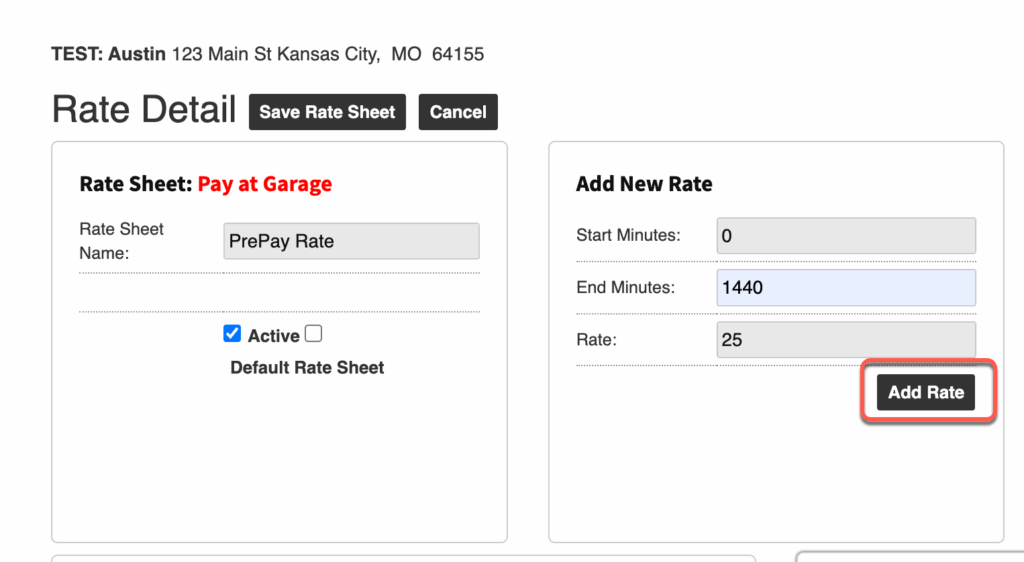
Navigate to the Rate Sheets to create a new rate.
- Garage > Garage Settings > Rates tab > Add New Rate Sheet
- Enter Rate Sheet Name
- Set Start and End minutes
- Set Rate Amount
- PrePay charges the first rate band from the selected rate sheet.
- Example: If the sheet has
0–60 min = $1and60 min–24 hours = $10– PrePay will only charge $1. - Best Practice: Create a flat 24-hour rate to avoid confusion.
- Example: If the sheet has
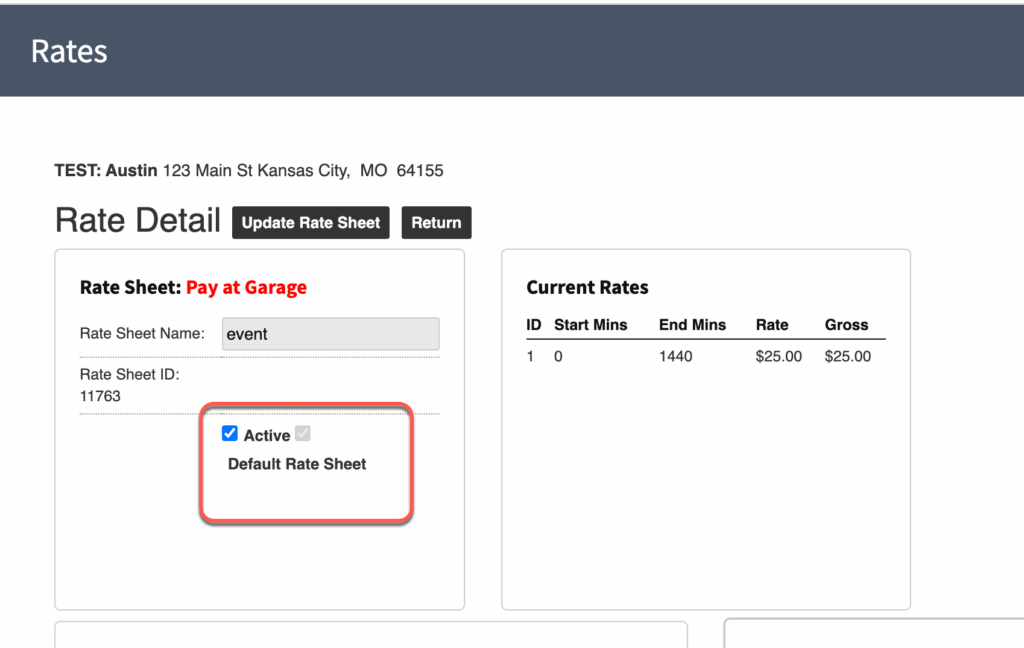
If the location always operates in PrePay Mode, set the rate as the Default Rate Sheet.
Schedule PrePay Mode #
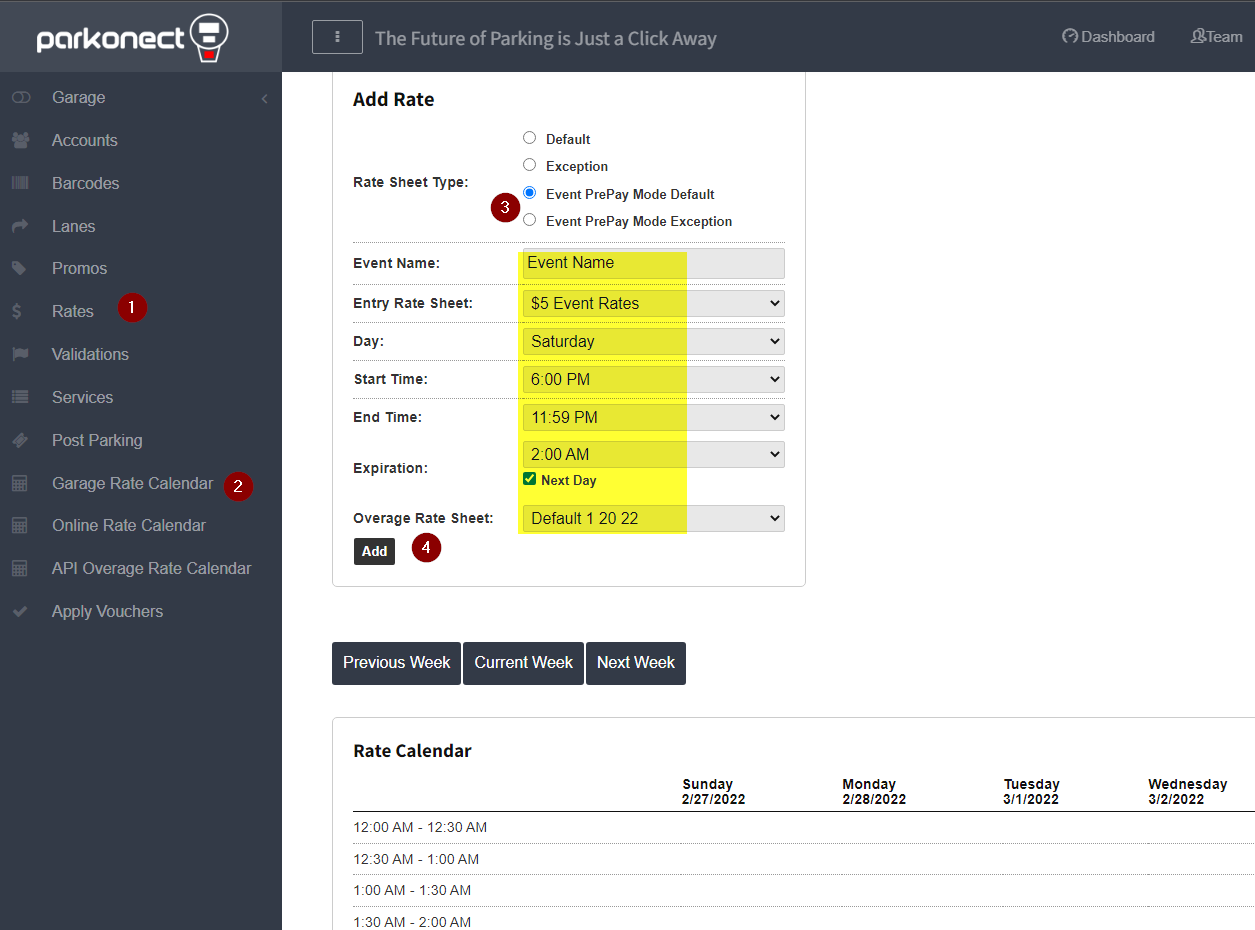
- Go to Garage Rate Calendar.
- Select Event PrePay Mode Default for a recurring weekly event or
- Select Event PrePay Mode Exception for a one-time event.
- Enter Event Details
- Prepay Rate
- Day
- Start Time and End Time: End time, the rate will switch back to the default rate.
- Expiration (when the Overage rate sheet will begin charging)
- Click Add to save.
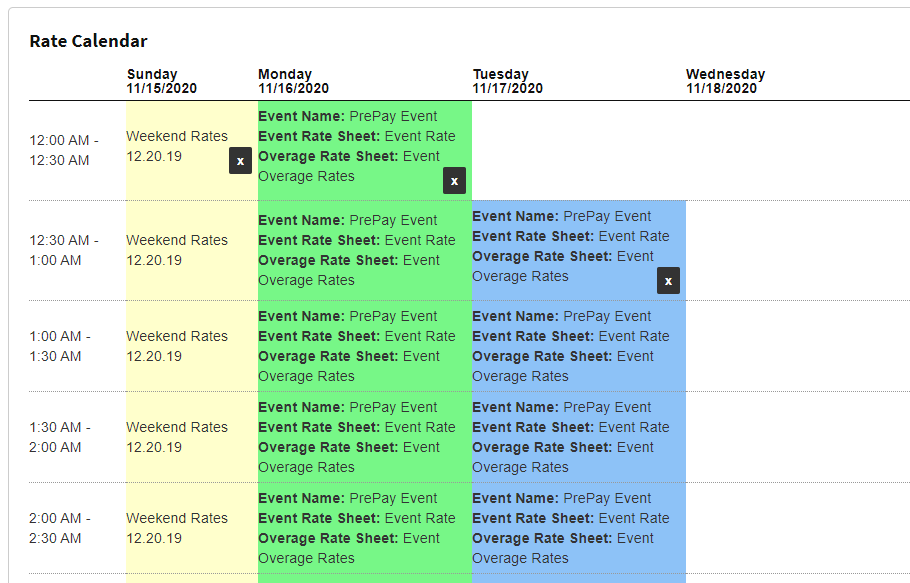
- The scheduled event will appear on the calendar.
PrePay FAQs #
What’s the difference between PrePay default and exception? #
A default rate sheet will be applied weekly, on the same day and time each week. An exception is for a one-time occurrence on the calendar.
How do I set my end time after midnight? #
Two separate events must be created. For example, if you want your event Start Time to be Thursday, 5 pm, and Event End Time to be Friday, 2 am, with an exit by 5 pm Friday, two events must be created.
- Event A: Start time Thursday 5 pm, end time 11:59 pm, out by time 5 pm (next day flag checked).
- Event B: Start time Friday 12 am, End time 2 am, and exit by 5 pm.
Can validations be used on prepay? #
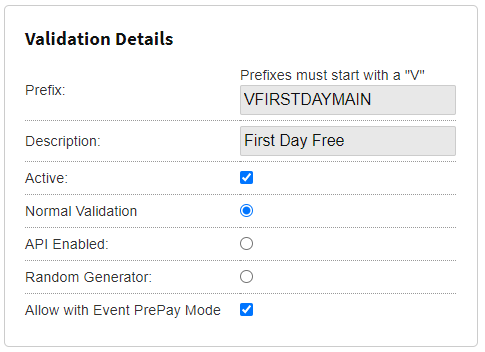
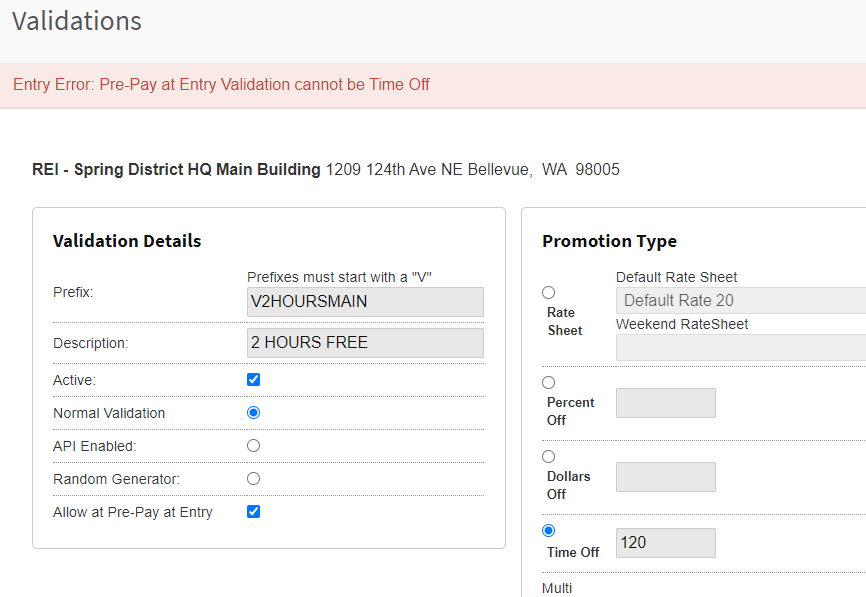
Yes, % off validations and $ off validations can be used if the “Allow with Event PrePay Mode” is selected on the Validation Details.
How do you edit the screen messaging? #
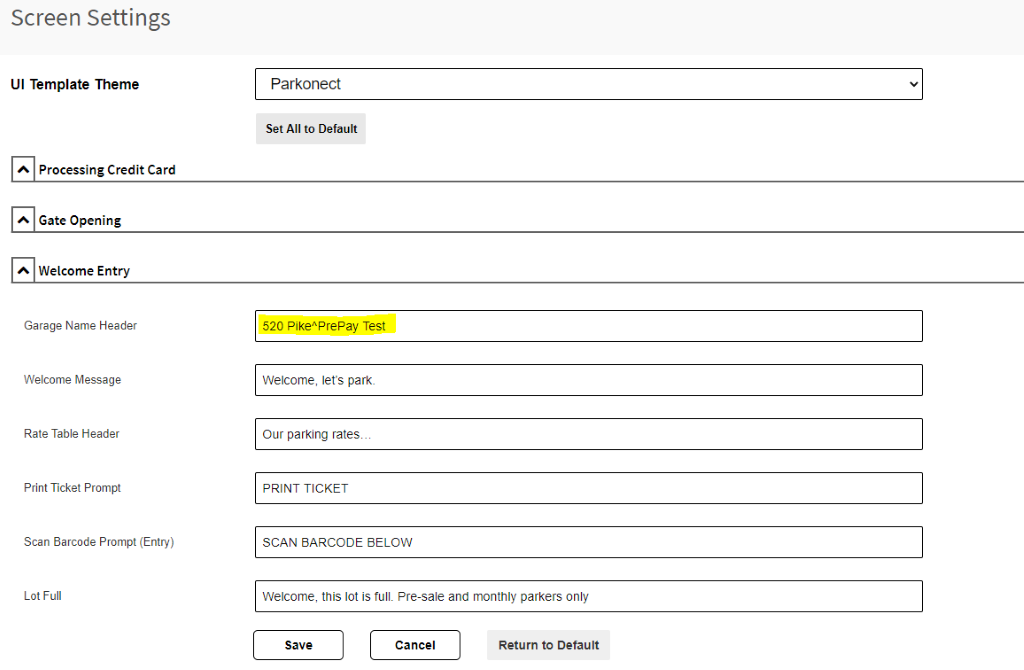
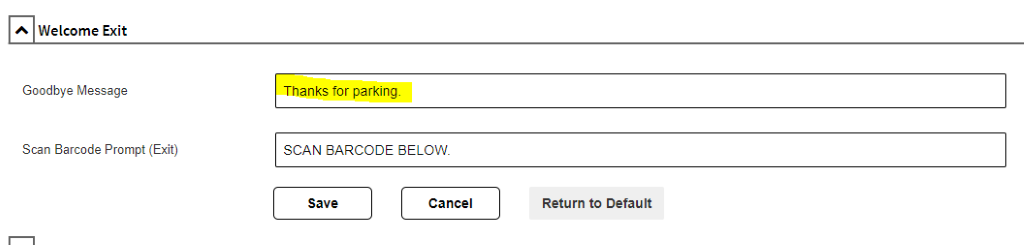
Be sure to adjust the “Welcome Entry” section, specifically the “Garage Name Header” under the Touch Screen Messages tab once you select the Lane(s) for Gen2 Terminals.
What error codes can we expect on the screen? #
If someone tries to scan the barcode on the prepaid entry ticket they just purchased:
- “Barcode Already Check In. No Re-entry Allowed. Please Try Again or Press Call Button.”
- “Bad Credit Card Read” Please swipe your card again, making sure the stripe is up.”
- “Sorry access denied. Please press call button” for ex when parkers are denied while early entry at prepay is active, as would be the case for a restricted monthly parker outside their allowed timeframe.
Reporting Options?
Please note the introduction of the new Parker Type: PrePayAtEntry

Prepay event report #
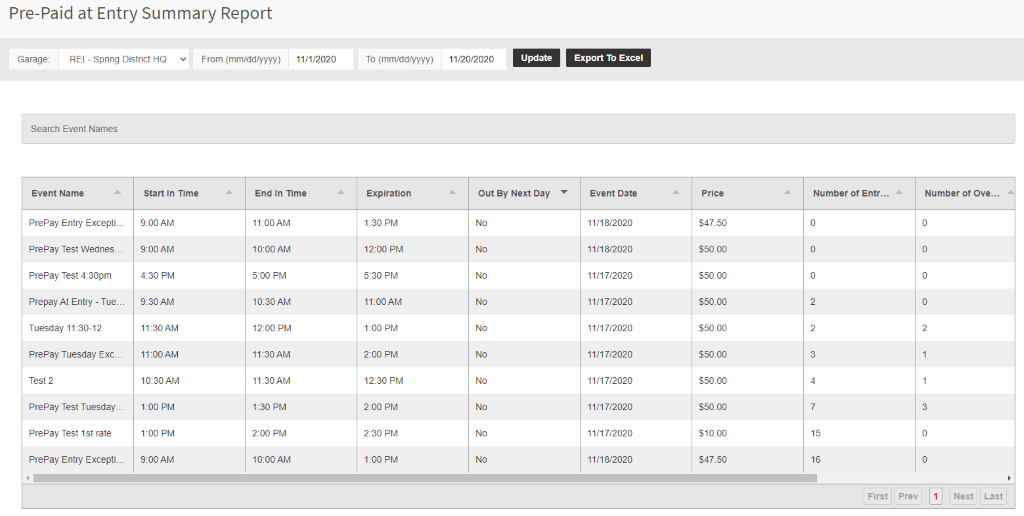
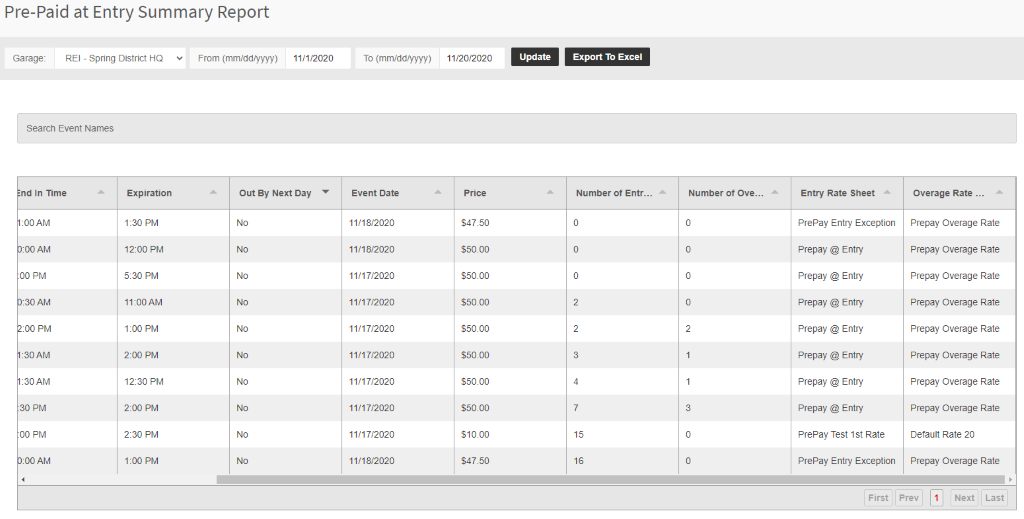
PrePaid at Entry Summary Report! Details different PrePay at Entry events, even those that have 0 transactions.
Data points:
- Start in/end time and out by time
- Price
- Number entries
- Number of overages
- Event Rate Sheet
- Overage Rate Sheet
Look for open ticket reports and closed ticket reports. Should be considered a closed ticket. Closed system in ticket means it’s exited, so it should show as an open ticket until they leave, and then once they leave, it’s marked as closed.
How does it work when “on” for:
- Monthlies – Monthlies are still allowed to enter.
- Presales – Presales are still allowed to enter.
- Validations – Dollar off and percent off validations are allowed.