
Using the Arrivals List feature allows valet attendants to search for Hotel Guest Reservation names in the Flash Valet app when issuing a Valet Overnight ticket.
The guest information is generated by setting up a scheduled report from the hotel system that includes the following possible data points:
- Last Name
- First name
- Confirmation #
- Arrival Date
- Departure Date
- Rewards Level
- Notes
For VIP, if a reservation is attached to the ticket, and the reservation has a loyalty level with the hotel in the arrival file, the ticket will be marked as VIP. The VIP check cannot be removed without removing the reservation. VIP is signifed by a gold star next to the ticket number in the Flash Valet app.
How it Works #
After receiving the arrivals list confirmation email:

- Issue valet Overnight ticket, and select the Name option.

2. Enter the reservation name provided by the guest> Search. Names will populate based on search, > select the name from the list.

3. Tap Done to issue ticket.
More options in App #
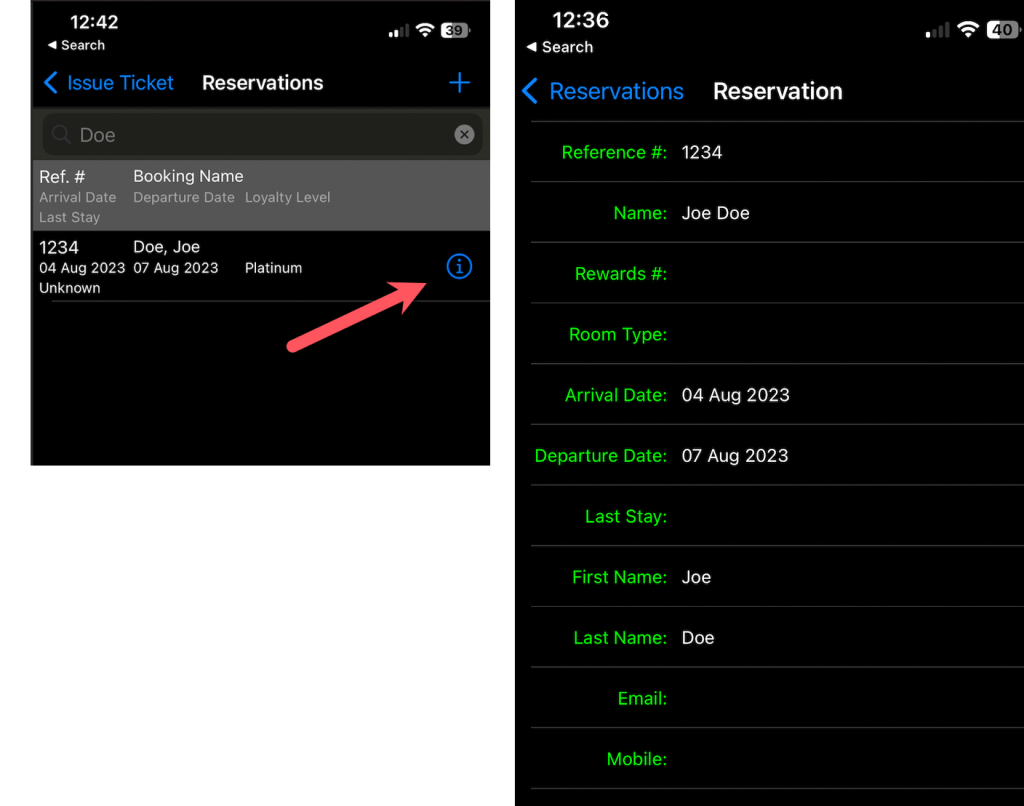
Tapping the blue “i” next the reservation name provides a list of information sent from the hotel system that can be mapped to the Flash Valet.
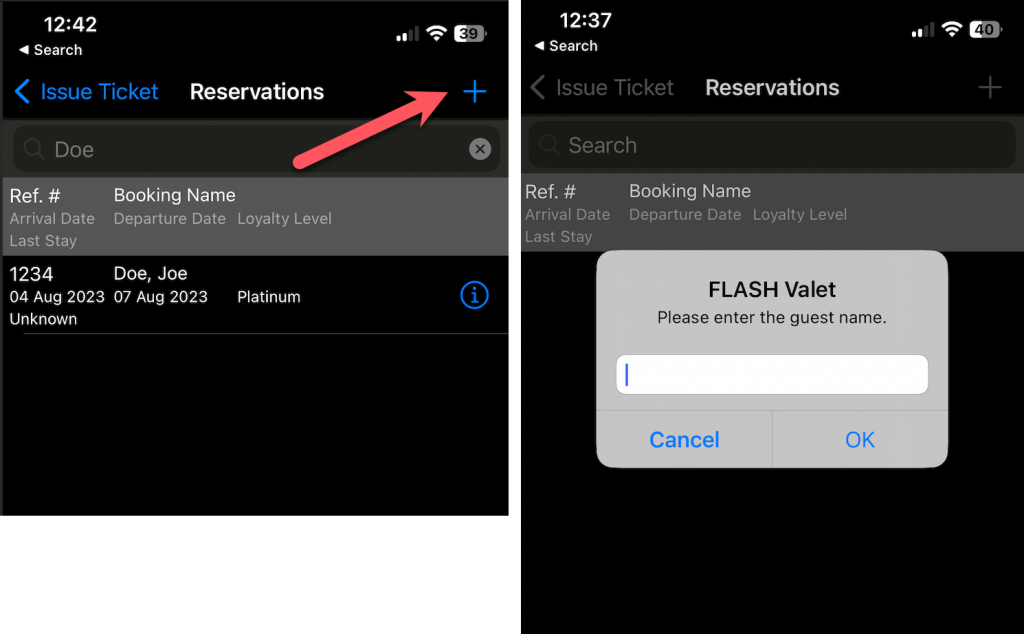
If the reservation if not found in the populated list, tap the “+” to manually enter the Reservation Name.
Configuration #

- Under Location Details, set POS System to Micros Advanced (for Opera) or Generic Excel (for non-Opera PMS).

2. Under Ticket Types, select Overnight Ticket Type and check the flag for Use Arrivals List. (step 1 must be completed first or this flag will be greyed out).
3. Provide the Arrivals List Creation instructions (see Arrivals list template and Generic Excel Upload section) to the customer so they can create the Arrivals List in their PMS system / fill out Excel Template.
4. The hotel must supply the email address that the report will be coming from.

5. Add email address to Arrival List form under Location Details. (step one must be completed first or this field is uneditable).
Arrivals list template and Generic Excel Upload steps #
The template can be downloaded by clicking here.

- Send the excel sheet to arrivalslist@flashvalet.com from the hotel system or the user email address on a daily basis.

A daily confirmation email will be sent to the email provided in the Arrival List field, informing the process of the submission or any possible errors in the list.
Opera Upload Steps #
If the location is using Micros Opera here are steps to set up the scheduled report from the hotel system. There are multiple versions of Micros Opera so these steps may vary.
How to Create the OSR file:
- Login to Opera
- Launch the “Opera Configuration”
- Select “Setup”
- Select “Report Setup”
- Select “Reports”
- Select “New”
- Enter the following info:
- Report Name = Flash Valet Arrivals List
- Check = Simple Report
- Report Group = Arrivals
- Select “Customize”
- Add check marks on “Reservations”, “Profiles” and “Financial Transactions”.
- Under Columns, the following must be selected in this order:
- Conf Number
- Resv Status
- Room Number
- Last Name
- First Name
- Arrival Date
- Departure Date
- Membership Level
- Last Visit
- Special Requests
- Under Filters, select the following filters
- Arrival Date = BUSINESS DATE
- Reservation status should be pending or hasn’t arrived yet
- Then export file to create new OSR file called “flashvalet_arrivalslist.osr”
- Delete report that has been created.
- Select “Reports”
- Select “New”
- Enter the following info:
- Report Name = Flash Valet Arrivals List
- Check = Simple Report
- Report Group = Arrivals
- Select the “Import” button
- Find the file “flashvalet_arrivalslist.osr” and upload it.
- Select “Filters”
- Click “OK” and you are finished.
- Find the module “Report Scheduler”
- Find the newly created report “Flash Valet Arrivals List”.
- Ensure is setup as a “.TXT” for file type, with “Delimited Data” format and comma delimited “,”.
- Schedule the report to be sent to “arrivalslist@flashvalet.com” once/twice per day.
YouTube video that walks through the setup process in Opera:
https://www.youtube.com/watch?v=RO08eiOLWys