Enable Lost Ticket Module #
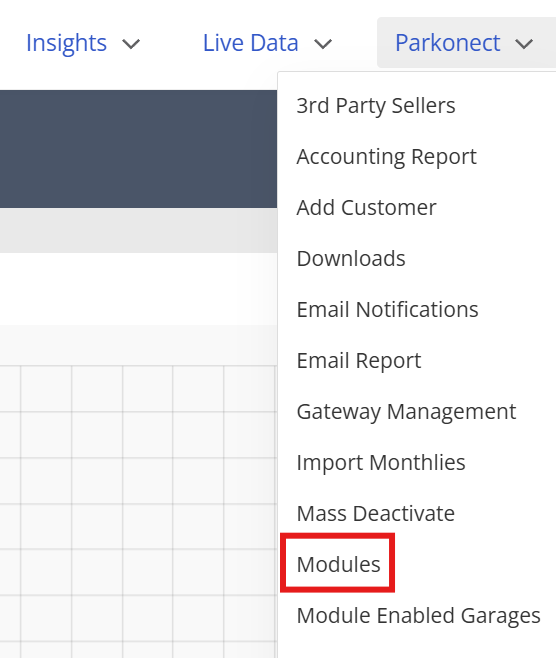
- Select the Parkonect tab > Modules option.
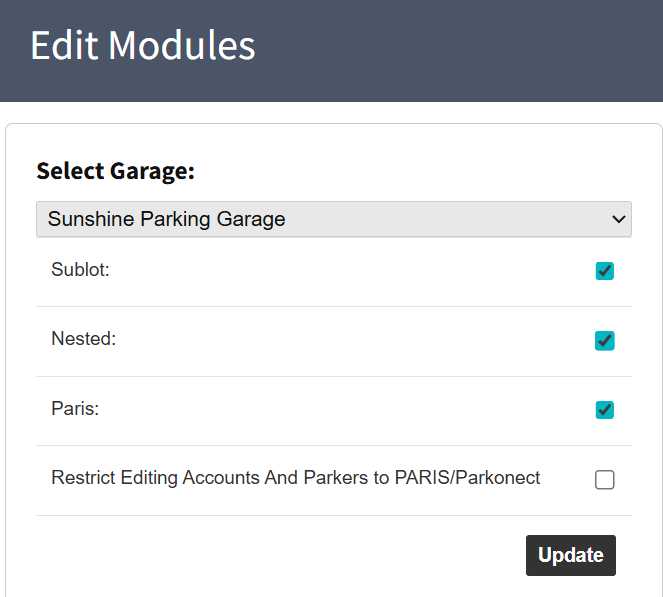
- Select the garage from the dropdown menu list.
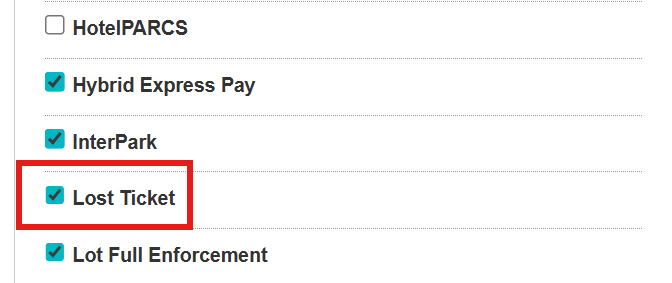
- Check the Lost Ticket module flag from the right-hand side list > be sure to click the Update under the garage selection.
Enabling the Lost Ticket on Exit button #
A Lost Ticket button can be enabled to appear at the exit kiosk or POF station to be pressed by the parker bringing up a selected default amount.
- Click the Lanes option under Garage Settings.
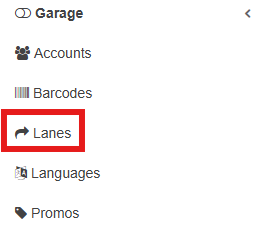
- Select the desired Exit kiosk or POF station.

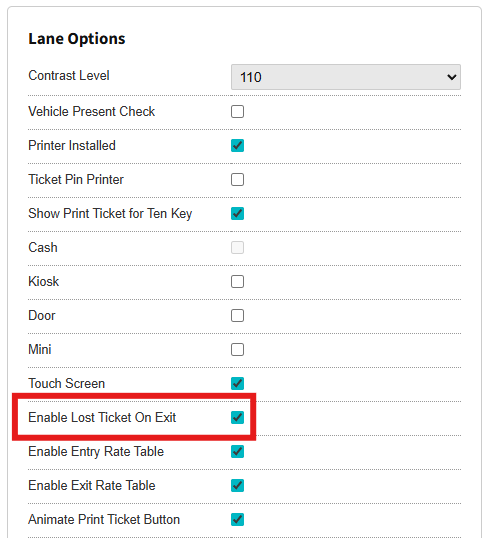
- Check the Enable Lost Ticket flag under the Lane Options section > Click the Update button on the top-right corner of the page.
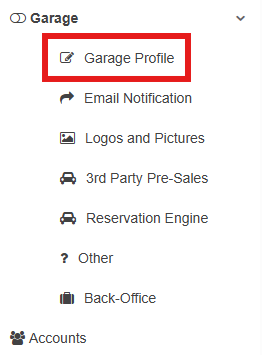
- From there, click the Garage dropdown on the left-hand side of the screen > Click Garage Profile.
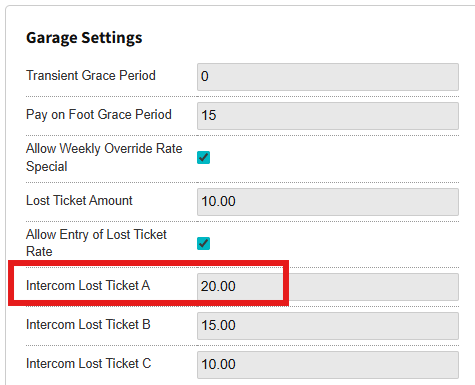
- Under the Garage Settings section select an amount for the Intercom Lost Ticket A, this will be the default price for the kiosk’s Lost Ticket button > Click the Update button.
Set Lost Ticket Amount #
The preconfigured Lost Ticket Price is added under the Garage Profile. This rate is automatically displayed when the driver selects the Lost Ticket option.
- Select the Garage Setting tab option under the garage dropdown list.
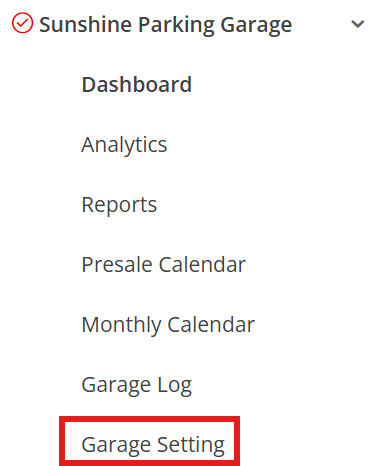
- The Garage Setting section includes the Lost Ticket Amount option; edit it to the desired default price for the lost ticket.
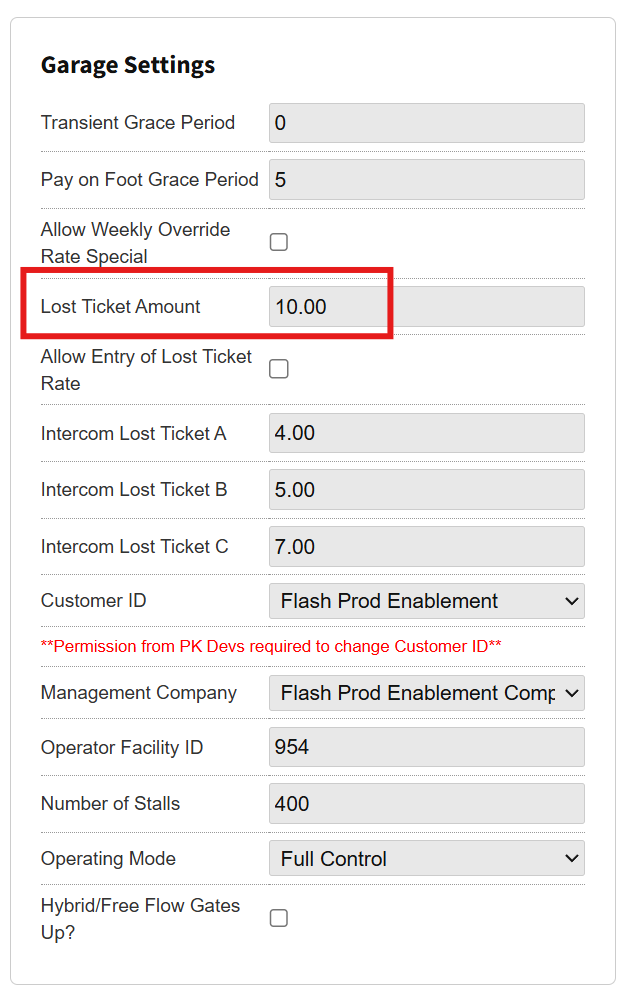
- Click the Update button in the upper right-hand corner of the screen.

Note
You are required to enter an amount in the Lost Ticket field. The minimum amount is $1.
Enable Dynamic Lost Ticket Options #
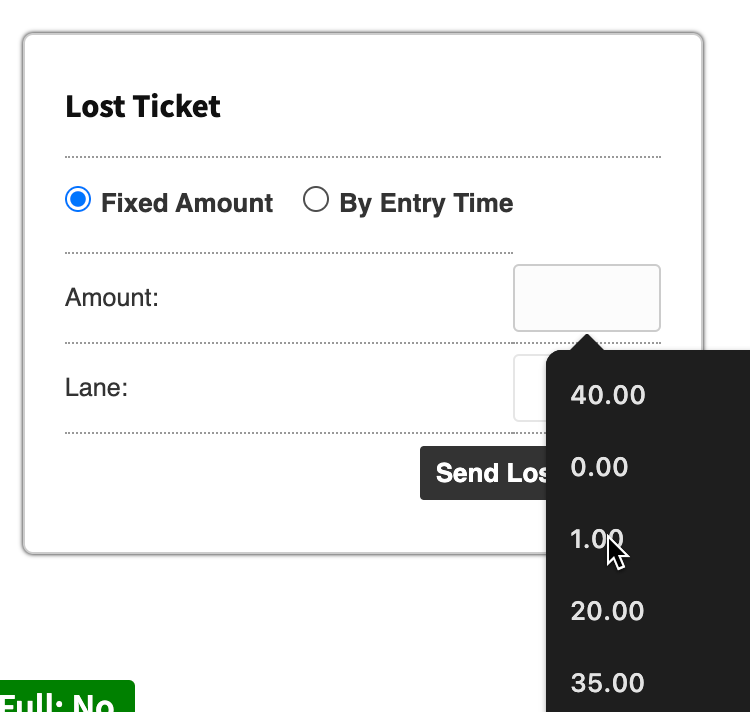
The Parkonect Garage Log provides operators or call center agents with options to push rates to in-lane customers when they tap the kiosk Support button.
The Garage Log’s Lost Ticket option can offer two dynamic settings:
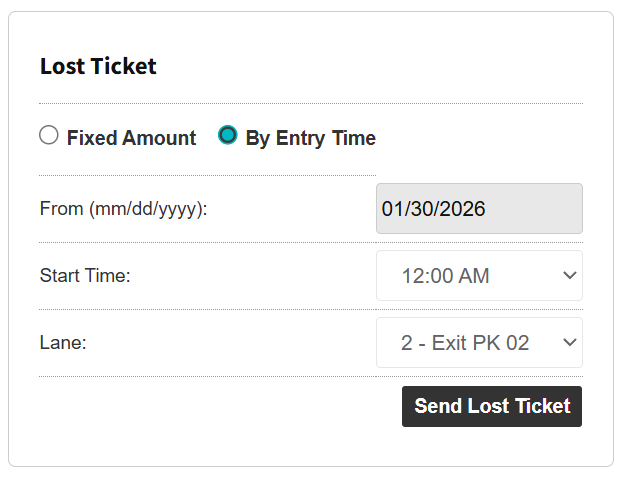
- Manual Rate Entry – An open field where the operator can enter a custom lost ticket amount before sending the rate to the lane.
- Entry Date/Time Selection – A calendar-based option that allows the operator to select an estimated entry date and time so the system can calculate the appropriate parking fee.
Check Allow Entry of Lost Ticket Rate #
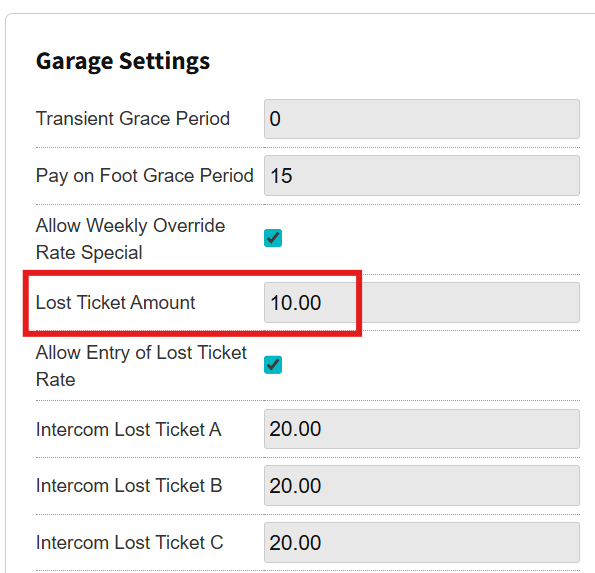
The Allow Entry of Lost Ticket Rate setting enables the option to manually adjust the lost ticket fee to any rate within the garage logs before the rate is pushed to the lane.
- Navigate to Garage Setting tab > Garage Settings section
- Check the Allow Entry Lost Ticket Rate flag
- Update
Check Lost Ticket by Date Time #
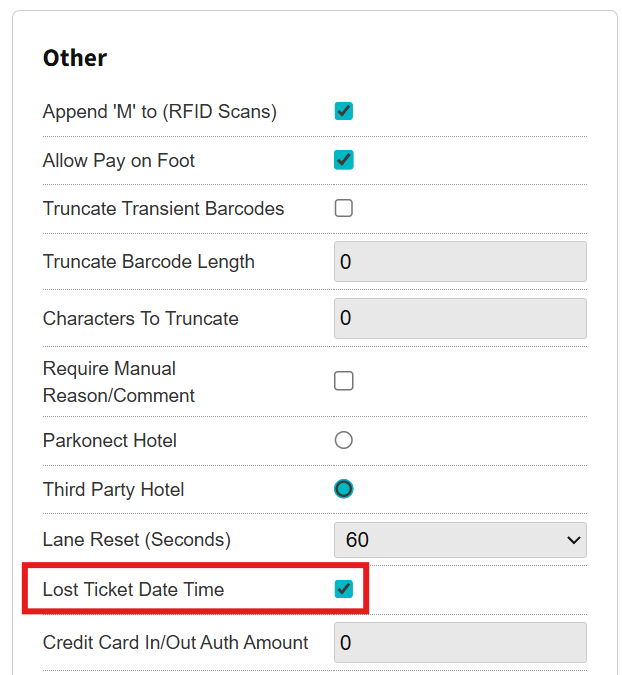
This allows a Dynamic Entry time to calculate the standard rate for the Lost Ticket and send it to the lane via the Send Lost Ticket button using the Garage Log.
- Navigate to the Other tab > Other section
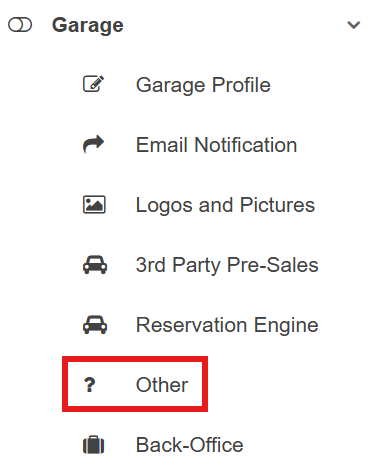
- Check the Lost Ticket Date Time flag
Using the Garage Log Examples #
Allow Entry of Lost Ticket Rate
By Entry Time