• Product Launches
    • Adyen for Flash PARCS
    • Express Pay
  • Status Page
  • Product Release Notes
  • Register
  • Log In
  • Product Launches
    • Adyen for Flash PARCS
    • Express Pay
  • Status Page
  • Product Release Notes
  • Register
  • Log In

3rd Party API Integrations

  • Monthly APIs
    • Monthly API Calls & Guide - REST
      • GetAllMonthlies (REST)
      • GetMonthlyAccount1 (REST)
      • GetMonthlyContact1 (REST)
      • GetMonthlyProfiles (REST)
      • GetMonthlyVehicle1 (REST)
      • MonthlyAccount6 (REST)
      • MonthlyContact2 (REST)
      • MonthlyVehicle (REST)
      • RegisterMemberCard (REST)
      • RemoveChildAccountLink (REST)
      • ResetToNeutral (REST)
      • SetMonthlyContactExternalID (REST)
      • SetMonthlyProfiles (REST)
      • SetMonthlyVehicleExternalID (REST)

Configuration

  • Flash Admin Portal Configurations
    • Gates Only User Role
    • Kiosk Configurations
    • PARCS Ticket Types Configs
    • Pricing Schedule
    • Time Zones
    • Flash Admin Portal Flag Glossary
      • Company Details
      • FlashPARCS tab
      • Monthly Details Tab
      • Restrictions Tab
      • Validation Account Flags
      • Validator Tab Flags
    • Flash PARCS Configurations
      • Cash Amount Due Portal Configuration
      • Flash PARCS Cashier Kit Configuration
      • FlashRates: PrePay Overnight At Kiosk (In-Out) configuration
      • Logical Zone Garage Groups
      • Monthly Master Account configuration
      • Overnight Self Park Configuration
      • Pre Pay Rate Configuration
    • Flash Valet Configurations
      • Employee Barcode Set Up
      • Flash Valet with DTC Configuration
      • SMS Response Options (Custom Labels)
      • Valet Monitor Configuration
    • Integrations Configurations
      • Fast Park Integration Configuration
      • HelpMeParker Configuration
    • PARCS + Valet Configuration
      • Late Checkout Price
  • Flash Rates Tool
    • FlashRates: PrePay Overnight At Kiosk (In-Out) configuration
  • Parkonect Configurations
    • How to Set up Membership API in Parkonect
    • Parkonect + ParkWhiz Reservations / PreSales
    • Parkonect DTC with LAZ Configuration
    • Parkonect: Banner Ads Module 
    • Parkonect: Hotel Parking Pass Module Configuration
    • Parkonect: How to Customize Touchscreen Messages
    • Parkonect: License Plate Look Up Config
    • Parkonect: Lost Ticket Configuration
    • Parkonect: Pass Generator Configuration
    • Parkonect: Point of Sale Configuration
    • Parkonect: Transient Credit Card In/Out
  • ParkWhiz Console Configurations
    • Parkonect + ParkWhiz Reservations / PreSales
    • ParkWhiz Fees Overview
    • ParkWhiz Multipasses

EV Charging

  • Install and Run the EV Simulator (OCPP)

Event

  • BallParc General
    • Adyen NYC1 Credit Card Reader
    • Adyen NYC1 Device Manager
    • Adyen NYC1 Processing Transactions

Flash Valet

  • Flash Valet App
    • eParking Counts Tab – Flash Valet
    • Flash Valet Support Button
    • High Volume Mode
    • IVR Calls
  • Flash Valet Hardware
    • Flash Valet Monitors
  • Flash Valet Modules
    • Flash Valet Retrieval Monitors: Scenarios
    • Hotel Arrivals List for Valet
    • Valet Monthly Module
      • Valet Retrieval via Validation Portal for Monthly/Resident
    • Valet Validation Module
      • Flash Valet Request History

Hardware Library

  • Flash PARCS Hardware
    • Transcore Encompass 4 RFID Reader (AVI)

Parkonect

  • Parkonect Dashboard
    • Parkonect: Dashboard Overview
    • Parkonect: Dashboard Quick Reference
    • Parkonect: Garage Management
    • Parkonect: How To Add Users
    • Parkonect: Insights Analytics
    • Parkonect: Live Data
    • Parkonect: Monthly Calendar
    • Parkonect: Presale Calendar
    • Parkonect: Reports
    • Parkonect: User Accounts
  • Parkonect FAQs
    • Parkonect How Do I Get A Parking Receipt?
    • Parkonect: Failed Scans Explained
    • Parkonect: How Does Parkonect Prioritize Service Calls?
    • Parkonect: How to Re-connect Lost Skidata Connection
    • Parkonect: How to Recover Your Password
    • Parkonect: How to Refund a Customer
    • Parkonect: How to Setup Towing Enforcement
    • Parkonect: How to Update Your Password
    • Parkonect: PARIS Software by IntegraPark
    • Parkonect: User Types
  • Parkonect Garage Management
    • Parkonect: How to Schedule Lanes (Sleep)
    • Parkonect: Search and Send
  • Parkonect General
    • Parkonect Entry/Exit Methods
    • Parkonect Modules Summary List
    • Parkonect Network Information
    • Parkonect: System Overview
  • Parkonect Hardware Manuals
    • Parkonect Magnetic: Parking Pro Wiring & Programming Guide
    • Parkonect Magnetic: Programming Guide Control Unit MGC and MGC-Pro for MHTM Microdrive Barriers
    • Parkonect: Gen 1 Firmware Update (V1 Board)
    • Parkonect: Gen 1 Firmware Update (V2 Board)
    • Parkonect: Gen 1 Intercom Button Cover Installation Guide
    • Parkonect: Gen 2 7800 Update Guide
    • Parkonect: Gen 2 Intercom Button Cover Installation Guide
    • Parkonect: Gen 2 Quick Start Manual
    • Parkonect: Magnetic Gate MHTM MicroDrive: Control Unit MGC and MGC-Pro User Guide
    • Parkonect: TD9000 Syspark Printer Programming Guide
    • Parkonect: Validation Station Quick Start Wiring Diagram
  • Parkonect Hardware Troubleshooting
    • Parkonect: Common Hardware & Key Identification
    • Parkonect: Gen 2 Ticket Cutter QR Solution
    • Parkonect: Hengstler Printer Cleaning & Maintenance Guide
    • Parkonect: How to Acquire Hardware MAC Address
    • Parkonect: How to Identify & Fix Your Gate: HySecurity & Magnetic Gate Tech Support Phone Numbers
    • Parkonect: How to Identify Your Hardware & Firmware
    • Parkonect: How to Power Cycle & Reprogram a Validation Station
    • Parkonect: How to Powercycle a Door Controller
    • Parkonect: How to Put Magnetic Gate into Service Mode
    • Parkonect: How to Update Firmware on Gen 2 via Thumbdrive
    • Parkonect: Printer Dust Removal Guide PDF
    • Parkonect: Replacing Ticket Roll Guide (2020 & later Models)
    • Parkonect: Service Tech Notes
    • Parkonect: SysParc Clock Adjustment Guide
    • Parkonect: What kind of paper rolls do I need to order?
    • Parkonect: Which washer to use to prevent “walking” rolls?
  • Parkonect Hardware Tutorial Videos
    • Parkonect VIDEO: How to Clean & Clear Jams in the Hengstler Printer
    • Parkonect VIDEO: How to Load Ticket Stock Gen 2 Hengstler
    • Parkonect VIDEO: How to Open & Power Cycle Gen 2 Towers (Add On System)
    • Parkonect VIDEO: How to Open Gen 2 & Power Cycle (Full System)
    • Parkonect VIDEO: How to Power Cycle Gen 1 P-Series (Add On System)
  • Parkonect Integrations
    • Parkonect Digital Ticket Checkout with LAZ
    • Parkonect: Point of Sale Integration
  • Parkonect Kiosk Related
    • Parkonect Sleep Mode
    • Parkonect Supported Bit Counts
    • Parkonect: Banner Ads Module 
    • Parkonect: Customize Touch Screen
    • Parkonect: Disable Displaying Names On Kiosk
    • Parkonect: How to Customize Touchscreen Messages
    • Parkonect: Lost Ticket Module 
  • Parkonect Monthly
    • Parkonect: How to Add a New Monthly Account
    • Parkonect: How to Delete Monthly Accounts
    • Parkonect: How to Set Monthly Parkers to Neutral
    • Parkonect: Monthly Flex Pass
    • Parkonect: Passkit Create Monthly QR Code
  • Parkonect Occupancy Management
    • Parkonect: Control Transient Parker Access – Off/On Schedule
    • Parkonect: Lot Full Enforcement Module
  • Parkonect Overnight
    • Parkonect: Hotel Parking Pass Module Configuration
    • Parkonect: Hotel Pass Recovery or Edit
  • Parkonect PDF Guides
    • Parkonect: Garage Admin User Guide (Add On System) PDF
    • Parkonect: Garage Admin User Guide (Full System) PDF
    • Parkonect: Hotel Portal Garage Admin User Guide PDF
    • Parkonect: Hotel Portal Staff (Add On System) User Guide PDF
    • Parkonect: Hotel Portal Staff (Full System) User Guide PDF
    • Parkonect: Parking Pass Generator Tenant PDF User Manual
    • Parkonect: Tenant Portal Voucher User Guide PDF
    • Parkonect: Web Validator User Guide PDF – Easyvalidator.com
  • Parkonect Reports
    • Parkonect Category: Hotel & Valet
    • Parkonect Report Category: Monthly
    • Parkonect Report Category: Occupancy
    • Parkonect Report Category: PreSales
    • Parkonect Report Category: Revenue & Validations
    • Parkonect Reporting Overview
  • Parkonect Supply Order Forms
    • Parkonect: Street & Lot Spitter Ticket Order Form
    • Parkonect: Street & Lot Validation Order Form
  • Parkonect Transient
    • Parkonect Entry/Exit Methods
    • Parkonect: License Plate Look Up on POF
    • Parkonect: Transient Credit Card In/Out
    • Parkonect Reservation Engine
      • Parkonect + ParkWhiz Reservations / PreSales
      • Parkonect: Get to Know Your Reservation System
      • Parkonect: Post Parking
      • Parkonect: Promos
      • Parkonect: Reservation Engine Client Email
      • Parkonect: Reservation Engine Introduction
      • Parkonect: Reservation Engine Receipt Setup Sheet Template
      • Parkonect: Reservation Engine Reports
      • Parkonect: Reserve Parking
      • Parkonect: Settings
    • Parkonect Validation
      • How to Generate & Print Your Own Validations
      • Parkonect: How to Add or Edit Validations
      • Parkonect: Tenant Vouchers Module
      • Parkonect: Validate via Parkonect Admin portal
      • Pass Generator Module
        • Parkonect: Parking Pass Generator Module
        • Parkonect: Parking Pass Generator Tenant PDF User Manual
        • Parkonect: Parking Pass Reporting
        • Parkonect: Pass Generator Configuration
        • Parkonect: Review, Reissue, or Cancel Parking Pass
    • Rate Management
      • Parkonect Weekly Rates
      • Parkonect: Add a New Rate Sheet
      • Parkonect: How to Add Special Events via the Garage Rate Calendar
      • Parkonect: PrePay at Entry
  • Software Tutorial Videos
    • Parkonect VIDEO: Hotel Portal Guest Use Tutorial
    • Parkonect VIDEO: How to Add a Hotel User
    • Parkonect VIDEO: How to Add a Monthly Parker
    • Parkonect VIDEO: How to Add a Sublot & Assign Access Level to Sublot
    • Parkonect VIDEO: How to Add a Validator User
    • Parkonect VIDEO: How to Add an Account to House Monthly Parkers
    • Parkonect VIDEO: How to Add an Employee User
    • Parkonect VIDEO: How to Add Barcodes for Ticket Printing
    • Parkonect VIDEO: How to Add Monthly Access Levels for Custom Access to Parkers
    • Parkonect VIDEO: How to Add Specials to Rate Sheets
    • Parkonect VIDEO: How to Blackout Dates in Post-Parking Online Sales
    • Parkonect VIDEO: How to Build a Basic Rate Sheet
    • Parkonect VIDEO: How to Create & Edit Products in Post Parking for Parkonect Sales
    • Parkonect VIDEO: How to Create & Print Your Own Validations
    • Parkonect VIDEO: How to Create a Digital Pass for a Monthly Parker
    • Parkonect VIDEO: How to Create a Validation (Dollar Discount)
    • Parkonect VIDEO: How to Create a Validation (Percent Discount)
    • Parkonect VIDEO: How to Create a Validation (Rate Sheet)
    • Parkonect VIDEO: How to Create A Validation (Time Discount)
    • Parkonect VIDEO: How to Create and Send a Parking Pass
    • Parkonect VIDEO: How to Create Promotions for Parkonect Post Parking Products
    • Parkonect VIDEO: How to Customize Top 5 Rows of Printer Receipt Ticket
    • Parkonect VIDEO: How to Deactivate, Unassign, or View Users
    • Parkonect VIDEO: How to Manually Enter a Parker
    • Parkonect VIDEO: How to Send Digital QR Monthly Pass via Passkit
    • Parkonect VIDEO: How to Set Lane Sleep Times
    • Parkonect VIDEO: How to Set Time Restrictions & Pool Size Limit on an Account
    • Parkonect VIDEO: How to Set Up Valet Accounts
    • Parkonect VIDEO: How to Setup 3rd Party Early Entry / Overage Charges
    • Parkonect VIDEO: How to Use Easyvalidator.com
    • Parkonect VIDEO: How to Use the Garage Rate Calendar
    • Parkonect VIDEO: How to View Lane Downtime History
    • Parkonect VIDEO: Software Introduction Pt.1 (All Systems)
    • Parkonect VIDEO: Software Introduction Pt.2 (All Systems)
    • Parkonect VIDEO: Why doesn’t my parking pass work?
  • Valet Hiker Guides
    • Parkonect: Valet Hiker Overview
    • Parkonect: Valet Hiker Reporting
    • Parkonect: Valet Hiker Ticket Recommendations

ParkWhiz

  • ParkWhiz Bulk Event Pass Fulfillment with Pass Manager

Solution Guides

  • Hotel Solutions
    • Hotel Reusable Pass Options for PARCS

Vision LPR

  • Flash LPR Application
  • Flash PARCS LPR Blacklist
  • Flash Vision Logical Zone Transitions
  • LPR and Spare Tires
  • FlashVision (Uncanny based)
    • Flash Vision Hardware
    • FlashVision Dashboard (Uncanny based)
    • LPU Config Finalization
    • LPU Initial Setup and Portal Configuration

ZipPark Admin

  • ZipPark Portal: Dashboard and Event Calendar
  • ZipPark Portal: Interface
  • ZipPark Portal: Multi-Use Passes
  • ZipPark Portal: Overview
  • ZipPark Portal: Reports
  • ZipPark Portal: Users
  • ZipPark Portal: Validations
View Categories
  • Home
  • Docs
  • Flash PARCS
  • Payment Platforms
  • USAePay
  • USAePay Configuration

USAePay Configuration

10 min read

Please see the main document for the USAePay Payment Gateway here.


Credit Card Payments #

To enable credit card transactions for any location, the customer must provide their merchant account information. This information is then submitted to USAePay through their portal. USAePay then provides credentials that allow us to link the account in the Flash Admin Portal. Once the account is linked to the Portal, it can be added to the location. Follow the steps below to complete this process.


Collect Merchant Account Information #

Provide the customer with our VAR Sheet and ask them to follow all instructions therein. If they do not have a merchant account provider, we have a preferred vendor who can assist the customer with obtaining a merchant account:

Sean McGrail
Integrity Merchant Solutions
smcgrail@integritymerchantsolutions.com
(866) 257-3250 x302

Submit VAR Sheet Info to USAePay #

USAePay Reseller Control Panel, click Add Merchant and complete the following sections:

  1. Reseller Contact Info
    1. Set Email to support@flashparking.com

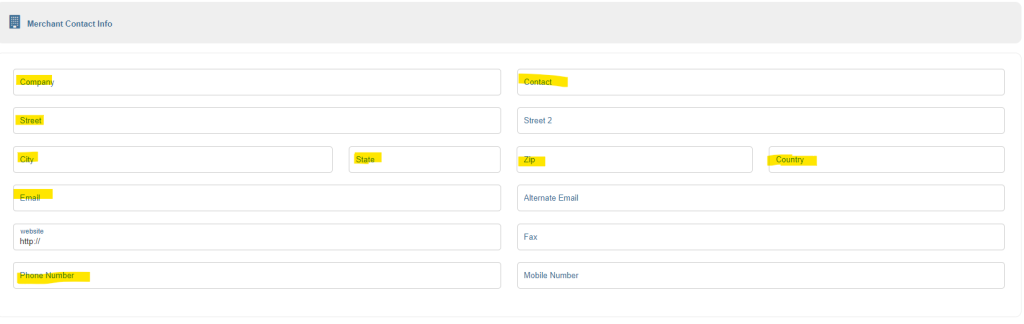
2. Merchant Contact Info

a. Complete Merchant Contact Info section with information from the VAR sheet.
3. Processing Platforms
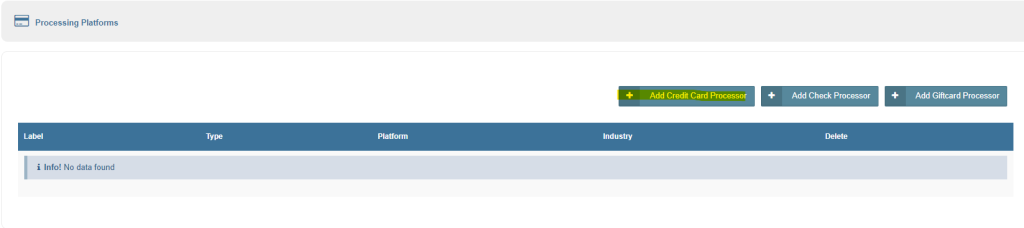
  • Select “Add Credit Card Processor” and a window will pop up to Set Platform to the merchant platform for which the customer provided information (e.g. FMDS, TSYS, Paymentech, etc.)
    1. For FDMS Nashville use First Data Nashville (DLHost), for FDMS Omaha use FDMS North
    2. Set Industry to Retail (Swipe).
    3. Complete the Platform information with information from the VAR sheet.
      1. For First Data Nashville, set Version to 4.0
      2. For TSYS, MeS, or Heartland Platforms, the additional Merchant Name, State, City and Zip must be completed in order for transactions to process successfully. For Heartland and MeS, enter City name in the Customer Service Phone # form line.
      3. For Vantiv accounts, choose the WorldPay (Vantiv) platform.
      4. For Global set Version to 2.1

4. Batch Settings

  1. Set Auto Close Batches Every: to Specific Time
  2. Set the time to match the Operating Window from the Location Details in the Portal. Note: The Operating Window time must be converted to PST. If the Operating window is 2 and the location timezone is Central Standard Time, then enter 12:00 AM in this section.
  3. Set Send Batch Errors To: to support@flashparking.com.

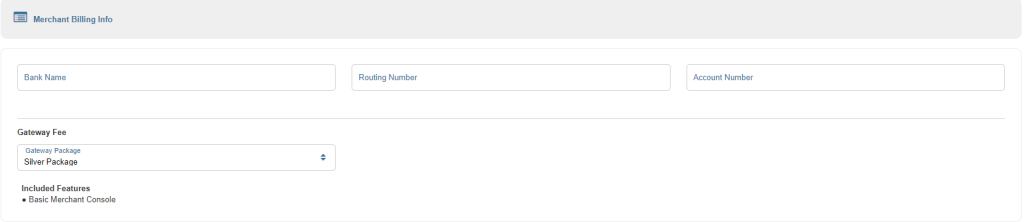
5. Merchants Billing Info

  • Set Gateway Package to Silver

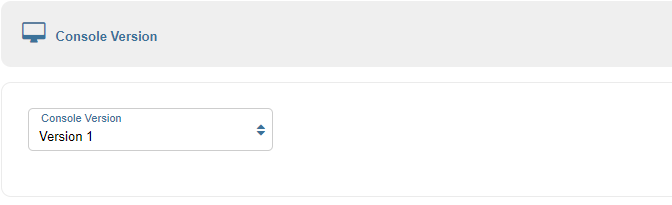
6. Console Version

  • Set to Version 1

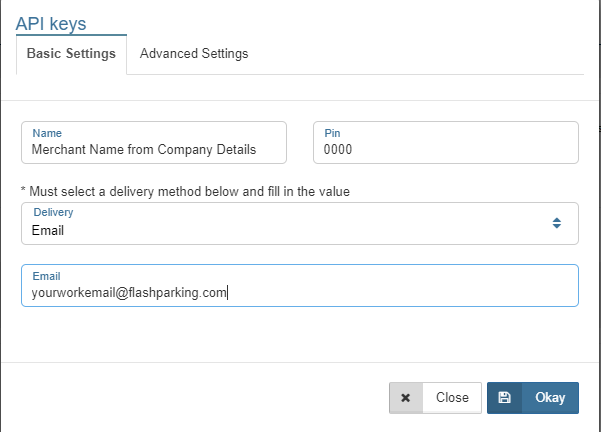
7. API Key

  • Set Key Name to Merchant Name and Pin Number to 0000.
  • Set On Activation, Email Key To: to your own work email.
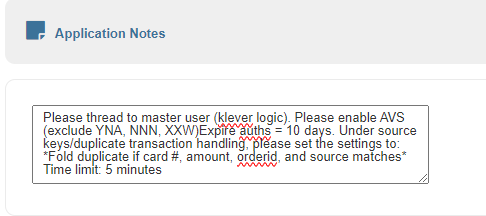
8. Application Notes

  • Copy and paste the following:
  • Please thread to master user (klever logic). Please enable AVS (exclude YNA, NNN, XXW)Expire auths = 10 days. Under source keys/duplicate transaction handling, please set the settings to: *Fold duplicate if card #, amount, orderid, and source matches* Time limit: 5 minutes
  • For Chase Paymentech accounts, add the additional note: PAYMENTECH: Disable AVS!
9. Save the application form.

P.S. Some clients prefer to submit their Merchant Account Information to USAePay directly. In those cases we need the following:

  1. USAePay Key
  2. USAePay PIN
  3. Batch End Hour (PST)

Make sure to include the disclaimer: “It is important to note that we will be unable to manage any transactions and your team will assume responsibility for any fraud settings or duplicate transaction handling.”

Testing the Merchant Account #

Once an application is approved, you will receive an email with the merchant account name, source key, and PIN number. You can then test the account and, if the test is successful, add the account to the Portal.

  1. Review the Source Key email provided by USAePay
  2. Login to USAePay Merchant Console
  3. Select the merchant account from the dropdown list and click Explore.
    • If the merchant is not listed, forward the Source Key email to resellers@usaepay.com and ask them to “Thread to master account Kleverlogic.” Once they respond that this has been completed, you can continue with the steps below.
  4. Select vTerminal and enter test credit information, removing any receipt options.
    • Cardholder Name: Test Transactions
      Card Number: 5563750040479063
      Expiration Date: 0625
      CCV: 313
      Zip Code: 78704
  5. Uncheck Merchant Receipt and remove the email in that field.
  6. Select Process.
  7. If the transaction was successful, you will receive a Transaction Approved message.
    • If the transaction failed, see Troubleshooting below.
  8. Click the Batch Manager button in the approval message, or click Batches from the menu bar.
  9. Find the test transactions, and click the check box in the Void column, and click the Process button.
  10. Confirm you want to void the transaction on the next screen.
  11. Click the Settings Tab
    • Ensure that the Send Batch Reports To and Send Batch Errors To fields are filled in. If they are not, fill them in and click Save.

Adding USAePay Merchant Account to Company and Location in the Flash Admin Portal #

Company Details #

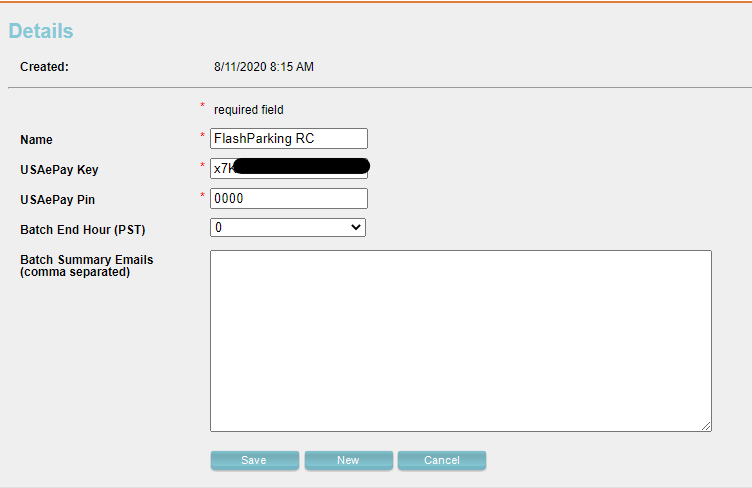
Enter in the API Key information you received in your email inbox from USAepay.

  1. Select the Company you would like to add the account to.
  2. Select Company Details, then USAePay.
  3. Click Add New.
  4. Fill in the Merchant Name , USAePay Source Key, USAePay PIN, and Batch End Hour / Operating Window in PST. Add any email addresses provided in the Discovery Form in Batch Summary Emails.
  5. Click Save when completed.

To select USAePay as the desired payment gateway at the company level, look for the USAePay dropdown in the Details page of the company, by selecting the dropdown a list of available payment gateways is displayed, simply select the one desired and click Save.
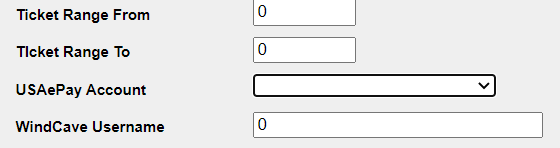
Location Details #

  1. Select the Location you would like to add the account to.
  2. In the USAePay Account drop-down list, select the account you have added.
  3. Save the location and confirm that the account is listed.

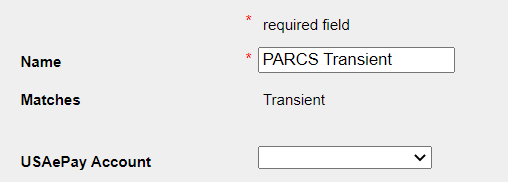
Additionally, as of ver 3.15.1.0 payment gateways can be selected at logical zone, and ticket type levels. this works in the same way as when selecting the payment gateway at Company and Location levels, simply scroll down to the USAePay Account dropdown and select the desired option, then click on Save.
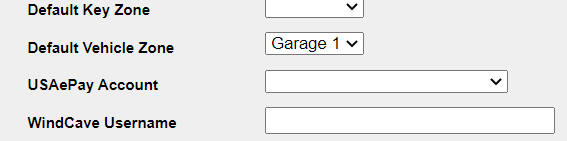
Logical Zone Level
Ticket Type Level

Note: USAePay Accounts can also be added at the Kiosk level. The Kiosk level setting has higher priority than the settings at the Logical Zone, Ticket Typeor Location levels. This allows having an individual or several kiosks processing payments for a specific merchant account if desired.

EMV / Chip & PIN #

Valet #

The Valet solution uses the MP200 card reader, but still uses USAePay as the payment gateway.
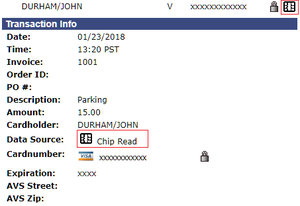
USAePay Chip Icon
  • Must use latest version of FV app (2.8.0.6+)
  • Only supports the following merchant account types:
    • FDMS / First Data (set ver. to 4.0), NOT FDMS North
    • FDMS Rapid Connect (set ver. 2.0)
    • Global (set ver. to 2.1)
    • TSYS (set ver. to 3.1)
    • EPX (set ver. 1.0)
    • Vantiv 610 (set ver. 2.0)
  • Uses MP200 Hardware

CC Payment Process #

  • Pair MP200 with an iOS device through Bluetooth
  • Look for the chain-link icon to show connection to MP200.
  • Process credit card transaction as normal, using external device when prompted.
  • Manual Entry (Credit Card) CANNOT be enabled.

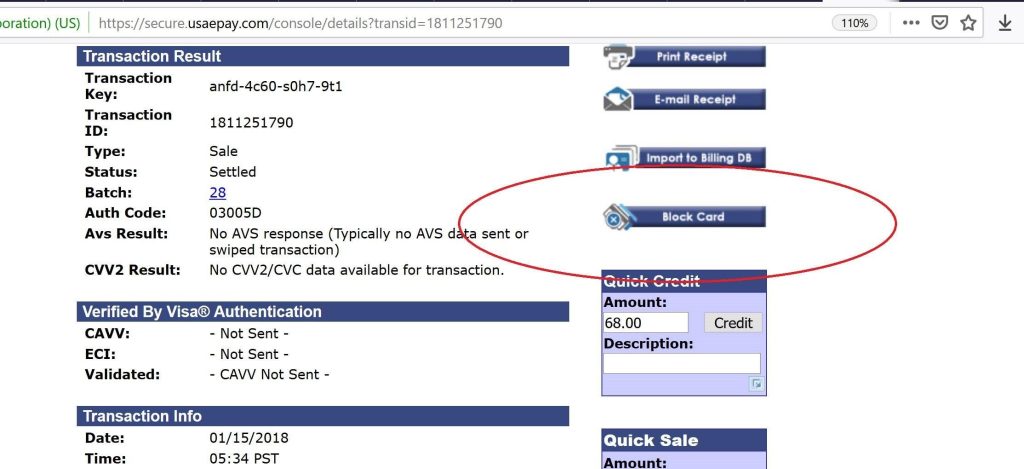
Blocking Cards #

If an operator requests and a supervisor approves, we can block specific parker’s cards from being used at their location. This may be requested if a parker requests chargebacks on their card after parking.

  1. Login to USAePay Merchant Console
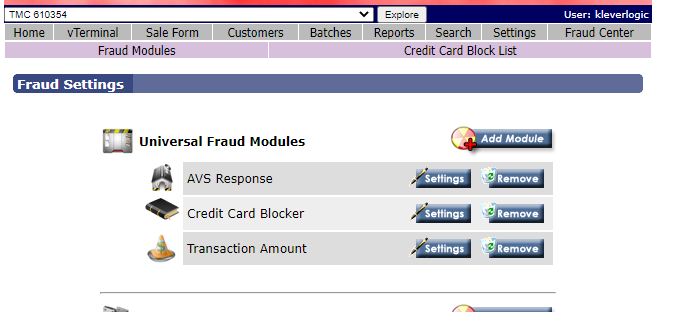
  2. Ensure that the account has the Credit Card Blocker Fraud Module enabled.
  3. Search for name or last 4 of parker
  4. Find latest transaction
  5. Select Block Card from details

Payment Processor/Platform-Specific Notes #

Global #

  • Certain Global VAR sheets will provide a Merchant ID, Terminal ID, and a Bank ID. As the USAePay application only requires the Merchant ID and Bank ID, the Terminal ID might seem extraneous. However, if the test transaction fails try replacing the Merchant ID with the Terminal ID.

Elavon #

  • To get an Elavon account to work with USAePay, the customer will need to add TSYS to their account.
  • Have them verify with Elavon that the account is a “Parking” merchant account, and not a “Front Desk” merchant account. TSYS cannot be added to the “Front Desk” merchant account, so a new MID will need to be created.
  • If they confirm that the account is a “Parking” merchant account and they need to add TSYS to the account, give them the following information: “Call (800) 377-3962 Ext 2, then 2 again. Ask to set up or add TSYS to the account to be able to integrate with the 3rd party payment gateway USAePay.” It will take a couple of business days for the request to be processed, after which the customer needs to call that number back again and request the tear sheet. This sheet should have the USAePay compatible merchant account information.

TSYS #

  • If you receive a Hierarchy error when running your test transaction, the issue could be that the merchant account was set up on the wrong TSYS platform. In this case, you would recommend the client check with their merchant account provider and make sure that the account was set up on the TSYS Sierra platform.
  • Reference 1
  • Reference 2

FAQ – Frequently Asked Questions #

Batch Closure Issues #

See Batch Closure Issues

USAePay Errors #

  • USAePay Errors – list of failure codes returned from credit card platforms.
  • You may also visit AVS Result Codes – USAePay Help  to see a list of AVS error reference codes
  • “Terminal configuration error (130)” – A merchant error that either means terminal is configured wrong or doesn’t exist. Client will need to check with their Merchant to determine the cause.

Supported Platforms / Merchants / Processors #

Supported Platforms can be found here: Partners – USAePay Help

Accepted Card Types #

  • Can Flash control card types accepted (Visa, MasterCard, AMEX, etc.)?
    • No, Flash cannot allow or disallow card types that are accepted on any hardware device or web-based payment portal. Our payment gateways USAePay and Windcave cannot allow or disallow card types either. This is controlled by the customer’s merchant account provider.

USAePay Version Number? #

Console Version #

  • USAePay has two merchant console versions, FlashParking is currently using console version 1.
    • Wrong Console Version Selected: if Console Version 2 is selected, the Merchant Account will need to be deleted from USAePay and then resubmitted.
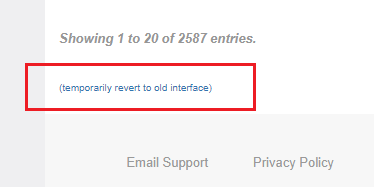
      • There is currently a bug that will not allow you to create a new merchant with the same merchant number as a deleted record. The workaround is to create the merchant on the old reseller UI that can be enabled under the “Add Merchant” tab.
      • To access the old UI, scroll down to the bottom of the Add Merchant page and click on (temporarily revert to the old interface) before creating the new account. Once that is done, you can revert back to the new interface.

Platform Version #

If the merchant is processing EMV transactions on one of our supported platforms, version numbers are below for each processor.

  • First Data Nashville: version 4.0
  • TSYS: version 3.1
  • Global: version 2.1
  • EPX: version 1.0
  • First Data Rapid Connect: version 1.1

Terminal IDs #

Customers frequently ask how many terminal IDs will be needed for credit card processing. Only 1 Terminal ID is required, but it is up to the customer if they want to setup mulitple terminal IDs to differentiate transactions for their own internal reporting.

Duplicate Processor Detected #

When processing a Merchant Change Request, such as to add or change the version number. If you get a “Warning!: (First Data Nashville (DL Host))Duplicate processor detected.” error this is likely due to the MID used on multiple accounts.
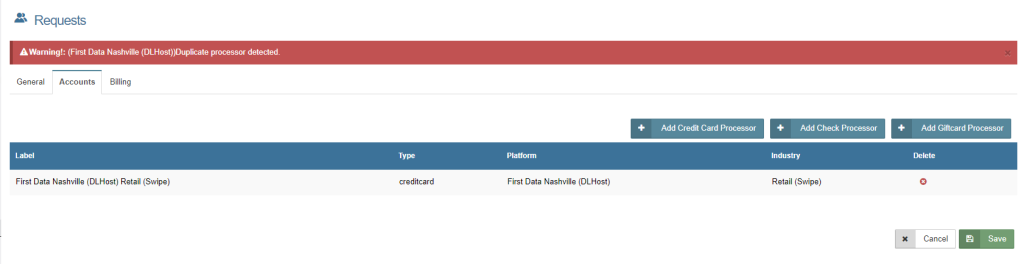
  • Be sure to check to confirm the other accounts are for the same company. (in this example, Brand Enhance (Valet) had the same MID for 7 locations)
  • To work around this error, go to the Merchants tab and then scroll down to the bottom. Click on (temporarily revert to old interface) and then make the change request.
USAePay Account Hierarchy #

  • Monthly Automatic Billing and Monthly Membership Ticket Types, will always use the USAePay account at the Location level (Details tab).
  • Valet Ticket Types (not Overnight or PARCS) can have unique USAePay accounts assigned at the ticket type level in order to split revenue between ticket types (this is not a common configuration).
  • A USAePay account specified on a Logical Zone that is different than the one at the Location level means that revenue processed at the kiosks in the Logical Zone goes there instead of the account linked at the Location level.

Hierarchy levels are as follows:
Kiosk (Level 4) → Logical Zone (Level 3) → Ticket Type (Level 2) → Location (Level 1)

The system will first look at the level 4 for merchant account settings and continue to work its way up until it finds a merchant account and the payment processing begins. This means that when the parker swipes their credit card at the kiosk, if the smartstation does not have a merchant account assigned to it, then the system will process payment based on the merchant account that’s selected at the Logical Zone. If there is no selected merchant account at the Logical Zone, then the system will look at the Ticket Type of the parker’s ticket for merchant account settings. If there is no merchant for that ticket type then the system will process payment based on the Merchant Account configured at the Location Level.

Did you find this article helpful?
Still stuck? How can we help?

Still stuck? How can we help?

Updated on February 17, 2026
USAePay Batch Closure IssuesUSAePay Batch Closure Issues
In this article
  • Credit Card Payments
  • Collect Merchant Account Information
  • Submit VAR Sheet Info to USAePay
  • Testing the Merchant Account
  • Adding USAePay Merchant Account to Company and Location in the Flash Admin Portal
    • Company Details
    • Location Details
  • EMV / Chip & PIN
    • Valet
    • CC Payment Process
  • Blocking Cards
  • Payment Processor/Platform-Specific Notes
    • Global
    • Elavon
    • TSYS
  • FAQ - Frequently Asked Questions
    • Batch Closure Issues
    • USAePay Errors
    • Supported Platforms / Merchants / Processors
    • Accepted Card Types
    • USAePay Version Number?
      • Console Version
      • Platform Version
    • Terminal IDs
    • Duplicate Processor Detected
    • USAePay Account Hierarchy
Royal Elementor Kit Theme by WP Royal.