• Product Launches
    • Adyen for Flash PARCS
    • Express Pay
  • Status Page
  • Product Release Notes
  • Register
  • Log In
  • Product Launches
    • Adyen for Flash PARCS
    • Express Pay
  • Status Page
  • Product Release Notes
  • Register
  • Log In

3rd Party API Integrations

  • Monthly APIs
    • Monthly API Calls & Guide - REST
      • GetAllMonthlies (REST)
      • GetMonthlyAccount1 (REST)
      • GetMonthlyContact1 (REST)
      • GetMonthlyProfiles (REST)
      • GetMonthlyVehicle1 (REST)
      • MonthlyAccount6 (REST)
      • MonthlyContact2 (REST)
      • MonthlyVehicle (REST)
      • RegisterMemberCard (REST)
      • RemoveChildAccountLink (REST)
      • ResetToNeutral (REST)
      • SetMonthlyContactExternalID (REST)
      • SetMonthlyProfiles (REST)
      • SetMonthlyVehicleExternalID (REST)

Configuration

  • Flash Admin Portal Configurations
    • Gates Only User Role
    • Kiosk Configurations
    • PARCS Ticket Types Configs
    • Pricing Schedule
    • Time Zones
    • Flash Admin Portal Flag Glossary
      • Company Details
      • FlashPARCS tab
      • Monthly Details Tab
      • Restrictions Tab
      • Validation Account Flags
      • Validator Tab Flags
    • Flash PARCS Configurations
      • Cash Amount Due Portal Configuration
      • Flash PARCS Cashier Kit Configuration
      • FlashRates: PrePay Overnight At Kiosk (In-Out) configuration
      • Logical Zone Garage Groups
      • Monthly Master Account configuration
      • Overnight Self Park Configuration
      • Pre Pay Rate Configuration
    • Flash Valet Configurations
      • Employee Barcode Set Up
      • Flash Valet with DTC Configuration
      • SMS Response Options (Custom Labels)
      • Valet Monitor Configuration
    • Integrations Configurations
      • Fast Park Integration Configuration
      • HelpMeParker Configuration
    • PARCS + Valet Configuration
      • Late Checkout Price
  • Flash Rates Tool
    • FlashRates: PrePay Overnight At Kiosk (In-Out) configuration
  • Parkonect Configurations
    • How to Set up Membership API in Parkonect
    • Parkonect + ParkWhiz Reservations / PreSales
    • Parkonect DTC with LAZ Configuration
    • Parkonect: Banner Ads Module 
    • Parkonect: Hotel Parking Pass Module Configuration
    • Parkonect: How to Customize Touchscreen Messages
    • Parkonect: License Plate Look Up Config
    • Parkonect: Lost Ticket Configuration
    • Parkonect: Pass Generator Configuration
    • Parkonect: Point of Sale Configuration
    • Parkonect: Transient Credit Card In/Out
  • ParkWhiz Console Configurations
    • Parkonect + ParkWhiz Reservations / PreSales
    • ParkWhiz Fees Overview
    • ParkWhiz Multipasses

EV Charging

  • Install and Run the EV Simulator (OCPP)

Event

  • BallParc General
    • Adyen NYC1 Credit Card Reader
    • Adyen NYC1 Device Manager
    • Adyen NYC1 Processing Transactions

Flash Valet

  • Flash Valet App
    • eParking Counts Tab – Flash Valet
    • Flash Valet Support Button
    • High Volume Mode
    • IVR Calls
  • Flash Valet Hardware
    • Flash Valet Monitors
  • Flash Valet Modules
    • Flash Valet Retrieval Monitors: Scenarios
    • Hotel Arrivals List for Valet
    • Valet Monthly Module
      • Valet Retrieval via Validation Portal for Monthly/Resident
    • Valet Validation Module
      • Flash Valet Request History

Hardware Library

  • Flash PARCS Hardware
    • Transcore Encompass 4 RFID Reader (AVI)

Parkonect

  • Parkonect Dashboard
    • Parkonect: Dashboard Overview
    • Parkonect: Dashboard Quick Reference
    • Parkonect: Garage Management
    • Parkonect: How To Add Users
    • Parkonect: Insights Analytics
    • Parkonect: Live Data
    • Parkonect: Monthly Calendar
    • Parkonect: Presale Calendar
    • Parkonect: Reports
    • Parkonect: User Accounts
  • Parkonect FAQs
    • Parkonect How Do I Get A Parking Receipt?
    • Parkonect: Failed Scans Explained
    • Parkonect: How Does Parkonect Prioritize Service Calls?
    • Parkonect: How to Re-connect Lost Skidata Connection
    • Parkonect: How to Recover Your Password
    • Parkonect: How to Refund a Customer
    • Parkonect: How to Setup Towing Enforcement
    • Parkonect: How to Update Your Password
    • Parkonect: PARIS Software by IntegraPark
    • Parkonect: User Types
  • Parkonect Garage Management
    • Parkonect: How to Schedule Lanes (Sleep)
    • Parkonect: Search and Send
  • Parkonect General
    • Parkonect Entry/Exit Methods
    • Parkonect Modules Summary List
    • Parkonect Network Information
    • Parkonect: System Overview
  • Parkonect Hardware Manuals
    • Parkonect Magnetic: Parking Pro Wiring & Programming Guide
    • Parkonect Magnetic: Programming Guide Control Unit MGC and MGC-Pro for MHTM Microdrive Barriers
    • Parkonect: Gen 1 Firmware Update (V1 Board)
    • Parkonect: Gen 1 Firmware Update (V2 Board)
    • Parkonect: Gen 1 Intercom Button Cover Installation Guide
    • Parkonect: Gen 2 7800 Update Guide
    • Parkonect: Gen 2 Intercom Button Cover Installation Guide
    • Parkonect: Gen 2 Quick Start Manual
    • Parkonect: Magnetic Gate MHTM MicroDrive: Control Unit MGC and MGC-Pro User Guide
    • Parkonect: TD9000 Syspark Printer Programming Guide
    • Parkonect: Validation Station Quick Start Wiring Diagram
  • Parkonect Hardware Troubleshooting
    • Parkonect: Common Hardware & Key Identification
    • Parkonect: Gen 2 Ticket Cutter QR Solution
    • Parkonect: Hengstler Printer Cleaning & Maintenance Guide
    • Parkonect: How to Acquire Hardware MAC Address
    • Parkonect: How to Identify & Fix Your Gate: HySecurity & Magnetic Gate Tech Support Phone Numbers
    • Parkonect: How to Identify Your Hardware & Firmware
    • Parkonect: How to Power Cycle & Reprogram a Validation Station
    • Parkonect: How to Powercycle a Door Controller
    • Parkonect: How to Put Magnetic Gate into Service Mode
    • Parkonect: How to Update Firmware on Gen 2 via Thumbdrive
    • Parkonect: Printer Dust Removal Guide PDF
    • Parkonect: Replacing Ticket Roll Guide (2020 & later Models)
    • Parkonect: Service Tech Notes
    • Parkonect: SysParc Clock Adjustment Guide
    • Parkonect: What kind of paper rolls do I need to order?
    • Parkonect: Which washer to use to prevent “walking” rolls?
  • Parkonect Hardware Tutorial Videos
    • Parkonect VIDEO: How to Clean & Clear Jams in the Hengstler Printer
    • Parkonect VIDEO: How to Load Ticket Stock Gen 2 Hengstler
    • Parkonect VIDEO: How to Open & Power Cycle Gen 2 Towers (Add On System)
    • Parkonect VIDEO: How to Open Gen 2 & Power Cycle (Full System)
    • Parkonect VIDEO: How to Power Cycle Gen 1 P-Series (Add On System)
  • Parkonect Integrations
    • Parkonect Digital Ticket Checkout with LAZ
    • Parkonect: Point of Sale Integration
  • Parkonect Kiosk Related
    • Parkonect Sleep Mode
    • Parkonect Supported Bit Counts
    • Parkonect: Banner Ads Module 
    • Parkonect: Customize Touch Screen
    • Parkonect: Disable Displaying Names On Kiosk
    • Parkonect: How to Customize Touchscreen Messages
    • Parkonect: Lost Ticket Module 
  • Parkonect Monthly
    • Parkonect: How to Add a New Monthly Account
    • Parkonect: How to Delete Monthly Accounts
    • Parkonect: How to Set Monthly Parkers to Neutral
    • Parkonect: Monthly Flex Pass
    • Parkonect: Passkit Create Monthly QR Code
  • Parkonect Occupancy Management
    • Parkonect: Control Transient Parker Access – Off/On Schedule
    • Parkonect: Lot Full Enforcement Module
  • Parkonect Overnight
    • Parkonect: Hotel Parking Pass Module Configuration
    • Parkonect: Hotel Pass Recovery or Edit
  • Parkonect PDF Guides
    • Parkonect: Garage Admin User Guide (Add On System) PDF
    • Parkonect: Garage Admin User Guide (Full System) PDF
    • Parkonect: Hotel Portal Garage Admin User Guide PDF
    • Parkonect: Hotel Portal Staff (Add On System) User Guide PDF
    • Parkonect: Hotel Portal Staff (Full System) User Guide PDF
    • Parkonect: Parking Pass Generator Tenant PDF User Manual
    • Parkonect: Tenant Portal Voucher User Guide PDF
    • Parkonect: Web Validator User Guide PDF – Easyvalidator.com
  • Parkonect Reports
    • Parkonect Category: Hotel & Valet
    • Parkonect Report Category: Monthly
    • Parkonect Report Category: Occupancy
    • Parkonect Report Category: PreSales
    • Parkonect Report Category: Revenue & Validations
    • Parkonect Reporting Overview
  • Parkonect Supply Order Forms
    • Parkonect: Street & Lot Spitter Ticket Order Form
    • Parkonect: Street & Lot Validation Order Form
  • Parkonect Transient
    • Parkonect Entry/Exit Methods
    • Parkonect: License Plate Look Up on POF
    • Parkonect: Transient Credit Card In/Out
    • Parkonect Reservation Engine
      • Parkonect + ParkWhiz Reservations / PreSales
      • Parkonect: Get to Know Your Reservation System
      • Parkonect: Post Parking
      • Parkonect: Promos
      • Parkonect: Reservation Engine Client Email
      • Parkonect: Reservation Engine Introduction
      • Parkonect: Reservation Engine Receipt Setup Sheet Template
      • Parkonect: Reservation Engine Reports
      • Parkonect: Reserve Parking
      • Parkonect: Settings
    • Parkonect Validation
      • How to Generate & Print Your Own Validations
      • Parkonect: How to Add or Edit Validations
      • Parkonect: Tenant Vouchers Module
      • Parkonect: Validate via Parkonect Admin portal
      • Pass Generator Module
        • Parkonect: Parking Pass Generator Module
        • Parkonect: Parking Pass Generator Tenant PDF User Manual
        • Parkonect: Parking Pass Reporting
        • Parkonect: Pass Generator Configuration
        • Parkonect: Review, Reissue, or Cancel Parking Pass
    • Rate Management
      • Parkonect Weekly Rates
      • Parkonect: Add a New Rate Sheet
      • Parkonect: How to Add Special Events via the Garage Rate Calendar
      • Parkonect: PrePay at Entry
  • Software Tutorial Videos
    • Parkonect VIDEO: Hotel Portal Guest Use Tutorial
    • Parkonect VIDEO: How to Add a Hotel User
    • Parkonect VIDEO: How to Add a Monthly Parker
    • Parkonect VIDEO: How to Add a Sublot & Assign Access Level to Sublot
    • Parkonect VIDEO: How to Add a Validator User
    • Parkonect VIDEO: How to Add an Account to House Monthly Parkers
    • Parkonect VIDEO: How to Add an Employee User
    • Parkonect VIDEO: How to Add Barcodes for Ticket Printing
    • Parkonect VIDEO: How to Add Monthly Access Levels for Custom Access to Parkers
    • Parkonect VIDEO: How to Add Specials to Rate Sheets
    • Parkonect VIDEO: How to Blackout Dates in Post-Parking Online Sales
    • Parkonect VIDEO: How to Build a Basic Rate Sheet
    • Parkonect VIDEO: How to Create & Edit Products in Post Parking for Parkonect Sales
    • Parkonect VIDEO: How to Create & Print Your Own Validations
    • Parkonect VIDEO: How to Create a Digital Pass for a Monthly Parker
    • Parkonect VIDEO: How to Create a Validation (Dollar Discount)
    • Parkonect VIDEO: How to Create a Validation (Percent Discount)
    • Parkonect VIDEO: How to Create a Validation (Rate Sheet)
    • Parkonect VIDEO: How to Create A Validation (Time Discount)
    • Parkonect VIDEO: How to Create and Send a Parking Pass
    • Parkonect VIDEO: How to Create Promotions for Parkonect Post Parking Products
    • Parkonect VIDEO: How to Customize Top 5 Rows of Printer Receipt Ticket
    • Parkonect VIDEO: How to Deactivate, Unassign, or View Users
    • Parkonect VIDEO: How to Manually Enter a Parker
    • Parkonect VIDEO: How to Send Digital QR Monthly Pass via Passkit
    • Parkonect VIDEO: How to Set Lane Sleep Times
    • Parkonect VIDEO: How to Set Time Restrictions & Pool Size Limit on an Account
    • Parkonect VIDEO: How to Set Up Valet Accounts
    • Parkonect VIDEO: How to Setup 3rd Party Early Entry / Overage Charges
    • Parkonect VIDEO: How to Use Easyvalidator.com
    • Parkonect VIDEO: How to Use the Garage Rate Calendar
    • Parkonect VIDEO: How to View Lane Downtime History
    • Parkonect VIDEO: Software Introduction Pt.1 (All Systems)
    • Parkonect VIDEO: Software Introduction Pt.2 (All Systems)
    • Parkonect VIDEO: Why doesn’t my parking pass work?
  • Valet Hiker Guides
    • Parkonect: Valet Hiker Overview
    • Parkonect: Valet Hiker Reporting
    • Parkonect: Valet Hiker Ticket Recommendations

ParkWhiz

  • ParkWhiz Bulk Event Pass Fulfillment with Pass Manager
  • ParkWhiz Customer Privacy Settings

Solution Guides

  • Hotel Solutions
    • Hotel Reusable Pass Options for PARCS

Vision LPR

  • Flash LPR Application
  • Flash PARCS LPR Blacklist
  • Flash Vision Logical Zone Transitions
  • LPR and Spare Tires
  • FlashVision (Uncanny based)
    • Flash Vision Hardware
    • FlashVision Dashboard (Uncanny based)
    • LPU Config Finalization
    • LPU Initial Setup and Portal Configuration

ZipPark Admin

  • ZipPark Portal: Dashboard and Event Calendar
  • ZipPark Portal: Interface
  • ZipPark Portal: Multi-Use Passes
  • ZipPark Portal: Overview
  • ZipPark Portal: Reports
  • ZipPark Portal: Users
  • ZipPark Portal: Validations
View Categories
  • Home
  • Docs
  • Vision LPR
  • Flash LPR Application

Flash LPR Application

3 min read

This app is designed for internal use only.

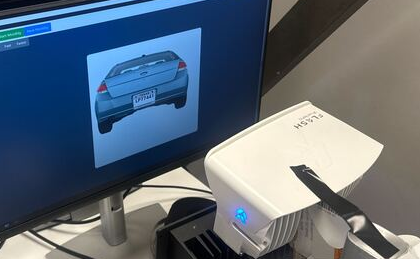
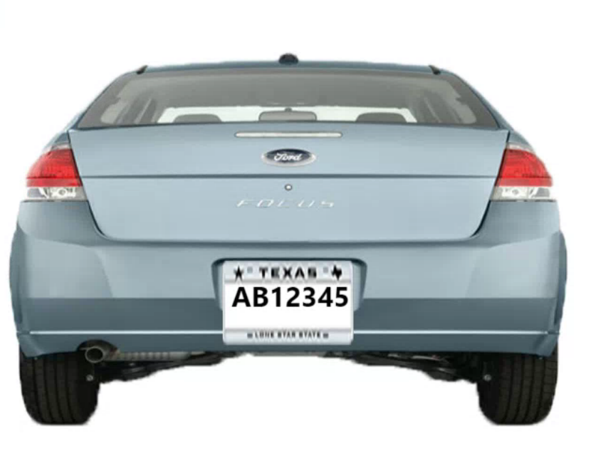
The Flash LPR Application is a feature designed for internal personnel use, allowing users to simulate an LPR flow by manually sending and pushing the plate to a mounted camera installation, thereby replicating an entry or exit process in a Flash Vision location. This app is intended for use in home offices and testing labs.
How it works #

  1. Users click the FlashLPR icon after the application has been installed, which will present them with the FlashLPR home screen.
  1. The FlashLPR interface shows the three main buttons for Home, Queue, and Marquee at the top.
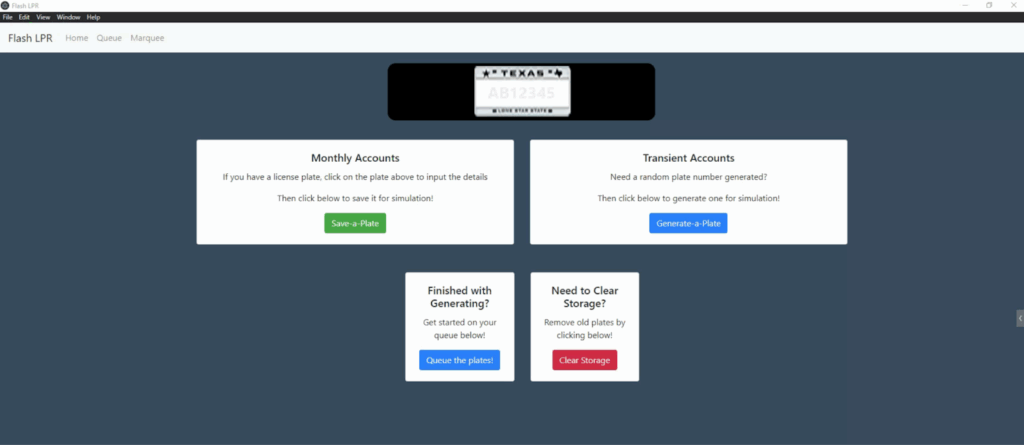
  • Home: Takes the user back to the FlashLPR home screen.
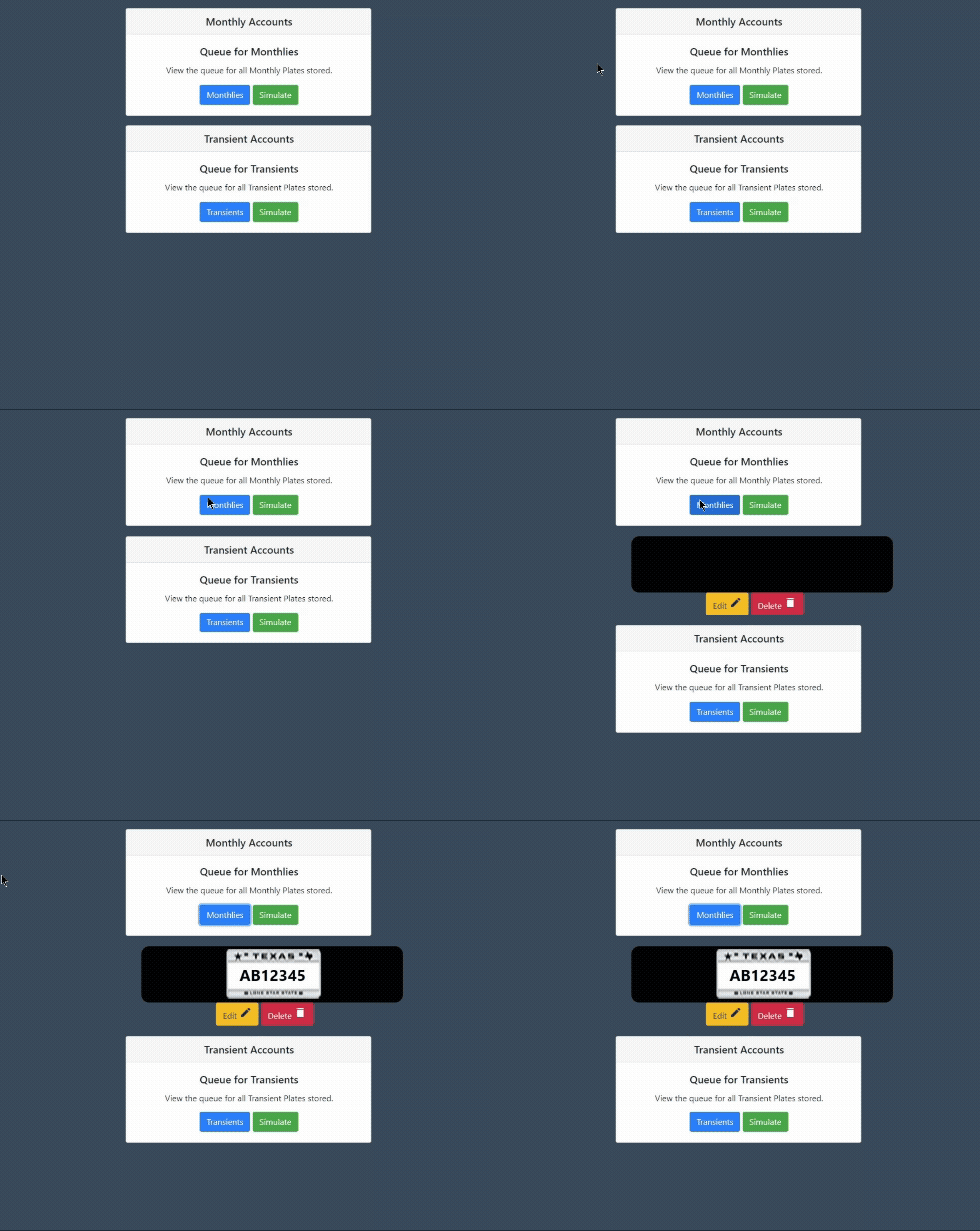
  • Queue: The fields in this tab are used to verify that the plate has been saved from the Plate Edit Field and will be used when setting the Marquee.
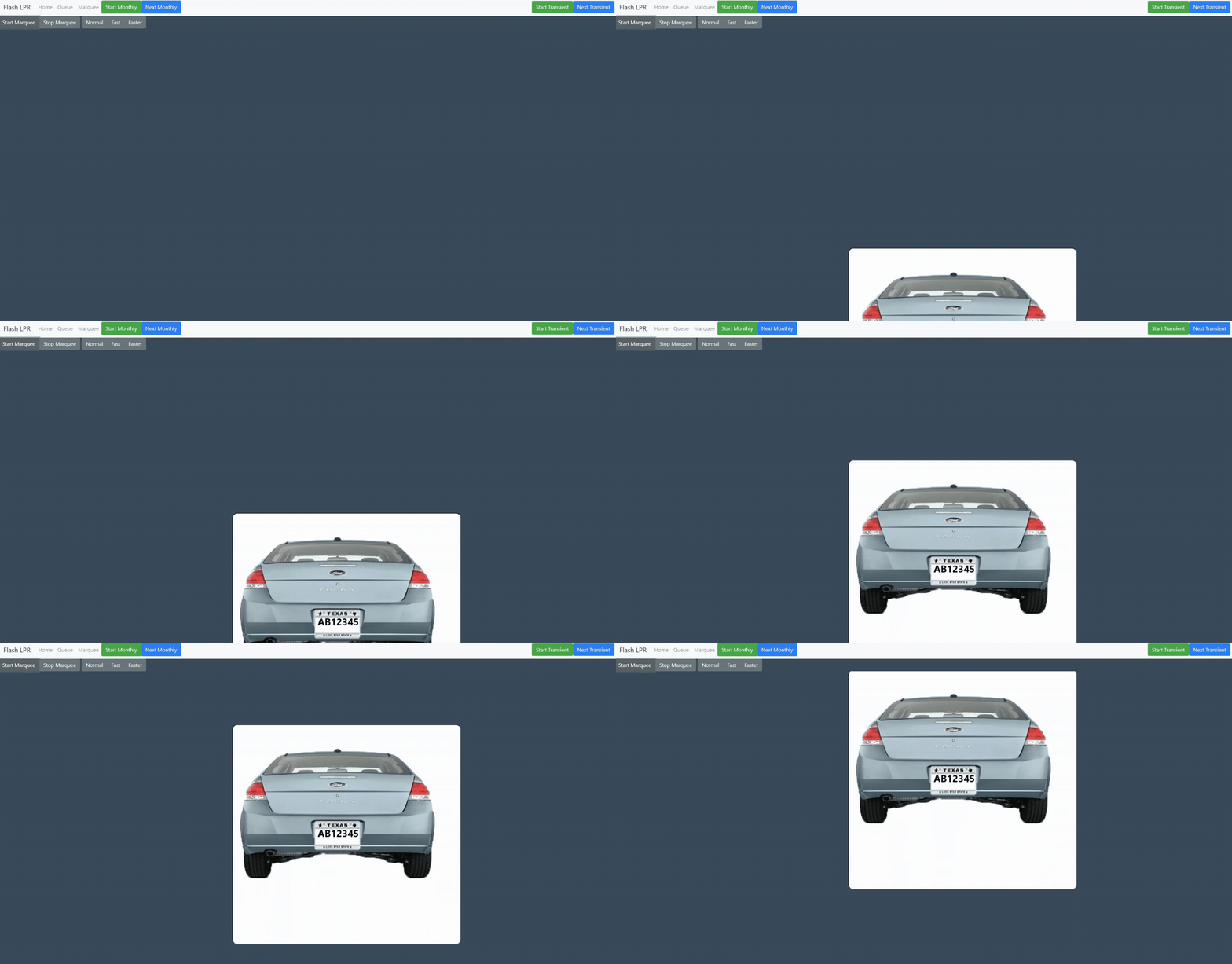
  • Marquee: This tab shows the entered plate on the screen for the camera to view. When clicked, it automatically sends the vehicle plate unless you immediately click on the Stop Marquee button, stopping the image.
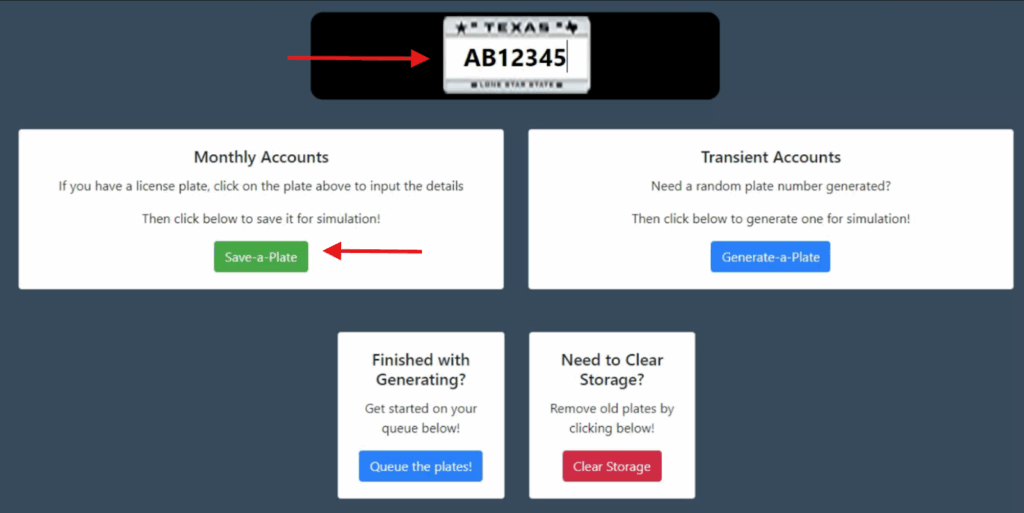
  • Plate Edit Field: This field shown in the main screen, is where users type the plate they want to send to the kiosk.
  • Monthly Accounts: After the plate has been typed in the Plate Edit Field, clicking the Save a Plate in the Monthly Accounts field saves the plate and places it in the queue.
  • Transient Accounts: This field generates a random plate when clicking the button. Note that this field is currently not in use, so the only available option is to send a plate through the Monthly Accounts option. Pushing a license plate through the Monthly Accounts button does not turn the license plate into a monthly parker. 
  1. After typing the plate in the Plate Edit Field, click the Save a Plate button in the Monthly Accounts section > and go to the Queue tab to confirm the plate has been saved correctly.
    • Do this even if you intend to work with a Transient.
    • You can continue saving plates if you want to build a queue.
  1.  After clicking the Queue tab > click the Monthlies button to show the saved plate.
  1. Go to the Marquee tab > press the Start Monthly button > and the screen should start showing in the vehicle image as it moves up and is read by the camera.
Note

If the vehicle shows an empty plate field, click the Start Monthly to reset the vehicle and see that the plate appears.

Remember to click Stop Marquee to prevent the vehicle image from repeating the loop; failing to do so will result in multiple plate entries since the plate image keeps on being read.

Tips #

  • If you are not reusing the same license plates, then press the Clear Storage button at the Home Screen, restart the app, and build your license plate queue again.

Installation #

For installation of the Flash LPR application, contact the QA Automation team to obtain the installation file.

  1. To install, simply click the installer on the pc that’s part of the LPR installation. A parking gate logo will appear for 30 seconds to a minute, and the home screen for the application will automatically appear, ready for use.
Note

When installing the Flash LPR application, ThreatLocker security might prevent you from installing it. Contact the IT Service Desk or make a note if available, notifying of the reason for the installation.

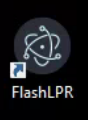
  1. A FlashLPR shortcut will be present on the pc’s desktop for easy access.
Did you find this article helpful?
Still stuck? How can we help?

Still stuck? How can we help?

Updated on November 25, 2025
LPR and Spare TiresFlash PARCS LPR Blacklist
In this article
  • How it works
  • Tips
  • Installation
Royal Elementor Kit Theme by WP Royal.