
Also known as: Logical Groups
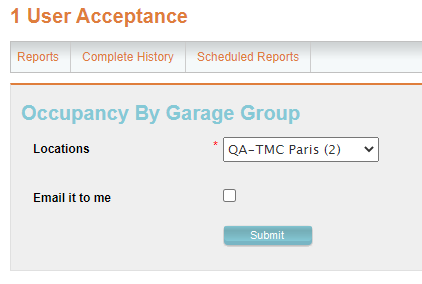
This feature enables the ability to group Logical Zones into separate groups for reporting purposes. This feature is also called Logical Groups.
For example: The Texas Medical Center has about 20 Logical Zone garages, and TCH has 4 Logical Zone garages, so they can group several Logical Zones. This way they can separate the report results by groups.
How to Create a Garage Group #
Dev is able to create Logical Zone groups and then link Logical Zones to that group, mostly for reporting purposes. Submit a JIRA Ticket (CS Task) requesting the Garage Group for the desired location.
The ticket must include:
- Name: This will be the Group ID, the name of the group to be displayed in the Admin Portal
- Location name: Company and location name the Garage Group will be added to.
How to Assign a Logical Zone to a Garage Group #
- Once the Garage Group is added by Dev, the Group will become available in the Admin Portal.
- Go to the Logical Zones tab
- Select a Logical Zone
- Then, at the Association section under Reporting Zones check off the desired Garage Group and Save.
Available Reports #
These are the Reports that can pull Garage Group data:
- Occupancy by Garage Group