
This document lists the steps to configure a Parkonect location for LAZ with DTC.
Setting up LAZ #
Modules #
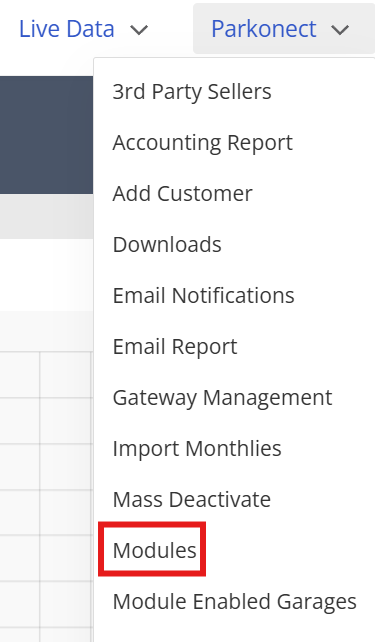
- Click the Parkonect dropdown and select Modules.
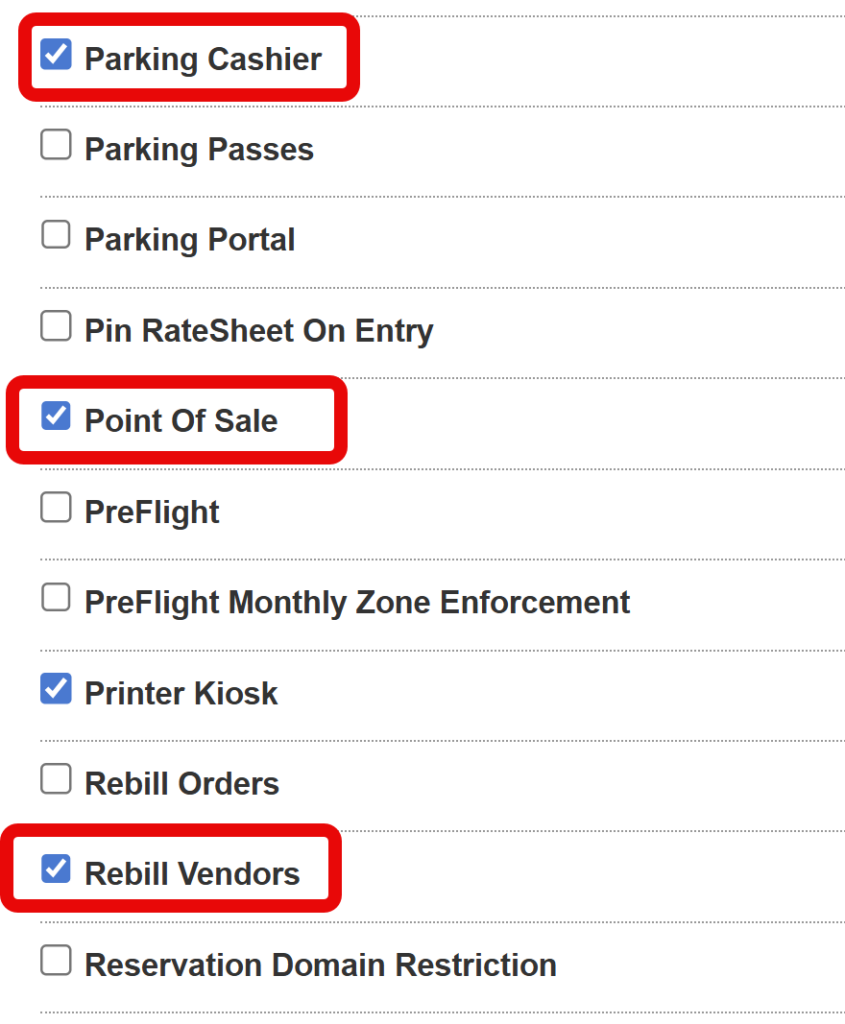
2. Select your garage and select the following modules for DTC garages:
- Parking Cashier
- Point of Sale
- Rebill Vendor
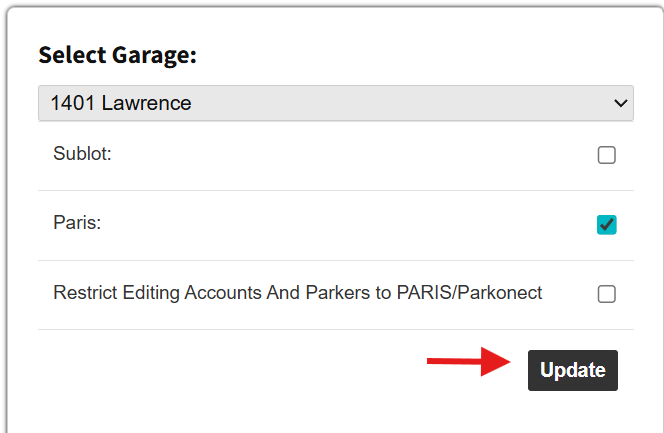
3. Click the Update button in the Garage Selection section.
Vendors #
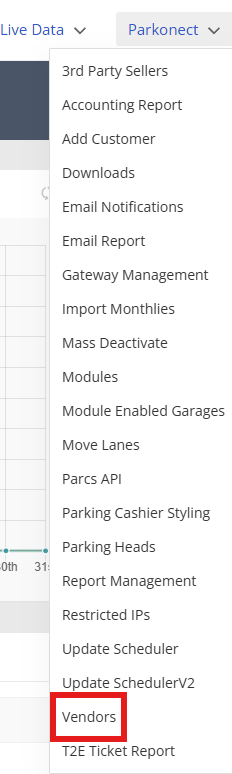
- Click the Parkonect dropdown > Click the “Vendors” option.
- Select the LAZ vendor.

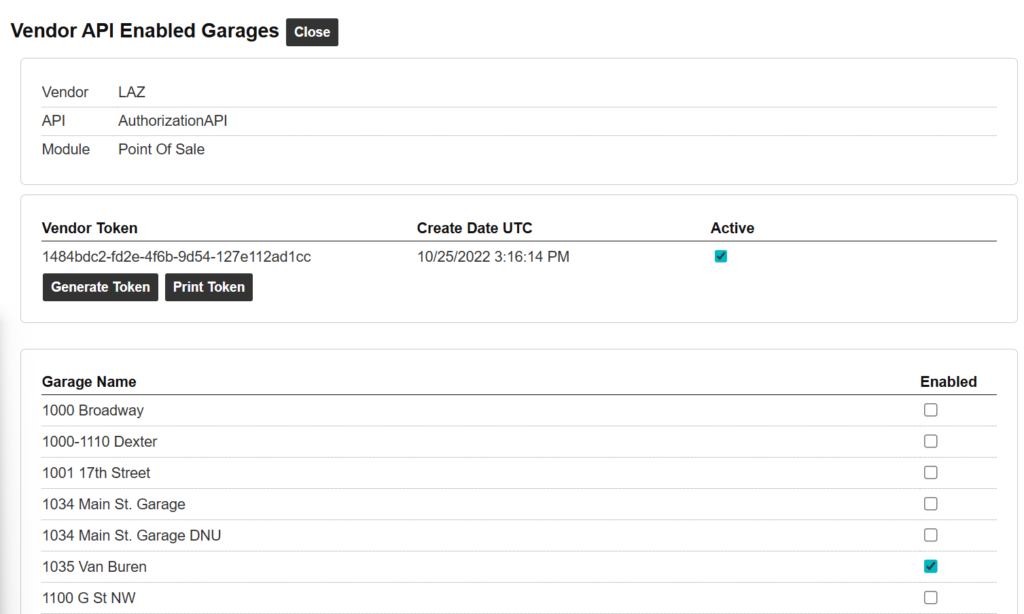
- Click the Authorization API option. > Check your garage from the list in the popup window.
.
Third-Party Sellers #
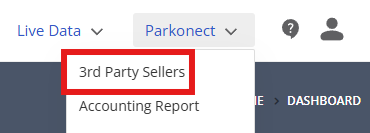
- Click the Parkonect dropdown > Click the “3rd Party Sellers” option.
- Look for your garage in the top right corner dropdown.

- Click the LAZ checkboxes in the Revenue & Stats API field > Click the “Update” button.

- Enable LAZ under Third Party Activation API and Rebill Vendor.

Digital Payment Option #
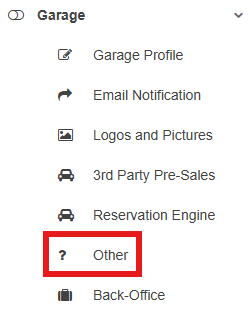
- In the Garage Settings for the selected garage, click the “Garage” dropdown > Click “Other”.
- In the Digital Payments section click the dropdown for Integrations and select “LAZ DTC”.

- Click the Update button in the upper-right part.

Add eData Number #
- Select Garage > Garage Settings or Select Garage > Garage Profile.

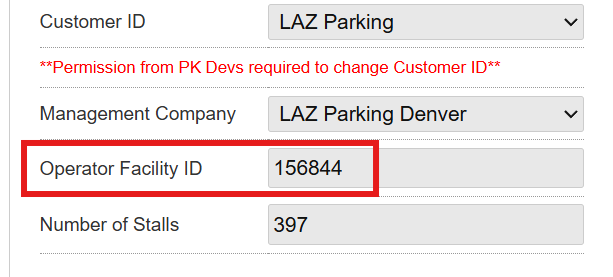
- Add the eData number which is provided by LAZ to the “Operator Facility ID” field under the Garage Settings section.
- Click the Update button at the top-right corner.

Testing #
Select Garage > Garage Log

- Copy any open ticket number from the Pay at Garage Records (Any ticket without an exit scan or amount in green) and send to LAZ eCommerce team for testing.