
| Field | Detail |
| Article Title | Flash Vision: Enabling Vehicle Signature in the Vision Portal |
| Dev Task | 20 |
| Configuration Access | Internal Flash Support / Operations (Level 2 Support or Flash Admin with edit access to Site Configuration). |
| Firmware / App Version Requirement | Flash Vision App version 2.3.2 or higher |
| Known Limitations | • 8 FPS Limit: Enabling Signature automatically adjusts and locks the camera processing rate to 8 FPS to allocate processing resources for the Luxonis signature pipeline.• Detector Restart: Toggling this setting initiates a detector reboot.• Lane Scope: Changes apply at the detector level and affect all associated lanes.• Setting is hidden for older app versions (< 2.3.2). |
| Also Known As | Vehicle Signature, FVR Signature, Luxonis Signature Feature |
| Sales & Marketing Assets | N/A (Internal engineering & technical enablement) |
| L&D Course | N/A |
Vehicle Signature provides secondary vehicle identification beyond the license plate text. When license plates are misread, dirty, obscured, or damaged, vehicle signature data acts as a fallback mechanism to match entry and exit transactions accurately, minimizing lost revenue and manual ticket reconciliation. Introduces a configuration flag within the Vision Portal allowing authorized Flash users to enable or disable vehicle signature processing on supported Flash Vision Robots (FVR).
Requirements #
- Required Release Version: Flash Vision App version v2.3.2 or newer.
- Hardware: Flash Vision FVR (Mark IV / Luxonis-enabled detector cameras).
- Configuration Role: Internal Flash Support / Operations (Level 2 Support or Flash Admin with edit access to Site Configuration).
How it Works #
End-User Experience #
The vehicle signature process is completely touchless and transparent to drivers:
- As a vehicle enters an LPR lane, Flash Vision captures both plate images and high-dimensional vehicle signature attributes.
- If plate recognition encounters an edge case (e.g., misread character or unreadable plate), the backend leverages vehicle signature matching to correctly reconcile entry and exit encounters.
Operator / Admin Management #
Authorized Flash users manage the feature directly in the Vision Portal at the detector and lane level.
Enabling Signature #
- Log in to the Flash Vision Portal.
- Navigate to Site Configuration → Active Detectors.
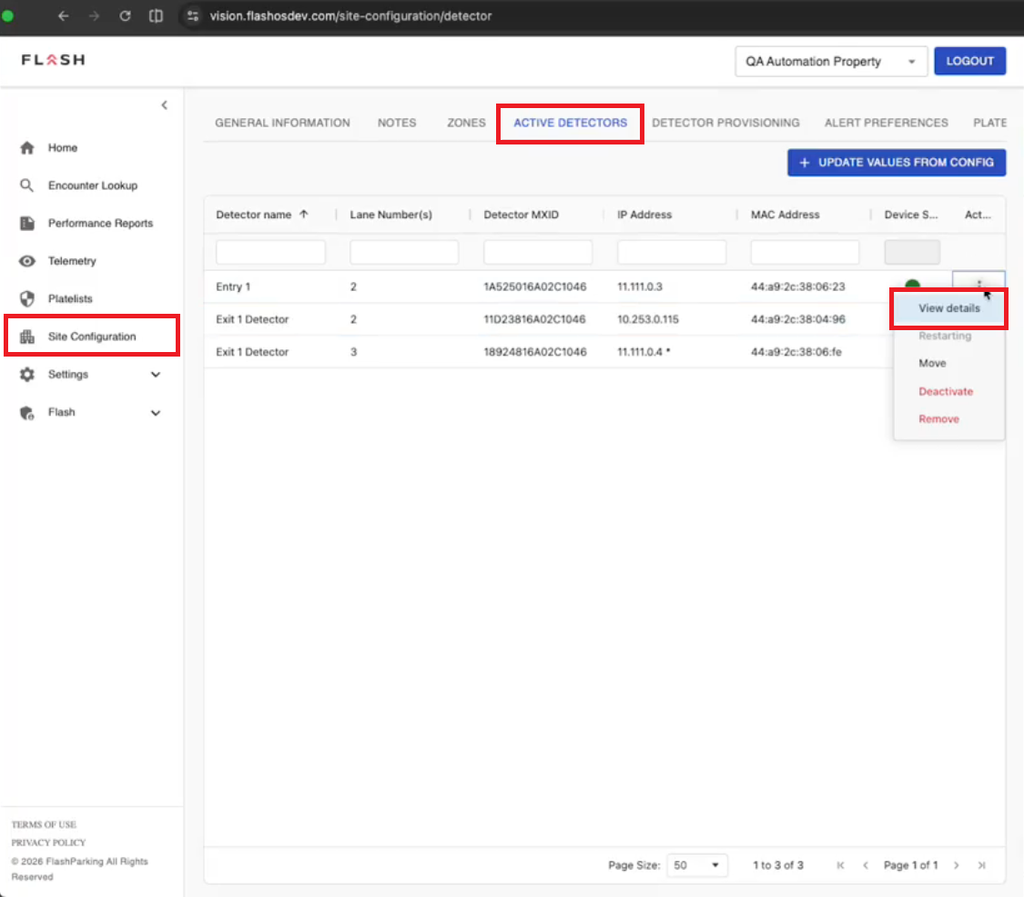
- Select the target detector to open Detector Settings.
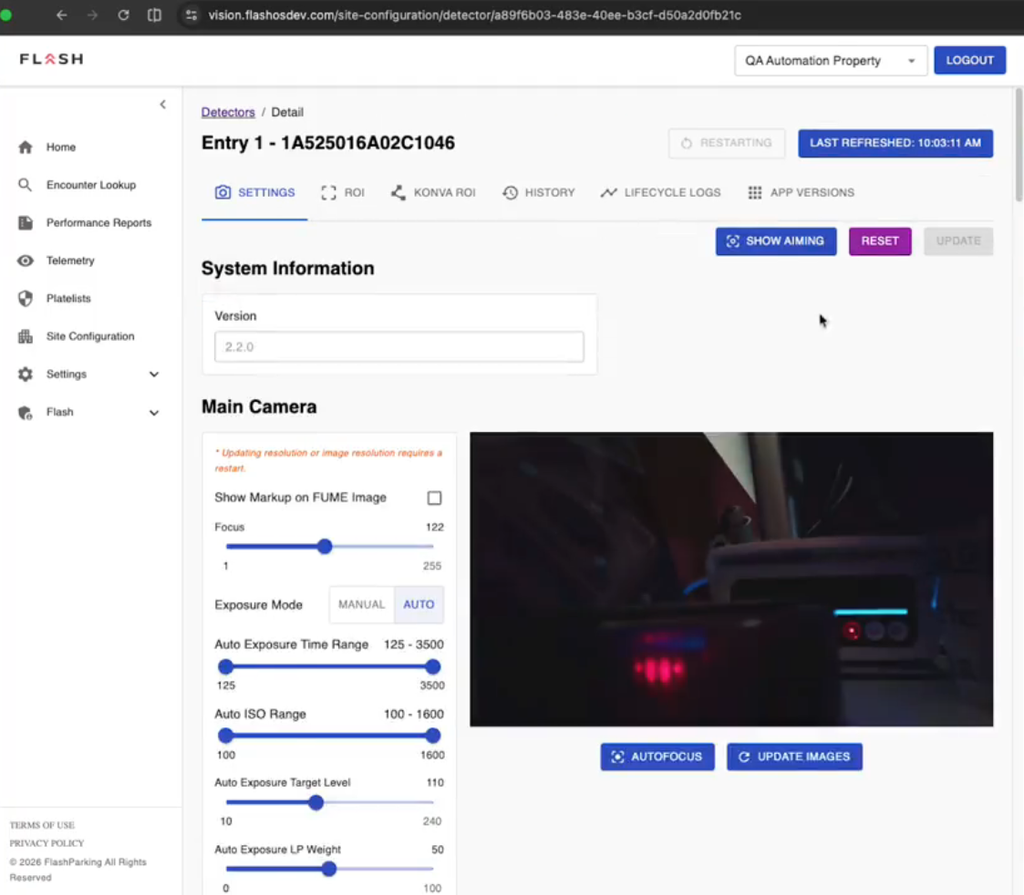
- Scroll to the Vehicle Monitoring section.
- Locate the Signature toggle (visible only on detectors running v2.3.2+).
- Select Enabled.
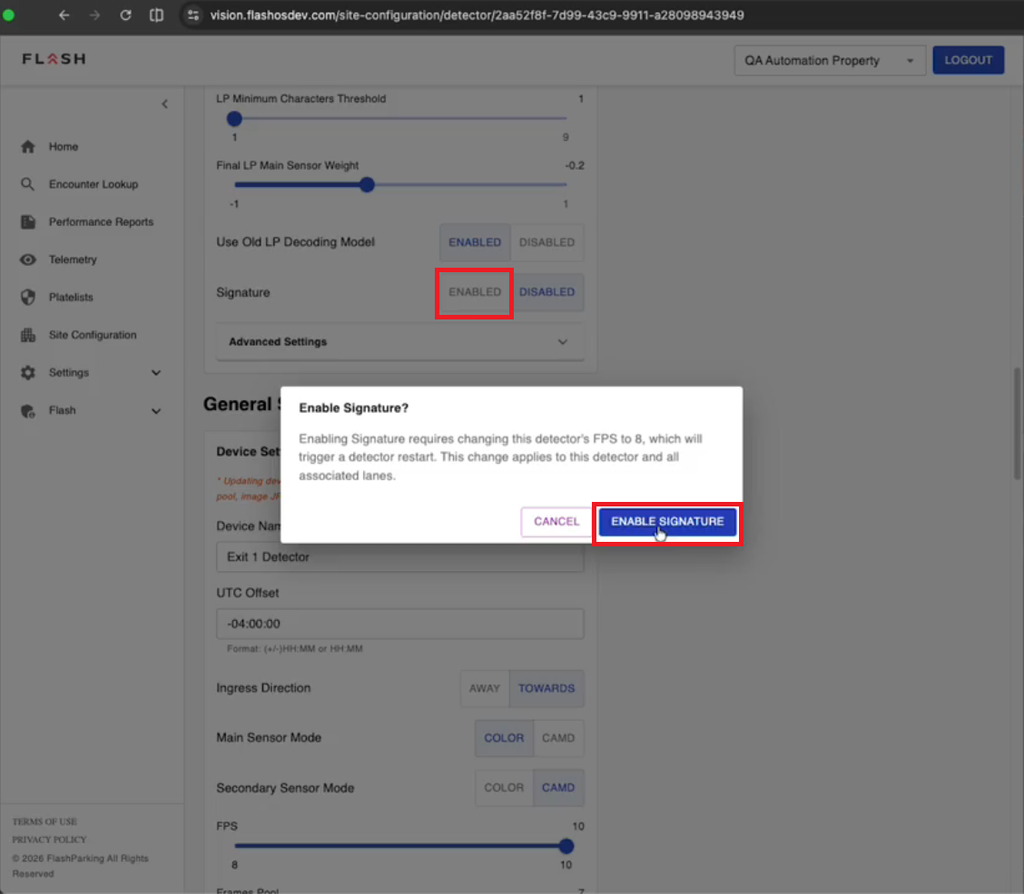
- A confirmation modal will appear advising:
- Camera frame rate will automatically adjust to 8 FPS to support the feature.
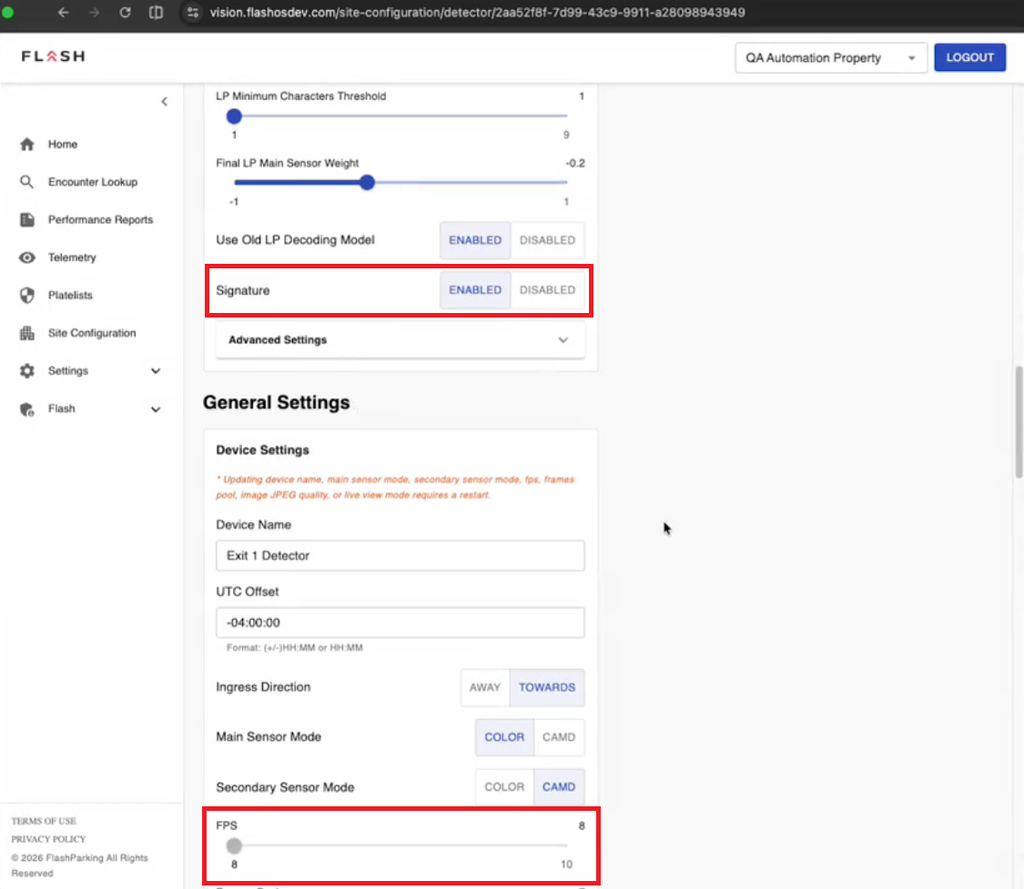
- A detector restart will be triggered.
- Changes apply to the detector and all lanes associated with it.
- Click Enable Signature in the modal, then click Update / Save Settings.
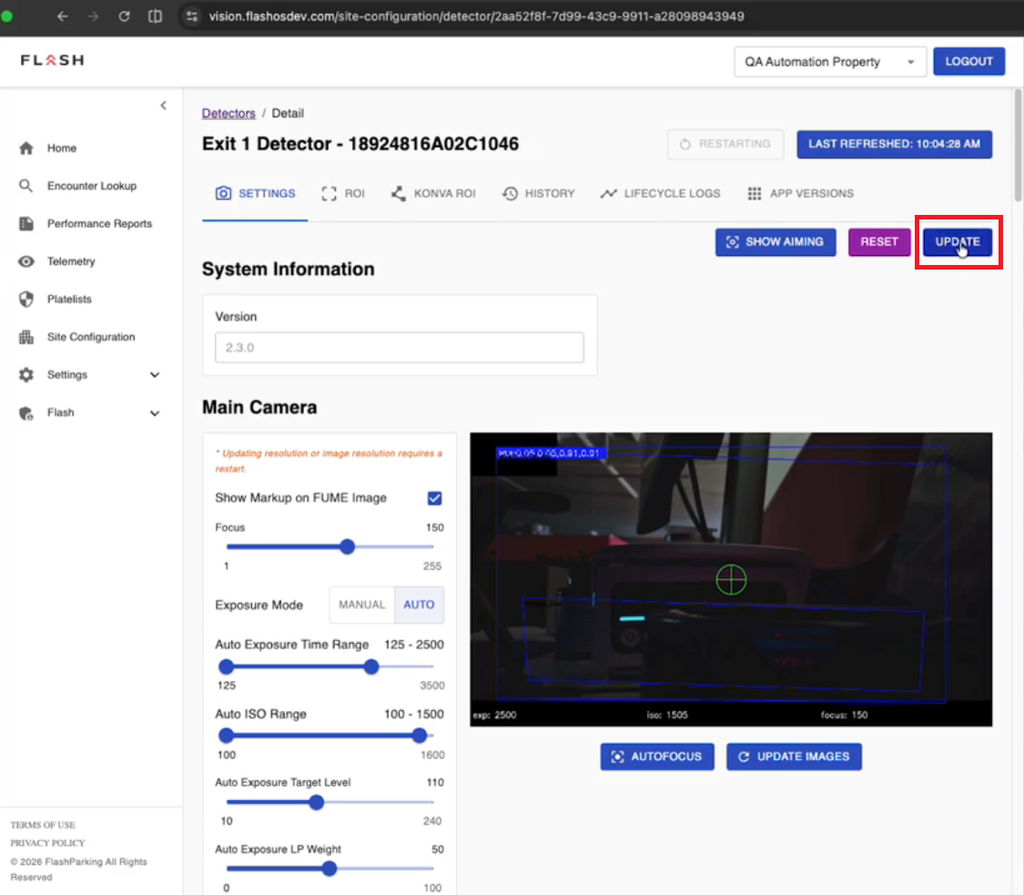
Disabling Signature #
- Open Detector Settings → Vehicle Monitoring.
- Select Disabled for Signature.
- Save/Update settings.
- The camera frame rate is restored to its previous value (e.g., 10 FPS).
- Standard restart confirmation occurs.
Implementation #
Use Cases #
- Edge-Case License Plate Reconciliation: Fallback matching when standard plate reads fail due to glare, weather, bent plates, or missing front/rear plates.
- Hybrid & Frictionless Parking: Guarantees higher confidence in entry-to-exit pairing without forcing parkers to stop or scan fallback tickets.
- Transaction Accuracy Improvement: Raises overall facility matching rates from baseline LPR (95–96%) into high-90s accuracy.
Compatibility List #
- Flash Vision App v2.3.2+: Fully compatible. Displays the toggle and handles automatic FPS adjustment and restart payloads.
- Legacy Detectors (App < v2.3.2): Incompatible. The portal schema dynamically hides the Signature toggle, preserving legacy FPS and restart behaviors.