• Product Launches
    • Adyen for Flash PARCS
    • Express Pay
  • Status Page
  • Product Release Notes
  • Register
  • Log In
  • Product Launches
    • Adyen for Flash PARCS
    • Express Pay
  • Status Page
  • Product Release Notes
  • Register
  • Log In

Configuration

  • Parkonect: Payroc Merchant Gateway Configuration Guide
  • Flash Admin Portal Configurations
    • Gates Only User Role
    • Kiosk Configurations
    • PARCS Ticket Types Configs
    • Pricing Schedule
    • Time Zones
  • Flash Rates Tool
    • FlashRates: PrePay Overnight At Kiosk (In-Out) configuration
  • Parkonect Configurations
    • How to Set up Membership API in Parkonect
    • Parkonect + ParkWhiz Reservations / PreSales
    • Parkonect DTC with LAZ Configuration
    • Parkonect Logical Zones (Campus Mode) Configuration guide
    • Parkonect: Banner Ads Module 
    • Parkonect: Hotel Parking Pass Module Configuration
    • Parkonect: How to Customize Touchscreen Messages
    • Parkonect: License Plate Look Up Config
    • Parkonect: Lost Ticket Configuration
    • Parkonect: Pass Generator Configuration
    • Parkonect: Point of Sale Configuration
    • Parkonect: Transient Credit Card In/Out
  • ParkWhiz Console Configurations
    • Parkonect + ParkWhiz Reservations / PreSales
    • ParkWhiz Fees Overview
    • ParkWhiz Multipasses

EV Charging

  • Install and Run the EV Simulator (OCPP)

Flash Valet

  • Flash Valet App
    • eParking Counts Tab – Flash Valet
    • Flash Valet App – Switch Regions
    • Flash Valet Support Button
    • High Volume Mode
    • IVR Calls
    • Single Sign-On (SSO) Integration for Flash Valet App
  • Flash Valet Hardware
    • Flash Valet Monitors
  • Flash Valet Modules
    • Flash Valet Retrieval Monitors: Scenarios
    • Hotel Arrivals List for Valet

Hardware Library

Parkonect

  • Parkonect: Payroc Merchant Gateway Configuration Guide
  • Parkonect Dashboard
    • Parkonect Garage Log
    • Parkonect: Dashboard Overview
    • Parkonect: Dashboard Quick Reference
    • Parkonect: Garage Management
    • Parkonect: Insights Analytics
    • Parkonect: Live Data
    • Parkonect: Monthly Calendar
    • Parkonect: Presale Calendar
    • Parkonect: Reports
    • Parkonect: User Accounts
  • Parkonect FAQs
    • Parkonect: Failed Scans Explained
    • Parkonect: How Does Parkonect Prioritize Service Calls?
    • Parkonect: How to Re-connect Lost Skidata Connection
    • Parkonect: How to Recover Your Password
    • Parkonect: How to Refund a Customer
    • Parkonect: How to Setup Towing Enforcement
    • Parkonect: How to Update Your Password
    • Parkonect: PARIS Software by IntegraPark
    • Parkonect: User Types
  • Parkonect Garage Management
    • Parkonect: How to Schedule Lanes (Sleep)
    • Parkonect: Search and Send
  • Parkonect General
    • Parkonect Entry/Exit Methods
    • Parkonect Modules Summary List
    • Parkonect Network Information
    • Parkonect: Logical Zones (Campus Mode)
    • Parkonect: Payroc Merchant Gateway
    • Parkonect: System Overview
    • Parkonect: Update Scheduler V2
  • Parkonect Hardware Manuals
    • Parkonect Magnetic: Parking Pro Wiring & Programming Guide
    • Parkonect Magnetic: Programming Guide Control Unit MGC and MGC-Pro for MHTM Microdrive Barriers
    • Parkonect: Gen 1 Firmware Update (V1 Board)
    • Parkonect: Gen 1 Firmware Update (V2 Board)
    • Parkonect: Gen 1 Intercom Button Cover Installation Guide
    • Parkonect: Gen 2 7800 Update Guide
    • Parkonect: Gen 2 Intercom Button Cover Installation Guide
    • Parkonect: Gen 2 Quick Start Manual
    • Parkonect: Magnetic Gate MHTM MicroDrive: Control Unit MGC and MGC-Pro User Guide
    • Parkonect: TD9000 Syspark Printer Programming Guide
    • Parkonect: Validation Station Quick Start Wiring Diagram
  • Parkonect Hardware Troubleshooting
    • Parkonect: Common Hardware & Key Identification
    • Parkonect: Gen 2 Ticket Cutter QR Solution
    • Parkonect: Hengstler Printer Cleaning & Maintenance Guide
    • Parkonect: How to Acquire Hardware MAC Address
    • Parkonect: How to Identify & Fix Your Gate: HySecurity & Magnetic Gate Tech Support Phone Numbers
    • Parkonect: How to Identify Your Hardware & Firmware
    • Parkonect: How to Power Cycle & Reprogram a Validation Station
    • Parkonect: How to Powercycle a Door Controller
    • Parkonect: How to Put Magnetic Gate into Service Mode
    • Parkonect: How to Update Firmware on Gen 2 via Thumbdrive
    • Parkonect: Printer Dust Removal Guide PDF
    • Parkonect: Replacing Ticket Roll Guide (2020 & later Models)
    • Parkonect: Service Tech Notes
    • Parkonect: SysParc Clock Adjustment Guide
    • Parkonect: What kind of paper rolls do I need to order?
    • Parkonect: Which washer to use to prevent “walking” rolls?
  • Parkonect Hardware Tutorial Videos
    • Parkonect VIDEO: How to Clean & Clear Jams in the Hengstler Printer
    • Parkonect VIDEO: How to Load Ticket Stock Gen 2 Hengstler
    • Parkonect VIDEO: How to Open & Power Cycle Gen 2 Towers (Add On System)
    • Parkonect VIDEO: How to Open Gen 2 & Power Cycle (Full System)
    • Parkonect VIDEO: How to Power Cycle Gen 1 P-Series (Add On System)
  • Parkonect Kiosk Related
    • Parkonect Sleep Mode
    • Parkonect Supported Bit Counts
    • Parkonect: Banner Ads Module 
    • Parkonect: Customize Touch Screen
    • Parkonect: Disable Displaying Names On Kiosk
    • Parkonect: How to Customize Touchscreen Messages
    • Parkonect: Lost Ticket Module 
  • Parkonect Monthly
    • Parkonect: How to Add a New Monthly Account
    • Parkonect: How to Delete Monthly Accounts
    • Parkonect: How to Set Monthly Parkers to Neutral
    • Parkonect: Monthly Flex Pass
    • Parkonect: Passkit Create Monthly QR Code
  • Parkonect Occupancy Management
    • Parkonect: Control Transient Parker Access – Off/On Schedule
    • Parkonect: Lot Full Enforcement Module
  • Parkonect Overnight
    • Parkonect: Hotel Parking Pass Module Configuration
    • Parkonect: Hotel Pass Recovery or Edit
  • Parkonect PDF Guides
    • Parkonect: Garage Admin User Guide (Add On System) PDF
    • Parkonect: Garage Admin User Guide (Full System) PDF
    • Parkonect: Hotel Portal Garage Admin User Guide PDF
    • Parkonect: Hotel Portal Staff (Add On System) User Guide PDF
    • Parkonect: Hotel Portal Staff (Full System) User Guide PDF
    • Parkonect: Parking Pass Generator Tenant PDF User Manual
    • Parkonect: Tenant Portal Voucher User Guide PDF
    • Parkonect: Web Validator User Guide PDF – Easyvalidator.com
  • Parkonect Reports
    • Parkonect Category: Hotel & Valet
    • Parkonect Report Category: Monthly
    • Parkonect Report Category: Occupancy
    • Parkonect Report Category: PreSales
    • Parkonect Report Category: Revenue & Validations
    • Parkonect Reporting Overview
  • Parkonect Supply Order Forms
    • Parkonect: Street & Lot Spitter Ticket Order Form
    • Parkonect: Street & Lot Validation Order Form
  • Parkonect Transient
    • Parkonect Entry/Exit Methods
    • Parkonect: License Plate Look Up on POF
    • Parkonect: Transient Credit Card In/Out
    • Parkonect Reservation Engine
      • Parkonect + ParkWhiz Reservations / PreSales
      • Parkonect: Get to Know Your Reservation System
      • Parkonect: Post Parking
      • Parkonect: Promos
      • Parkonect: Reservation Engine Client Email
      • Parkonect: Reservation Engine Introduction
      • Parkonect: Reservation Engine Receipt Setup Sheet Template
      • Parkonect: Reservation Engine Reports
      • Parkonect: Reserve Parking
      • Parkonect: Settings
    • Parkonect Validation
      • How to Generate & Print Your Own Validations
      • Parkonect: How to Add or Edit Validations
      • Parkonect: Tenant Vouchers Module
      • Parkonect: Validate via Parkonect Admin portal
    • Rate Management
      • Parkonect Weekly Rates
      • Parkonect: Add a New Rate Sheet
      • Parkonect: How to Add Special Events via the Garage Rate Calendar
      • Parkonect: PrePay at Entry
  • Software Tutorial Videos
    • Parkonect VIDEO: Hotel Portal Guest Use Tutorial
    • Parkonect VIDEO: How to Add a Hotel User
    • Parkonect VIDEO: How to Add a Monthly Parker
    • Parkonect VIDEO: How to Add a Sublot & Assign Access Level to Sublot
    • Parkonect VIDEO: How to Add a Validator User
    • Parkonect VIDEO: How to Add an Account to House Monthly Parkers
    • Parkonect VIDEO: How to Add an Employee User
    • Parkonect VIDEO: How to Add Barcodes for Ticket Printing
    • Parkonect VIDEO: How to Add Monthly Access Levels for Custom Access to Parkers
    • Parkonect VIDEO: How to Add Specials to Rate Sheets
    • Parkonect VIDEO: How to Blackout Dates in Post-Parking Online Sales
    • Parkonect VIDEO: How to Build a Basic Rate Sheet
    • Parkonect VIDEO: How to Create & Edit Products in Post Parking for Parkonect Sales
    • Parkonect VIDEO: How to Create & Print Your Own Validations
    • Parkonect VIDEO: How to Create a Digital Pass for a Monthly Parker
    • Parkonect VIDEO: How to Create a Validation (Dollar Discount)
    • Parkonect VIDEO: How to Create a Validation (Percent Discount)
    • Parkonect VIDEO: How to Create a Validation (Rate Sheet)
    • Parkonect VIDEO: How to Create A Validation (Time Discount)
    • Parkonect VIDEO: How to Create and Send a Parking Pass
    • Parkonect VIDEO: How to Create Promotions for Parkonect Post Parking Products
    • Parkonect VIDEO: How to Customize Top 5 Rows of Printer Receipt Ticket
    • Parkonect VIDEO: How to Deactivate, Unassign, or View Users
    • Parkonect VIDEO: How to Manually Enter a Parker
    • Parkonect VIDEO: How to Send Digital QR Monthly Pass via Passkit
    • Parkonect VIDEO: How to Set Lane Sleep Times
    • Parkonect VIDEO: How to Set Time Restrictions & Pool Size Limit on an Account
    • Parkonect VIDEO: How to Set Up Valet Accounts
    • Parkonect VIDEO: How to Setup 3rd Party Early Entry / Overage Charges
    • Parkonect VIDEO: How to Use Easyvalidator.com
    • Parkonect VIDEO: How to Use the Garage Rate Calendar
    • Parkonect VIDEO: How to View Lane Downtime History
    • Parkonect VIDEO: Software Introduction Pt.1 (All Systems)
    • Parkonect VIDEO: Software Introduction Pt.2 (All Systems)
    • Parkonect VIDEO: Why doesn’t my parking pass work?
  • Valet Hiker Guides
    • Parkonect: Valet Hiker Overview
    • Parkonect: Valet Hiker Reporting
    • Parkonect: Valet Hiker Ticket Recommendations

Vision LPR

  • Flash LPR Application
  • Flash PARCS LPR Blacklist
  • Flash Vision Logical Zone Transitions
  • FV Mark4 Camera Activation Quick Guide  
  • How to enable Vehicle Signature in Vision Portal
  • How to Search for Encounters Across Multiple Properties in Flash Vision
  • LPR and Spare Tires
  • LPR Service Enhancements – Phase 1

ZipPark Admin

  • ZipPark Portal: Dashboard and Event Calendar
  • ZipPark Portal: Interface
  • ZipPark Portal: Reports
  • ZipPark Portal: Users
  • ZipPark Portal: Validations
View Categories
  • Home
  • Docs
  • Vision LPR
  • How to enable Vehicle Signature in Vision Portal

How to enable Vehicle Signature in Vision Portal

3 min read

0:00 / 2:53
  • View as Markdown Open this page as plain Markdown (opens in a new tab)
  • Export PDF Download this page as a PDF
  • Open in ChatGPT Ask questions about this page (opens in a new tab)
  • Open in Claude Ask questions about this page (opens in a new tab)
  • Open in Google AI Studio Ask questions about this page (Google account required) (opens in a new tab)
FieldDetail
Article TitleFlash Vision: Enabling Vehicle Signature in the Vision Portal
Dev Task20
Configuration AccessInternal Flash Support / Operations (Level 2 Support or Flash Admin with edit access to Site Configuration).
Firmware / App Version RequirementFlash Vision App version 2.3.2 or higher
Known Limitations• 8 FPS Limit: Enabling Signature automatically adjusts and locks the camera processing rate to 8 FPS to allocate processing resources for the Luxonis signature pipeline.• Detector Restart: Toggling this setting initiates a detector reboot.• Lane Scope: Changes apply at the detector level and affect all associated lanes.• Setting is hidden for older app versions (< 2.3.2).
Also Known AsVehicle Signature, FVR Signature, Luxonis Signature Feature
Sales & Marketing AssetsN/A (Internal engineering & technical enablement)
L&D CourseN/A

Vehicle Signature provides secondary vehicle identification beyond the license plate text. When license plates are misread, dirty, obscured, or damaged, vehicle signature data acts as a fallback mechanism to match entry and exit transactions accurately, minimizing lost revenue and manual ticket reconciliation. Introduces a configuration flag within the Vision Portal allowing authorized Flash users to enable or disable vehicle signature processing on supported Flash Vision Robots (FVR).

Requirements #

  • Required Release Version: Flash Vision App version v2.3.2 or newer.
  • Hardware: Flash Vision FVR (Mark IV / Luxonis-enabled detector cameras).
  • Configuration Role: Internal Flash Support / Operations (Level 2 Support or Flash Admin with edit access to Site Configuration).

How it Works #

End-User Experience #

The vehicle signature process is completely touchless and transparent to drivers:

  • As a vehicle enters an LPR lane, Flash Vision captures both plate images and high-dimensional vehicle signature attributes.
  • If plate recognition encounters an edge case (e.g., misread character or unreadable plate), the backend leverages vehicle signature matching to correctly reconcile entry and exit encounters.

Operator / Admin Management #

Authorized Flash users manage the feature directly in the Vision Portal at the detector and lane level.

Enabling Signature #

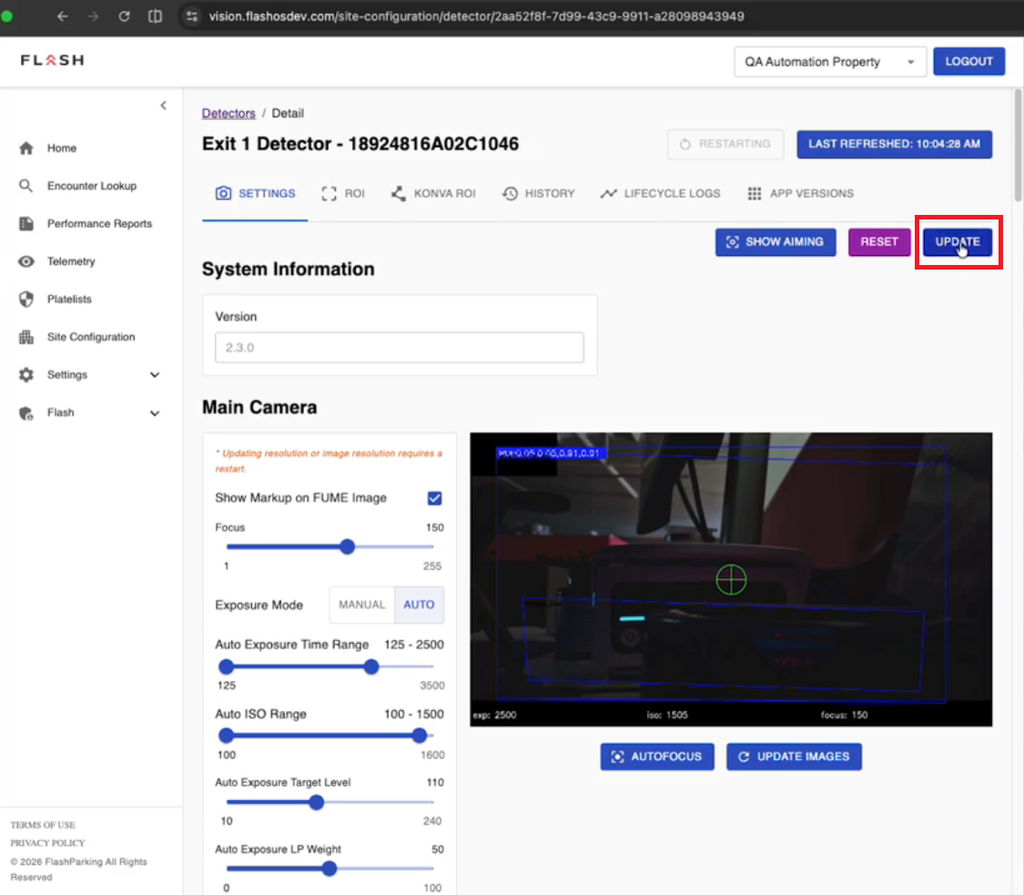
  1. Log in to the Flash Vision Portal.
  2. Navigate to Site Configuration → Active Detectors.
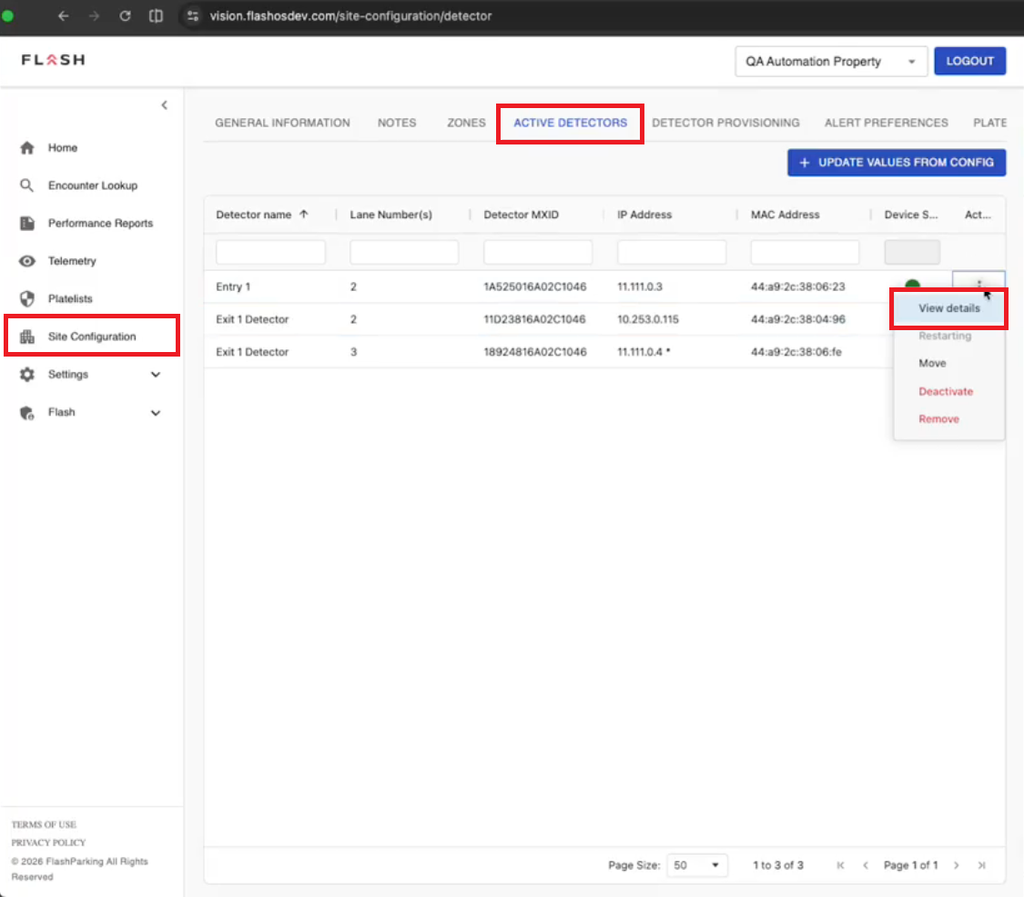
  1. Select the target detector to open Detector Settings.
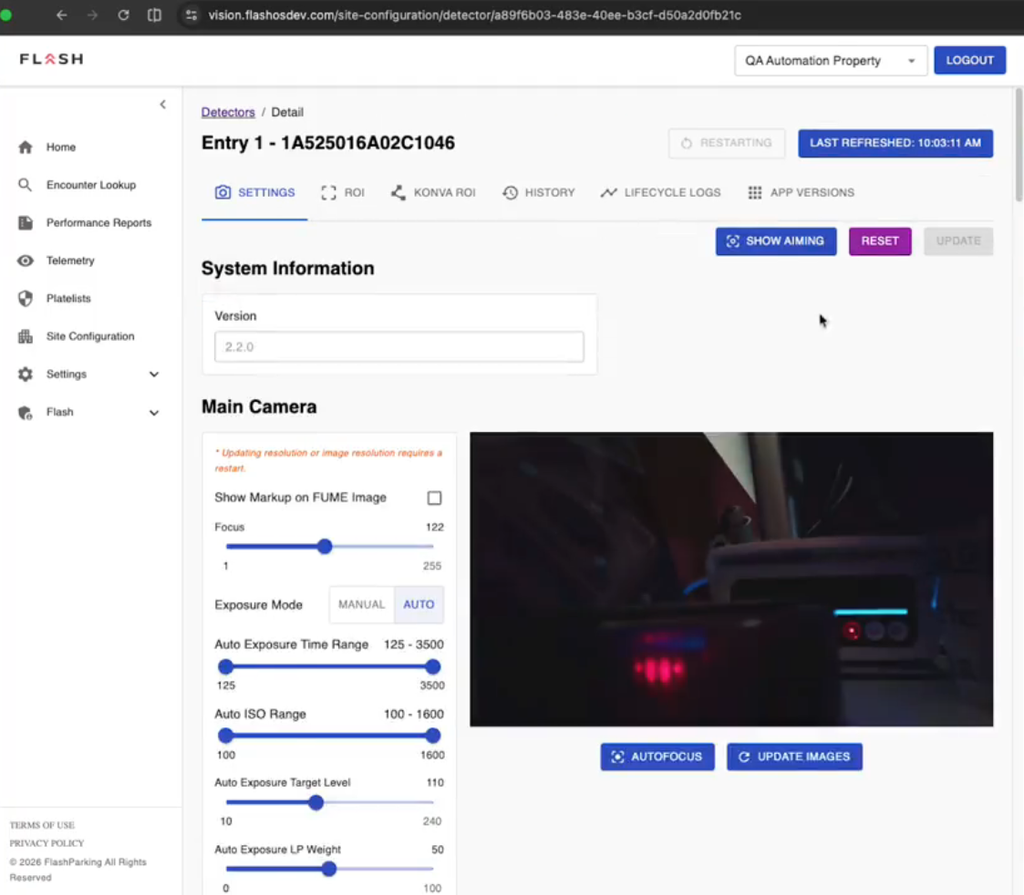
  1. Scroll to the Vehicle Monitoring section.
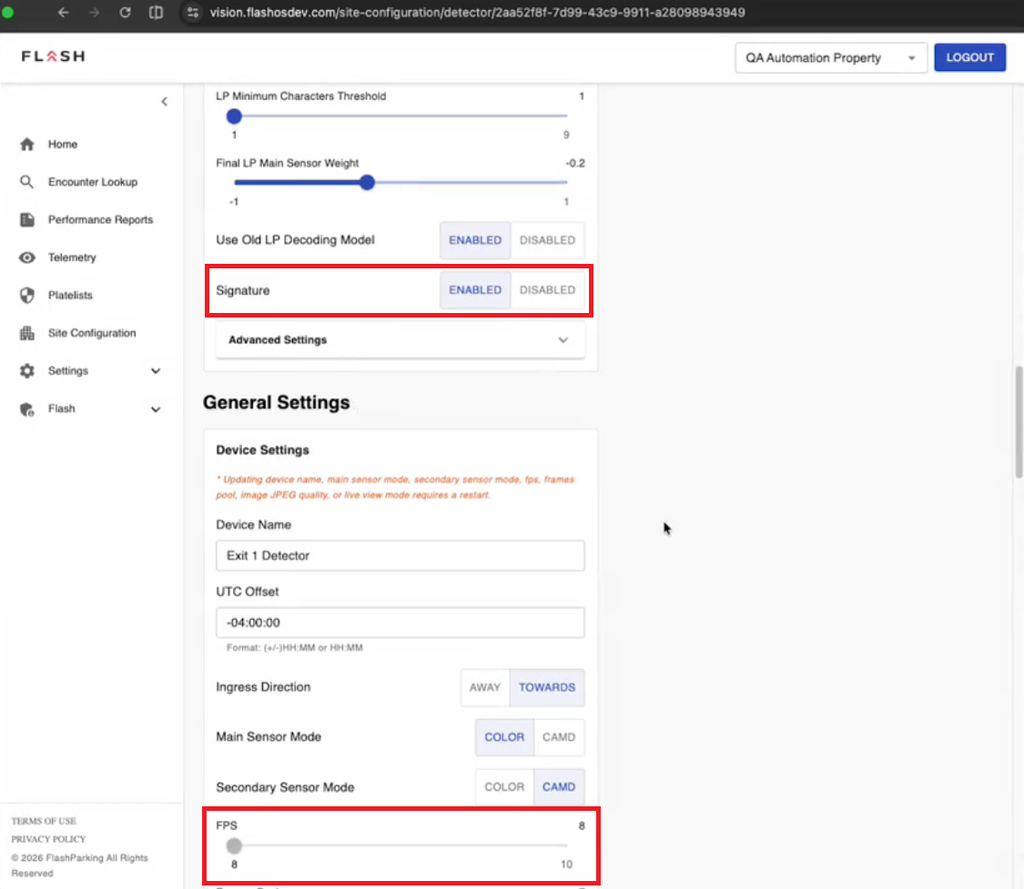
  2. Locate the Signature toggle (visible only on detectors running v2.3.2+).
  3. Select Enabled.
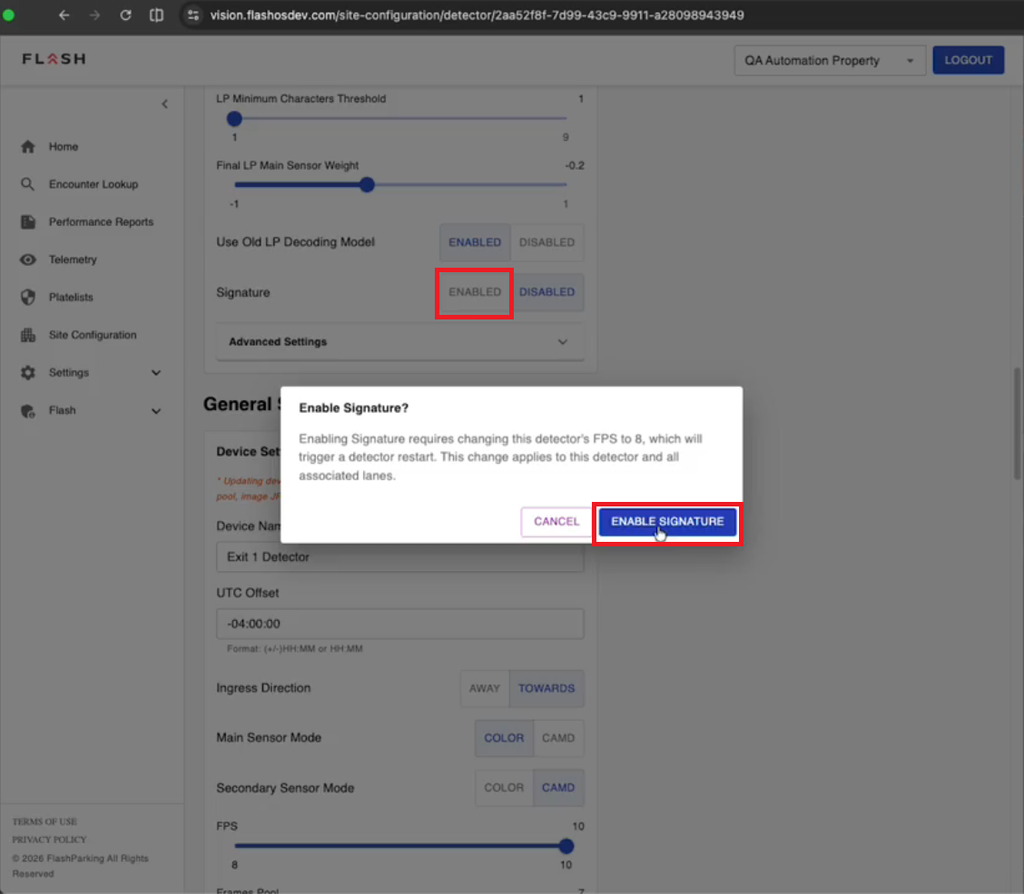
  1. A confirmation modal will appear advising:
    • Camera frame rate will automatically adjust to 8 FPS to support the feature.
  • A detector restart will be triggered.
  • Changes apply to the detector and all lanes associated with it.
  1. Click Enable Signature in the modal, then click Update / Save Settings.
Disabling Signature #

  1. Open Detector Settings → Vehicle Monitoring.
  2. Select Disabled for Signature.
  3. Save/Update settings.
    1. The camera frame rate is restored to its previous value (e.g., 10 FPS).
    2. Standard restart confirmation occurs.

Implementation #

Use Cases #

  • Edge-Case License Plate Reconciliation: Fallback matching when standard plate reads fail due to glare, weather, bent plates, or missing front/rear plates.
  • Hybrid & Frictionless Parking: Guarantees higher confidence in entry-to-exit pairing without forcing parkers to stop or scan fallback tickets.
  • Transaction Accuracy Improvement: Raises overall facility matching rates from baseline LPR (95–96%) into high-90s accuracy.

Compatibility List #

  • Flash Vision App v2.3.2+: Fully compatible. Displays the toggle and handles automatic FPS adjustment and restart payloads.
  • Legacy Detectors (App < v2.3.2): Incompatible. The portal schema dynamically hides the Signature toggle, preserving legacy FPS and restart behaviors.

Did you find this article helpful?
Still stuck? How can we help?

Still stuck? How can we help?

Updated on November 25, 2026
FV Mark4 Camera Activation Quick Guide  How to Search for Encounters Across Multiple Properties in Flash Vision
In this article
  • Requirements
  • How it Works
    • End-User Experience
    • Operator / Admin Management
      • Enabling Signature
      • Disabling Signature
  • Implementation
    • Use Cases
    • Compatibility List
Royal Elementor Kit Theme by WP Royal.