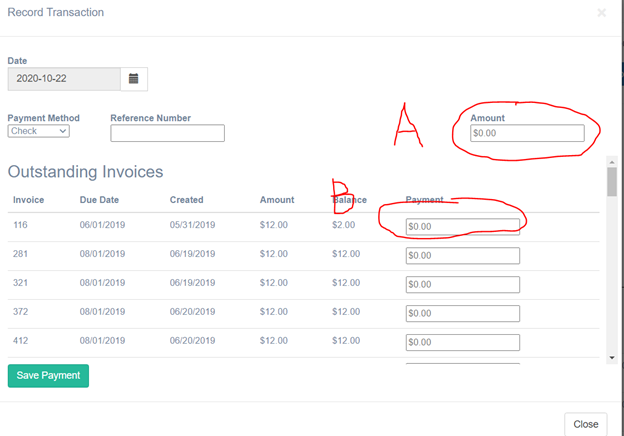
To record a payment or credit, open the parker’s account and go to the billing tab. You’ll see a blue button on the right-hand side of the page that says “Record Transaction”. You’ll be able to enter your payments or credits on this screen. You have two options when recording a payment:
- Apply to an open invoice => Fill out the “Amount” (“A” in attached screenshot) box with the total amount of the payment/credit. You may apply the payment to one or multiple invoices outstanding by entering how much of the payment you wish to apply to each invoice under “Outstanding Invoices” by entering the amount into the “Payment” box (“B” in attached screenshot). Unapplied payments will be held on the account as credit and automatically applied to the next invoice you send.
- Store as account credit to be applied automatically to the next recurring invoice => Fill out the “Amount” box (“A” in attached screenshot) with the total amount of the payment/credit but do not fill out the “Payment” box (“B” in attached screenshot) under “Outstanding Invoices”. You may not see any invoices under “Outstanding Invoices”, if that is the case, there are no open invoices under this account. The credit/payment will automatically apply to the next invoice that sends.