
Click here to learn more about Dynamic Validations.
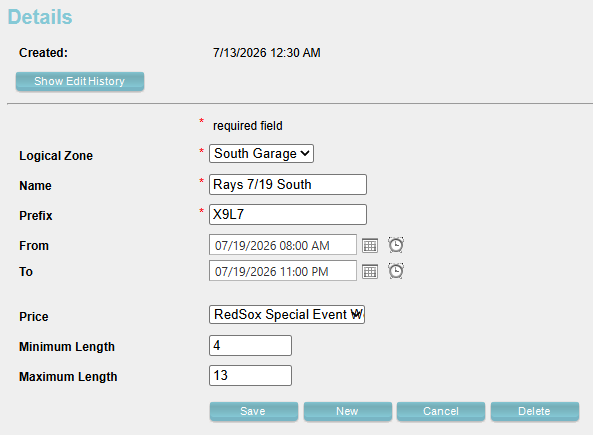
- In the Admin Portal, navigate to Company > Location > Dynamic Validation tab.

- Click on Add New.
- Select:
- Logical Zone: Select the logical zone where the validation will apply.
- If multiple Logical Zones use the same validation create a separate validation for each Logical Zone.
- Name: Enter a descriptive name for the validation (typically the event name).
- Prefix: Enter the barcode prefix used for validation. Active duplicate prefixes are not allowed.
- Error Message: The prefix [XXXX] is already assigned to a game on [MM/DD/YYYY]. Please use a unique prefix or edit the existing record.
- From: Select the date and time when the validation becomes active.
- To: Select the date and time when the validation expires.
- Price: Select a previously configured parking price to apply when the validation criteria are met.
- Minimum length: Enter the minimum number of characters expected in the barcode.
- Maximum length: Enter the maximum number of characters expected in the barcode.
- Logical Zone: Select the logical zone where the validation will apply.
Note
The minimum and maximum length must include the hyphen (-) in the barcode. For example, for the barcode ABCD-12345678, set Minimum Length to 4 and Maximum Length to 13.
- Save.
Changing Event Date #
Event dates can be updated at any time.
- In the Admin Portal, navigate to Company > Location > Dynamic Validation tab.

- Click on Add New.
- Select the existing Dynamic Validation you want to update.
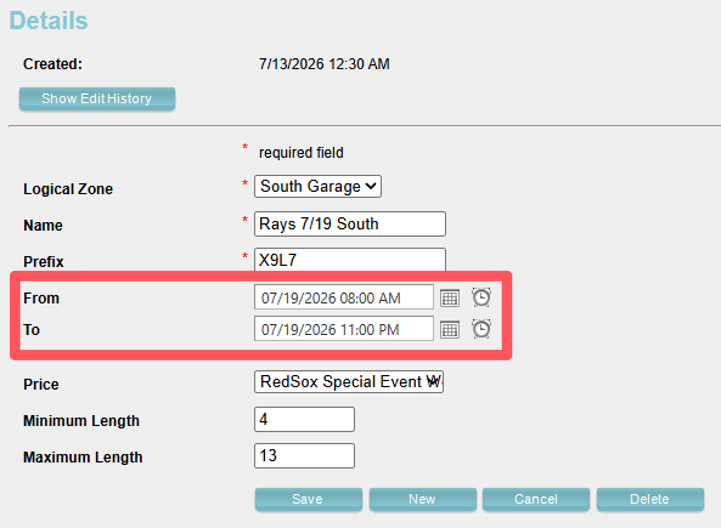
- Update the following fields as needed:
- From: Select the new date and time when the validation becomes active.
- To: Select the new date and time when the validation expires.
- Save.
Note
Restart the kiosk(s) after changing the date and time for the updated schedule to take effect.
Testing Notes #
When testing Dynamic Validation, create a barcode using the following format:
LocationPrefix=DynamicValidationPrefix-TicketNumber
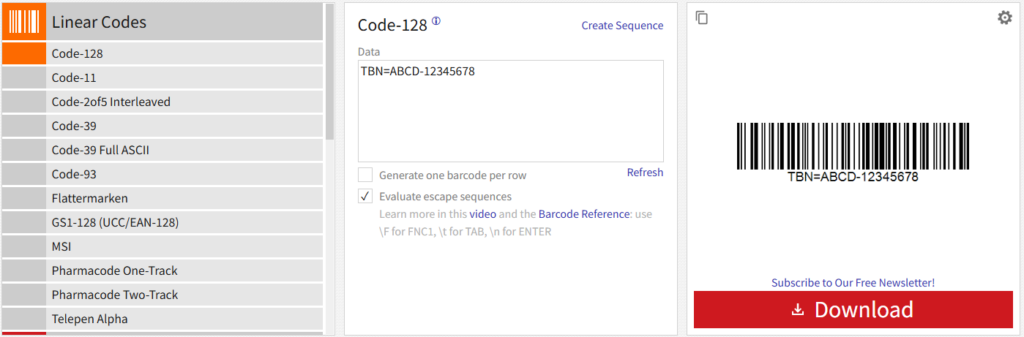
- Go to https://barcode.tec-it.com/en/
- Select Linear Codes > Code128.
- Enter the full barcode value using the format above.
Example:
For a Boston Red Sox event, the barcode would be:
TBN=ABCD-12345678
When configuring the Minimum Length and Maximum Length fields in the Admin Portal:
- Do not account for the LocationPrefix= (for example, TBN=).
- Include the hyphen (-), as it counts as a character.
For the barcode:
TBN=ABCD-12345678
Configure:
- Minimum Length: 4
- Maximum Length: 13