
Employee barcode tags are used in multiple Flash modules.
- PARCS Access to allow Flash Valet runners to access a Flash PARCS gated facility.
- Cashier Kiosk setup to allow an attendant to process cash payments on the Cashier Kiosk or the in-lane kiosk.
- Flash Valet Advanced Runner mode to allow valet runners to quickly assigned vehicle retrieval requests.
The barcode is associated with a Flash user account. This can be completed either through the Flash Valet app or the Flash Admin portal.
Create user account via Flash Valet app #
To use the Flash Valet app to create user accounts, the location must be configured with the Flash Valet setup. This requires the following configuration:
- Valet ticket type
- User account set to Dispatcher to access the Flash Valet app
Once logged in to the Flash Valet, to create an employee account follow the steps below.

1. Log in to the FLASH Valet Pro app.
2. At the bottom of the screen, tap Control.
3. Tap Time Sheet.
4. On the top right, tap add +.
5. Enter the employee’s first and last name in the corresponding fields, then tap Done.
Assign an employee tag number via Flash Valet #
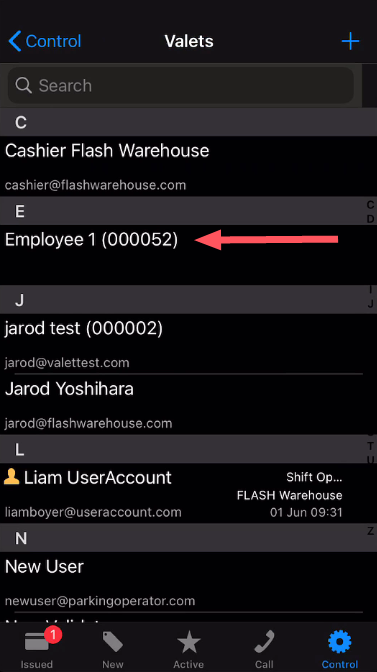
Employee accounts can be assigned a system-generated employee tag number in the Flash Valet app or the preprinted barcode can be scanned for assignment.
1. At the bottom of the screen, tap Control.
2. Tap Pick Runners.
3. Choose the employee’s name.
4. Next to “No Employee Tag assigned” tap Assign > OK.
After the employee tag number is assigned, the unique number identifier appears next to the employee name in the Time Sheet menu.
If the barcode is already printed, it can be assigned to the user account rather than using a system-generated barcode number.
- Tap the Employee name > Camera icon to scan the barcode.
- Scan barcode > barcode number auto assigns. Duplicates are not allowed.
Create user account via admin portal #
If the location is not using Flash Valet, the Admin portal is the recommended option to set up employee barcodes to avoid additional hardware or steps.
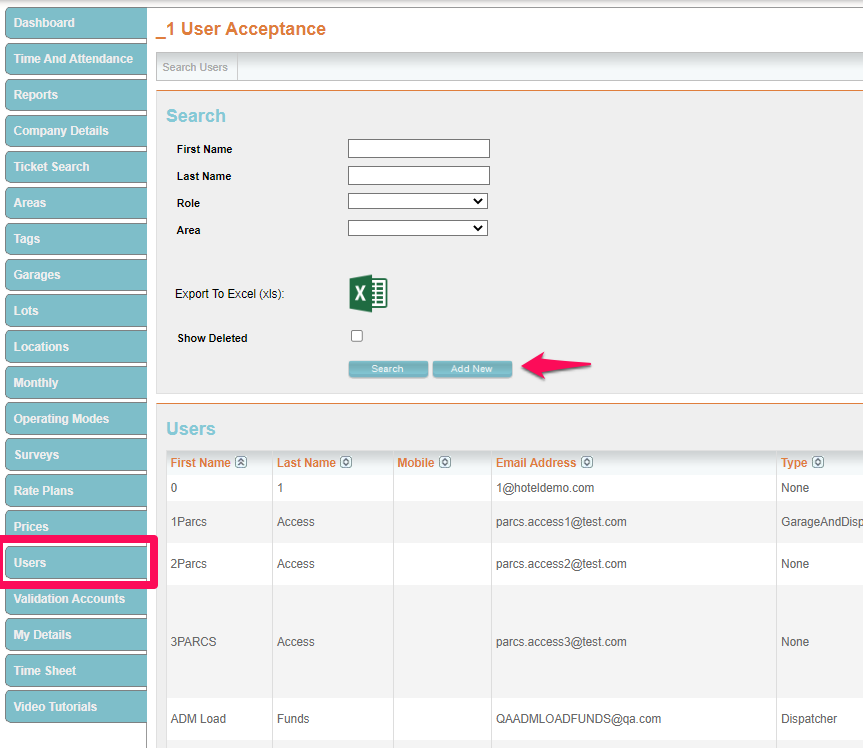
- Log in to the Admin Portal.
- Select the Users tab from the left menu.
- Click on the Add New button.
- Enter the employee’s first and last name in the corresponding fields,
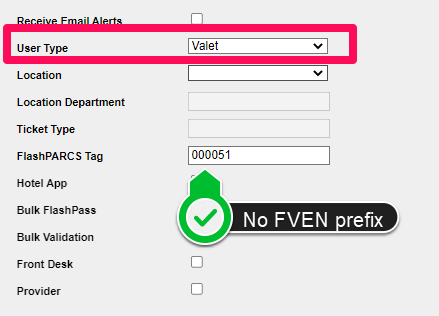
- Set User Type to Valet (set to Dispatcher if login access to the Flash Valet app is required)
- Enter the Employee Barcode in the Flash PARCS Tag field. (NO FVEN prefix)
- Save.
Barcode creation #
The employee barcode is created outside of the Flash system. Use the steps below to create a barcode with a recommended barcode generator website.
1. Go to https://barcode.tec-it.com/en/
2. On the menu on the left, scroll down and choose 2D Codes.
3. Choose one of the options below:
- QR Code: If you want the attendant to scan a printed barcode, choose this option.
- QR Code: Mobile/Phone: If you want the attendant to scan the barcode from a mobile device, choose this option.
4. In the data field, enter “FVEN” and the previously assigned employee tag number.
For example: if the employee number is 51 the format would be “FVEN000051.”
5. Click Refresh, then click Download.
