• Product Launches
    • Adyen for Flash PARCS
    • Express Pay
  • Status Page
  • Product Release Notes
  • Register
  • Log In
  • Product Launches
    • Adyen for Flash PARCS
    • Express Pay
  • Status Page
  • Product Release Notes
  • Register
  • Log In

Configuration

  • Parkonect: Payroc Merchant Gateway Configuration Guide
  • Flash Admin Portal Configurations
    • Gates Only User Role
    • Kiosk Configurations
    • PARCS Ticket Types Configs
    • Pricing Schedule
    • Time Zones
    • Flash Admin Portal Flag Glossary
      • Company Details
      • FlashPARCS tab
      • Monthly Details Tab
      • Restrictions Tab
      • Validation Account Flags
      • Validator Tab Flags
    • Flash PARCS Configurations
      • Cash Amount Due Portal Configuration
      • Dynamic Validations Configuration
      • Flash PARCS Cashier Kit Configuration
      • FlashRates: PrePay Overnight At Kiosk (In-Out) configuration
      • How to Delete Logical Zones
      • Logical Zone Garage Groups
      • Monthly Master Account configuration
      • Overnight Self Park Configuration
      • Pay and Display Configuration
      • Pre Pay Rate Configuration
    • Flash Valet Configurations
      • Employee Barcode Set Up
      • Flash Valet with DTC Configuration
      • SMS Response Options (Custom Labels)
      • Valet Monitor Configuration
    • Integrations Configurations
      • Fast Park Integration Configuration
      • HelpMeParker Configuration
      • ParkMobile/ParkWhiz Integration Configuration
    • PARCS + Valet Configuration
      • Late Checkout Price
  • Flash Rates Tool
    • FlashRates: PrePay Overnight At Kiosk (In-Out) configuration
  • Parkonect Configurations
    • How to Set up Membership API in Parkonect
    • Parkonect + ParkWhiz Reservations / PreSales
    • Parkonect DTC with LAZ Configuration
    • Parkonect Logical Zones (Campus Mode) Configuration guide
    • Parkonect: Banner Ads ModuleĀ 
    • Parkonect: Hotel Parking Pass Module Configuration
    • Parkonect: How to Customize Touchscreen Messages
    • Parkonect: License Plate Look Up Config
    • Parkonect: Lost Ticket Configuration
    • Parkonect: Pass Generator Configuration
    • Parkonect: Point of Sale Configuration
    • Parkonect: Transient Credit Card In/Out
  • ParkWhiz Console Configurations
    • Parkonect + ParkWhiz Reservations / PreSales
    • ParkWhiz Fees Overview
    • ParkWhiz Multipasses

EV Charging

  • Install and Run the EV Simulator (OCPP)

Event

  • BallParc General
    • Adyen NYC1 Credit Card Reader
    • Adyen NYC1 Device Manager
    • Adyen NYC1 Processing Transactions

Flash Valet

  • Flash Valet App
    • eParking Counts Tab – Flash Valet
    • Flash Valet App – Switch Regions
    • Flash Valet Support Button
    • High Volume Mode
    • IVR Calls
    • Single Sign-On (SSO) Integration for Flash Valet App
  • Flash Valet Hardware
    • Flash Valet Monitors
  • Flash Valet Modules
    • Flash Valet Retrieval Monitors: Scenarios
    • Hotel Arrivals List for Valet
    • Valet Monthly Module
      • Valet Retrieval via Validation Portal for Monthly/Resident
    • Valet Validation Module
      • Flash Valet Request History

Hardware Library

  • Flash PARCS Hardware
    • Transcore Encompass 4 RFID Reader (AVI)

Parkonect

  • Parkonect: Payroc Merchant Gateway Configuration Guide
  • Parkonect Dashboard
    • Parkonect Garage Log
    • Parkonect: Dashboard Overview
    • Parkonect: Dashboard Quick Reference
    • Parkonect: Garage Management
    • Parkonect: Insights Analytics
    • Parkonect: Live Data
    • Parkonect: Monthly Calendar
    • Parkonect: Presale Calendar
    • Parkonect: Reports
    • Parkonect: User Accounts
  • Parkonect FAQs
    • Parkonect: Failed Scans Explained
    • Parkonect: How Does Parkonect Prioritize Service Calls?
    • Parkonect: How to Re-connect Lost Skidata Connection
    • Parkonect: How to Recover Your Password
    • Parkonect: How to Refund a Customer
    • Parkonect: How to Setup Towing Enforcement
    • Parkonect: How to Update Your Password
    • Parkonect: PARIS Software by IntegraPark
    • Parkonect: User Types
  • Parkonect Garage Management
    • Parkonect: How to Schedule Lanes (Sleep)
    • Parkonect: Search and Send
  • Parkonect General
    • Parkonect Entry/Exit Methods
    • Parkonect Modules Summary List
    • Parkonect Network Information
    • Parkonect: Logical Zones (Campus Mode)
    • Parkonect: Payroc Merchant Gateway
    • Parkonect: System Overview
    • Parkonect: Update Scheduler V2
  • Parkonect Hardware Manuals
    • Parkonect Magnetic: Parking Pro Wiring & Programming Guide
    • Parkonect Magnetic: Programming Guide Control Unit MGC and MGC-Pro for MHTM Microdrive Barriers
    • Parkonect: Gen 1 Firmware Update (V1 Board)
    • Parkonect: Gen 1 Firmware Update (V2 Board)
    • Parkonect: Gen 1 Intercom Button Cover Installation Guide
    • Parkonect: Gen 2 7800 Update Guide
    • Parkonect: Gen 2 Intercom Button Cover Installation Guide
    • Parkonect: Gen 2 Quick Start Manual
    • Parkonect: Magnetic Gate MHTM MicroDrive: Control Unit MGC and MGC-Pro User Guide
    • Parkonect: TD9000 Syspark Printer Programming Guide
    • Parkonect: Validation Station Quick Start Wiring Diagram
  • Parkonect Hardware Troubleshooting
    • Parkonect: Common Hardware & Key Identification
    • Parkonect: Gen 2 Ticket Cutter QR Solution
    • Parkonect: Hengstler Printer Cleaning & Maintenance Guide
    • Parkonect: How to Acquire Hardware MAC Address
    • Parkonect: How to Identify & Fix Your Gate: HySecurity & Magnetic Gate Tech Support Phone Numbers
    • Parkonect: How to Identify Your Hardware & Firmware
    • Parkonect: How to Power Cycle & Reprogram a Validation Station
    • Parkonect: How to Powercycle a Door Controller
    • Parkonect: How to Put Magnetic Gate into Service Mode
    • Parkonect: How to Update Firmware on Gen 2 via Thumbdrive
    • Parkonect: Printer Dust Removal Guide PDF
    • Parkonect: Replacing Ticket Roll Guide (2020 & later Models)
    • Parkonect: Service Tech Notes
    • Parkonect: SysParc Clock Adjustment Guide
    • Parkonect: What kind of paper rolls do I need to order?
    • Parkonect: Which washer to use to prevent “walking” rolls?
  • Parkonect Hardware Tutorial Videos
    • Parkonect VIDEO: How to Clean & Clear Jams in the Hengstler Printer
    • Parkonect VIDEO: How to Load Ticket Stock Gen 2 Hengstler
    • Parkonect VIDEO: How to Open & Power Cycle Gen 2 Towers (Add On System)
    • Parkonect VIDEO: How to Open Gen 2 & Power Cycle (Full System)
    • Parkonect VIDEO: How to Power Cycle Gen 1 P-Series (Add On System)
  • Parkonect Kiosk Related
    • Parkonect Sleep Mode
    • Parkonect Supported Bit Counts
    • Parkonect: Banner Ads ModuleĀ 
    • Parkonect: Customize Touch Screen
    • Parkonect: Disable Displaying Names On Kiosk
    • Parkonect: How to Customize Touchscreen Messages
    • Parkonect: Lost Ticket ModuleĀ 
  • Parkonect Monthly
    • Parkonect: How to Add a New Monthly Account
    • Parkonect: How to Delete Monthly Accounts
    • Parkonect: How to Set Monthly Parkers to Neutral
    • Parkonect: Monthly Flex Pass
    • Parkonect: Passkit Create Monthly QR Code
  • Parkonect Occupancy Management
    • Parkonect: Control Transient Parker Access – Off/On Schedule
    • Parkonect: Lot Full Enforcement Module
  • Parkonect Overnight
    • Parkonect: Hotel Parking Pass Module Configuration
    • Parkonect: Hotel Pass Recovery or Edit
  • Parkonect PDF Guides
    • Parkonect: Garage Admin User Guide (Add On System) PDF
    • Parkonect: Garage Admin User Guide (Full System) PDF
    • Parkonect: Hotel Portal Garage Admin User Guide PDF
    • Parkonect: Hotel Portal Staff (Add On System) User Guide PDF
    • Parkonect: Hotel Portal Staff (Full System) User Guide PDF
    • Parkonect: Parking Pass Generator Tenant PDF User Manual
    • Parkonect: Tenant Portal Voucher User Guide PDF
    • Parkonect: Web Validator User Guide PDF – Easyvalidator.com
  • Parkonect Reports
    • Parkonect Category: Hotel & Valet
    • Parkonect Report Category: Monthly
    • Parkonect Report Category: Occupancy
    • Parkonect Report Category: PreSales
    • Parkonect Report Category: Revenue & Validations
    • Parkonect Reporting Overview
  • Parkonect Supply Order Forms
    • Parkonect: Street & Lot Spitter Ticket Order Form
    • Parkonect: Street & Lot Validation Order Form
  • Parkonect Transient
    • Parkonect Entry/Exit Methods
    • Parkonect: License Plate Look Up on POF
    • Parkonect: Transient Credit Card In/Out
    • Parkonect Reservation Engine
      • Parkonect + ParkWhiz Reservations / PreSales
      • Parkonect: Get to Know Your Reservation System
      • Parkonect: Post Parking
      • Parkonect: Promos
      • Parkonect: Reservation Engine Client Email
      • Parkonect: Reservation Engine Introduction
      • Parkonect: Reservation Engine Receipt Setup Sheet Template
      • Parkonect: Reservation Engine Reports
      • Parkonect: Reserve Parking
      • Parkonect: Settings
    • Parkonect Validation
      • How to Generate & Print Your Own Validations
      • Parkonect: How to Add or Edit Validations
      • Parkonect: Tenant Vouchers Module
      • Parkonect: Validate via Parkonect Admin portal
      • Pass Generator Module
        • Parkonect: Parking Pass Generator Module
        • Parkonect: Parking Pass Generator Tenant PDF User Manual
        • Parkonect: Parking Pass Reporting
        • Parkonect: Pass Generator Configuration
        • Parkonect: Review, Reissue, or Cancel Parking Pass
    • Rate Management
      • Parkonect Weekly Rates
      • Parkonect: Add a New Rate Sheet
      • Parkonect: How to Add Special Events via the Garage Rate Calendar
      • Parkonect: PrePay at Entry
  • Software Tutorial Videos
    • Parkonect VIDEO: Hotel Portal Guest Use Tutorial
    • Parkonect VIDEO: How to Add a Hotel User
    • Parkonect VIDEO: How to Add a Monthly Parker
    • Parkonect VIDEO: How to Add a Sublot & Assign Access Level to Sublot
    • Parkonect VIDEO: How to Add a Validator User
    • Parkonect VIDEO: How to Add an Account to House Monthly Parkers
    • Parkonect VIDEO: How to Add an Employee User
    • Parkonect VIDEO: How to Add Barcodes for Ticket Printing
    • Parkonect VIDEO: How to Add Monthly Access Levels for Custom Access to Parkers
    • Parkonect VIDEO: How to Add Specials to Rate Sheets
    • Parkonect VIDEO: How to Blackout Dates in Post-Parking Online Sales
    • Parkonect VIDEO: How to Build a Basic Rate Sheet
    • Parkonect VIDEO: How to Create & Edit Products in Post Parking for Parkonect Sales
    • Parkonect VIDEO: How to Create & Print Your Own Validations
    • Parkonect VIDEO: How to Create a Digital Pass for a Monthly Parker
    • Parkonect VIDEO: How to Create a Validation (Dollar Discount)
    • Parkonect VIDEO: How to Create a Validation (Percent Discount)
    • Parkonect VIDEO: How to Create a Validation (Rate Sheet)
    • Parkonect VIDEO: How to Create A Validation (Time Discount)
    • Parkonect VIDEO: How to Create and Send a Parking Pass
    • Parkonect VIDEO: How to Create Promotions for Parkonect Post Parking Products
    • Parkonect VIDEO: How to Customize Top 5 Rows of Printer Receipt Ticket
    • Parkonect VIDEO: How to Deactivate, Unassign, or View Users
    • Parkonect VIDEO: How to Manually Enter a Parker
    • Parkonect VIDEO: How to Send Digital QR Monthly Pass via Passkit
    • Parkonect VIDEO: How to Set Lane Sleep Times
    • Parkonect VIDEO: How to Set Time Restrictions & Pool Size Limit on an Account
    • Parkonect VIDEO: How to Set Up Valet Accounts
    • Parkonect VIDEO: How to Setup 3rd Party Early Entry / Overage Charges
    • Parkonect VIDEO: How to Use Easyvalidator.com
    • Parkonect VIDEO: How to Use the Garage Rate Calendar
    • Parkonect VIDEO: How to View Lane Downtime History
    • Parkonect VIDEO: Software Introduction Pt.1 (All Systems)
    • Parkonect VIDEO: Software Introduction Pt.2 (All Systems)
    • Parkonect VIDEO: Why doesn’t my parking pass work?
  • Valet Hiker Guides
    • Parkonect: Valet Hiker Overview
    • Parkonect: Valet Hiker Reporting
    • Parkonect: Valet Hiker Ticket Recommendations

Solution Guides

  • Hotel Solutions
    • Hotel Reusable Pass Options for PARCS

Vision LPR

  • Flash LPR Application
  • Flash PARCS LPR Blacklist
  • Flash Vision Logical Zone Transitions
  • How to Search for Encounters Across Multiple Properties in Flash Vision
  • LPR and Spare Tires
  • FlashVision (Uncanny based)
    • Flash Vision Hardware
    • FlashVision Dashboard (Uncanny based)
    • LPU Config Finalization
    • LPU Initial Setup and Portal Configuration

ZipPark Admin

  • ZipPark Portal: Dashboard and Event Calendar
  • ZipPark Portal: Interface
  • ZipPark Portal: Reports
  • ZipPark Portal: Users
  • ZipPark Portal: Validations
View Categories
  • Home
  • Docs
  • Configuration
  • Parkonect: Payroc Merchant Gateway Configuration Guide

Parkonect: Payroc Merchant Gateway Configuration Guide

3 min read

0:00 / 4:48
  • View as Markdown Open this page as plain Markdown (opens in a new tab)
  • Open in ChatGPT Ask questions about this page (opens in a new tab)
  • Open in Claude Ask questions about this page (opens in a new tab)
  • Open in Google AI Studio Ask questions about this page (Google account required) (opens in a new tab)

Main doc: Payroc Merchant Gateway

Note: Super User role is required 

Install the required firmware version #

Follow the steps on Parkonect: Update Scheduler to install firmware ver 4.18+ or later. Payroc requires at least v4.18 to support offline mode (Edge) in lanes with ID Tech Magstripe readers and standard payment processing in lanes with VP5300 readers. Use Update Scheduler V2 to install the firmware updates ver 4.10.00 or later.Ā Ā 

Gateway Management #

Create the Payroc Merchant Gateway configuration by following these steps:

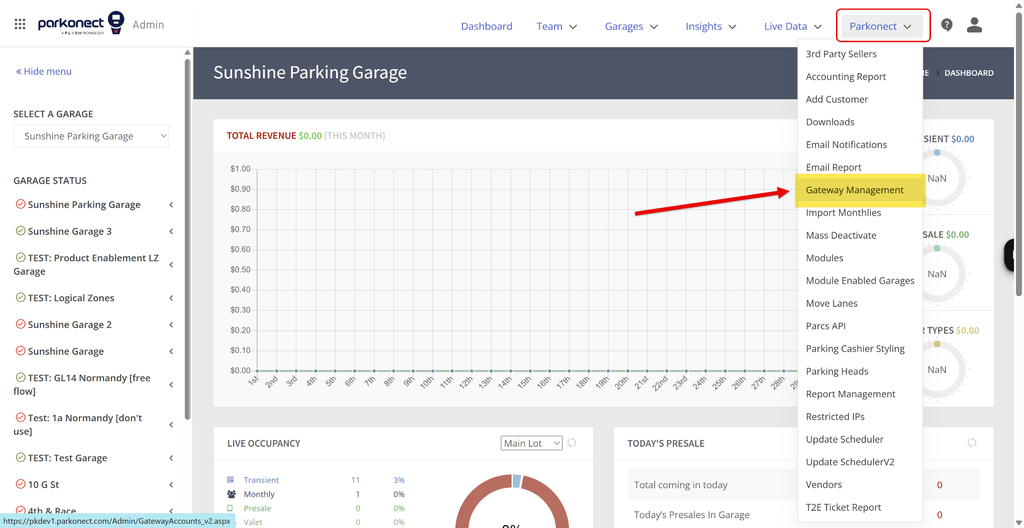
  1. In Parkonect Admin go to Parkonect > Gateway Management.
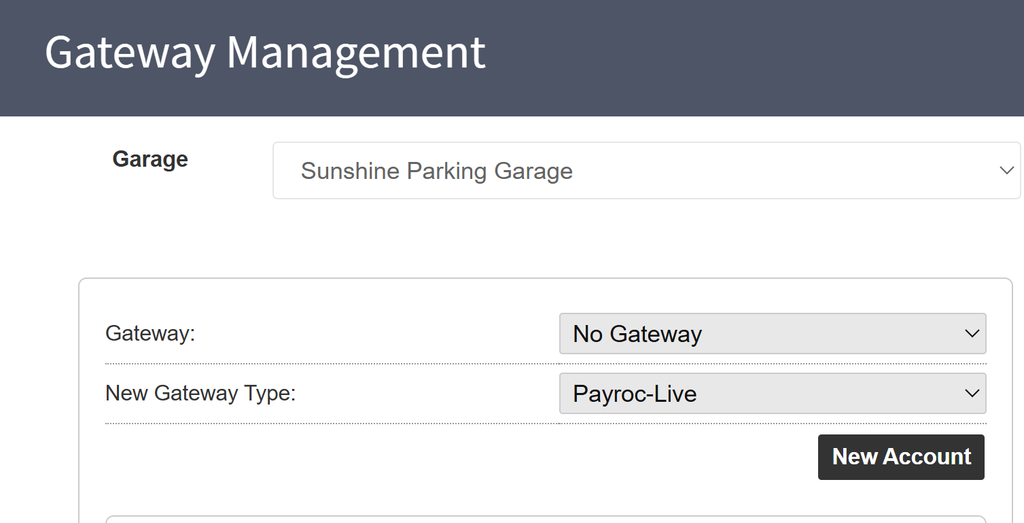
  2. In the Garage dropdown at the top, select the Garage you are working with
  3. Under New Gateway Type, select Payroc-Live, then press the New Account button
    1. The Gateway dropdown will already be populated with the current active Gateway. If the garage is new, then this should read No Gateway.
  1. Fill out the Payroc Gateway fields:
    • Gateway Name: Enter Payroc + Garage Name
    • Credentials:
      1. API Base URL and Identity URL are prefilled and read-only fields.
      2. Terminal Secret: Only required for garages with a Hosted Payment Page (such as parcdaypass.com). Enter a combination of characters to use as a key, then add this key to the Merchant Account in the Payroc portal. See steps in the Hosted Payment Page section below. 
      3. HPP Terminal ID: Only required for garages with a Hosted Payment Page (such as parcdaypass.com). The eCommerce Terminal ID found in the Payroc Portal. This Terminal ID (TID) is added by Payroc. See steps on how to find it in the Hosted Payment Page section below. 
      4. Default Terminal ID: The default Terminal ID for the Garage. See the Finding Terminal IDs in Payroc Admin section below.
        1. Garages with IDTech SpectrumAir readers only: All readers will share this Terminal ID. You do not need to enter the Terminal ID at the lane level. 
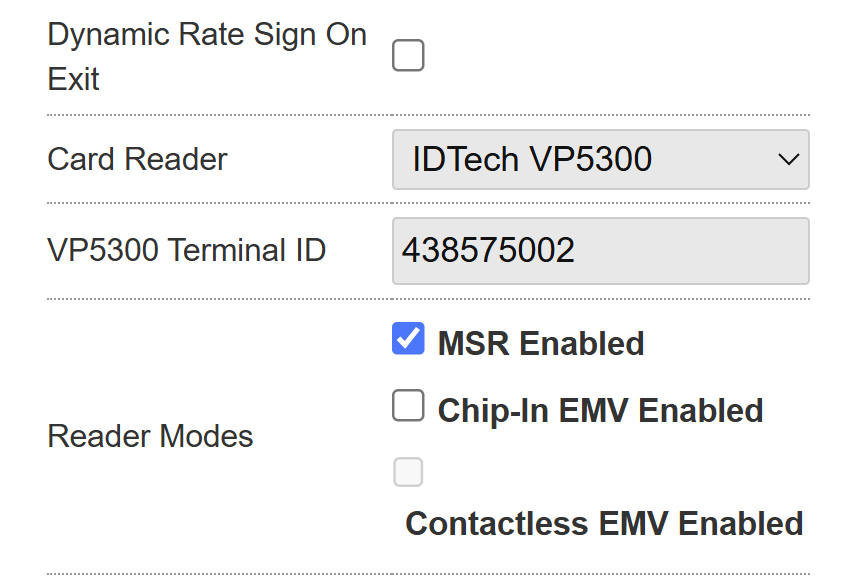
        2. Garages with VP5300s only: Enter the Terminal ID at the lane level. Each VP5300 has its own Terminal ID. See the Adding a Terminal ID to each lane section below for steps. 
        3. Garages with both types of readers: Enter the Default Terminal ID (this is for IDTech SpectrumAir readers) and also add the unique Terminal ID for each device on each lane that has a VP5300 reader. See the Adding a Terminal ID to each lane section below for steps.
    • Active: Only check the Active box if the operation wants to process payments with Payroc right away. DO NOT check this box if the intention is to schedule the gateway settings for a later date.
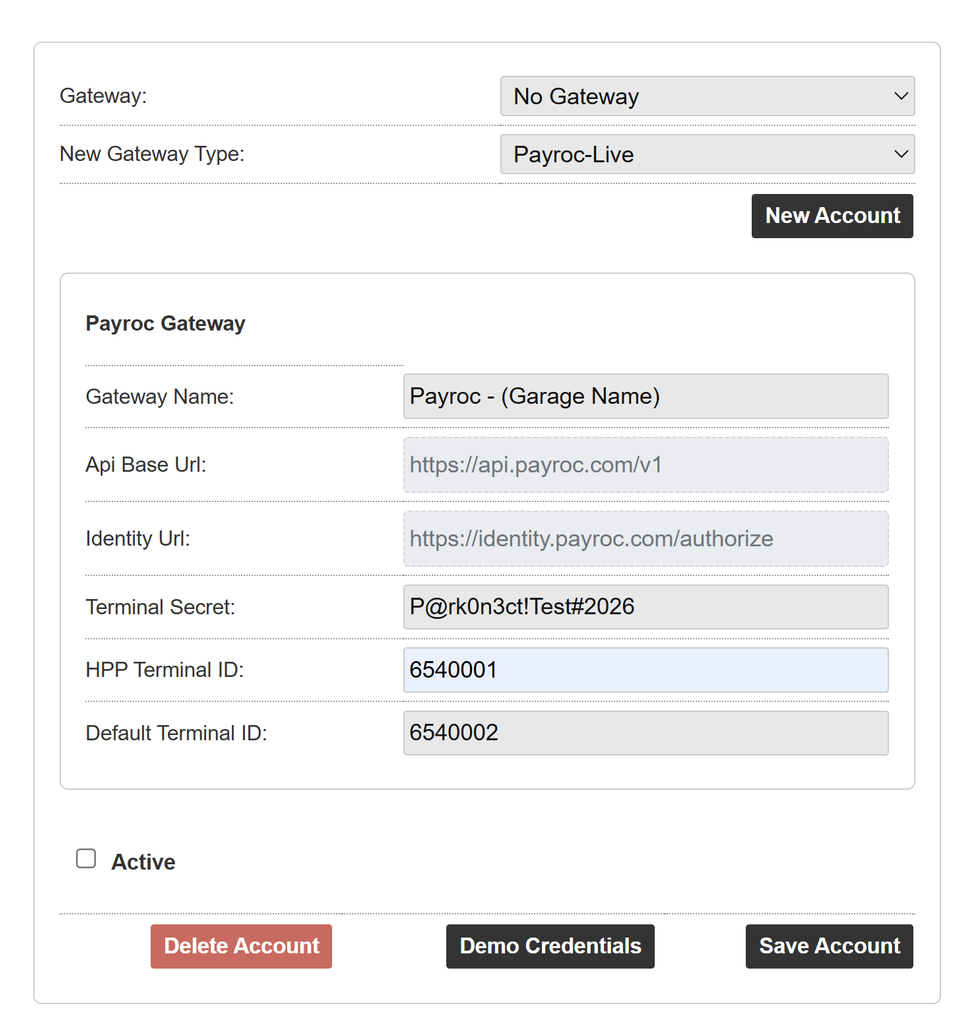
  1. Press SAVE ACCOUNT.

Gateway Scheduler #
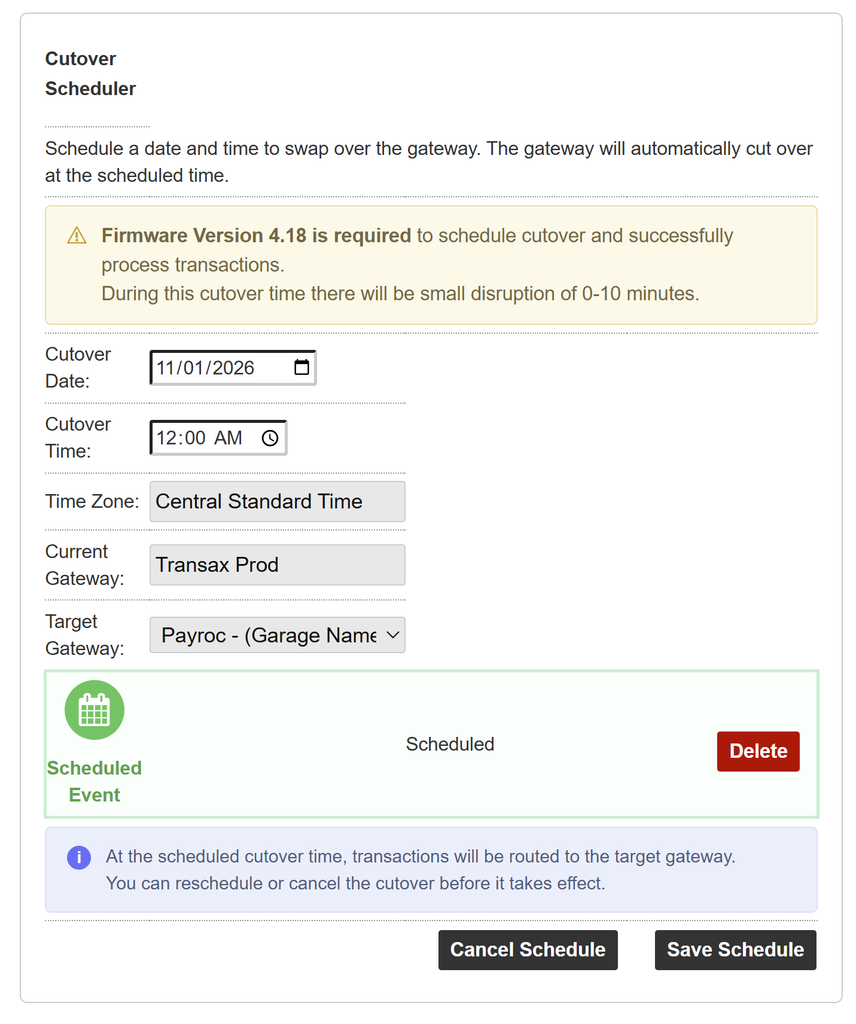
Schedule the Payroc Merchant Gateway configuration by following these steps:

  1. In Parkonect Admin go to Parkonect > Gateway Management.
  2. In the Garage dropdown at the top, select the Garage you are working with
  3. Under Cutover Scheduler: 
    1. Enter a Date
    2. Enter a Time
    3. Time Zone is prepopulated with the Garage’s current time zone settings
    4. Current Gateway is prepopulated with the Garage’s current active gateway
    5. Target Gateway: Select the Payroc Gateway configuration created for this garage
    6. Press the Save Schedule button.
    7. The gateway cutover schedule now shows on the screen as an scheduled event
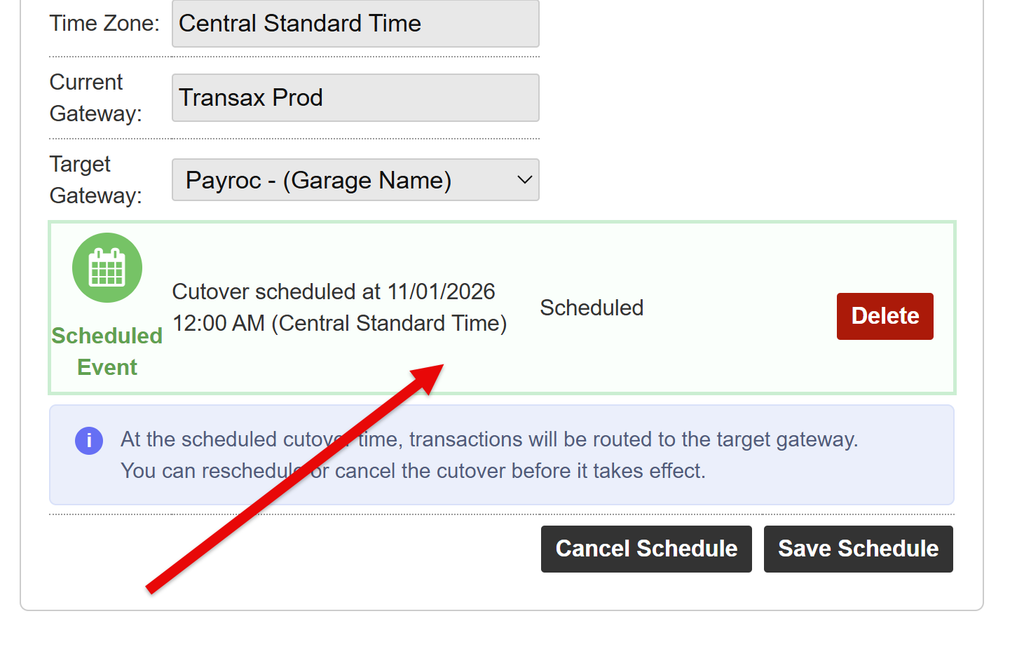
Note: To reschedule the event you may press the DELETE button to remove a scheduled event and start over. 

Finding Terminal IDs in Payroc Admin #

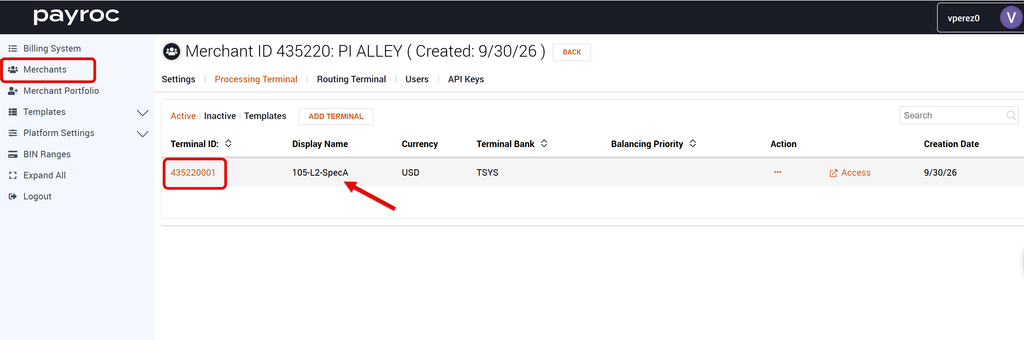
Finding the Default ID for SpectrumAir readers #

The Default ID can be found in the ID field for the Terminal labed as ‘SpecA’ under Merchants > Processing Terminals tab. This ID is the Terminal ID that is shared between the IDTech SpectrumAir readers
Finding the Terminal ID for VP5300 readers #
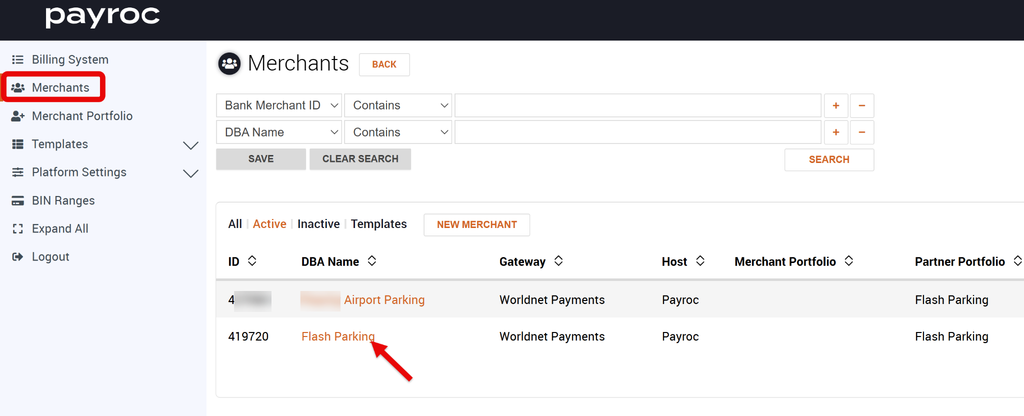
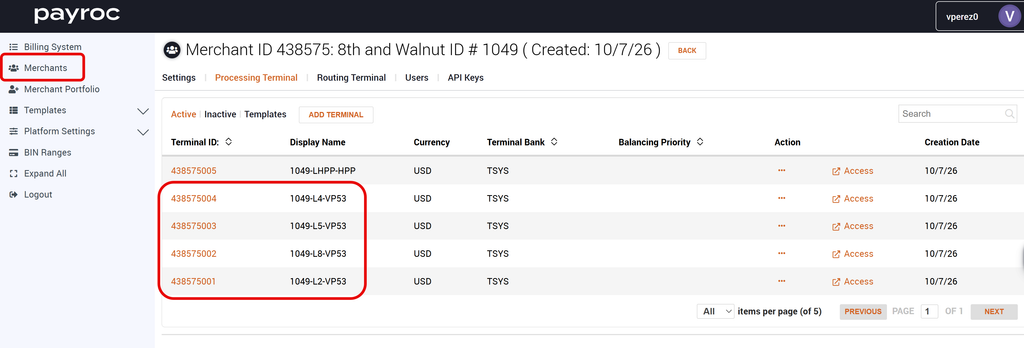
  1. In the Payroc Portal, go to the Merchants tab and select the Merchant Account you are working with.
  2. Go to the Processing Terminal tab. The Terminal ID for each device is listed under the ID column
    • Each device is labeled as GarageID-Lane#-VP53
Adding Terminal ID to each lane #
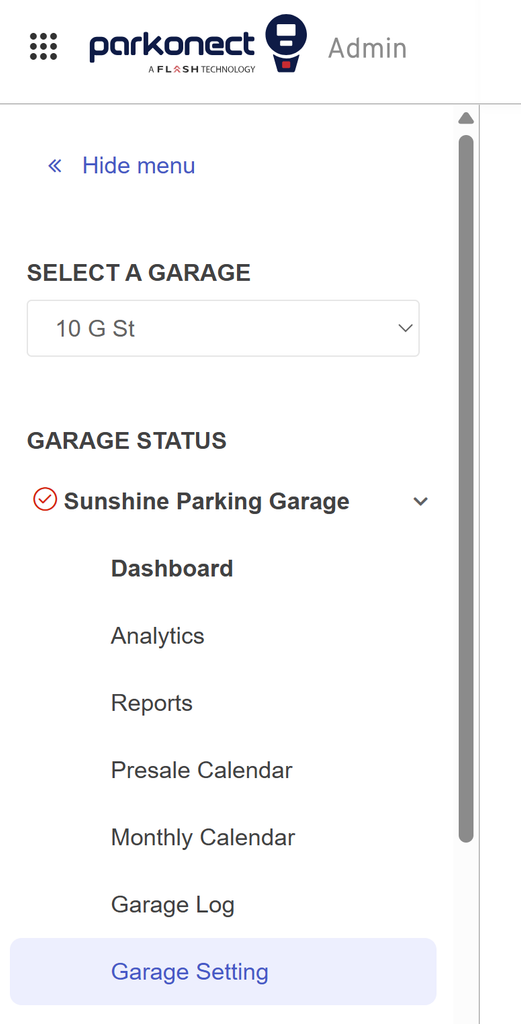
  1. In Parkonect Admin go to Garage > Garage Settings
  2. In the Garage menu, select Lanes
  3. Select an existing lane, or Add a Lane if needed. 
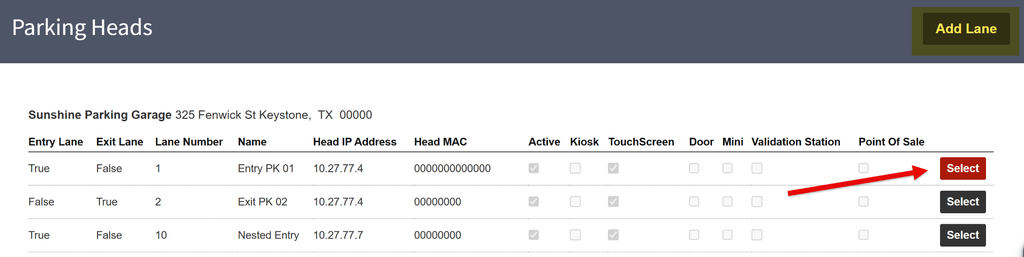
  1. Under Lane Options, scroll down to the Gateway Terminal ID section and enter the Gateway Terminal ID provided by Payroc for that specific credit card reader on that lane. The Terminal ID is unique per lane.
  1. Scroll up and press the Update button.
  2. Repeat the steps for each Lane at the garage.

Hosted Payment Pages #

Find the eCommerce Terminal ID on the Payroc Admin portal #
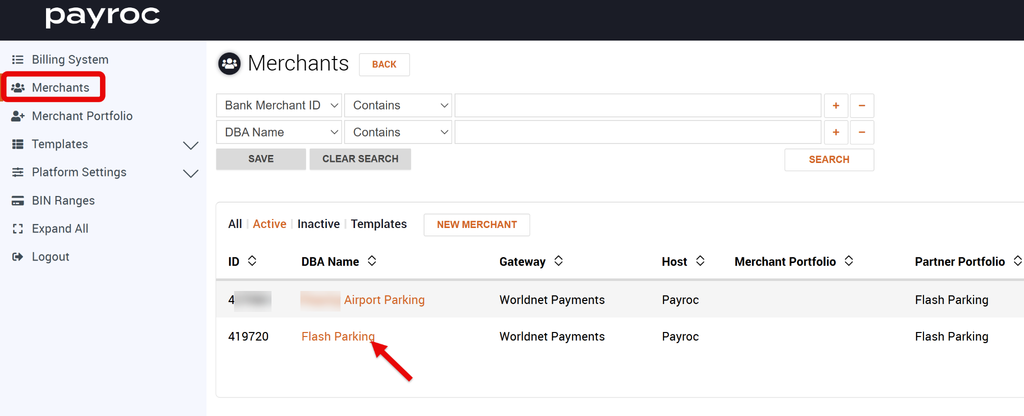
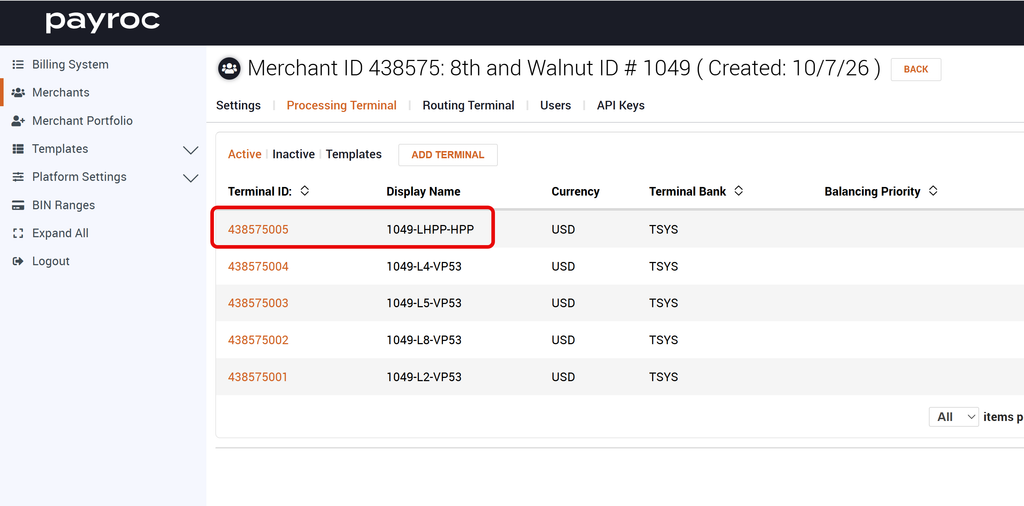
  1. In the Payroc Portal, go to the Merchants tab and select the Merchant Account you are working with.
  2. Go to the Processing Terminal tab. The Terminal ID for the Hosted Payment Page is listed under the Terminal ID field for the terminal labeled as HPP.
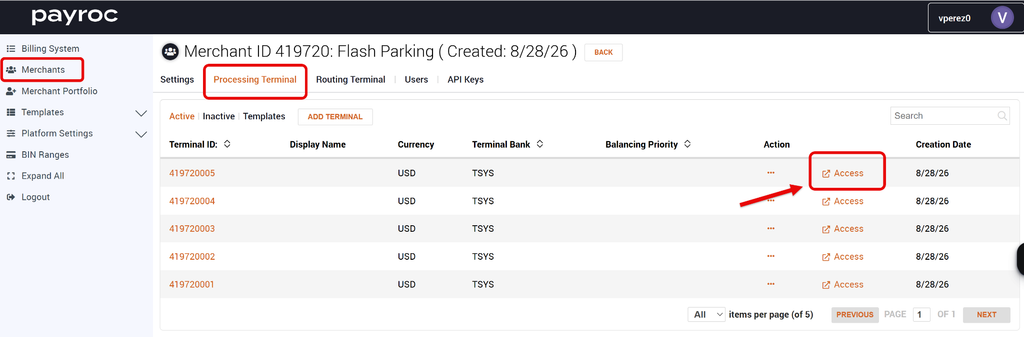
Entering the Secret Key in Payroc Admin #

1- In the Payroc Portal under Merchant > Processing Terminals > press Access under the Terminal ID dedicated for eCommerce. 
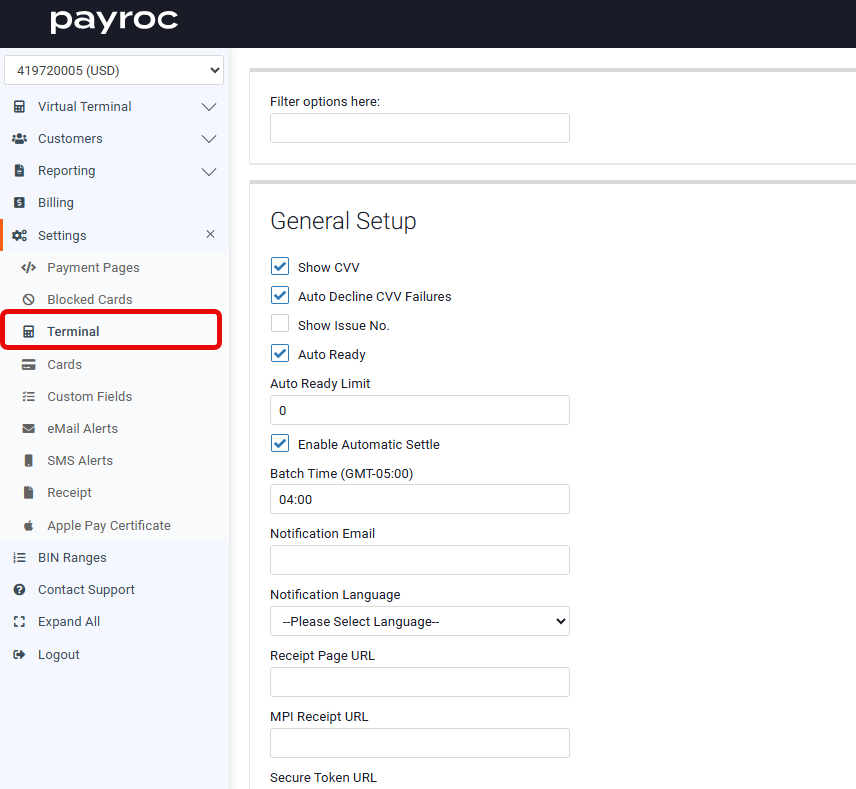
2- Then go to Settings > Terminal 
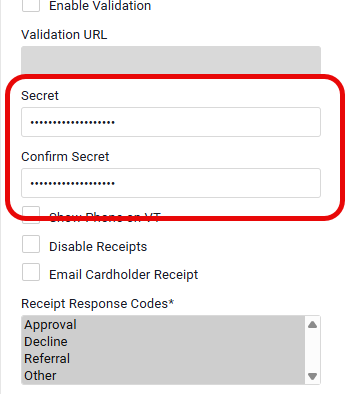
3- Scroll down to the Secret and Confirm Secret fields and enter the same values you added on the Secret Key field in the Gateway Settings in Parkonect Admin.
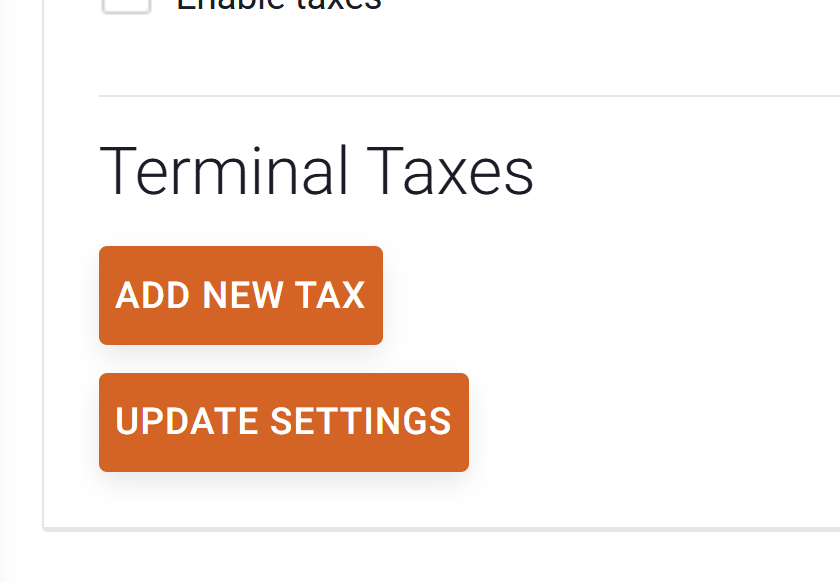
4- Press the Update Settings button found at the bottom of the page to save the changes. 
Did you find this article helpful?
Still stuck? How can we help?

Still stuck? How can we help?

Updated on October 20, 2026
Parkonect: Payroc Merchant Gateway Configuration GuideParkonect: Payroc Merchant Gateway Configuration Guide
In this article
  • Install the required firmware version
  • Gateway Management
  • Gateway Scheduler
  • Finding Terminal IDs in Payroc Admin
    • Finding the Default IDĀ for SpectrumAir readers
    • Finding the Terminal ID for VP5300 readers
  • Adding Terminal ID to each lane
  • Hosted Payment Pages
    • Find the eCommerce Terminal ID on the Payroc Admin portal
    • Entering the Secret Key in Payroc Admin
Royal Elementor Kit Theme by WP Royal.