• Product Launches
    • Adyen for Flash PARCS
    • Express Pay
  • Status Page
  • Product Release Notes
  • Register
  • Log In
  • Product Launches
    • Adyen for Flash PARCS
    • Express Pay
  • Status Page
  • Product Release Notes
  • Register
  • Log In

3rd Party API Integrations

  • Monthly APIs
    • Monthly API Calls & Guide - REST
      • GetAllMonthlies (REST)
      • GetMonthlyAccount1 (REST)
      • GetMonthlyContact1 (REST)
      • GetMonthlyProfiles (REST)
      • GetMonthlyVehicle1 (REST)
      • MonthlyAccount6 (REST)
      • MonthlyContact2 (REST)
      • MonthlyVehicle (REST)
      • RegisterMemberCard (REST)
      • RemoveChildAccountLink (REST)
      • ResetToNeutral (REST)
      • SetMonthlyContactExternalID (REST)
      • SetMonthlyProfiles (REST)
      • SetMonthlyVehicleExternalID (REST)

Configuration

  • Flash Admin Portal Configurations
    • Gates Only User Role
    • Kiosk Configurations
    • PARCS Ticket Types Configs
    • Pricing Schedule
    • Time Zones
    • Flash Admin Portal Flag Glossary
      • Company Details
      • FlashPARCS tab
      • Monthly Details Tab
      • Restrictions Tab
      • Validation Account Flags
      • Validator Tab Flags
    • Flash PARCS Configurations
      • Cash Amount Due Portal Configuration
      • Dynamic Validations Configuration
      • Flash PARCS Cashier Kit Configuration
      • FlashRates: PrePay Overnight At Kiosk (In-Out) configuration
      • How to Delete Logical Zones
      • Logical Zone Garage Groups
      • Monthly Master Account configuration
      • Overnight Self Park Configuration
      • Pay and Display Configuration
      • Pre Pay Rate Configuration
    • Flash Valet Configurations
      • Employee Barcode Set Up
      • Flash Valet with DTC Configuration
      • SMS Response Options (Custom Labels)
      • Valet Monitor Configuration
    • Integrations Configurations
      • Fast Park Integration Configuration
      • HelpMeParker Configuration
      • ParkMobile/ParkWhiz Integration Configuration
    • PARCS + Valet Configuration
      • Late Checkout Price
  • Flash Rates Tool
    • FlashRates: PrePay Overnight At Kiosk (In-Out) configuration
  • Parkonect Configurations
    • How to Set up Membership API in Parkonect
    • Parkonect + ParkWhiz Reservations / PreSales
    • Parkonect DTC with LAZ Configuration
    • Parkonect Logical Zones (Campus Mode) Configuration
    • Parkonect: Banner Ads Module 
    • Parkonect: Hotel Parking Pass Module Configuration
    • Parkonect: How to Customize Touchscreen Messages
    • Parkonect: License Plate Look Up Config
    • Parkonect: Lost Ticket Configuration
    • Parkonect: Pass Generator Configuration
    • Parkonect: Point of Sale Configuration
    • Parkonect: Transient Credit Card In/Out
  • ParkWhiz Console Configurations
    • Parkonect + ParkWhiz Reservations / PreSales
    • ParkWhiz Fees Overview
    • ParkWhiz Multipasses

EV Charging

  • Install and Run the EV Simulator (OCPP)

Event

  • BallParc General
    • Adyen NYC1 Credit Card Reader
    • Adyen NYC1 Device Manager
    • Adyen NYC1 Processing Transactions

Flash Valet

  • Flash Valet App
    • eParking Counts Tab – Flash Valet
    • Flash Valet App – Switch Regions
    • Flash Valet Support Button
    • High Volume Mode
    • IVR Calls
  • Flash Valet Hardware
    • Flash Valet Monitors
  • Flash Valet Modules
    • Flash Valet Retrieval Monitors: Scenarios
    • Hotel Arrivals List for Valet
    • Valet Monthly Module
      • Valet Retrieval via Validation Portal for Monthly/Resident
    • Valet Validation Module
      • Flash Valet Request History

Hardware Library

  • Flash PARCS Hardware
    • Transcore Encompass 4 RFID Reader (AVI)

Parkonect

  • Parkonect Dashboard
    • Parkonect Garage Log
    • Parkonect: Dashboard Overview
    • Parkonect: Dashboard Quick Reference
    • Parkonect: Garage Management
    • Parkonect: Insights Analytics
    • Parkonect: Live Data
    • Parkonect: Monthly Calendar
    • Parkonect: Presale Calendar
    • Parkonect: Reports
    • Parkonect: User Accounts
  • Parkonect FAQs
    • Parkonect How Do I Get A Parking Receipt?
    • Parkonect: Failed Scans Explained
    • Parkonect: How Does Parkonect Prioritize Service Calls?
    • Parkonect: How to Re-connect Lost Skidata Connection
    • Parkonect: How to Recover Your Password
    • Parkonect: How to Refund a Customer
    • Parkonect: How to Setup Towing Enforcement
    • Parkonect: How to Update Your Password
    • Parkonect: PARIS Software by IntegraPark
    • Parkonect: User Types
  • Parkonect Garage Management
    • Parkonect: How to Schedule Lanes (Sleep)
    • Parkonect: Search and Send
  • Parkonect General
    • Parkonect Entry/Exit Methods
    • Parkonect Modules Summary List
    • Parkonect Network Information
    • Parkonect: Logical Zones (Campus Mode)
    • Parkonect: System Overview
  • Parkonect Hardware Manuals
    • Parkonect Magnetic: Parking Pro Wiring & Programming Guide
    • Parkonect Magnetic: Programming Guide Control Unit MGC and MGC-Pro for MHTM Microdrive Barriers
    • Parkonect: Gen 1 Firmware Update (V1 Board)
    • Parkonect: Gen 1 Firmware Update (V2 Board)
    • Parkonect: Gen 1 Intercom Button Cover Installation Guide
    • Parkonect: Gen 2 7800 Update Guide
    • Parkonect: Gen 2 Intercom Button Cover Installation Guide
    • Parkonect: Gen 2 Quick Start Manual
    • Parkonect: Magnetic Gate MHTM MicroDrive: Control Unit MGC and MGC-Pro User Guide
    • Parkonect: TD9000 Syspark Printer Programming Guide
    • Parkonect: Validation Station Quick Start Wiring Diagram
  • Parkonect Hardware Troubleshooting
    • Parkonect: Common Hardware & Key Identification
    • Parkonect: Gen 2 Ticket Cutter QR Solution
    • Parkonect: Hengstler Printer Cleaning & Maintenance Guide
    • Parkonect: How to Acquire Hardware MAC Address
    • Parkonect: How to Identify & Fix Your Gate: HySecurity & Magnetic Gate Tech Support Phone Numbers
    • Parkonect: How to Identify Your Hardware & Firmware
    • Parkonect: How to Power Cycle & Reprogram a Validation Station
    • Parkonect: How to Powercycle a Door Controller
    • Parkonect: How to Put Magnetic Gate into Service Mode
    • Parkonect: How to Update Firmware on Gen 2 via Thumbdrive
    • Parkonect: Printer Dust Removal Guide PDF
    • Parkonect: Replacing Ticket Roll Guide (2020 & later Models)
    • Parkonect: Service Tech Notes
    • Parkonect: SysParc Clock Adjustment Guide
    • Parkonect: What kind of paper rolls do I need to order?
    • Parkonect: Which washer to use to prevent “walking” rolls?
  • Parkonect Hardware Tutorial Videos
    • Parkonect VIDEO: How to Clean & Clear Jams in the Hengstler Printer
    • Parkonect VIDEO: How to Load Ticket Stock Gen 2 Hengstler
    • Parkonect VIDEO: How to Open & Power Cycle Gen 2 Towers (Add On System)
    • Parkonect VIDEO: How to Open Gen 2 & Power Cycle (Full System)
    • Parkonect VIDEO: How to Power Cycle Gen 1 P-Series (Add On System)
  • Parkonect Kiosk Related
    • Parkonect Sleep Mode
    • Parkonect Supported Bit Counts
    • Parkonect: Banner Ads Module 
    • Parkonect: Customize Touch Screen
    • Parkonect: Disable Displaying Names On Kiosk
    • Parkonect: How to Customize Touchscreen Messages
    • Parkonect: Lost Ticket Module 
  • Parkonect Monthly
    • Parkonect: How to Add a New Monthly Account
    • Parkonect: How to Delete Monthly Accounts
    • Parkonect: How to Set Monthly Parkers to Neutral
    • Parkonect: Monthly Flex Pass
    • Parkonect: Passkit Create Monthly QR Code
  • Parkonect Occupancy Management
    • Parkonect: Control Transient Parker Access – Off/On Schedule
    • Parkonect: Lot Full Enforcement Module
  • Parkonect Overnight
    • Parkonect: Hotel Parking Pass Module Configuration
    • Parkonect: Hotel Pass Recovery or Edit
  • Parkonect PDF Guides
    • Parkonect: Garage Admin User Guide (Add On System) PDF
    • Parkonect: Garage Admin User Guide (Full System) PDF
    • Parkonect: Hotel Portal Garage Admin User Guide PDF
    • Parkonect: Hotel Portal Staff (Add On System) User Guide PDF
    • Parkonect: Hotel Portal Staff (Full System) User Guide PDF
    • Parkonect: Parking Pass Generator Tenant PDF User Manual
    • Parkonect: Tenant Portal Voucher User Guide PDF
    • Parkonect: Web Validator User Guide PDF – Easyvalidator.com
  • Parkonect Reports
    • Parkonect Category: Hotel & Valet
    • Parkonect Report Category: Monthly
    • Parkonect Report Category: Occupancy
    • Parkonect Report Category: PreSales
    • Parkonect Report Category: Revenue & Validations
    • Parkonect Reporting Overview
  • Parkonect Supply Order Forms
    • Parkonect: Street & Lot Spitter Ticket Order Form
    • Parkonect: Street & Lot Validation Order Form
  • Parkonect Transient
    • Parkonect Entry/Exit Methods
    • Parkonect: License Plate Look Up on POF
    • Parkonect: Transient Credit Card In/Out
    • Parkonect Reservation Engine
      • Parkonect + ParkWhiz Reservations / PreSales
      • Parkonect: Get to Know Your Reservation System
      • Parkonect: Post Parking
      • Parkonect: Promos
      • Parkonect: Reservation Engine Client Email
      • Parkonect: Reservation Engine Introduction
      • Parkonect: Reservation Engine Receipt Setup Sheet Template
      • Parkonect: Reservation Engine Reports
      • Parkonect: Reserve Parking
      • Parkonect: Settings
    • Parkonect Validation
      • How to Generate & Print Your Own Validations
      • Parkonect: How to Add or Edit Validations
      • Parkonect: Tenant Vouchers Module
      • Parkonect: Validate via Parkonect Admin portal
      • Pass Generator Module
        • Parkonect: Parking Pass Generator Module
        • Parkonect: Parking Pass Generator Tenant PDF User Manual
        • Parkonect: Parking Pass Reporting
        • Parkonect: Pass Generator Configuration
        • Parkonect: Review, Reissue, or Cancel Parking Pass
    • Rate Management
      • Parkonect Weekly Rates
      • Parkonect: Add a New Rate Sheet
      • Parkonect: How to Add Special Events via the Garage Rate Calendar
      • Parkonect: PrePay at Entry
  • Software Tutorial Videos
    • Parkonect VIDEO: Hotel Portal Guest Use Tutorial
    • Parkonect VIDEO: How to Add a Hotel User
    • Parkonect VIDEO: How to Add a Monthly Parker
    • Parkonect VIDEO: How to Add a Sublot & Assign Access Level to Sublot
    • Parkonect VIDEO: How to Add a Validator User
    • Parkonect VIDEO: How to Add an Account to House Monthly Parkers
    • Parkonect VIDEO: How to Add an Employee User
    • Parkonect VIDEO: How to Add Barcodes for Ticket Printing
    • Parkonect VIDEO: How to Add Monthly Access Levels for Custom Access to Parkers
    • Parkonect VIDEO: How to Add Specials to Rate Sheets
    • Parkonect VIDEO: How to Blackout Dates in Post-Parking Online Sales
    • Parkonect VIDEO: How to Build a Basic Rate Sheet
    • Parkonect VIDEO: How to Create & Edit Products in Post Parking for Parkonect Sales
    • Parkonect VIDEO: How to Create & Print Your Own Validations
    • Parkonect VIDEO: How to Create a Digital Pass for a Monthly Parker
    • Parkonect VIDEO: How to Create a Validation (Dollar Discount)
    • Parkonect VIDEO: How to Create a Validation (Percent Discount)
    • Parkonect VIDEO: How to Create a Validation (Rate Sheet)
    • Parkonect VIDEO: How to Create A Validation (Time Discount)
    • Parkonect VIDEO: How to Create and Send a Parking Pass
    • Parkonect VIDEO: How to Create Promotions for Parkonect Post Parking Products
    • Parkonect VIDEO: How to Customize Top 5 Rows of Printer Receipt Ticket
    • Parkonect VIDEO: How to Deactivate, Unassign, or View Users
    • Parkonect VIDEO: How to Manually Enter a Parker
    • Parkonect VIDEO: How to Send Digital QR Monthly Pass via Passkit
    • Parkonect VIDEO: How to Set Lane Sleep Times
    • Parkonect VIDEO: How to Set Time Restrictions & Pool Size Limit on an Account
    • Parkonect VIDEO: How to Set Up Valet Accounts
    • Parkonect VIDEO: How to Setup 3rd Party Early Entry / Overage Charges
    • Parkonect VIDEO: How to Use Easyvalidator.com
    • Parkonect VIDEO: How to Use the Garage Rate Calendar
    • Parkonect VIDEO: How to View Lane Downtime History
    • Parkonect VIDEO: Software Introduction Pt.1 (All Systems)
    • Parkonect VIDEO: Software Introduction Pt.2 (All Systems)
    • Parkonect VIDEO: Why doesn’t my parking pass work?
  • Valet Hiker Guides
    • Parkonect: Valet Hiker Overview
    • Parkonect: Valet Hiker Reporting
    • Parkonect: Valet Hiker Ticket Recommendations

Solution Guides

  • Hotel Solutions
    • Hotel Reusable Pass Options for PARCS

Vision LPR

  • Flash LPR Application
  • Flash PARCS LPR Blacklist
  • Flash Vision Logical Zone Transitions
  • LPR and Spare Tires
  • FlashVision (Uncanny based)
    • Flash Vision Hardware
    • FlashVision Dashboard (Uncanny based)
    • LPU Config Finalization
    • LPU Initial Setup and Portal Configuration

ZipPark Admin

  • ZipPark Portal: Dashboard and Event Calendar
  • ZipPark Portal: Interface
  • ZipPark Portal: Reports
  • ZipPark Portal: Users
  • ZipPark Portal: Validations
View Categories
  • Home
  • Docs
  • Configuration
  • Parkonect Configurations
  • Parkonect Logical Zones (Campus Mode) Configuration

Parkonect Logical Zones (Campus Mode) Configuration

11 min read

Check the main Parkonect Logical Zones article for more info.

Requirements #

  • Ver. 4.17.00 and up.
  • Super user, Garage Admin user, Customer Admin user.
  • Logical Zones Module.

How to Configure #

Before proceeding, note that adding or removing logical zones after the initial configuration is complete may affect the existing lane and rate configurations. 

Modules  #

Logical Zones Module #

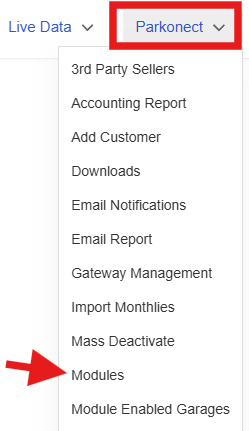
  1.  Go to the Parkonect Admin portal and click the Parkonect tab at the upper right-hand side of the screen > click the Modules option.
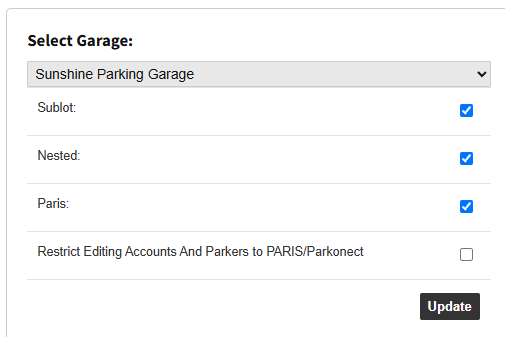
  1. Select the desired garage from the dropdown list and, once the modules list populates, check the Logical Zones flag > click the update button below the garage selection dropdown.
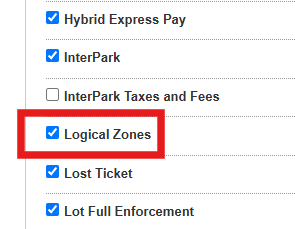
Be aware that the Event Prepay Module is not compatible with Logical Zones.

Adding Logical Zones to the Garage #

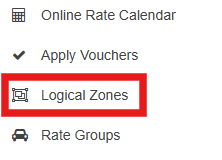
After activating the Logical Zones module, new options named Logical Zones and Rate Groups will be available under the Garage Settings tab. Click the Logical Zones option to start.
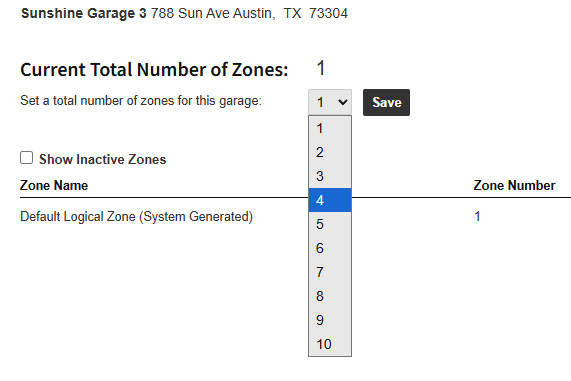
A Default Logical Zone is automatically created when activating the LZ module. Even after creating more Logical Zones under the garage, an LZ must always be marked as the Default.
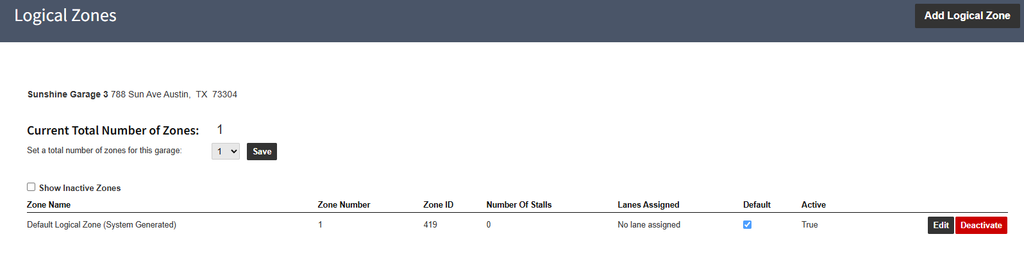
  1. Click the dropdown to select the maximum number of Logical Zones that will be in the garage and click the Save button.
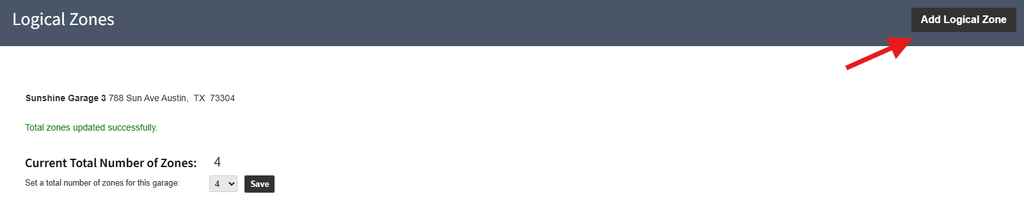
  1. Click the Add Logical Zone button on the top right-hand side of the screen to start adding LZ’s.
  1. Choose a Name and  Number for the LZ > click the Save button at the top.

The Number of Stalls field does not need to be edited.
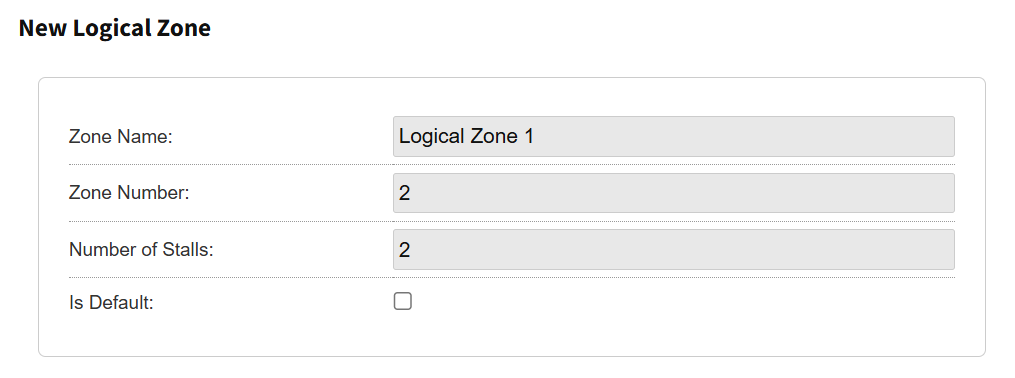
Is Default flag: Whenever setting up a Lane, if the Default flag was checked, this is the LZ that will be pulled to that lane. If no overage default zone is selected, the lane will be assigned to whatever zone has been defaulted this way.

Rates #

Rate Sheets are assigned to each zone, while a Rate Group applies to the entire garage. If the Pin Rate Sheet on Entry module is active, these groups are assigned to one or more Logical Zones in the garage at creation or as needed.

Rate Sheets #

To create a new Rate Sheet or Special Rate Sheet, follow the steps from the Parkonect Garage Management on how to add a new Rate Sheet.

A section named Used by Rate Groups is available to look at what Rate Groups use the selected sheet. Rate Groups are in turn assigned to Logical Zones to use the rate Rate Sheet.
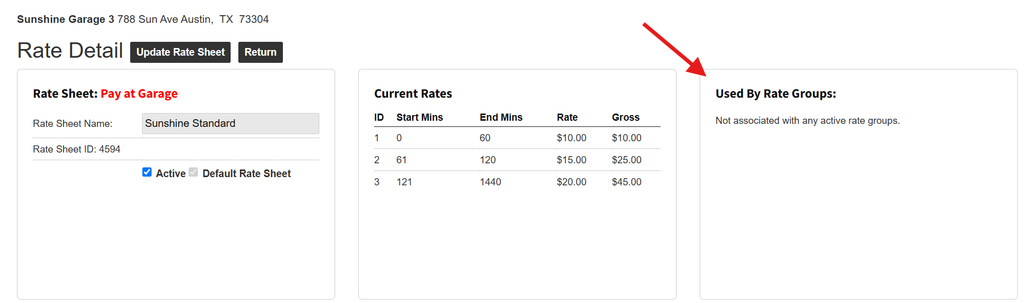
Rate Groups #

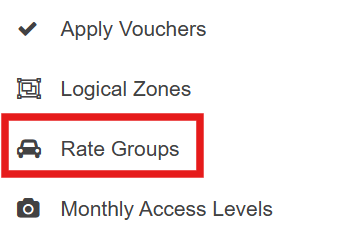
The Rate Groups option will appear in the Garage menu once the Logical Zones module is activated.
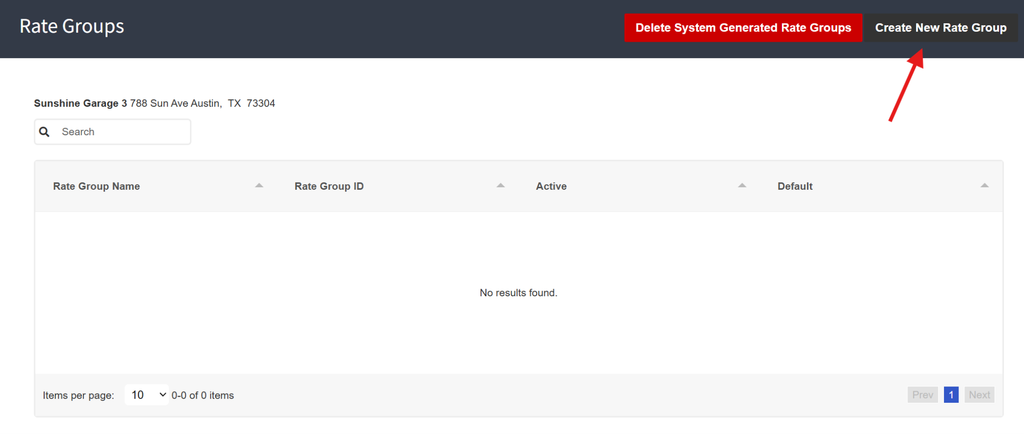
  1. To add a new Rate Group, click the Create New Rate Group button on the upper right-hand side of the screen.
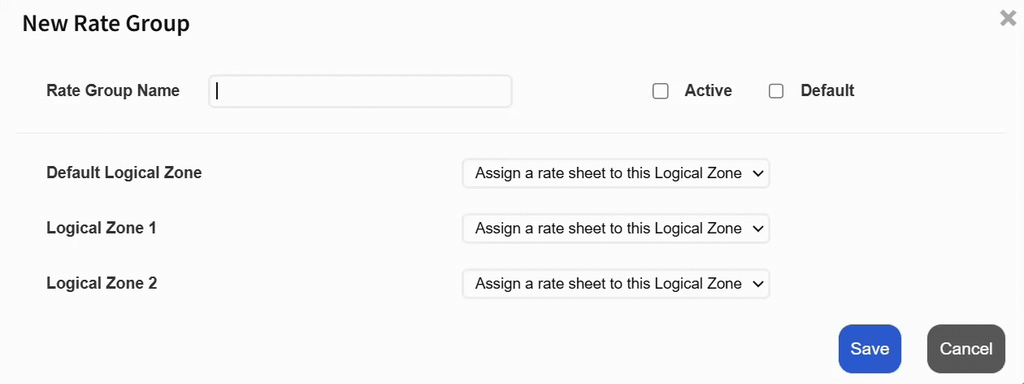
  1. A New Rate Group pop-up will appear with a list of all available LZ already created to select a Rate Sheet for every LZ for the garage. Name the Rate Group and check the Active flag.
  1. After clicking Save, the new Rate Group will appear in the Rate Group list. By clicking the Rate Group, the user can check or uncheck the Active flag to turn the group off, or change it to a Default or Non-Default Rate Group.
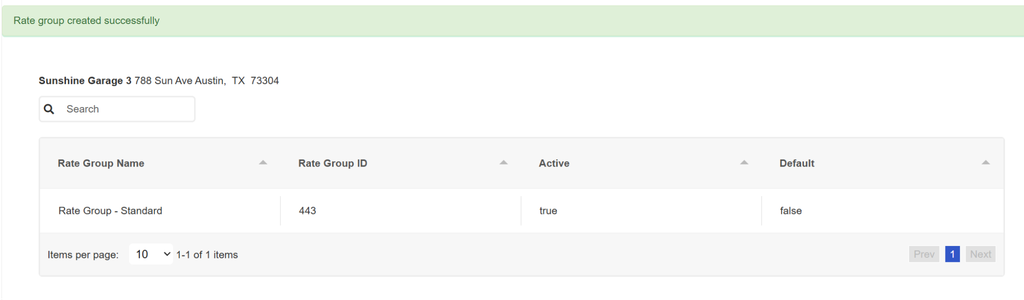
After the Rate Group is created, Rate Sheets assigned to LZ’s cannot be changed. A new group will have to be created to do so, and the previously Active group must be placed as Inactive by unchecking the corresponding flag. The Rate Group will remain in the list although it won’t be used unless placed as Active again.

Delete System-Generated Rate Groups  #

When an existing garage enables the Logical Zones module for the first time and has no existing Logical Zones, all system-generated rate groups are displayed on the Rate Groups page. These rate groups are configured for the garage’s default Logical Zone only. As additional Logical Zones are created, the system-generated rate groups are no longer relevant because they do not apply to the new zone configuration. 

A dedicated button for soft-deleting the system-generated groups is available in the Rate Groups page.
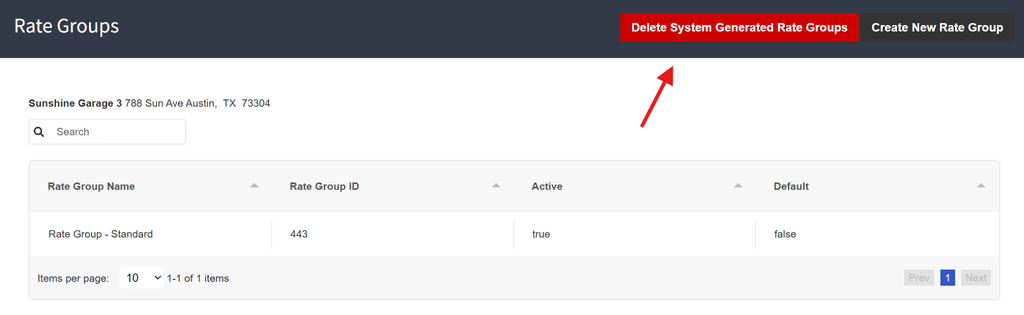
  1. By clicking this button, all automatically created Rate Groups will be deleted.

  1. A pop-up to confirm the deletion of all groups is presented and must be accepted to proceed.
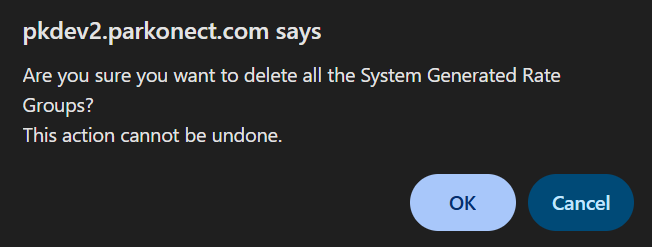
  1. Once completed, all system-generated groups will be deleted.

This button only works for soft-deleting automatically generated groups; manually created groups by the user must be placed as inactive and cannot be deleted.

Pin Rate Sheet on Entry Module – Optional #

Lanes can have a rate group specified in the lane configuration section; this is the rate group that will be assigned to that lane.

  1. To activate the Rate Group dropdown, go to the Parkonect tab and click Modules > select the garage from the dropdown and mark the Pin Rate Sheet Group flag, then click Save.
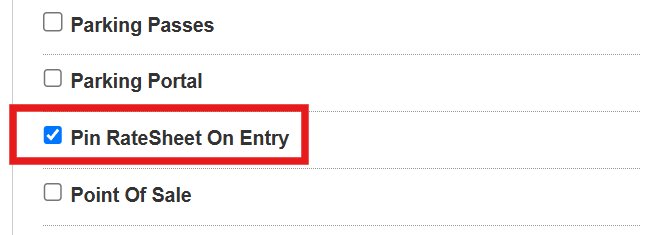
  1. The Rate Group dropdown will become available in the Lane Settings section.
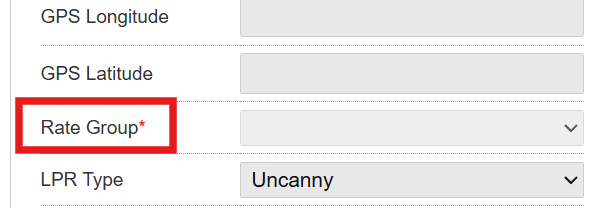
Check the Rate Groups section below in this article for how to configure rates for Logical Zones.

Assigning Lanes #

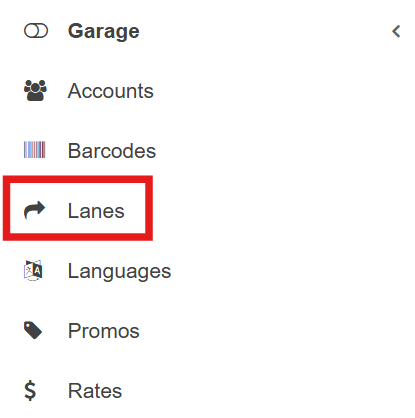
  1. Go to the Lanes option in the left-hand side menu.
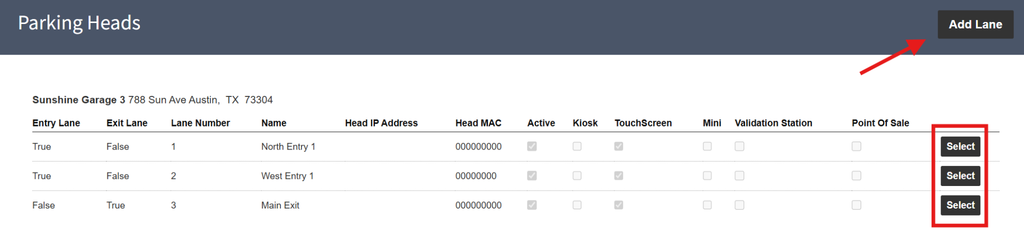
  1. Click the Add Lane button or Select and existing lane to be assigned to the LZ.
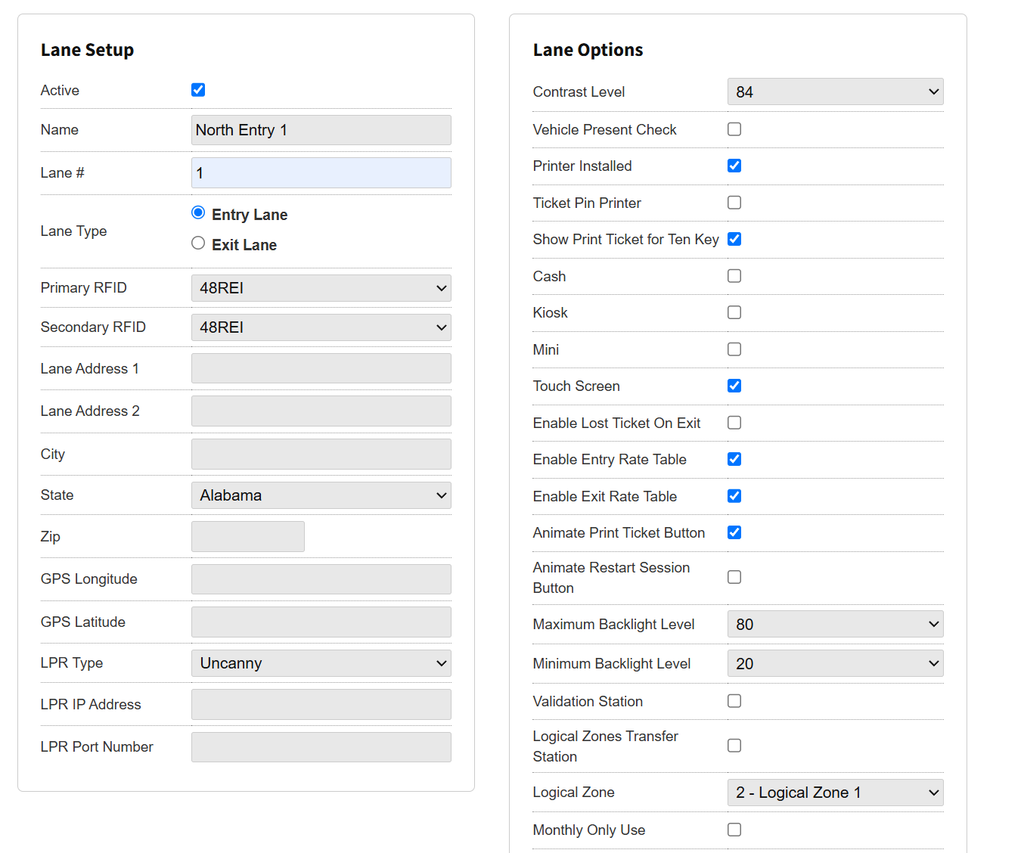
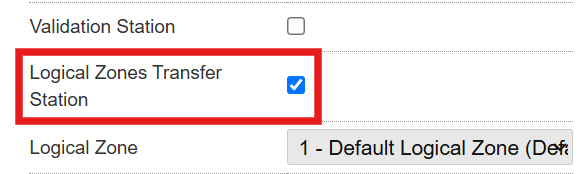
  1. Configure the lane with the desired options for the lane > select the logical zone for the lane from the Logical Zone dropdown. Alternatively, you can mark the Logical Zones Transfer Station flag if the lane is to be a transfer station.
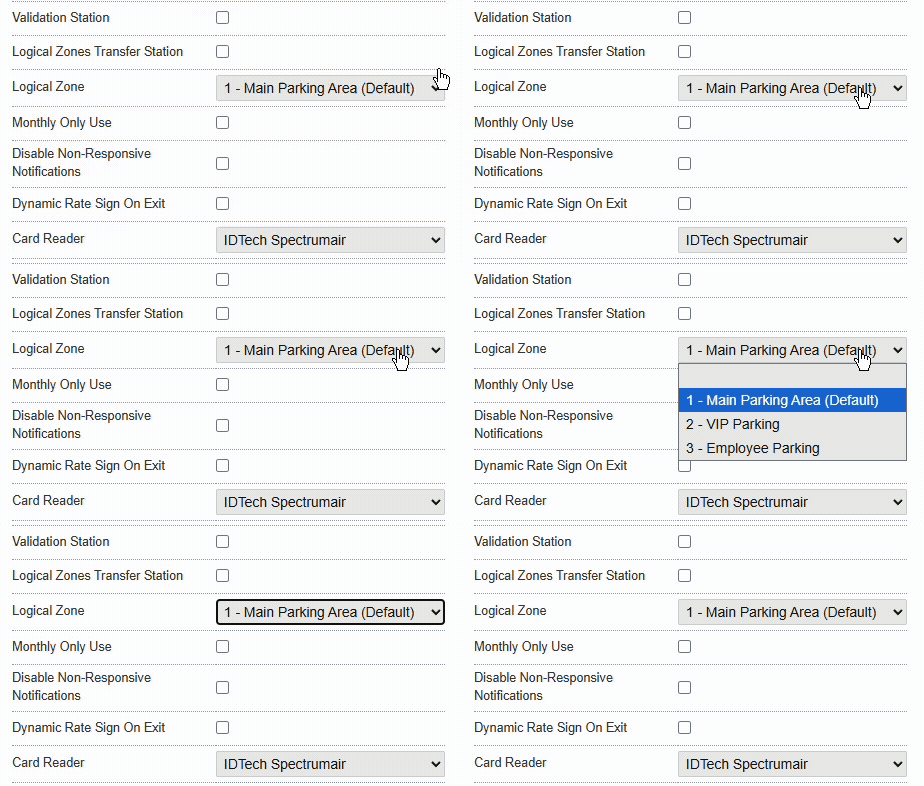
Exit lanes do not allow logical zone assignment, since exits are considered general exits for the garage.

Transfer Stations #

If a lane is flagged as a Transfer Station, the Logical Zone assigned from the dropdown is the lane that the parker will be transferring to by passing through the lane.

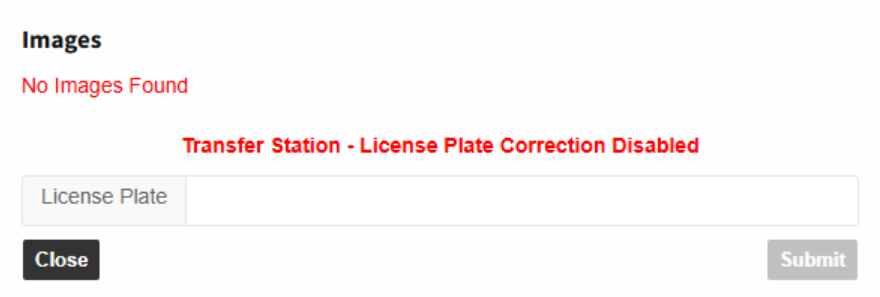
Be aware that License Plate corrections in the event log cannot be performed in the activity generated when a plate passes through a transfer station. License Plate corrections must be done in the LPR read on the main Entry or main Exit, see License Plate Corrections. 
A lane becomes a transfer station when the Logical Zones Transfer Station is marked.
By default, parkers are charged the rate for the zone in which they stayed the longest; e.g., if a parker spent 10 minutes in zone A before transitioning to zone B where they stayed for 20 minutes, their parking session will be measured according to the rate for zone B.

The Zone Assignment Period flag lets the parking administrator input a number of minutes for the zone; if the parker’s duration in this zone is equal to or greater than the input minutes, they will be charged according to the rate for that logical zone, even if they spend more time in another logical zone where they transferred.

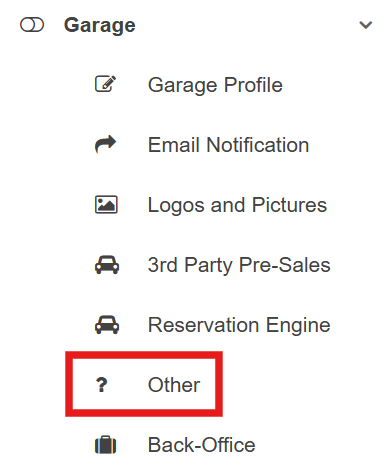
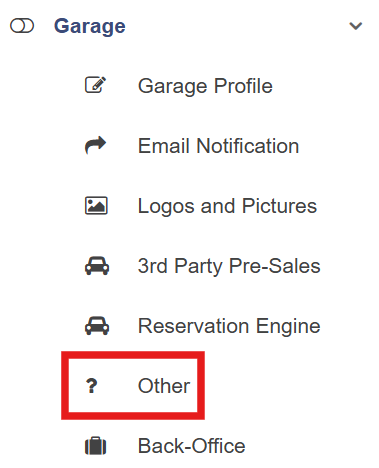
The Zone Assignment Period flag can be found in the Garage tab > Other option under the Other section.
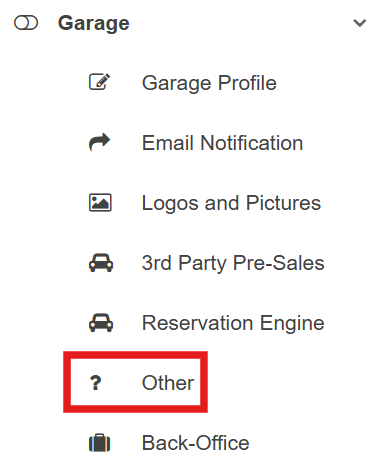
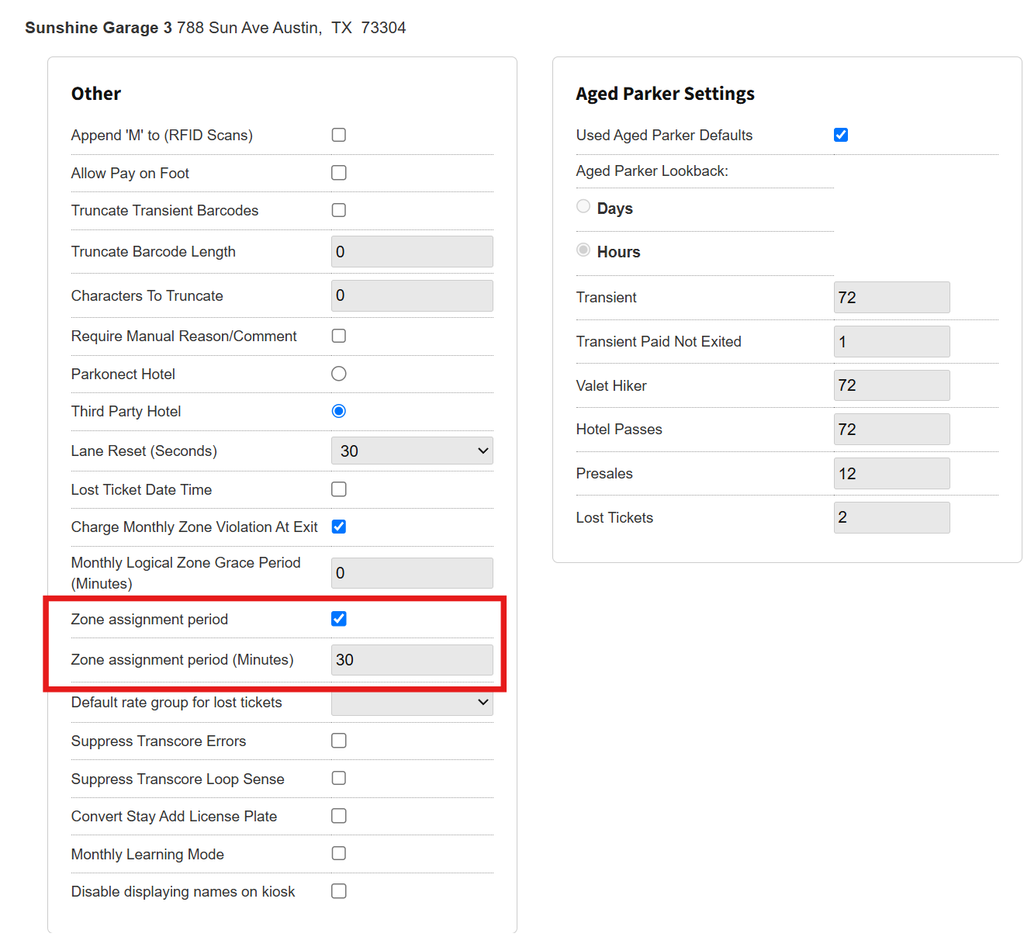
When activating the Zone Assignment Period flag, changes are made to all Logical Zones for the garage.

Enforcement #

To select enforcement options for monthly accounts in Logical Zones, enable Logical Zone Restrictions in the Account Information section on a monthly parker’s account.
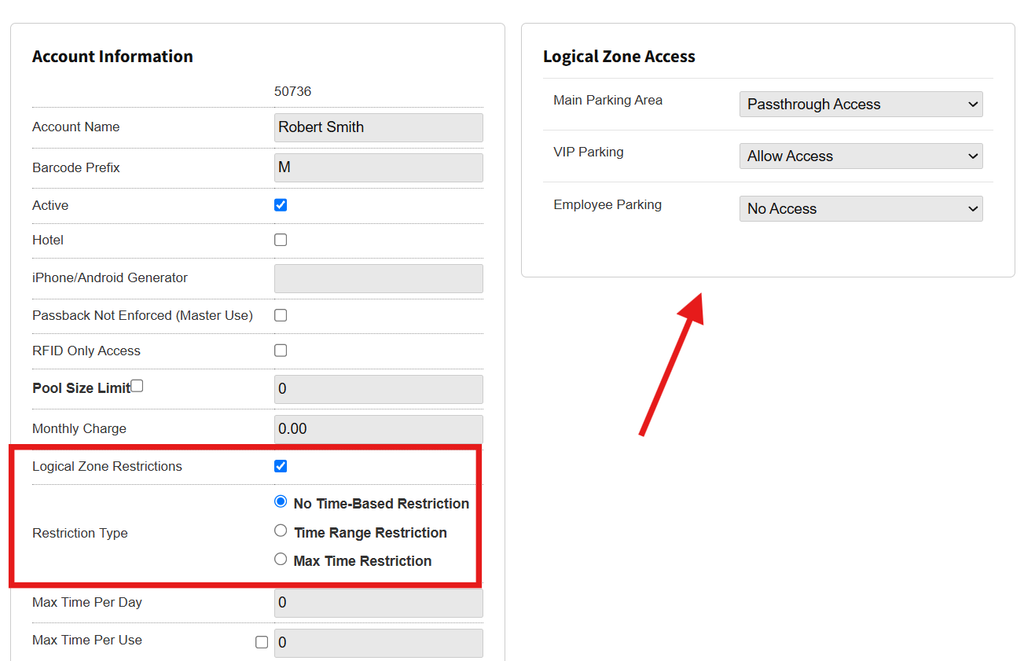
Overstaying triggers an overage charge at exit, which can be configured to be notified at exit (see Overage configuration section). All zone violations are automatically logged for reporting.

Select a Restriction Type #

Select only one of the following restriction types to accommodate the Parking Operator request.

No Time-based restriction #

This restriction type does not have a time-based setting such as the other options. The monthly parker is not limited to certain days of the week, hours, or parking duration. 

Time-Range Restriction #
  1. Selecting a Time Range Restriction will display a time selection along with an LZ zone selection section, where the parking operator can specify the times when the parker is allowed to park in the Logical Zone.
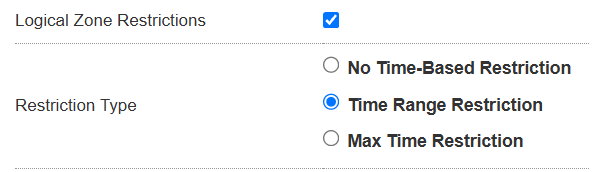
  1. Customize the desired start date and time, and the end day and time, along with Logical Zone access. 
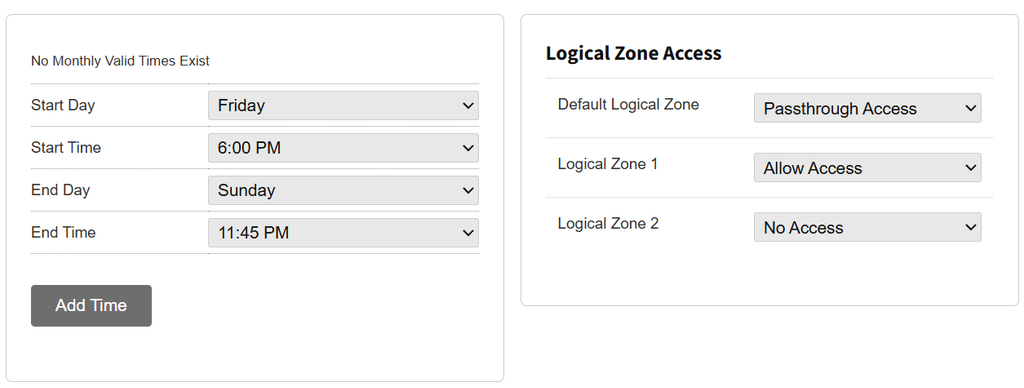
  1. To save the configuration, click the Add Time button. This will save the selected time frame and open a new configuration if the user wants to add another one.
Max Time Per Day #

Max time per day will allow the monthly parker to have a maximum time (minutes) selected by the operator, tied to the specific LZ from the selectable dropdowns.
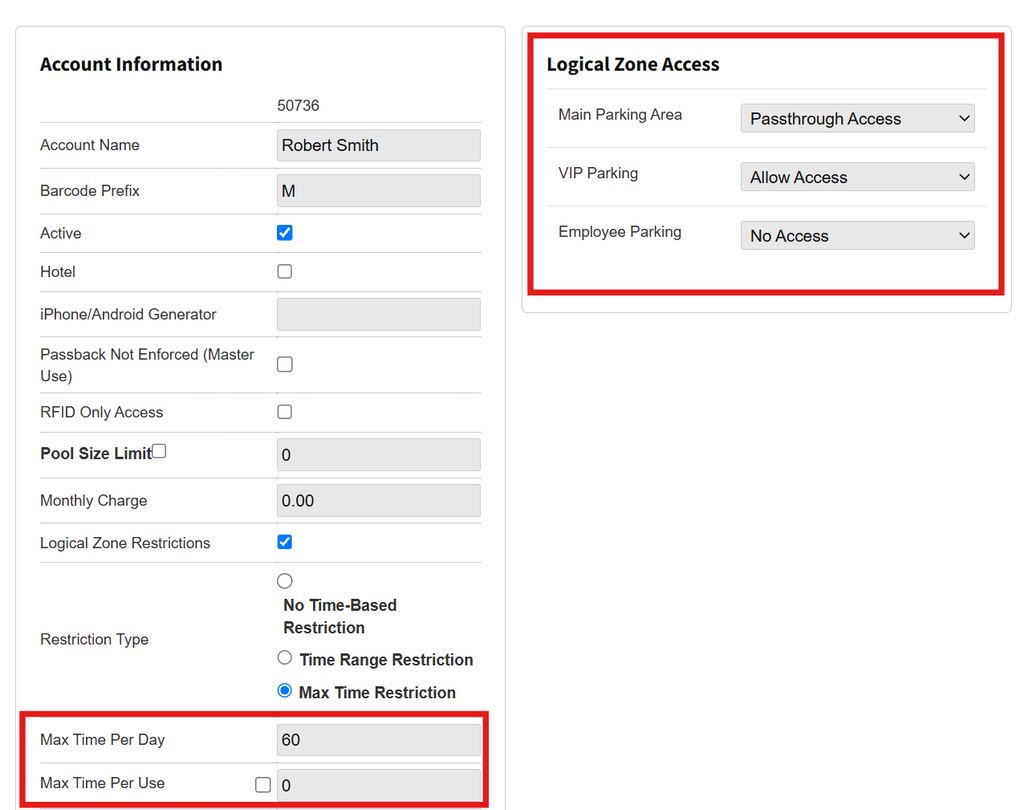
a grace period for zone transitioning can be selected in the Other section for the Garage Settings.

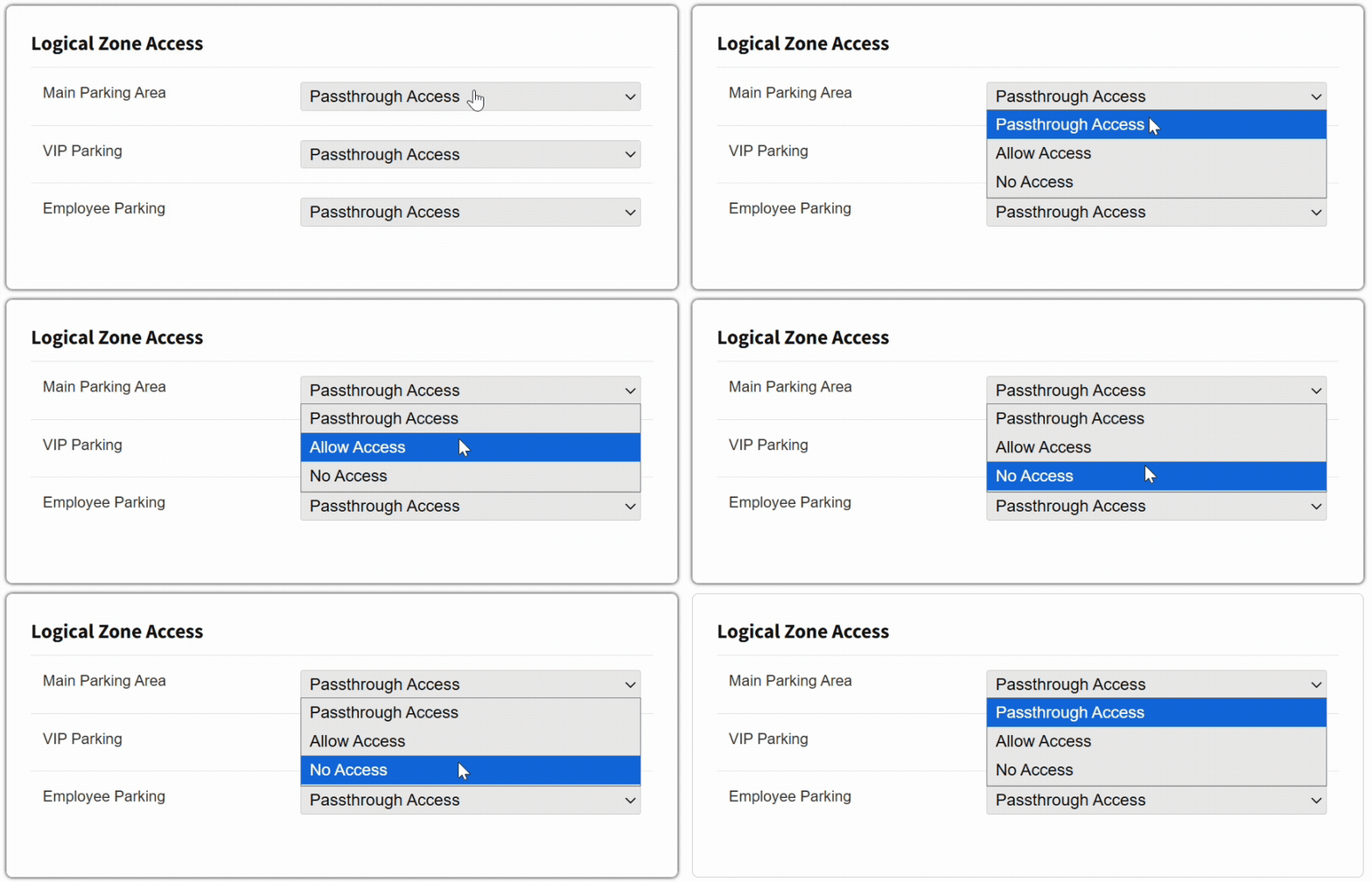
Logical Zone Access #

The Logical Zone Access menu allows setting access rules for each of the available Logical Zone Access, by selecting a restriction from the dropdown menu for each LZ previously configured for the garage. These can be paired with any of the available Restriction Types.

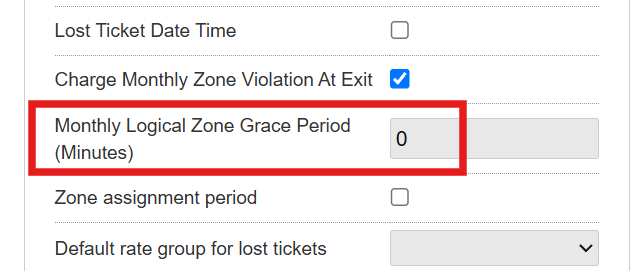
  • Passthrough: Parkers can enter/access a zone and then move to other zones, but they cannot park/stay longer than the “Monthly Logical Zone Grace Period” set in minutes threshold (Garage Settings) or another zone(s) they have access to without it being a zone violation.
  • Allow Access: Can access this logical zone.
  • No Access: No access to this logical zone.
If the “Monthly overage charge at exit” flag is not active (Garage Settings → Other) and Logical Zones are enabled, monthly parkers with overages will be able to leave the garage without paying at the exit lane.

If “Monthly overage charge at exit” is active, Monthly Parkers will have to pay any overages before exiting the garage.

Monthly Logical Zone Grace Period (Minutes) #

  1. To add a grace period to Logical Zones, go to the Other options in Garage Settings > select the desired grace period in the Monthly Logical Zone Grace Period (Minutes) field.
Parkonect and 3rd Party Presale Overages #

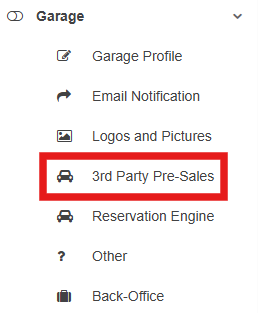
For Parkonect and third-party overage reservations, the Overage section can be found in the 3rd party Pre-sales option under the Garage tab.
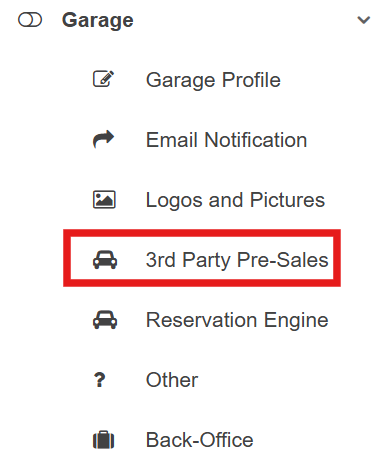
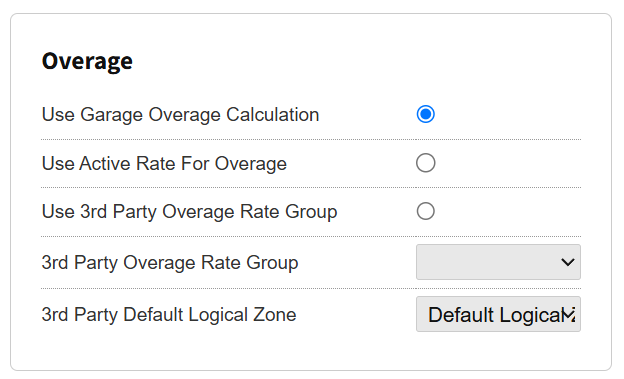
  • Use Garage Overage Calculation: Uses the default rate group for the garage.
  • Use Active Rate For Overage: When the parker enters, the system will stamp the rate group assigned at entry for overage.
  • Use 3rd Party Overage Rate Group: Allows the garage admin to assign the overage rate group manually from the dropdown list.
  • 3rd Party Overage Rate Group: Dropdown list for manually selected groups.
  • 3rd Party Default Logical Zone: Dropdown list for manually selected logical zones.
    • When marking the Use 3rd Party Overage Group flag, if no rate group or default logical zone is selected from the dropdowns, the system will choose the group and LZ that were selected as defaults in the Logical Zone and Rate Groups sections.

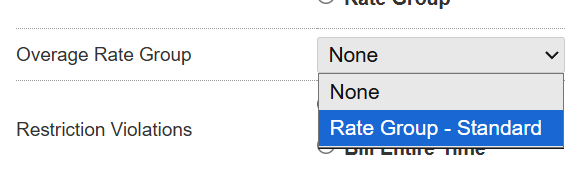
Overage groups can also be assigned to monthly accounts by going to the monthly accounts page and selecting the Rate Group from the Overage Rate Group dropdown.
Charge Monthly Zone Violation At Exit #

If this flag is checked, when a monthly parker has a logical zone violation and scans at the exit, the monthly parker will be charged at exit; if this flag is not checked, they will be let out at the exit, and then an email or text will be sent to the parker to collect the amount due for the violation.

  1. Go to the Other section for the Garage.
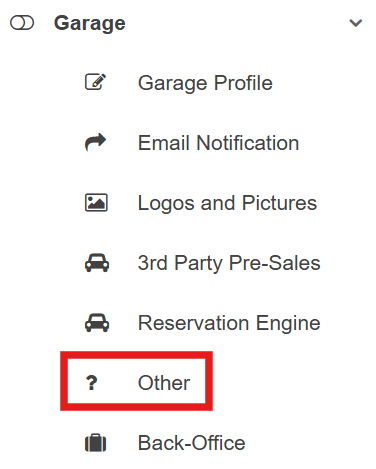
  1. The flag can be found in the Other category box.

Overage e-mail Alerts #

To notify operators of overage and zone violations incurred by parkers, the Overage Email Notifications flag must be checked.

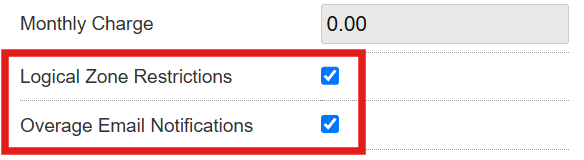
  1. The Logical Zone Restrictions and Overage Email Notifications flag must be enabled under the Accounts settings.
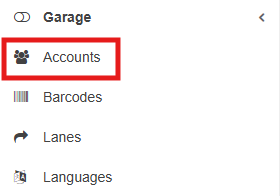
  1. The Overage Enforcement Mechanism (Rate Group) must be enabled.
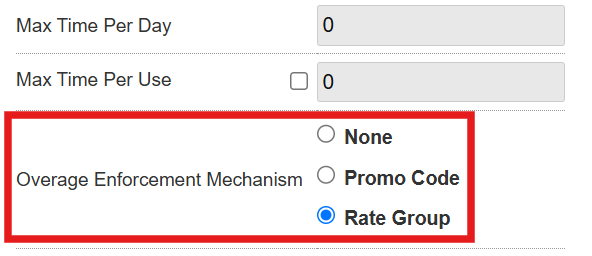
  1. Click the Update button at the top of the Account page. Note that changes will be made to all cardholders under the account.

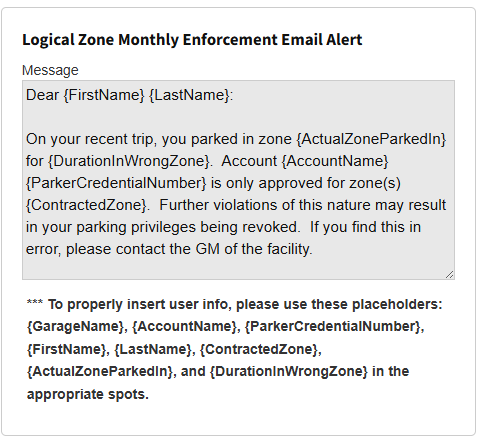
  1. Operators can use the template loaded by default or modify it. Overage email alerts can be configured in the Others section for the Garage Settings. 

The following information must be included in the email:

  • First name
  • Last name
  • Zone parked in
  • Account name
  • Parker credential number
  • Contracted zone
  • Duration in wrong zone
  • Violation Fee

Early Entry Cap #

Only Super Users can configure a set number of minutes to allow early entry for TPO’s (third-party orders). To activate this feature, admins must check the Enforce Early Entry Cap checkbox.

  1. Go to the Garage tab under Garage Settings > click Third-Party Presales.
  1. Check the Enforce Early Entry Cap option and enter the desired time.
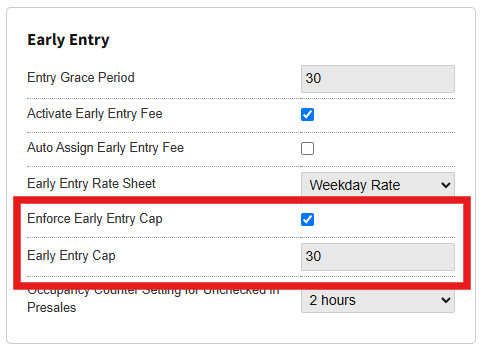
The early entry cap is configured to allow access to barcode scans and LPR entries, regardless of the Logical Zones module being active for the garage.

Parkonect recommends that the early entry cap be set between 4-6 hours, as any patron arriving more than 6 hours before a reservation should be manually handled. 

Did you find this article helpful?
Still stuck? How can we help?

Still stuck? How can we help?

Updated on September 3, 2026
Parkonect DTC with LAZ ConfigurationParkonect: Banner Ads Module 
In this article
  • Requirements
  • How to Configure
    • Modules 
      • Logical Zones Module
    • Adding Logical Zones to the Garage
    • Rates
      • Rate Sheets
      • Rate Groups
      • Delete System-Generated Rate Groups 
    • Pin Rate Sheet on Entry Module - Optional
    • Assigning Lanes
      • Transfer Stations
    • Enforcement
      • Select a Restriction Type
        • No Time-based restriction
        • Time-Range Restriction
        • Max Time Per Day
        • Logical Zone Access
      • Monthly Logical Zone Grace Period (Minutes)
    • Parkonect and 3rd Party Presale Overages
    • Charge Monthly Zone Violation At Exit
      • Overage e-mail Alerts
    • Early Entry Cap
Royal Elementor Kit Theme by WP Royal.