
The Parkonect Update Scheduler V2 feature in the PK Admin portal allows users to schedule firmware updates (4.10 or later) for devices. You can select a specific firmware version and set a date and time for the update to occur.
Use Update SchedulerV2 For Firmware Versions 4.10.00 or later
Requirements #
- PK Admin user role: Super user
- Updating firmware to ver 4.10 or later (for prior versions, use Update Scheduler)
- The device MUST be enrolled in Graylog so it shows in the Update Scheduler V2.
- If the device is on a version prior to 4.10, the SOP from Support is to upgrade the device on site to a firmware version that is 4.10 or later with a USB stick, then enrolling into Graylog.
- Reach out to the Support team to enroll the devices into Graylog.
- Devices can be upgraded to 4.10+ using update scheduler v1, but there is a chance to brick the device and should not be done without consent from the Parking Operation.
- If the device is on a version prior to 4.10, the SOP from Support is to upgrade the device on site to a firmware version that is 4.10 or later with a USB stick, then enrolling into Graylog.
Accessing the Update Scheduler #
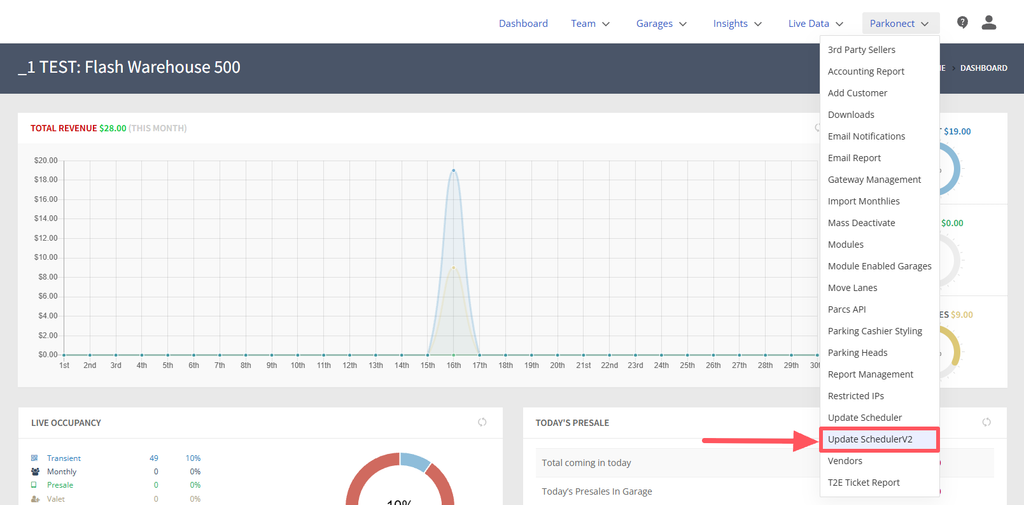
1. Log in to the Parkonect Admin portal.
2. Navigate to the Parkonect tab.
3. Select the “Update SchedulerV2” option.
Installing a Firmware Update #
1. Select the Garage from the dropdown menu in the top-right corner.

2. Select the Lane to update by clicking the red + icon.
3. Click Install on the firmware version you wish to install.
- Use this option to install immediately.
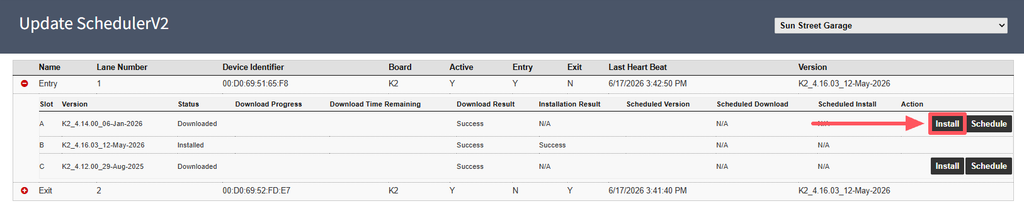
4. Successfully scheduled install.

Scheduling a Firmware Update #
1. Select the Garage from the dropdown menu in the top-right corner.

2. Select the Lane to update by clicking the red + icon.
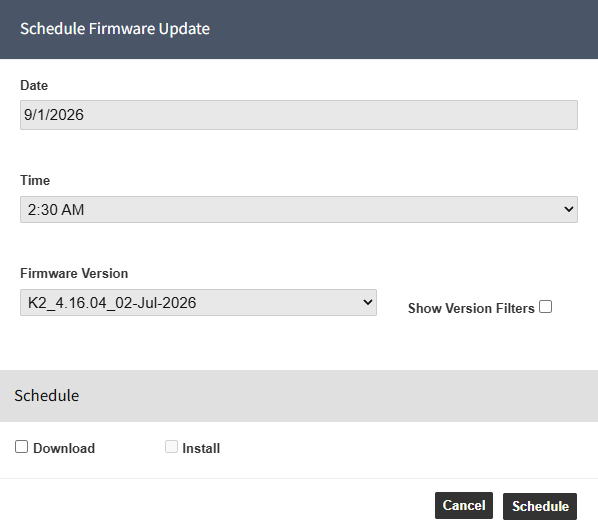
3. Click Schedule on the firmware version you wish to install.

4. Set Date and Time
- If you make a time and date selection that is prior to the current date and time the equipment starts updating immediately.
5. Select Firmware Version:
- Choose the desired firmware version from the dropdown menu.
6. Select if you’re scheduling a Download or an Install (or both)
7. Confirm Schedule:
- Review the selected firmware version, date, and time.
- Click the Schedule button
Monitoring Scheduled Updates #
1. Check the update status:
- Navigate to the “Update Scheduler” section.
- Status:
- Downloading: The kiosk is downloading the update file from the cloud
- Installing: The kiosk is installing the update file
- Ready: The update has been installed and the kiosk is ready to use.
Canceling Scheduled Updates #
1. Select Update to Cancel:
- Find the scheduled update you want to cancel in the list.
2. Cancel Update:
- Select the “Cancel” option for that update.
- Confirm the cancellation.
Troubleshooting #
- Update Failed:
- Check the update status for error messages.
- Ensure the device has a stable internet connection.
- Schedule Not Saved:
- Verify all fields are correctly filled before confirming.
- Refresh the page and try again.
Notes #
- Ensure the device is powered on and connected to the internet during the scheduled update time.
- Updates may take some time to complete. Consider closing the lane or running the update during non-business hours.
- Avoid interrupting the update process.